


Published: February 2026 · Last updated: April 2026
I knew Zoom from the pandemic days. It was the verb we all lived by. Webex? Not really. Then I stepped into the enterprise world, and Webex was everywhere, like it had been quietly running corporate meetings this whole time. Now in 2025, the question isn’t whether you need a video conferencing tool; it’s which one is your subscription.
So I tested Webex vs. Zoom side by side using the same real-world tasks: high-stakes client meetings, scheduling, 1:1s, screen sharing, chat and collaboration features, recording, and basic admin/security settings to see what matters in practice.
TL;DR: If you want the simplest, most familiar meeting experience, Zoom usually wins. Webex tends to shine when enterprise controls and IT-friendly setup matter more.
| Feature | Webex Suite | Zoom (Zoom Workplace) |
| G2 rating | 4.2/5 | 4.5/5 |
| Primary user base | Enterprise (51% of G2 reviews) | Small business (51% of G2 reviews) |
| Free plan | Unlimited meetings Participants: 100 Meeting duration: 50 minutes per meeting Unlimited whiteboards, screensharing |
Unlimited meetings Participants: 100 Meeting duration: 40 minutes per meeting Closed captions, screensharing, limited whiteboards |
| Pricing and plans | Webex Free Webex Meet: $12/user/month Webex Suite: $20/user/month Webex Enterprise: Custom |
Comes with Zoom Workplace Free plan available Workplace Pro: $13.33/user/month Workplace Business: $18.33/user/month Enterprise: Custom |
| Participant capacity | Free: 100 Meet: 200 Suite: 200 Enterprise: 1,000 |
Free: 100 Pro: 100 Business: 300 Enterprise: 500+ |
| Meeting duration | Free: 50 minutes Paid plan: 24 hours |
Free: 40 minutes Paid plan: 30 hours |
| Ease of use | G2 user rating: 8.7/10 Feels more “enterprise-built.” More settings, more controls, and a slightly steeper learning curve for new users. |
G2 user rating: 9.2/10 Comparatively, more intuitive out of the gate. Cleaner user interface (UI) and fewer steps for common tasks. |
| Video call quality and stability | Very stable and reliable, especially in large meetings and enterprise networks. Performs well across mixed devices and constrained bandwidth environments. | Consistently strong performance. Known for reliable connections and minimal disruption during meetings. |
| Video polish (backgrounds, touch-ups) | Professional and functional rather than flashy. | Wider range of virtual backgrounds and visual enhancements, giving meetings a more polished, “produced” look. |
| Live captions | Live captions available on paid plans; supports English, French, German, and Spanish. | Live captions are available for all users, with translated captions and additional language support unlocked on paid plans. |
| Screen sharing | Highly granular screen-sharing controls, including sharing specific applications, files, whiteboards, and secondary cameras. | More advanced share controls in terms of presenter layouts, portion of screen; great for demos and guided walkthroughs. |
| AI meeting notes | Available for paid plans as Webex AI assistant. Generates meeting summaries, highlights action items, drafts messages, and supports real-time translation features. | 3 in-meeting uses per month for free plan; no limits on paid plan. Zoom AI Companion creates meeting summaries/action items, helps with in-meeting chats, and offers stronger templating and agentic features. |
| Mobile experience | Robust, enterprise-grade mobile app with advanced host and participant controls. Slightly heavier interface, but reliable for managing meetings on the go. | Fully featured mobile app that mirrors much of the desktop experience, especially useful when you need advanced controls away from your desk. |
| Host meeting controls | Enterprise-grade host/co-host controls with deeper governance and security configuration for large or regulated meetings. | Best-in-class day-to-day host controls — quick, intuitive tools to manage participants and keep meetings moving. |
Note: Both Webex and Zoom roll out new updates to their video conferencing software. The details here reflect the most current capabilities and pricing as of April 2026, but may change over time.
For most companies, both are secure enough for everyday meetings. Webex has the edge in regulated, compliance-first environments. It uses a zero-trust model, end-to-end encryption for messages and files, TLS media encryption by default, and supports DoD IL5, FedRAMP High, HIPAA, and ISO 27001. Zoom's default encryption is AES-256 GCM in transit, with optional meeting E2EE as an opt-in setting, a flexibility choice rather than a gap, since enabling E2EE disables cloud recording, live transcription, and some AI features.
Zoom also supports HIPAA, GDPR, FedRAMP Moderate, and strong host controls, making it a solid option for mainstream business use. Choose Webex for strict compliance and governance requirements; choose Zoom for strong baseline security with more flexibility and ease of use.
Now, both platforms do the exact same thing: they let you talk to people on a screen. But once you peel back the interface, they have very different philosophies.
You see the differences in the user interface, the backend security, and the extra tools they pack in. And honestly? Those differences are what separate a Zoom shop from a Webex shop.
Differences aside, both platforms nail the basics. If you just need to see faces, share a screen, and record the conversation without a headache, you honestly can't go wrong with either one.
For compliance-heavy environments with strict IT governance, Webex is the stronger enterprise fit — 51% of its G2 reviewers are enterprise users, with deep adoption in financial services and healthcare, zero-trust architecture, granular policy controls, and SSO/SAML support.
Zoom is the better choice when adoption and ease of management matter as much as governance, scoring higher on ease of use (92% vs. 89%), ease of setup (92% vs. 87%), and ease of admin (91% vs. 87%). Large organizations typically choose Webex for compliance and Cisco ecosystem integration; Zoom wins where smoother onboarding and day-to-day usability drive adoption.
Webex is the stronger fit for enterprises with strict compliance requirements. Zoom is the better default for teams that prioritize ease of use and external meeting experience.
Choose Webex for regulated industries, enterprise IT requirements, and compliance-driven environments. Choose Zoom for ease of use, external meetings, and a familiar experience for clients and partners.
I’ve used Zoom on and off for years — across free and paid tiers, in both personal and work settings. Webex was a new territory for me. For this comparison, I wanted a fresh, apples-to-apples look, so I ran both tools through the same routine for a full week using free plans inside my normal workflow: huddles, 1:1s, etc.
I evaluated them on the practical aspects you only notice when you’re relying on a video conferencing tool every day:
To balance my POV with other perspectives of users with paid plans, I also cross-checked what I saw against G2 reviews to understand how other users describe their experience.
Disclaimer: I shared my experience testing the two tools as of January 2025. If you read this after a few months, some features and functionality might have evolved. The companies will be able to give you the most up-to-date information.
Below, I’ve broken down the showdown into the specific moments that make or break a workday. Here is what stood out, what annoyed me, and which tool actually won each round.
At a basic level, getting a meeting on the calendar is equally straightforward in both tools. But differences show up quickly. Webex was helpful enough to warn me that on a free account, it wouldn't email my guests for me. Zoom stayed quiet, but the result was the same: I ultimately had to copy-paste the invite details myself.
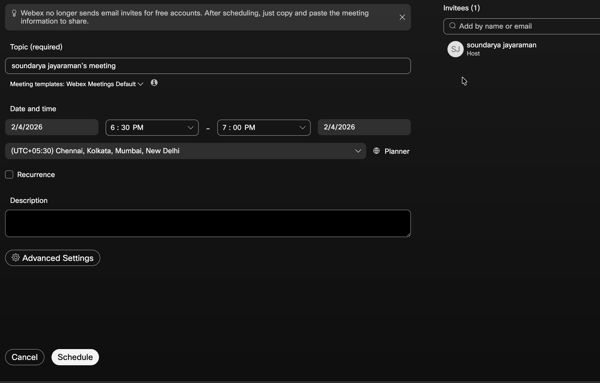
The real upgrade happens when you connect your calendar (Google Workspace/Outlook). And the manual labor is no longer there. You can book a meeting, add guests, and send invites in one flow without ever opening the video apps.
Beyond just picking a time, both tools let me play gatekeeper for the meetings I set up, but the friction levels differ. In Webex, I had to click into Advanced Options to really customize the environment like setting specific reminder times, muting participants on entry, or configuring the lobby. It feels powerful, but it’s tucked away in a separate menu.
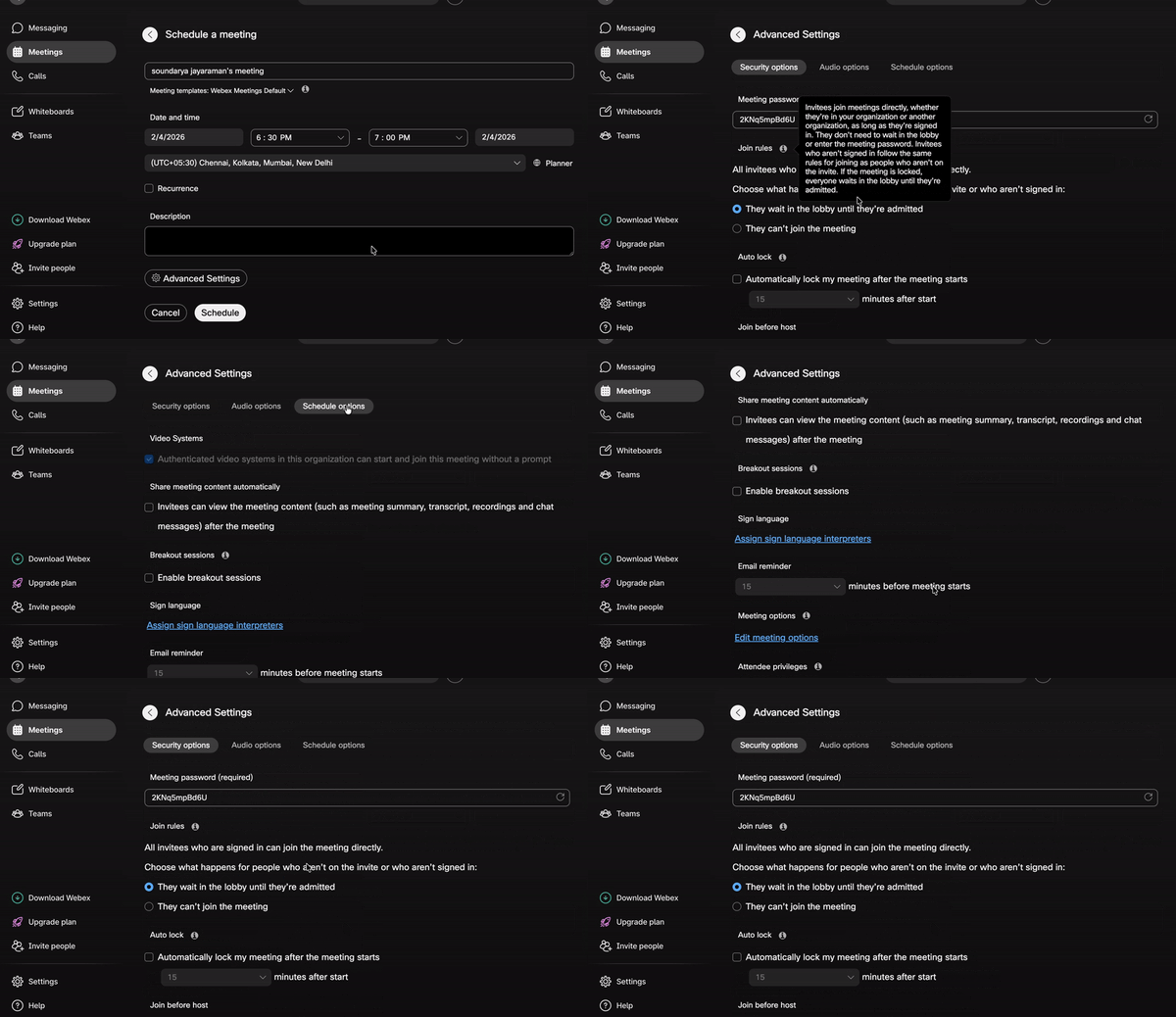
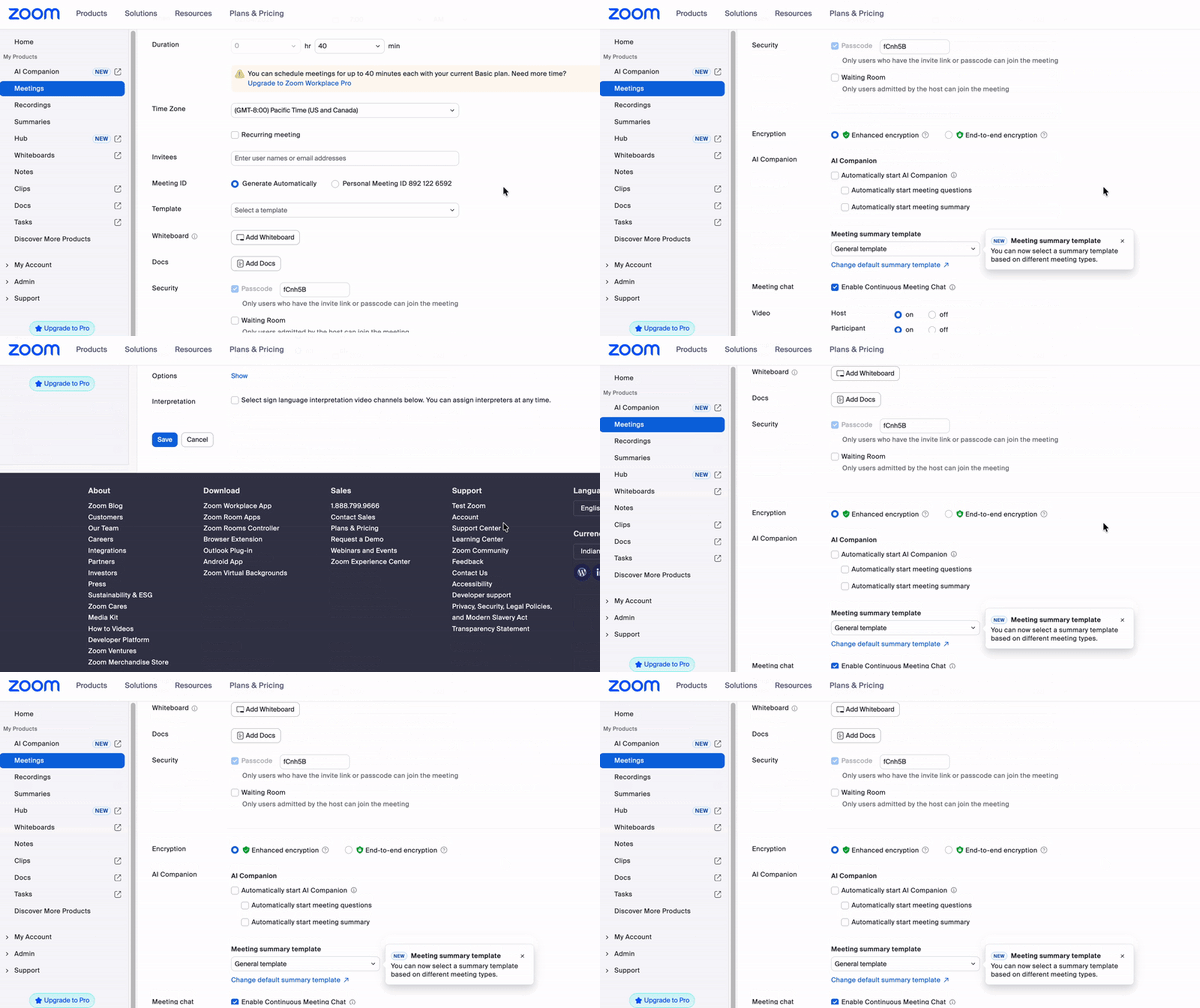
Zoom handles most of these same controls (like mute-on-entry) but presents them right on the main screen as simple checkboxes under options. I didn't have to navigate a second or third tab to find them; I just ticked the boxes as I scrolled down. It’s a small UI choice, but it made setting up a secure call feel significantly faster.
And in terms of joining any calls, I could join both Webex and Zoom calls from the browser itself, though downloading the app gives more functionality, and if you’re going to be a regular user of either of the tools, it’s better to download and use the respective app.
So, while scheduling is a tie, setup control feels a little different. Zoom makes meeting rules quicker to adjust because most options are right there on the same page, while Webex organizes more of them inside Advanced Options across a few tabs, still easy to configure, just slightly less scan-and-set in the moment.
Winner: Zoom
Webex Suite: 8.7/10
Zoom Workplace: 8.9/10
Users rate Zoom Workplace slightly higher for scheduling meetings.
Call consistency and audio, video quality were strong on both tools in my week of testing, and I didn’t run into anything that felt like a dealbreaker. Most of the time, both gave me stable video and clear audio, especially on normal Wi-Fi and office networks. Where I started noticing personality differences was in the quality controls each tool gives you.
Webex actually surprised me on the audio front. Its smart audio settings felt genuinely useful rather than just decorative. I could toggle between noise removal, optimizing for just my voice, or even a specific music mode, and in practice, that noise removal was the standout. It is the kind of feature you don't think about until you are in a meeting with background chaos, and suddenly you are very glad it exists to create that bubble of silence around you.
Zoom also does a solid job on audio. It has auto noise suppression, and I liked that it didn’t treat it as a one-size-fits-all setting — I could actually choose the level of suppression I wanted, depending on whether I was dealing with light background noise or something more chaotic.
On the video side, both tools cover the basics: a few built-in virtual backgrounds, a simple blur option, and the ability to add your own background if you don’t like the defaults. Webex keeps things straightforward, but it doesn’t feel barebones. I could touch up my appearance, correct lighting, and manually adjust brightness, contrast, and sharpness, plus explicitly choose my camera resolution (360p, 720p, or 1080p). I liked that these controls made video quality feel intentional and predictable, especially in more professional settings.
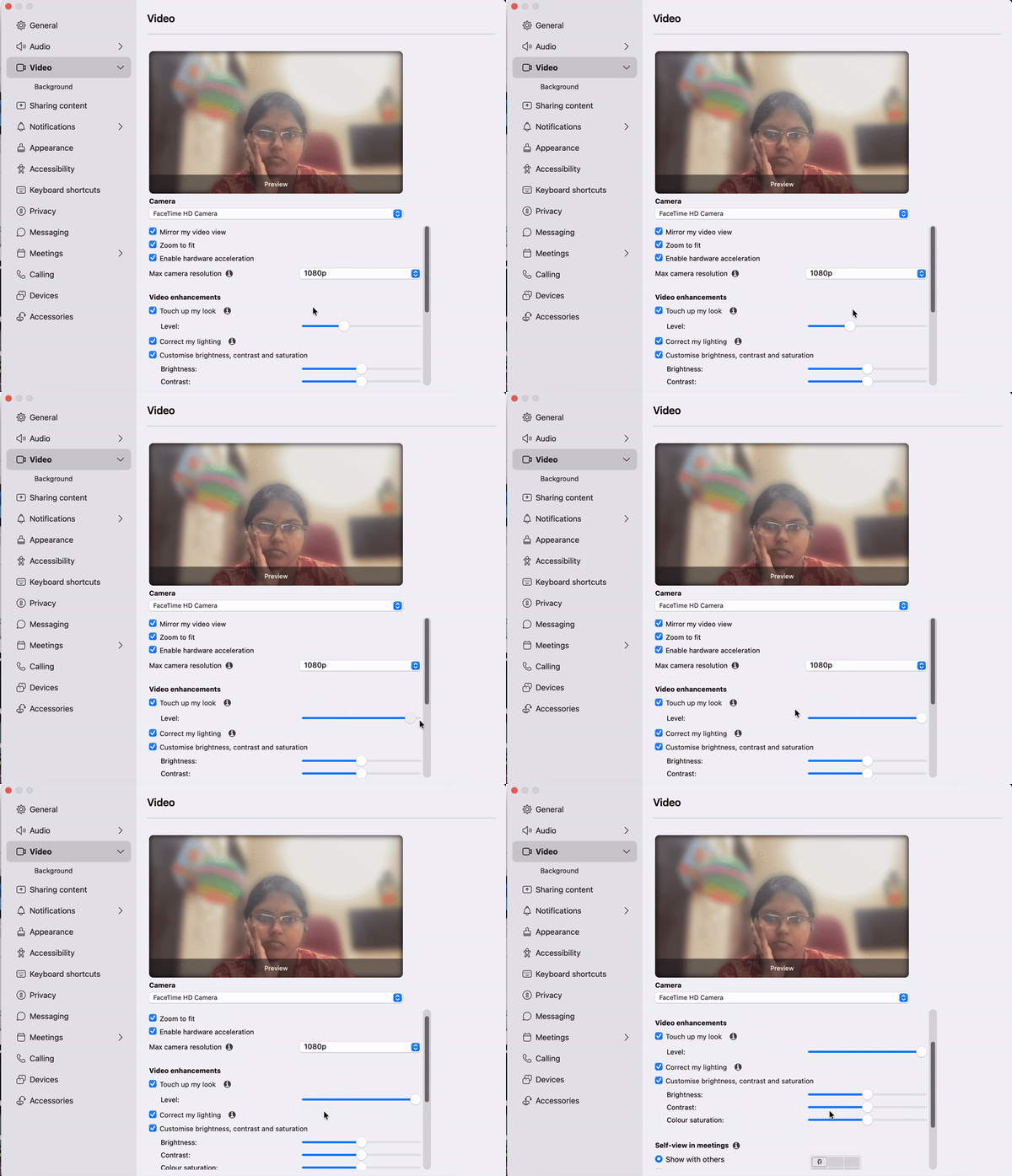
Zoom gives you most of the same fundamentals, but with a little more room to play. I liked that things like auto-framing and portrait lighting can make you look put together with almost zero effort, and then there’s the extra layer of filters, studio effects, and AI avatars. Those add-ons are genuinely fun (and perfect for icebreakers or low-stakes team sessions), but they’re not the deciding factor for me in a strictly professional setup.
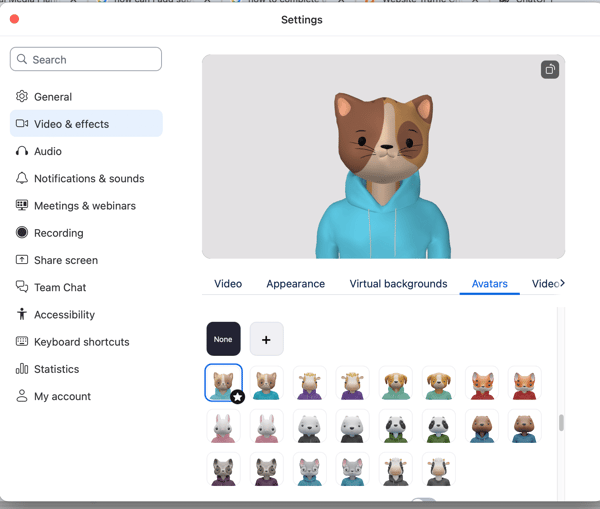
And if you really want that level of visual experimentation on Webex, you can still get there with third-party tools, you’re just not getting it baked into the product the same way.
Overall, both platforms handled reliability well, so this is a tie for me.
Winner: Split
Webex Suite: 8.7/10
Zoom Workplace: 8.9/10
G2 users rate Zoom slightly higher for video conferencing capabilities, performance, and reliability.
Screen sharing and collaboration are where these apps stop being just video phones and start being workspaces. Whether I was demoing a product or redlining a document, I wanted to see if I could collaborate naturally, or if the meeting would devolve into the dreaded technical fumble of “Can everyone see my screen?”.
Webex gave me a lot of flexibility right away. Beyond the usual share an app flow, I could share a specific application, a section of my screen, or even upload a file. It also let me get more advanced when I needed it: I could share computer audio, content from a second camera, a whiteboard, a locally stored video, or even mirror an iPhone/iPad screen using a cable.
/Webex%20screensharing.webp?width=600&height=420&name=Webex%20screensharing.webp)
I also liked that I could fine-tune how the share behaved — adjusting resolution and frame rate depending on whether I was sharing something text-heavy (like a doc) versus something with motion (like a video).
And the practical stuff worked well too: the stop/pause control showing exactly what I was sharing made it easy to stay in control mid-call. And the feature to superimpose myself while sharing a screen is super-helpful, especially if livestreaming.
The one thing I genuinely missed here was the ability to share a single browser tab, because when you’re someone who has 50 tabs and multiple windows open, “share the whole browser window” is a risky ask.
Zoom’s screen sharing felt a bit more meticulous in the best way. I could share apps, files, my browser, or any open window, and when I had a million windows open, Zoom made it easier to pick the right one by showing the windows clearly as I made my selection.
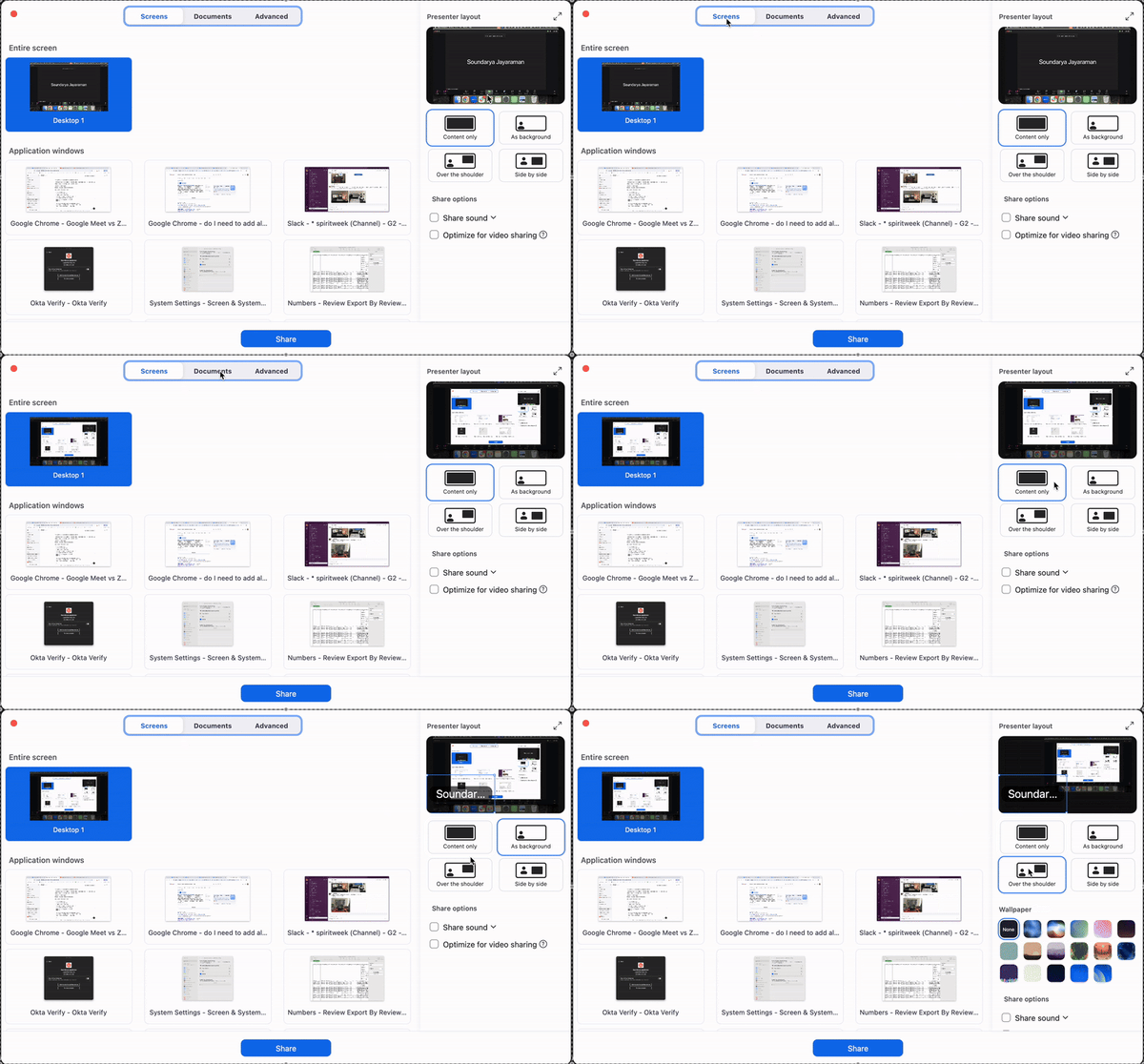
It also expanded beyond basic sharing into more collaborative options: documents, whiteboards, and cloud files from places like Google Drive and Dropbox, plus the usual extras like video files, a second camera, slides as a virtual background, a portion of the screen, and iPhone/iPad sharing (via AirPlay or cable).
Both tools also nailed the little collaboration detail that matters mid-call: annotation. In both Webex and Zoom, I could mark up what I was sharing in real time — highlighting sections, drawing quick callouts, and guiding someone’s attention without constantly saying “look at the top-right corner.” It’s a small feature, but when you’re doing walkthroughs or reviews, it makes screen sharing feel way more interactive.
What really stood out to me in Zoom, though, was Presenter Layouts. It included “content on screen + tiny talking head,” too. But I had more options. As a presenter, I could choose exactly how I showed up next to what I was sharing — side-by-side, over-the-shoulder, or content-only.
So, both are strong for screen sharing and real-time collaboration (especially annotation), but Zoom edges ahead for presentation polish and control.
Winner: Zoom
Webex Suite: 9.0/10
Zoom Workplace: 9.2/10
G2 users rate Zoom slightly higher for screen sharing capabilities.
For in-meeting chat, I was looking for one thing: can I share links, notes, and quick callouts without derailing the meeting or switching to another team chat app?
Webex’s in-meeting chat was genuinely solid. I could message everyone or start private chats, and the editor felt more capable than I expected — text formatting, bullet or numbered lists, links, even heading-style options (H1/H2). I could also drop in GIFs and emojis, @mention specific people, and keep the conversation organized without it feeling like a bare-bones chat box.
/Webex%20in%20meeting%20chat.webp?width=400&height=467&name=Webex%20in%20meeting%20chat.webp)
Reactions were limited overall, but Webex did have a few that made me smile, like the “Speed up” (hare) and “Slow down” (tortoise). I also liked the Step away and Back to meeting status-style reactions, though I did have to dig into a menu to get these two options. My one real limitation: I couldn’t upload a file directly from my computer or a cloud storage into the meeting chat.
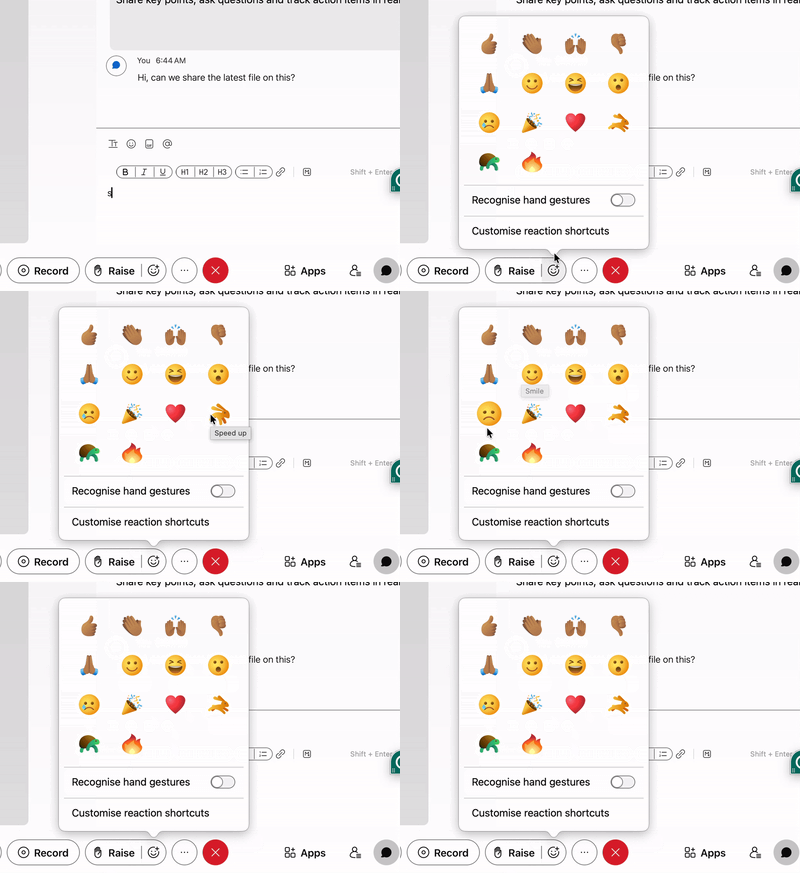
Zoom’s in-meeting chat covered everything Webex did and then went a step further. I could @mention people, upload files, and even drop screenshots right into the chat without thinking too hard. The formatting also felt more “power-user,” with options like quotes and indentation that made it easier to share structured notes mid-call. It couldn’t send GIFs natively as I did on Webex, but there are third-party app integrations that could help with that.
On the whole, both chats do the job at a high level, but Zoom felt more complete and frictionless, so it gets the edge for me here.
Winner: Zoom
For AI meeting notes, I wanted something simple: can the assistant help me keep up during the meeting and leave me with a clean summary afterward, without me turning into the designated AI note-taker?
On the Zoom free version, I could get a taste of Zoom AI Companion in a way that felt immediately useful, especially for catching up mid-meeting and turning a fast-moving conversation into something I could scan later. The summaries were clear enough that I didn’t feel like I had to rewatch the entire call just to pull out decisions or next steps. The transcripts and other AI features are available on a paid plan.
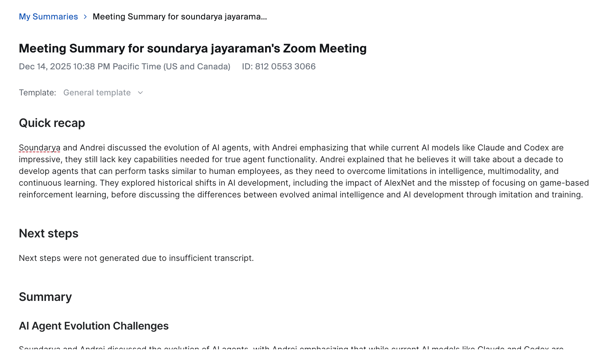
With Webex, I wasn’t able to test the AI meeting assistant hands-on in the same way in my setup. Even so, when I looked at what other users describe on G2 and how Cisco positions the assistant, the intent is clear: it’s designed to help with meeting productivity through things like summaries, highlights, action items, and language/communication support once those features are enabled in your environment.
There’s also a version of AI-generated recaps tied to recordings that can produce chapters, notes, and action items, depending on your Webex platform and settings. And if your team already lives inside Cisco for messaging, meetings, and calling, the AI assistant is positioned as a connective layer across those workflows, helping you make sense of conversations after the fact, rather than just during the meeting itself.
So, based on the capabilities and feature set I saw, I’d call this a tie. Both Webex and Zoom offer AI features aimed at the same core outcomes like meeting summaries, key highlights, action items, and faster catch-up so the difference is less about what they can do and more about how those features show up across plans and workflows.
Winner: Split
Webex Suite: 9.4/10
Zoom Workplace: 8.9/10
G2 users rate Zoom slightly higher for AI meeting assistant features.
Security and host controls are one of the few areas where I can confidently say that both Zoom and Webex check the enterprise-ready box, but they feel very different in how they deliver it.
On the pure security baseline, these two are effectively identical. Both platforms use strong encryption by default to protect your data in transit, and both offer end-to-end encryption (E2EE) options.
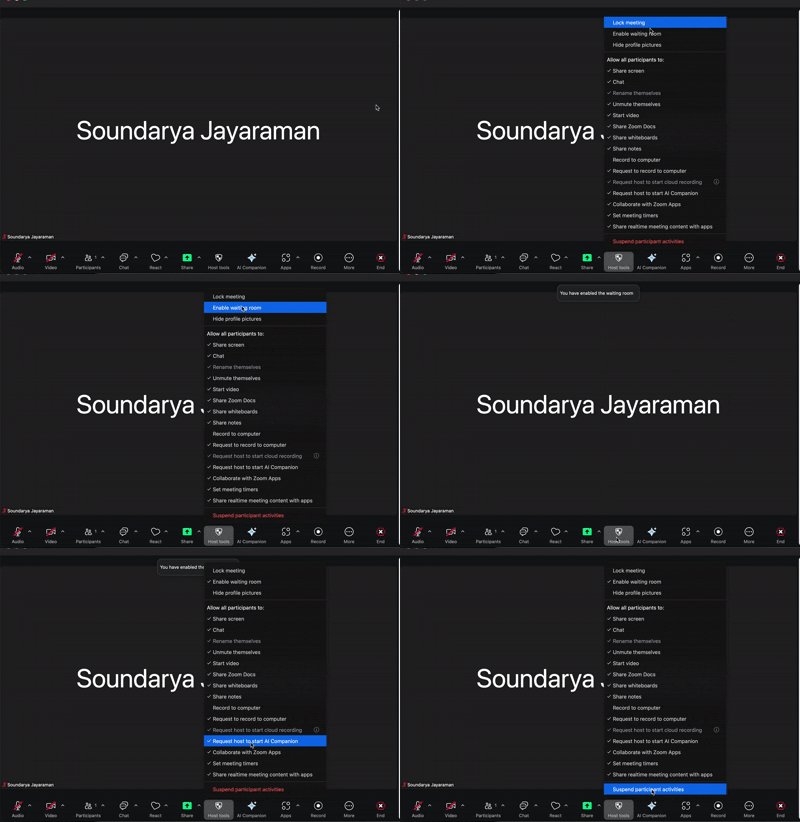
Where things got real for me was the host controls during the meeting. On Zoom, security felt like a handy toolkit I could reach instantly. The Security shield is always visible in the control bar, and I liked how quickly I could react if something felt off: lock the meeting, manage the waiting room, or hit “Suspend participant activities,” which basically acts like a panic button to pause the room.
With Webex, I actually liked how clearly it spelled out participant controls once I dug into Meeting options. It gave me a simple checklist of what attendees could and couldn’t do — turn on video, use chat, send reactions (and even show names with reactions), raise hands, view the participant list, share content, request remote control, annotate, and even start Slido for polling and Q&A.
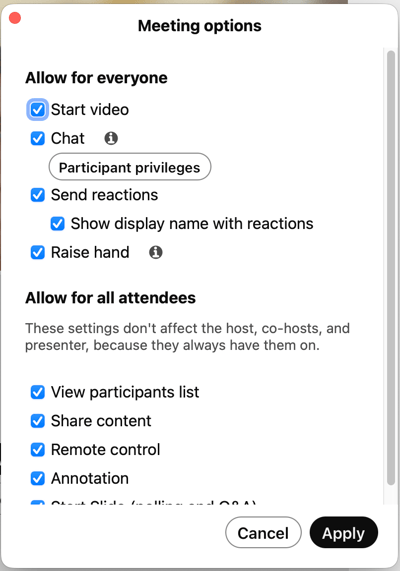
Instead of feeling buried, it felt structured: a straightforward way to shape how interactive or locked-down I wanted the meeting to be, without having to micromanage permissions in the moment.
At the end, both security and host control were actually a tie, according to me. Zoom makes rapid, in-the-moment security actions feel effortless, while Webex makes participant permissions feel more structured and deliberate, especially if you want to define exactly what attendees can do from the start.
Winner: Split
At some point, all the feature talk runs into a simple question: “Okay, but what am I actually paying for?” For me, the answer looks a little different for Webex and Zoom, because neither of them is really a standalone meetings product anymore.
Zoom is selling a software suite designed to make your team move faster across meetings and async work, while Webex feels more like an enterprise communications stack — meetings plus messaging, plus calling, plus the kind of room and hardware story big offices care about. In other words, Zoom’s value pitch is “everything your team needs to collaborate in one place,” and Webex’s is “everything your business needs to communicate — on calls, in meetings, and in rooms.”
Take a look at the pricing options both offer:
| Plan | Webex (via Google Workspace) | Zoom Workplace |
| Free plan | Unlimited meetings Participants: 100 Meeting duration: 40 minutes per meeting |
Unlimited meetings Participants: 100 Meeting duration: 40 minutes per group meeting |
| Entry plan | Webex Meet: $12/user/month | Zoom Workplace Pro: $13.33/user/month |
| Mid-tier plan | Webex Suite: $20/user/month | Workplace Business: $18.33/user/month |
| Enterprise | Enterprise: Custom pricing | Enterprise: Custom pricing |
On the free plan, the experience is essentially a draw. Both Webex and Zoom let me run unlimited meetings with up to 100 participants and a 40-minute cap per meeting. For quick check-ins or lightweight team calls, neither felt meaningfully restrictive.
As you move into paid tiers, the story diverges more in what you unlock. Zoom’s paid plans bump up participant capacity, extend meeting durations (up to 30 hours in my testing), and bring in collaboration perks like Zoom Docs, Tasks, and Clips alongside meetings. Webex’s tiering also increases capacity (up to 1,000 for enterprise), extends meeting durations (24 hours on paid plans), and adds suite features like calling, messaging, and more admin controls.
And value, of course, depends on your needs. If you’re primarily using meetings and a few collaboration add-ons, Zoom’s bundled productivity features can feel like extra without a massive price jump. Zoom also offers bundles that pair Workplace with Zoom Phone (for teams that want meetings and cloud calling together), which is worth keeping in mind as you compare overall value.
On the Webex side, the combined suite feels like more of an all-in-one communication and collaboration platform, so if you already need messaging, calling, and meeting tools in one place, like a UCaaS platform, Webex’s pricing starts to feel efficient rather than just expensive.
Overall, there isn’t a clear winner on cost alone. Zoom tends to feel more cost-efficient if your primary use case is meetings plus lightweight collaboration. Webex starts to make more sense if you’re looking at meetings as one piece of a broader enterprise communication stack. The value really depends on whether you’re paying for just meetings or for a more all-in-one suite.
Winner: Split
Here’s a table showing all my evaluations with the winner and the reason.
| Test | Winner | Why |
| Setup and scheduling | Zoom🏆 | Both are easy to schedule, especially with calendar integrations, but Zoom surfaces key meeting controls directly on the scheduling screen, making setup faster without digging into extra menus. |
| Call consistency and audio and video quality | Split | Both were stable and professional-grade in my testing. Webex stood out for Smart Audio, while Zoom offered more creative video options (filters/effects/avatars). |
| Screen sharing and collaboration while presenting | Zoom🏆 | Webex offers deep sharing controls, but Zoom’s window/tab selection and Presenter Layouts made sharing and presenting feel more intentional and polished. |
| In-meeting chat and engagement | Zoom🏆 | Both support rich chat and reactions, but Zoom pulled ahead with file uploads, screenshots, and more advanced formatting that made chat more useful mid-meeting. |
| AI assistants and meeting notes | Split | On capabilities, both support summaries, highlights, and action items. |
| Security and host control | Split | Security fundamentals are strong on both. Zoom excels at quick, in-the-moment host actions, while Webex offers more structured participant control and enterprise-style governance. |
| Pricing and value | Split | Pricing is competitive across tiers. Zoom’s value shows up in its broader collaboration bundle, while Webex’s value comes from its enterprise communications depth. |
Webex Suite and Zoom Workplace are in #3 and #4 positions on the G2 Grid for Video Conferencing software on the basis of G2 score. I also reviewed data on G2 to see how real users rate Webex Suite and Zoom Workplace. Here’s what stood out:
Curious how other leading video conferencing tools compare with Zoom? Read our in-depth comparisons with hands-on testing:
Have more questions? G2 has the answers.
For basic needs, yes. Both Webex and Zoom offer free plans that support unlimited meetings with up to 100 participants and a 40-minute time limit. If you’re running quick team syncs, casual check-ins, or occasional client calls, the free tiers are usually sufficient. Once meetings become longer, more frequent, or more structured, paid plans start to make sense.
It depends on what you value. Webex’s free plan is generous with essentials like unlimited whiteboarding, while Zoom’s free plan stands out for usability and features like automated captions. Neither is universally “better,” but both are solid starting points.
Both Zoom and Webex work well for business meetings and client calls, but Zoom often feels easier for external-facing meetings because most guests already know how to use it. Webex works just as well functionally, especially for internal or recurring meetings where participants are familiar with the platform.
Zoom tends to be easier to adopt quickly for small businesses, especially those without dedicated IT support. Webex can still work well for small teams, particularly if they plan to scale into more structured communications later.
Zoom generally feels more intuitive out of the box, with key controls surfaced clearly during scheduling and meetings. Webex is still user-friendly, but it exposes more settings and options, which can feel slightly more complex at first.
Both Zoom and Cisco Webex allow guests to join via a browser, but Zoom is more widely recognized and familiar to most users. That familiarity often translates to fewer “how do I join?” moments for external attendees.
Zoom takes a slight edge for live presentations thanks to clearer window selection and Presenter Layouts that control how you appear alongside shared content. Webex offers powerful sharing options and fine-tuned controls, but Zoom’s presentation experience feels more polished.
Both Cisco and Zoom have good call quality. Webex stood out for its Smart Audio controls, while Zoom offered flexible noise suppression levels. Occasionally, they could experience audio issues or slight lag on a really unstable network but generally both are reliable.
Both Zoom and Webex support webinars at higher tiers. Zoom is more commonly used for external webinars due to its familiarity and presentation tools, while Webex is often chosen in enterprise or regulated environments where governance and consistency matter more.
Zoom is more commonly used in education because it’s easier for students to join and participate quickly. Webex can work well too, especially for structured or institution-led setups, but Zoom tends to have a smoother onboarding experience.
Both support hybrid and remote teams well. Zoom feels lighter and faster for distributed teams collaborating across org boundaries, while Webex fits better when meetings are part of a broader internal communications setup.
According to G2 Data, Zoom and Webex Suite are well-rated globally and support international meetings reliably. Webex places strong emphasis on audio quality and language support, while Zoom benefits from widespread global familiarity.
Zoom makes host controls very accessible during meetings, with quick toggles and a central security menu. Webex offers equally strong controls, but organizes them in a more structured, permission-driven way. It’s a difference in presentation, not capability.
Both Zoom and Cisco Webex offer enterprise-grade security, including encryption, admin controls, and compliance options. Zoom emphasizes easy-to-apply meeting security, while Webex emphasizes structured governance and participant permissions. On fundamentals, it’s a tie.
Zoom usually feels more cost-efficient for meetings-first teams. Webex makes more sense when you also need stronger enterprise governance and a broader communications suite.
Usually, yes, at the suite level. Zoom is often the simpler value pick for meetings, while Webex pricing makes more sense for enterprise communication needs.
Both offer AI summaries, highlights, and action items. Webex is stronger in structured enterprise workflows, while Zoom feels more accessible in everyday meeting use.
Looking at my results across the key tests, Zoom does come out slightly ahead overall. But Webex wasn’t far behind. It performed well on call quality (especially audio controls), excelled on core security fundamentals, and often felt more structured when I wanted clear guardrails around what participants could and couldn’t do.
The biggest difference I noticed wasn’t feature depth. It was intent. With Webex, the experience feels more structured. A lot of meeting behavior can be shaped through settings and permissions, and Webex is clearly built to fit into a broader enterprise communications environment, to plug into the way large organizations think about infrastructure, governance, and (in many cases) hardware-enabled meeting rooms and calling.
Zoom is still the champion of adoption. It remains the "common language" of video conferencing; almost everyone already knows how to use it.
At the end of the day, the best meeting tool is the one you don’t have to think about. Pick the one that fits how your company operates, set the guardrails once, and get back to the work that actually matters.
Still weighing your options? Compare Webex and Zoom against other top options in G2’s best video conferencing software guide.


I evaluated 20+ tools to find the best team chat apps. These are Microsoft Teams, Slack,...
by Soundarya Jayaraman

Published: February 2026 · Last updated April 2026 After years of remote work, online classes,...
by Soundarya Jayaraman

Published: January 2026 · Updated: April 2026 The average worker spends 18 hours a week in...
 by Rimzhim Dubey