


Published: January 2026 · Updated: April 2026
The average worker spends 18 hours a week in meetings and mostly on meeting software. I've comfortably blown past that number across both Zoom and Microsoft Teams — running external client calls, internal team meetings, interviews, webinars, and hybrid sessions. Long enough to know what good meeting software looks like when it works, and how much it costs you when it doesn't.
Pick the wrong one, and those hours quietly fill up with delays, context-switching, and unnecessary friction. Whether you're choosing for the first time or second-guessing a decision you've already made, the differences between Zoom and Microsoft Teams aren't obvious until you've lived inside both.
So I did. I tested them out for external client calls, internal team meetings, file collaboration, mobile joins, weak WiFi, and AI summaries to assess what worked and what didn't.
Here's where each one delivered, and where it fell short.
This table compares Zoom and Microsoft Teams across key capabilities, pricing, and integrations, followed by a breakdown of which tool performs better for specific team needs.
| Features | Zoom | Microsoft Teams |
|
G2 Rating |
4.5/5 ⭐ | 4.4/5 ⭐ |
|
Ease of use |
Fast join, minimal setup, low friction for guests | More steps up front, but smoother once you’re already inside Microsoft 365 |
|
Best for |
External calls, interviews, webinars, and client-facing meetings. | Internal collaboration where chats, files, and meetings stay connected. |
|
Pricing and plans |
$14.16/user/month (billed annually) |
$4/user/month (billed annually) |
|
Meeting quality |
More consistent audio/video, especially on weaker networks | Reliable quality, but experience can vary based on org settings |
|
Recording |
Clear, high-quality recordings that are easy to access and share. | Recordings stored inside Stream; organized, but slightly more steps to retrieve. |
|
Transcripts |
Clean, readable transcripts with helpful timestamps | Transcripts integrate directly into Teams chats and meeting threads. |
|
Guest experience |
Very smooth and congenial for external guests. | Best for internal teams; guests verify identity once before joining |
|
Collaboration depth |
Meeting-first collaboration; meeting-focused workflows. | Workspace-first collaboration with Word, Excel, OneDrive, and SharePoint. |
|
Whiteboard |
Simple and focused; quick for brainstorming. | Offers templates and richer features tied into Microsoft Loop/Whiteboard. |
|
AI features |
Meeting-focused AI for summaries and highlights | Workspace-wide AI (via Copilot) across chats, docs, and meetings |
|
Integrations |
Broad third-party integrations across platforms. (Notion, Slack, Miro, etc.). | Deep, native integrations within Microsoft 365; best for Outlook-driven teams. |
|
Scheduling and calendar |
Straightforward scheduling; great for external or mixed meetings. | Fully synced with Outlook; strongest for internal calendar-driven work. |
|
Mobile experience |
Lightweight and reliable for quick calls on the go. |
Richer features but feels heavier; strong for chat + file continuity |
|
Searchability |
Basic search across chats and meetings. | Strong unified search across teams, files, chats, and channels. |
|
Webinars and events |
Excellent for large public sessions; intuitive host controls | Stronger for structured town halls linked to Teams channels. |
|
Breakout rooms |
Very easy to manage, with a smooth user flow. | Available but slightly more complex to set up. |
|
Storage |
Depends on the selected plan; simple cloud storage for recordings. | Structured storage inside SharePoint/OneDrive; organized at scale. |
|
Admin and security |
Straightforward admin panel; reliable encryption. | Enterprise-level policy controls, compliance, and governance. |
|
Scalability |
Great for freelancers, SMBs, agencies, and mixed groups. | Best for large organizations with defined teams and workflows. |
Note: Both Microsoft and Zoom roll out new updates to these software. The details here reflect the most current capabilities as of April 2026, but may change over time.
Both are secure enough for everyday business use. The difference is in how security is packaged: Zoom offers strong per-meeting controls and optional E2EE; Teams embeds security inside the broader Microsoft 365 governance stack.
Zoom is the better fit for organizations that want flexible, meeting-level security controls. Teams is the better fit for enterprises that need security, compliance, and identity management unified in one admin stack.
I switched between the two tools regularly, and one thing became clear fast: they treat meetings differently. Zoom treats a meeting as its own moment. Teams treats it as one part of an ongoing workspace.
Both solve the same problem, but that difference changes how work actually flows. The scenarios below are where I saw the biggest gaps, and where you might feel the most tangible difference in your own day-to-day life.
Microsoft Teams’ desktop application scores 93% positive satisfaction on G2.
Once the major differences are clear, the natural question is: are there baseline gaps I need to worry about?
In regular use, there weren't. Across core areas, both tools delivered the same outcomes.
Now, we know what these chatbots say they can do, but the proof is in the pudding, which is why I tested them on 11 real-world tasks.
I compared Zoom and Microsoft Teams by watching where meetings created friction or momentum across a workday.
I ran these meeting scenarios back to back:
Here's the thing: I wanted it to be as realistic as possible, so I used the same workflows on both platforms. I evaluated the experience based on:
To add other user perspectives, I cross-checked my observations against G2 reviews to see how other users experience these tools.
[The screenshots in this article come from G2 vendor profiles and publicly available product documentation.]
Disclaimer: I share my experience testing the two tools as of January 2026. If you read this after a few months, some features and functionality might have evolved. The companies will be able to give you the most up-to-date information.
Since much of the work involves external conversations, the comparison starts by looking at how both tools handle first-time joins.
On Zoom, those meetings usually began without friction. I shared the link, the other person entered their name, and we were talking almost immediately. There wasn’t much to think about beyond the conversation itself.
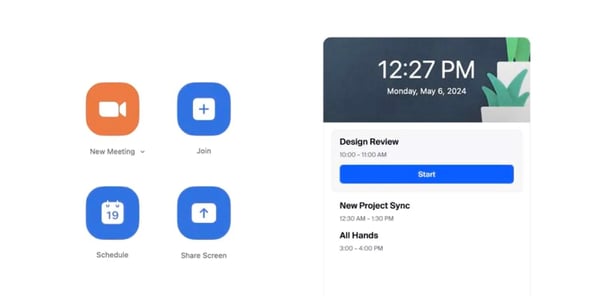 External client joining interface for Zoom
I tried the same flow with Teams. When the other person was already on Microsoft 365, the join experience was smooth. When they weren’t, joining involved a few more steps like choosing how to join, confirming identity, or waiting briefly before getting in.
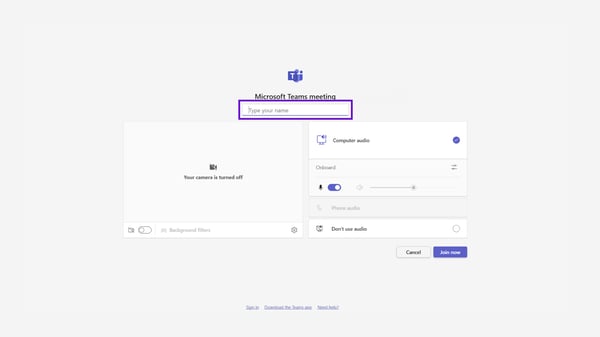 External client joining interface for Microsoft Teams
Both worked, but the difference showed up in how quickly the call actually began.
Winner: Zoom
Zoom holds a 9.1 rating for Video Capture on G2, reflecting strong user satisfaction with video quality.
I ran the same recurring internal meeting on both tools — a weekly sync where conversations tend to carry over from one week to the next.
In Zoom, the meeting itself ran smoothly, and everything worked well while we were on the call. When I went back later to pull earlier context, the information was there across chat, recordings, and shared files. Zoom does offer features that support follow-ups, but in my regular use, it still felt more centered around individual meetings than a single place where the team’s ongoing work naturally sits.
 Video Conferencing interface for Zoom
I tried the same meeting on Teams. During the call, I scrolled up in the channel to see earlier messages, opened the same document we had already been working on, and continued the discussion without restating context. When the meeting ended, the recording and transcript appeared in the same thread.
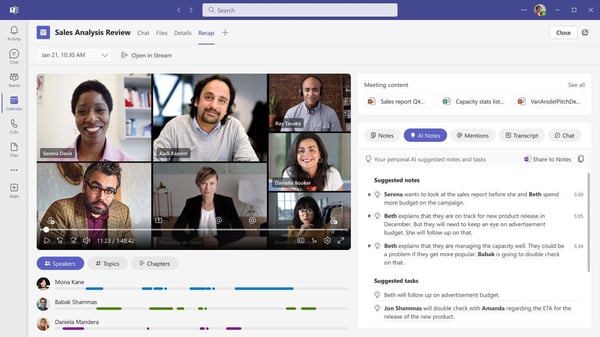 Video Conferencing interface for Microsoft Teams
Both handled the meeting well. But with Teams, internal meetings felt more comprehensive.
Winner: Microsoft Teams
I tried this in a few live working sessions where we actually had to open and update documents during the call. In Zoom, we could share files in chat and open the document in Word Online or Google Docs while the meeting was going on. That worked fine for reviews and quick edits, and honestly, we did not hit any major issues while doing this.
Teams handled the same tasks well, too. The difference I noticed was more about how everything sits together, especially with Microsoft 365 files. Since the files, chat, and meeting already live in the same Teams ecosystem, moving between the conversation and the document just felt a bit smoother in real use.
Winner: Microsoft Teams
Zoom’s whiteboard opened instantly and stayed intentionally simple. It made it easy to jot down ideas, sketch connections, and build momentum without interrupting the flow of conversation. The lightweight interface kept attention on the discussion rather than the tool, and the starter templates helped kick off ideation without adding setup overhead.
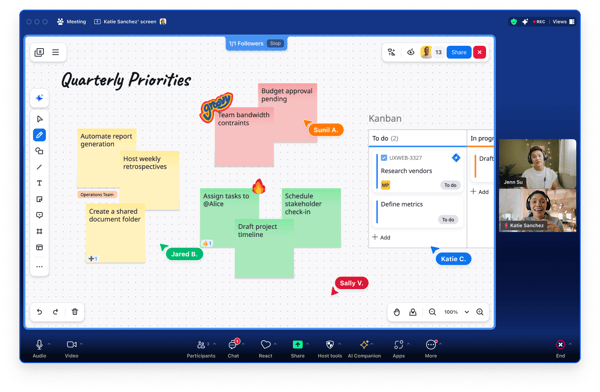 Whiteboard interface for Zoom
Teams took a more structured route. Its whiteboard came with templates and stronger ties to the Microsoft Workspace, which felt more useful when ideas needed to be organized and carried forward after the meeting.
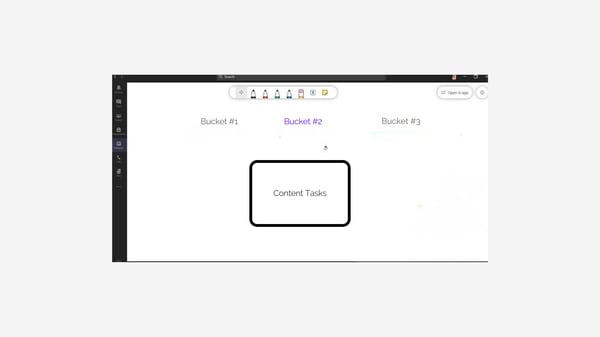 Whiteboard interface for Microsoft Teams
They worked well in different ways depending on the goal of the session. But the Zoom whiteboard felt more intuitive.
Winner: Zoom
I tested both tools in sessions with larger groups. Zoom felt purpose-built for these moments. Host controls were easy to manage, and attendees joined with minimal guidance. The experience stayed predictable as the group grew.
Teams worked well for internal town halls where everyone was already inside the organization. For external or mixed audiences, Zoom felt easier to run without extra coordination.
Winner: Zoom
I tested both tools with virtual backgrounds enabled during live video calls, including frequent movement and transitions between talking, screen sharing, and whiteboarding.
Zoom offers a range of background options and handles background separation more neatly. Edge detection stayed consistent even with movement, and details like hair strands and hand gestures blended naturally into the background without noticeable flickering or cut-outs. Plus, it comes with cool filters. This made the video feed feel more polished during longer sessions.


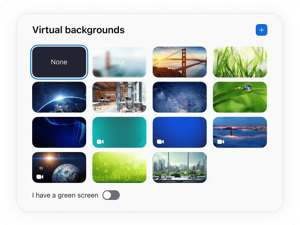
Zoom comes with virtual backgrounds, filters, and virtual avatars
Teams supported virtual backgrounds but showed more visual artifacts in similar scenarios. Fine details, especially around hair and during fast movements, occasionally bled into the background or appeared clipped, becoming noticeable during extended meetings or with changing lights.
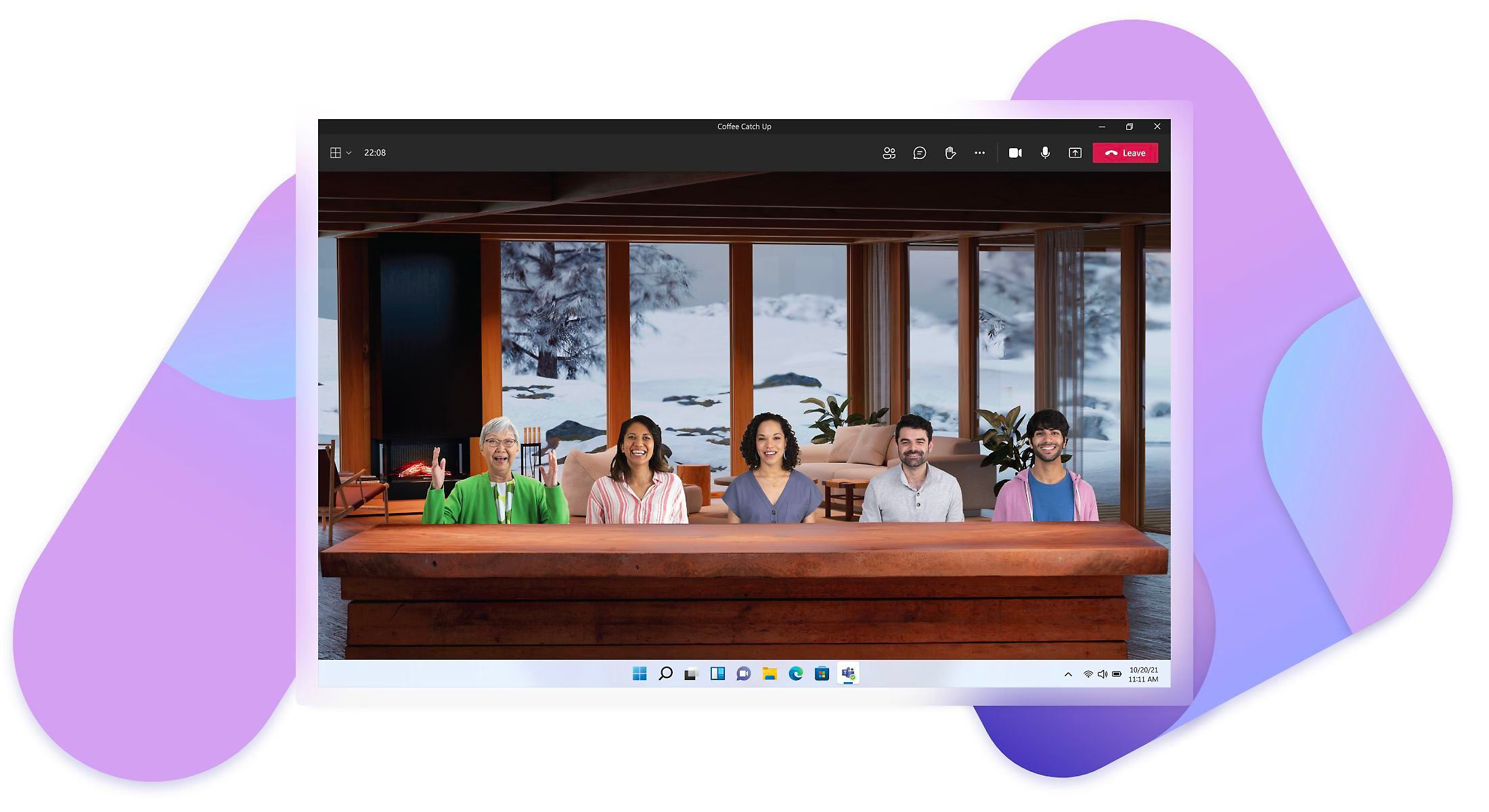
Microsoft Teams offers engaging virtual backgrounds
Winner: Zoom
I joined meetings from my phone on both platforms, including jumping in a few minutes late. Joining Zoom was fast and straightforward. The app opened directly into the meeting with the controls I needed front and center.
 Zoom App mobile interface
On Teams, joining took slightly longer, but once inside, I could switch between chat, files, and the meeting without leaving the app. That made it easier to stay connected to the broader conversation. Speed versus continuity showed up clearly here.
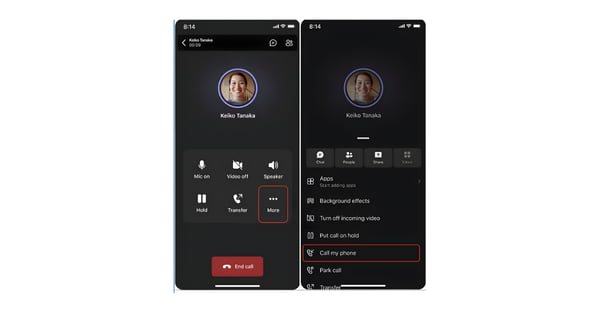 Microsoft Teams mobile app interface
Winner: Zoom
Once we turned AI Companion on for our Zoom meetings, it just ran quietly in the background from there. After the call wrapped up, a summary was already waiting in the chat thread, including the topics we covered, decisions made, and action items. Didn't have to go looking for it anywhere.
I also tried asking AI Companion to rank the action items by priority. It actually gave a pretty sensible order based on what we'd discussed. The files we'd shared during the call were in the same thread, too, so everything stayed in one place without me having to chase anything down.
For post-meeting follow-up, that combination made a real difference.
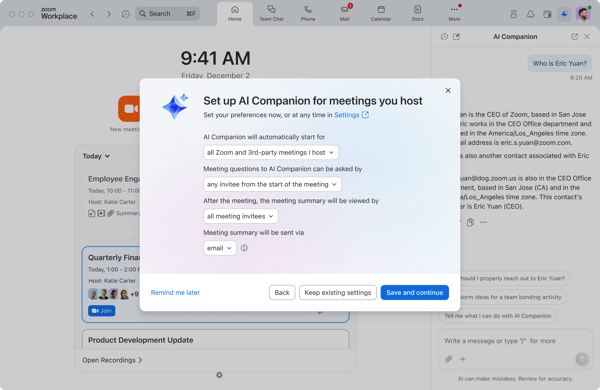 Zoom's AI Companion
Teams transcripts came back accurate, with speaker names, timestamps, and easy to jump to a specific moment if you needed to. With Copilot enabled, the recap pulled out the key points and action items straight from the transcript. You could also just ask it what was decided or who got assigned what, which saved a lot of scrolling. Worth noting, though, the AI recap and summary features do need a separate Copilot license.
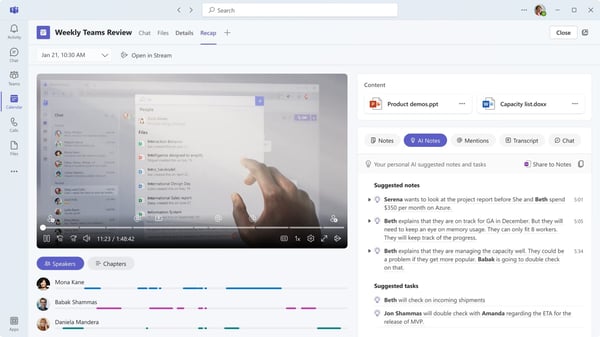
Meeting AI Summaries with Microsoft Copilot
Winner: Zoom
To broaden your comparison, our Zoom alternatives on G2 show how Zoom stacks up against other video conferencing platforms using verified user feedback.
Verdict: Which video conferencing tool should you choose?
| Task/Scenario | Winner | Why |
| External client meetings | Zoom 🏆 |
Guests join faster with fewer steps. |
| Recurring internal team meetings | Microsoft Teams 🏆 |
Past chats and files stay attached to the meeting. |
| Ongoing collaboration after meetings | Microsoft Teams 🏆 |
Work continues in the same thread after the call. |
| File sharing and live document collaboration | Microsoft Teams 🏆 |
Document work feels more connected in the Teams workspace. |
| Whiteboard and Quick brainstorming | Zoom 🏆 |
Better speed and cognitive flow. |
| Structured planning sessions | Microsoft Teams 🏆 |
Templates and tools support organized planning |
| Large meetings and webinars | Zoom 🏆 |
Video stays stable as attendance increases. |
| Mobile meeting join speed | Zoom🏆 |
Calls load faster on mobile. |
| Call work continuity | Microsoft Teams 🏆 |
Chat and files remain accessible during calls. |
| Background | Zoom 🏆 |
Delivers cleaner background edge detection, reducing visual glitches |
| AI summaries and transcripts | Zoom 🏆 | No additional licensing for AI summaries |
I also reviewed G2 satisfaction data and product profiles to understand how Zoom and Microsoft Teams compare across usability, adoption, and feature performance.
Here’s what stood out:
G2 satisfaction data shows Zoom Workplace consistently scoring high on day-to-day usability and user confidence.
Reviewers highlight Zoom’s smoother and more intuitive experience, making it easier to use.
Note: Meeting duration limits (e.g., a 30-hour maximum per session) apply to paid plans, such as Pro and above.
Note: Enterprise Microsoft 365 plans: Custom pricing requires contacting Microsoft for enterprise licensing.
Curious how other leading video conferencing tools compare with Zoom? Read our in-depth comparisons with hands-on testing:
Have more questions? Find the answers below.
Zoom is generally easier to use than Microsoft Teams. G2 reviewers rate Zoom higher for ease of use, and it tends to feel more intuitive when starting or joining calls, especially for external participants.
Zoom works better for the external participant join flow. External guests usually join Zoom calls with fewer steps, while Teams can require additional confirmation depending on settings and organization policies.
Zoom delivers more consistent video and audio quality. G2 ratings place Zoom slightly higher for video conferencing quality, reflecting stable performance even as meeting size increases.
Microsoft Teams is better for recurring internal meetings. Teams keeps chats, files, recordings, and context in the same place, which helps teams pick up where they left off.
Microsoft Teams offers stronger file collaboration during and after meetings.
Teams keeps documents accessible in the same workspace and allows co-editing, while Zoom often relies on screen share and external tools.
Zoom tends to provide a smoother mobile experience. Reviewers rate Zoom’s mobile app slightly higher, especially for quick joins and on-the-go meetings.
Zoom is better suited for large meetings and webinars. Its webinar features, host controls, and participant management are designed for external and large-scale event use cases.
Both tools offer AI summaries and transcripts, but they work differently. Zoom focuses on meeting-level summaries, while Teams can tie summaries into ongoing chats, files, and channels across the workspace.
Absolutely. Teams is usually better for organizations already invested in Microsoft 365. Deep Outlook, OneDrive, SharePoint, and Teams integration reduces tool switching and keeps context connected.
Yes, you can. Many teams use both for different meeting types. Zoom is often preferred for external meetings, while Teams handles internal collaboration and recurring workflows.
For enterprise use, Microsoft Teams usually has the edge because its security, identity, compliance, and admin controls are deeply integrated into Microsoft 365. Zoom is still a secure enterprise-grade platform, and its opt-in E2EE model gives administrators more flexibility across different meeting types, but Teams is typically the more straightforward choice for organisations that prioritise centralised governance and regulated-environment controls.
Your company should choose Zoom if most of your meetings are external, client-facing, interview-based, or webinar-heavy, because the join flow is simpler and the meeting experience is built to work well across mixed audiences. Choose Teams if most collaboration happens internally and your company already uses Microsoft 365, since meetings, chat, files, Outlook scheduling, and admin policies all stay in one system.
Teams is generally better for remote work when remote work means ongoing internal collaboration, because chat, files, meetings, and Microsoft 365 documents remain connected before and after the call. Zoom is better when remote work involves frequent external conversations or simpler meeting-first workflows, especially if you want less friction for guests and fast meeting access from almost anywhere.
Zoom’s AI features are easier to access on paid Zoom Workplace plans because AI Companion is included with eligible paid accounts and covers meeting summaries, questions, task extraction, writing help, and workflow support across Zoom products. Teams can be more powerful in Microsoft-heavy environments because Copilot can pull from meeting transcripts, recaps, and broader work context, but the most advanced Copilot experiences depend on separate Microsoft 365 Copilot licensing, and E2EE meetings also rely on Teams Premium controls.
Yes, at the entry level, Microsoft Teams is cheaper: Teams Essentials is listed at $4 per user/month billed annually, while Zoom Workplace Pro is positioned around $14.16 per user/month billed annually. That said, Teams pricing often sits inside a broader Microsoft 365 bundle, so the better value depends on whether you also need email, storage, Office apps, and admin tooling in the same subscription.
What stood out while working through this comparison is how much meeting experience now shapes everything around it, including how quickly work moves forward, how easily context is recovered, and how much mental overhead is created after the call ends. Those outcomes aren’t obvious when choosing a platform, but they compound over time.
As collaboration tools continue to evolve, the strongest ones won’t be defined by how many features they add, but by how naturally they support the way teams already work. Choosing a meeting platform, then, is less about picking the “best” option and more about selecting the one that aligns with how your work actually flows.
For a broader view of the video conferencing landscape, check out G2's guide to the best video conferencing software.


Let AI pick the right tool for your use case Decide with AI 1 Click on the button below
 by Soundarya Jayaraman

Published: February 2026 · Last updated: April 2026 I knew Zoom from the pandemic days. It was...
by Soundarya Jayaraman

It all started with a single, painfully awkward meeting.
 by Washija Kazim