


“Your storage is almost full.”
Is there a sentence in the English language more terrifying than that? That tiny notification is usually the moment you’re forced to make a choice: Do I delete memories, or do I pay up? And if I pay up... who do I pay?
For most people, it comes down to two names: OneDrive vs. Google Drive.
They are the Coke and Pepsi of the productivity world. They are everywhere, everyone uses them, and most of us have a strong, slightly irrational preference for one over the other. It’s no surprise that they are sitting comfortably at #1 and #2 on the G2 Winter Grid for Cloud Content Collaboration software. They are the undisputed heavyweights.
But just because they are the two most popular kids in school doesn't mean they are interchangeable.
So I spent some time dragging, dropping, syncing, and sharing files across both platforms to answer the ultimate question: which one actually deserves your credit card information?
TL;DR: OneDrive stands out for its deep Microsoft 365 and Windows integration, along with stronger value for families and businesses. Google Drive, on the other hand, offers more free storage (15 GB vs. 5 GB), better search, and a smoother experience across Google tools like Docs, Gmail, and Photos. Both support secure syncing, collaboration, and cross-platform access, but Google Drive is better for solo users who want more storage, while OneDrive is a better fit for Windows and Office-centric teams.
| Feature | Microsoft OneDrive | Google Drive (Google Workspace) |
| G2 rating | 4.3/5⭐ | 4.6/5⭐ |
| Best for | Individuals already using Microsoft 365 and Microsoft-first teams that want structured file storage, SharePoint/Teams-based collaboration, and stronger admin controls. | Individuals in the Google ecosystem and cloud-first teams that prioritize real-time collaboration, simple sharing, and fast access across Docs, Sheets, and Slides. |
| Free plan | 5 GB of cloud storage and 15 GB of Outlook mailbox storage | 15 GB free storage shared across Google Drive, Gmail, and Photos |
| Ease of use | G2 rating: 8.6/10 Easy if you are used to a Microsoft environment. |
G2 rating: 9.3/10 Very easy if you live in Google apps; can feel confusing at scale. |
| File sharing | Strong internal sharing with granular controls. External sharing is powerful but often governed by org-level SharePoint and admin policies. | Extremely fast and intuitive link sharing. Ideal for external collaborators, but can lead to link sprawl without governance. |
| File organization | Folder-based organization that works best when paired with SharePoint and Teams. Scales well with structure but can feel complex. | Simple folders plus Shared Drives. Easy for individuals, but requires discipline at org scale to avoid clutter. |
| Permissions and access | Enterprise-grade permissions with deep admin controls, conditional access, and compliance policies via Microsoft 365 and Entra ID. | Straightforward permission levels (Viewer, Commenter, Editor). Easier for day-to-day use, fewer layers for admins. |
| File search | Standard: Functional search, but relies heavily on you naming your files and folders correctly. | Superior: Uses Google’s AI to find files by content, owner, or even objects inside photos. |
| Collaboration | Desktop-first: Built for the file explorer. Best for working on heavy, complex files locally while syncing in the background. | Web-first: Built for the browser. Changes happen instantly; ideal for rapid, messy brainstorming. |
| Sync and offline access | Excellent sync reliability, especially on Windows. Offline access feels natural for traditional file workflows. | Works well with Drive for desktop and browser offline mode, but offline behavior depends more on setup and file type. |
| Version history and recovery | Strong version history plus full-drive restore options on paid plans; recycle bin is longer on many work accounts. | Strong version history for native Google files; versioning for non-native files is more limited than Docs/Sheets/Slides. |
| Integrations | Deep integration with Microsoft 365, including Teams, SharePoint, Outlook, and Office apps; strongest inside the Microsoft ecosystem. | Native integration with Gmail, Calendar, Meet, Docs, Sheets, and Slides, plus a broad third-party app marketplace. |
Note: Both Microsoft and Google roll out new updates to their software. The details here reflect the most current capabilities and pricing as of January 2026, but may change over time.
At first glance, these two look like identical twins with different haircuts. They both store your stuff in a magical server farm, they both let you access files from your phone while waiting for a latte, and they both save you when your laptop decides to die the night before a deadline.
But once you pop the hood, the engines run very differently.
Honestly, for me, both feel less like standalone storage tools and more like full ecosystems with storage built in. That difference shapes how each platform works in practice.
But before we start the fight, let’s acknowledge the truce. No matter which one you pick, you are getting the industry standard for safety and access.
To compare OneDrive and Google Drive fairly, I didn’t rely on feature checklists or product pages. I used both the way I normally would across real work, real files, and real collaboration moments. I uploaded files, organized folders, shared links, tweaked permissions, searched for lost docs to see what held up in day-to-day use.
Alongside hands-on testing, I reviewed 1,000+ G2 user reviews to see how other individuals and teams experience these tools at scale, specifically for insights on paid plans. That combination of personal use plus real user feedback helped separate surface-level differences from patterns that actually matter over time.
Here’s what I paid attention to during my evaluation:
The images below are from my own testing and publicly available product documentation.
Disclaimer: I’ve shared my experience testing the two tools as of January 2026. If you read this after a few months, some features and functionality might have evolved. The companies will be able to give you the most up-to-date information.
Now that the basics are out of the way, this is where things get practical. In the sections below, I’ll walk through how OneDrive and Google Drive performed in specific, everyday scenarios and where each one surprised me (for better or worse) once I started using them side by side.
When it comes to file uploads, OneDrive and Google Drive perform similarly. I uploaded large video files as well as bulky folders to both platforms, and neither struggled with speed or reliability. Upload times were comparable, and both handled large files without errors or interruptions.
In short, if you’re purely looking at upload performance, there’s no clear winner here.
That said, there are a few limits worth noting:
For most individual users and teams, these limits won’t matter but they’re useful context for large migrations or media-heavy workflows.
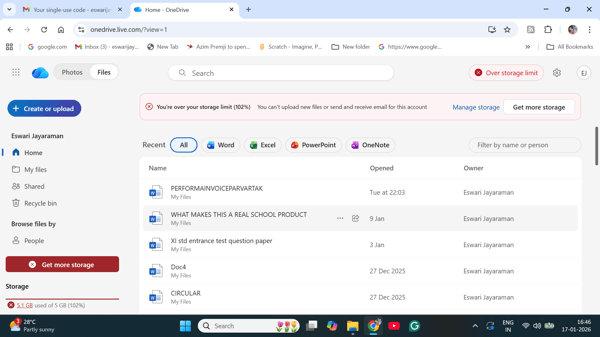
On the web, OneDrive and Google Drive feel similar. Both offer a clean, modern interface with a left-hand navigation, a prominent search bar, and quick access to recent or suggested files. From a browser-only perspective, organizing files in folders, renaming documents, and jumping between recent items felt straightforward on both platforms.
The real difference in file organization shows up once you move off the web and onto the desktop app.
Using OneDrive on the desktop feels almost indistinguishable from using the Windows File Explorer. Files live inside a standard OneDrive folder in File Explorer, and organizing them is no different from managing any other local folder. I didn’t need to adjust how I think about file storage at all — dragging, renaming, nesting folders, and moving files all worked exactly the way I expected. That familiarity makes OneDrive feel especially easy to use if you’re already on Windows.
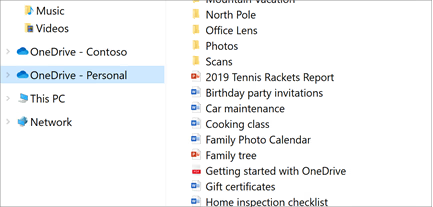
OneDrive also supports block-level sync, meaning only the parts of a file that change are re-synced instead of re-uploading the entire file like Google Drive. That’s a quiet but meaningful advantage for large files that get frequent edits.
Google Drive also offers a desktop app, but the experience still feels more clearly tied to Drive as a platform. Even though folders sync locally, Drive’s organizational logic, especially on the web, with sections like Home, Activity, Shared with me, and Recent, encourages browsing files based on context and activity rather than relying entirely on a single folder hierarchy.
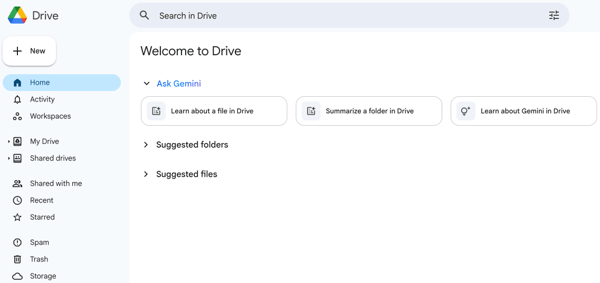
For file uploads and organization, I would say it's a draw. Both OneDrive and Google Drive handle file uploads and organization equally well; the differences come down to familiarity and workflow preference rather than clear functional advantages.
Winner: Split
This is one area where Google Drive clearly pulls ahead.
During testing, I searched for a single word that appeared in a screenshot I had uploaded months earlier, and Google Drive surfaced the file almost instantly. That kind of result makes it obvious how strong Drive’s OCR and content indexing are, especially when you’re dealing with images, PDFs, or documents you don’t remember naming carefully.
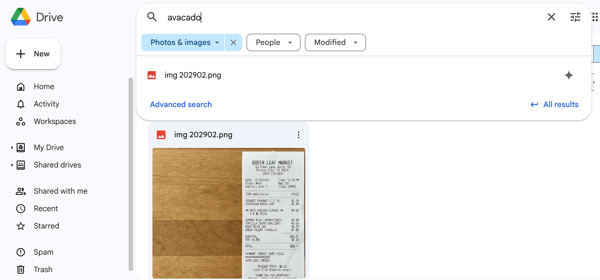
I also liked how Google Drive guides you toward more precise searches. As soon as you start typing, Drive surfaces smart filters like type, people, and modified, making it easy to narrow results without needing to remember exact file names. On top of that, Google Drive supports a wide range of Boolean operators, which allow for very targeted searches if you’re willing to use them.
Google also uses natural language processing, meaning I can type things like "docs shared by Mara last week," and it actually understands what I mean without me needing to toggle a bunch of manual filters.
All of this makes Drive feel forgiving. Even when I didn’t organize files perfectly, I could still find what I was looking for quickly.
OneDrive’s search experience, by comparison, felt more rudimentary. While it does support basic filters like file type and modified date, finding files often depended on how well I had organized them upfront. Searches worked best when I remembered the file name or folder location, and I wasn’t able to retrieve files as easily based on content buried inside images or older documents.
If you rely heavily on search to recover files you don’t remember organizing carefully, Google Drive is significantly better. OneDrive’s search works, but it rewards structured file organization far more than exploratory or content-based searching.
Winner: Google Drive
Google Drive edges out OneDrive on search, with users rating it higher for fast, forgiving file discovery.
Sharing files with people outside my immediate circle felt significantly less painful on OneDrive. When I sent a secure link to someone without a Microsoft account, they just received a one-time verification code via email and got straight in. No hurdles. Google Drive also has similar visitor sharing controls, but I end up using the insecure "anyone with the link" option to avoid any hassle.
When it came to actually working together in real-time, both tools were solid, but Google Drive felt slightly more fluid. Typing together in a Google Doc is instantaneous. OneDrive generally keeps up, but I noticed a 2–3 second lag when I was on the web version and my partner was using the desktop Word app. It wasn’t a dealbreaker, but it wasn't seamless.
Both platforms make it easy to share files, but they approach permissions a little differently. With OneDrive, I could share files with anyone (no sign-in required), only people with existing access, or specific people I choose.
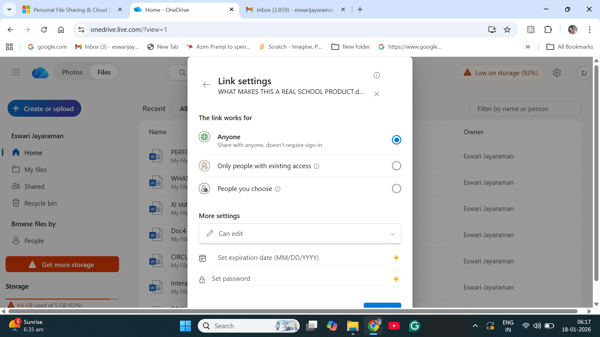
Permissions are straightforward — typically view or edit. Google Drive offers more granular collaboration roles. In addition to viewer and editor access, Drive supports a commenter role, which allows people to leave comments and annotations without changing the original content. That’s particularly useful for review-heavy workflows.
However, OneDrive wins big on sharing controls. Being able to password-protect shared links or set expiration dates gave me more control than Google Drive offers by default.These options are premium features, but they’re built directly into the sharing flow.
Google Drive also supports link expiration, but it’s more limited. Expiry can be set for specific users, not for general “anyone with the link” access, and there’s no native password protection for shared links. To add that layer of security, you’d need workarounds outside Drive itself.
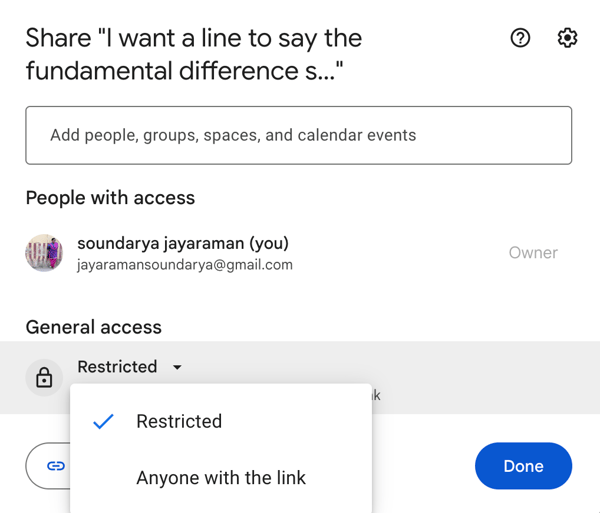
This category ends in a split verdict for me. If you are strictly reviewing documents and need granular feedback tools, Google Drive’s "Commenter" role and instant sync make it the winner. But if you frequently send sensitive data to people outside your company or need to lock down shared links with passwords and expiration dates, OneDrive is the clear professional choice.
Winner: Split
Google Drive scores higher for file sharing overall, especially for quick, effortless collaboration.
Version history matters most when something goes wrong, whether that’s a bad edit, an accidental deletion, or a worst-case security incident. To see how forgiving each platform really is, I tested how both Google Drive and OneDrive handle everyday rollbacks as well as full recovery scenarios.
On Google Drive, version history is essentially unlimited for native Google files. I never worried about irreversible changes because I could always revert to an earlier version.
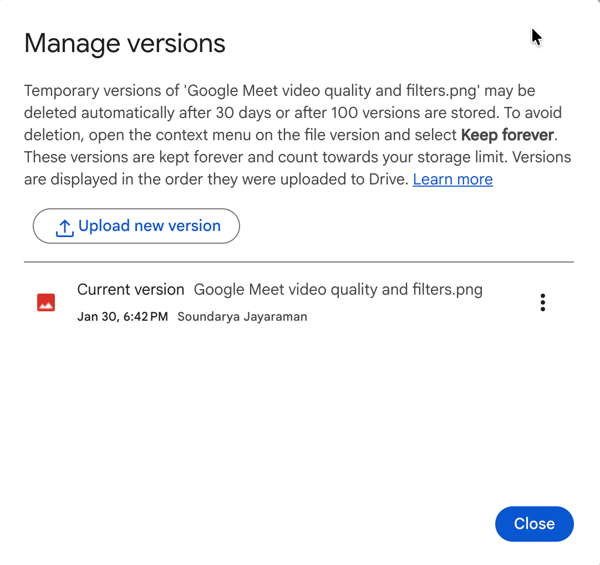
That flexibility changes once you move beyond Google’s own file formats. For images, PDFs, ZIPs, or videos, Google Drive typically keeps versions for 30 days or 100 versions, whichever comes first. I could manually mark specific versions as “Keep forever.”
With OneDrive, version history is still easy to access, but it’s more limited by default compared to what Google Drive offers. I could view and restore up to the last 25 versions of both Microsoft files and non-Office files. That’s usually enough for routine edits, but it didn’t offer the same long-term safety net I felt with Google Docs.
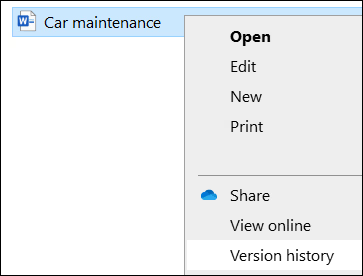
The real differentiator, though, showed up when I looked at worst-case recovery.
Both services offer a standard 30-day recycle bin for deleted files (extended to 93 days on OneDrive work accounts). OneDrive does get more aggressive when storage is tight, sometimes clearing out the oldest recycle bin items after just three days. Google is more predictable, respecting the 30-day timer regardless of how full the bin gets.
However, OneDrive has a "nuclear option." If I get hit by ransomware or accidentally delete a massive project tree, the paid Microsoft 365 plan lets me rewind my entire OneDrive account. It gives a visual slider to roll back the whole drive to a specific moment, undoing every single change at once.
So, OneDrive wins on recovery. Both Google Drive and OneDrive handle version history well for everyday document editing. And to its credit, Google Drive feels more forgiving for native Google files.
However, for worst-case scenarios, like accidental mass deletions or malware, OneDrive’s full account restore gives it a clear advantage. If disaster recovery is a priority, OneDrive is the safer bet.
Winner: OneDrive
Pricing is where the differences between OneDrive and Google Drive become more pronounced. Not just in cost, but in what you actually get at each tier.
Both platforms offer a free tier, but the value feels very different.
For pure document storage, Google feels safer because I have a larger 15 GB buffer before I hit a wall. With Microsoft, that 5 GB limit for attachments feels very tight. I could easily block my own email just by receiving too many family photos, even if my mailbox storage looks empty.
| Plan | Pricing |
| Microsoft 365 Basic | $1.99/month (100 GB) |
| Google One Basic | $1.99/month (100 GB) |
| Plan | Pricing |
| Microsoft 365 Personal | $9.99/month (1 TB) |
| Google One Premium | $9.99/month (2 TB) |
| Plan | Pricing |
| Microsoft 365 Family | $12.99/month (6 TB) |
| Microsoft 365 Premium | $19.99/month (6 TB) |
| Google One AI Pro | $19.99/month (2 TB) |
If I am a single user, Google One wins on raw storage, giving me 2 TB for $9.99/month compared to Microsoft’s 1 TB for the same price. However, if I have a household, Microsoft 365 Family provides more value. For just $12.99/month, I get 6 TB of storage shared across six people. That creates a cost-per-terabyte that Google simply cannot touch. Even at the $20/month AI tier, Microsoft maintains that 6 TB limit, whereas Google charges the same price for just 2 TB.
*Pricing per month on yearly plans
| Plan tier | Microsoft | Google Workspace |
| Entry plan | Microsoft 365 Business Basic (no Teams): $4.4/user/month (1 TB Per user) OneDrive for Business: $5/user/month (1 TB per user) Microsoft Business Basic (with Teams): $6/user/month (1 TB per user) |
Business Starter: $7/user/month (30 GB pooled storage per user) |
| Mid-tier | Microsoft 365 Business Standard (no teams): $9.29/user/month Microsoft 365 Business Standard (with teams): $12.50/user/month |
Business Standard: $14/user/month (2 TB pooled storage per user) Business Plus: $22/user/month (5 TB pooled storage per user) |
| Enterprise | Enterprise can get Microsoft 365 E3, E5, or F3 licenses. | Custom (5 TB or more) |
For business, Microsoft wins on entry-level affordability. I can get 1 TB of storage per user for as little as $4.40/month (Basic without Teams). With Google Workspace, the $7 Starter plan only gives a meager 30 GB per user though it’s pooled; to get comparable storage, I have to jump to the $14 Standard plan. Unless my team desperately needs Google’s pooled storage flexibility, Microsoft lets me put a terabyte in an employee's hands for a third of the price.
However, Google’s pooled storage has its own advantage. If I have 10 employees, I have a 300 GB bucket that everyone shares. This is massive for teams where some people are "heavy" creatives and others are "light" admin users. The heavy users can eat up the extra space without me spending a dime on upgrades.
Here’s a summary of what to choose depending on what you need.
My verdict for pricing and value is a split. Google Drive delivers better value for free users and solo individuals who want the most storage for the lowest price, while OneDrive offers unmatched value for families and entry-level business teams that need large amounts of storage per user at a lower cost.
Winner: Split
| Task | Winner | Why |
| File uploads and organization | Split | Upload speeds and reliability were comparable, and both tools offer flexible organization across web and desktop. The differences come down to familiarity, not capability. |
| Search and retrieval | Google Drive🏆 | Superior OCR and content indexing made it easy to find files using words inside screenshots and documents. Smart filters and Boolean operators added precision. |
| Collaboration and sharing | Split | Collaboration is strong on both, but Google Drive offers more granular collaboration roles, while OneDrive stands out for secure and frictionless external sharing. |
| Version history and recovery | OneDrive🏆 | While Google Drive feels more forgiving for native files, OneDrive’s full account restore provides a clear advantage in worst-case recovery scenarios. |
| Pricing and value | Split | Google Drive offers better value for free users and individuals, while OneDrive delivers unmatched value for families and entry-level business teams. |
The Google vs. Microsoft debate doesn't end with storage. If you're also weighing up spreadsheets, our Google Sheets vs. Excel comparison breaks down exactly where each tool wins and loses.
Google Drive as part of Google Workspace and Microsoft OneDrive for Business are in #1 and #2 positions on the G2 Grid for Cloud Content Collaboration software on the basis of G2 scores. I also reviewed data on G2 to see how real users rate Google Drive (Google Workspace) and Microsoft OneDrive. Here’s what stood out:
Both tools lag in advanced automation and AI-driven capabilities, with autonomous task execution, natural language interaction, and cross-system integration consistently ranking as the lowest-rated features for both platforms.
Looking at Dropbox instead? Read my in-depth Dropbox vs. Google Drive review that breaks down how these platforms differ in real-world use.
Have more questions? Find the answers below.
Neither is universally better. Google Drive is better for search, collaboration, and simplicity, while OneDrive is better for structured file management, secure sharing, and recovery — especially in Microsoft-based environments.
OneDrive’s strengths are tight Windows integration, secure sharing, and full account recovery. It’s best for families, businesses, and teams already using Microsoft 365 that want predictable folder-based storage.
Google Drive excels at search, OCR, and real-time collaboration. It’s best for teams that work heavily in browsers, collaborate often, and rely on search instead of strict folder organization.
Google Drive. It's 15 GB free storage is shared across Drive, Gmail, and Photos, while OneDrive’s 5 GB file limit fills up quickly and can block email attachments.
It depends. Google Drive is better for review and commenting workflows if you're using Google Workspace, while OneDrive is better for secure external sharing with password protection and link expiry.
Google Drive prioritizes search, collaboration, and browser-first workflows. OneDrive focuses on file-system familiarity, security, and recovery, especially on Windows.
OneDrive is better for entry-level business storage with 1 TB per user at a lower price. Google Drive works better for teams that benefit from pooled storage and lighter admin overhead.
Not natively. You’ll need third-party sync or migration tools to move or mirror files between OneDrive and Google Drive.
Slightly. OneDrive supports uploads up to 250 GB per file and offers block-level sync, which helps when updating large files. Google Drive handles large files well but relies more on full-file syncs.
If your team uses Microsoft 365, OneDrive is the best cloud drive to replace Google Drive and Dropbox.
Google Drive. At $9.99/month, you get 2 TB, compared to 1 TB from Microsoft at the same price.
OneDrive, especially on Windows. It behaves like a normal folder in File Explorer, making it one of the most recommended software options for business file collaboration online with minimal training.
They’re comparable in raw speed, but OneDrive feels smoother for large file updates thanks to block-level sync, while Google Drive is more forgiving when syncing across multiple devices.
OneDrive. Its per-user storage, predictable folder structure, and recovery tools make it a reliable choice for small businesses that want simplicity over flexibility.
Google Drive. Its mobile app is faster for searching, previewing, and sharing files on the go, especially if you already use Gmail and Google Docs.
Both Google Drive and OneDrive are top-rated cloud content solutions for improving team productivity. Google Drive tends to score higher for collaboration and search, while OneDrive scores higher for security and Microsoft ecosystem users.
OneDrive works best in Microsoft-based offices that rely on Word, Excel, and Outlook. Google Drive is better in offices that prioritize fast collaboration and real-time editing.
Google Drive is ideal for collaboration-heavy teams that need live editing, comments, and quick file discovery. OneDrive is better for teams that need controlled access and secure sharing.
After trying both, I didn’t walk away thinking one tool replaces the other. Instead, it became clear that Google Drive and OneDrive are built for very different working styles.
Google Drive acts like a safety net for messy workflows. Its search and OCR are incredibly forgiving, making it easy to recover files even when the organization isn’t perfect. If you collaborate often, rely on search, or spend most of your time in a browser, Google Drive quietly does a lot of the heavy lifting.
OneDrive, by contrast, is built for control. It blends into the operating system, mirrors familiar folder structures, and offers stronger recovery and sharing safeguards when something goes wrong. If predictable organization, secure external sharing, or worst-case recovery matters to you, OneDrive feels more deliberate—and in some cases, safer.
Pricing reinforces that divide: Google Drive offers better value for individuals, while OneDrive shines for families and businesses that need large amounts of storage per user.
Bottom line: this isn’t about which tool is “better,” but which one matches how you work. The best cloud storage is the one that fades into the background and supports your workflow without making you think about it.
File storage is just one part of modern collaboration. To see how document sharing, communication, and project tools work together, check out G2’s guide on the best free collaboration tools.


Let AI pick the right tool for your use case Decide with AI 1 Click on the button below
 by Alveena Ali

Trello vs. Asana (both rated 4.4/5 on G2) Trello and Asana tie on rating but split on...
 by Aditi Rai

Let AI pick the right tool for your use case Decide with AI 1 Click on the button below
 by Krithika Sathyamoorthy