


Published: February 2026 · Last updated: April 2026
I didn’t wake up one day and choose Dropbox or Google Drive. They just…happened. One link came from a client, another file lived in a shared Google folder, and suddenly, my entire work life was split between two cloud drives.
If you’re here trying to figure out which one actually deserves to be your default, comparing Dropbox vs. Google Drive, you’re not alone. I’ve used both long enough to feel the friction, the convenience, and the “why is this harder than it needs to be?” moments.
This comparison is my honest breakdown of where each tool shines and where it quietly gets in your way.
I evaluated both Dropbox and Google Drive the way I actually use them day to day: file sharing, folder organization, permission management, search, and the little workflow details that either save you time or quietly waste it. But I didn’t stop at my own testing. I also dug through 1000+ G2 reviews to see how real users describe the experience in the wild, from collaboration headaches to those moments when everything just works.
Here’s what I found, and which tool makes more sense depending on how you work.
TL; DR: Dropbox is best if you need speed and control (block-level sync, stronger version history, advanced sharing permissions, and file-first team workflows), while Google Drive is best for everyday work and value (more free storage, better pricing via Workspace, seamless Google app integration, and “Google-level” search). Choose Drive for simplicity and value; choose Dropbox for faster syncing and tighter file-sharing/management controls.
| Feature | Dropbox | Google Drive(Google Workspace) |
| G2 rating | 4.4/5 | 4.6/5 |
| Best for | File-heavy teams, agencies, external sharing, cross-company work | Google Workspace teams, doc-heavy collaboration, search-centric workflows |
| Free plan | 2 GB free storage; limited for ongoing work, better for light use | 15 GB free storage shared across Google Drive, Gmail, and Photos |
| Ease of use |
9.0/10 G2 rating Intuitive for file-first workflows; fewer “where did it go?” moments |
9.3/10 G2 rating Very easy if you live in Google apps; can feel confusing at scale |
| File sharing | Share links fast; strong controls for links and folders; Dropbox-first sharing feels polished | Great for sharing within Google Workspace; easy to share docs/folders via Gmail/Calendar ties |
| Organization | Straightforward folder-first experience; easy to keep a clean structure | Can get messy fast with shared drives and My Drive, and shortcuts; powerful but chaos-prone |
| File search | Good search, especially for filenames and content in supported files | Usually strong. —Google-grade search across Docs, PDFs, and content (especially in Workspace) |
| Collaboration | Best when collaboration = sharing files, syncing folders, commenting | Best when collaboration = co-editing Docs/Sheets/Slides in real time |
| Sync and offline access | Dropbox sync is a core strength; dependable across devices | Drive for desktop works well; offline depends more on settings and file types |
| Version history and recovery | Strong file versioning and recovery options (plan-dependent) | Solid version history for Google files; file recovery depends on admin settings and paid plan settings |
| Integrations | Tons of app integrations; strong with creative and file-heavy workflows | Deep native integration with Google Workspace |
Note: Both Dropbox and Google roll out new updates to their software. The details here reflect the most current capabilities and pricing as of April 2026, but may change over time.
Yes, Google Drive is the better free option. Google Drive includes 15 GB free with every Google account, shared across Drive, Gmail, and Google Photos. Dropbox Basic starts at 2 GB. For most users, the free-tier gap alone makes Google Drive the stronger starting point before considering any paid plan.
On the surface, Dropbox and Google Drive look like they do the same thing, but once you start using them daily, the differences (and overlaps) become pretty clear.
When I put them side by side, the biggest split was pretty clear: Google Drive feels built for collaboration within Google’s own apps, while Dropbox feels built for fast file syncing and playing nicely with many third-party tools.
Even with all that, there’s a lot of overlap, and for basic cloud storage needs, either one can absolutely get the job done.
Choose Google Drive if you work in Google Workspace and collaborate primarily in Docs, Sheets, Slides, and Gmail. Choose Dropbox if your team uses mixed tools and spends more time syncing, reviewing, and delivering files than co-authoring documents.
Choose Google Drive if you need:
Choose Dropbox if you need:
Google Drive is the easier default for Google-first teams. Dropbox is the stronger fit for file-heavy, cross-platform, or client-facing workflows.
To compare Dropbox and Google Drive fairly, I didn’t just skim feature lists or rely on marketing claims. I tested both the way I actually use a cloud storage tool, for real work, across real projects, and backed that up by digging into G2 user feedback to spot consistent patterns.
Here’s what I focused on during my evaluation:
Alongside my hands-on testing, I reviewed 1000+ G2 reviews to see how other users rate these same areas in real-world scenarios. That combination helped separate features that look good on paper from those that actually work day to day.
Disclaimer: I share my experience testing the two tools as of April 2026. If you read this after a few months, some features and functionality might have evolved. The companies will be able to give you the most up-to-date information.
Now that the basics are out of the way, this is where things get practical. In the sections below, I’ll walk through how Dropbox and Google Drive performed in specific, everyday scenarios and where each one surprised me (for better or worse) once I started using them side by side.
When I tested uploads and syncing, both tools were honestly solid, with a few “okay, that’s noticeable” differences.
First, I uploaded a handful of large video files, and both Google Drive and Dropbox handled it well. Everything was uploaded in under a minute on both. So, for everyday uploads that aren’t massive, the speed difference between Dropbox and Google Drive is barely noticeable, particularly when you’re using the web app.
The real difference appeared when I tested a large bulk upload: a single folder containing 3,000 mixed file types, including images, screen recordings, and documents. Now, my internet connection was not ultra-fast, but decent enough to upload these files.
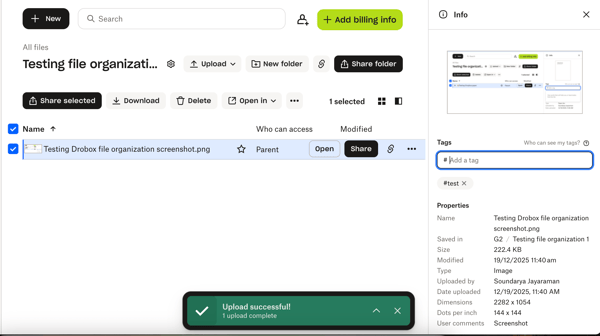
So when I dragged that massive folder into both the web apps, Google Drive was the clear winner. It managed the queue of thousands of tiny files much more efficiently, finishing the job in about 15 minutes, whereas Dropbox slightly lagged behind and took quite a bit longer to process everything.
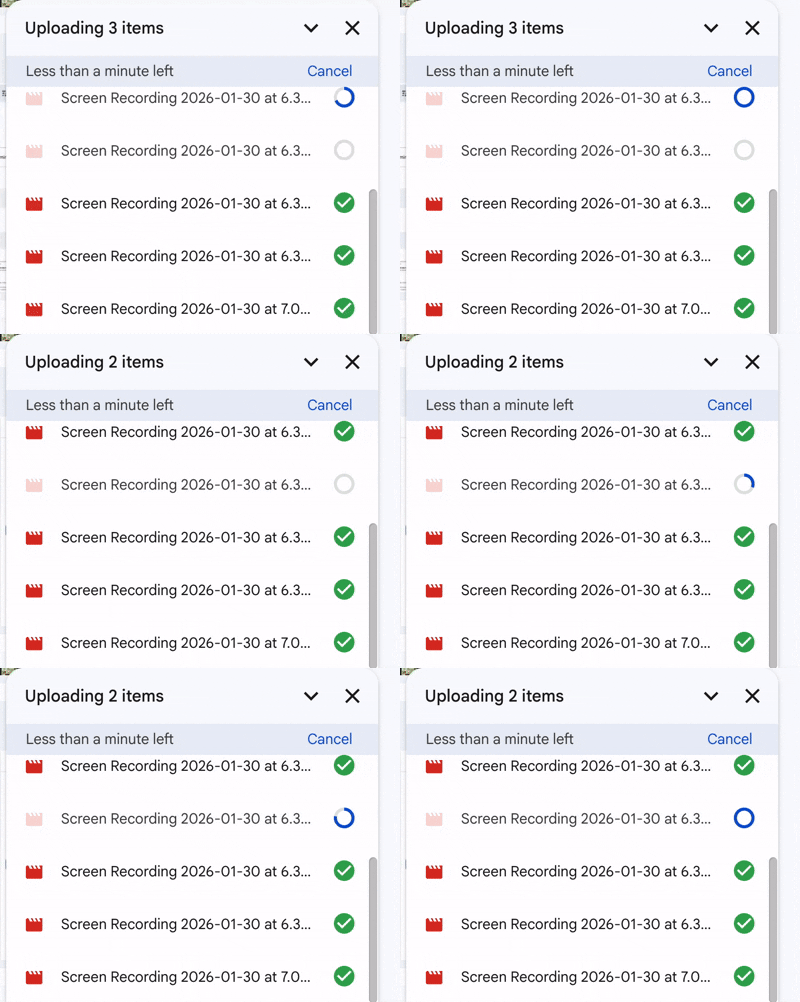
One more thing worth knowing if you upload big files a lot: upload limits depend on how you upload. Dropbox is generous through its desktop/mobile apps, but more limited on the website. And Google Drive has a daily cap that can matter if you’re moving a ton of data at once:
On the whole, if you’re mostly uploading through the web app, Google Drive has a slight edge based on my experience, especially when you’re dumping a massive “3,000 files in one folder” situation into it. But for normal uploads (even big video files), I didn’t see a meaningful difference.
Winner: Google Drive
While the web speed tests were interesting, the real battle happens on the desktop. This is where most of us live every day,
Dropbox really impressed me with how quickly files appeared across devices when I used its desktop app. When I added a file or folder through the Dropbox desktop app, it appeared on the Dropbox web app soon enough, which made the whole workflow feel snappy and reliable. Honestly, using the Dropbox desktop app to add giant folders and let it sync in the background felt like the most efficient path to me.
And here’s the part that makes Dropbox feel unfairly fast once you’re editing big files: block-level sync. Instead of re-uploading an entire large file every time you make a small change, Dropbox can sync only the parts of the file that changed, so tiny edits I make in a large file don’t turn into “cool, guess I’m re-uploading a 2GB file again” moments. Google Drive will do a full-file sync, which means it will take some time for large files to get fully synced.
On the other hand, Google Drive’s desktop experience left me scratching my head at first, partly my mistake. The settings menu made it seem like I could only sync entire folders, not individual files. It took me some time to figure out I could just drag and drop a single file directly into the Google Drive folder, just like Dropbox.
What really stood out to me on Google Drive’s desktop app was how it handles sync between the cloud and my laptop. It’s not just “sync everything” like you’d expect. You actually get options. The big choice is Stream vs. Mirror.
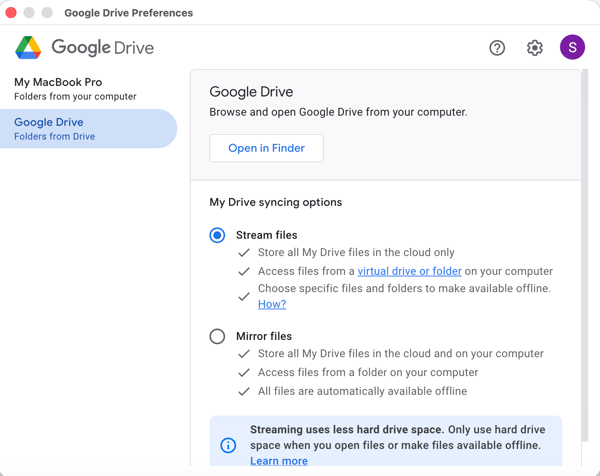
With Stream (the default), Drive shows all your files in a local folder, but they don’t take up real hard drive space until you open or choose to make them available online. It’s perfect if your laptop storage is always on the edge. The catch is that for files I wanted to work offline, I had to make them available offline. Mirror does the opposite: it keeps full copies of your Drive files locally, which uses more space, but it also means everything is there even if your Wi-Fi decides to disappear mid-task.
Either way, the syncing part is pretty seamless. If I made changes while offline, Drive pushed them back up automatically the moment I reconnected — no manual re-uploading or “did that save?” panic.
For me, this one split pretty cleanly: Dropbox wins on raw speed and syncing efficiency, especially for large, constantly edited files, while Google Drive takes the crown for flexible storage management if saving disk space is the bigger priority. If your daily workflow involves editing large files, like 4K video, big Photoshop projects, or CAD drawings, Dropbox is the king. Google Drive wins if your main constraint is hard drive space.
Winner: Split
Users rate Google Drive Workspace slightly higher for device syncs.
When I switched gears to actually organizing my files, the difference in philosophy hit me immediately.
Dropbox’s layout just made sense right away. Everything felt clean and predictable at the folder level, and I always knew where I was. I could switch between grid, large grid, list, or large list view depending on what I was working on, which sounds small, but it really helped when I was dealing with lots of assets. Creating folders, subfolders, and dropping files felt straightforward, with zero friction.
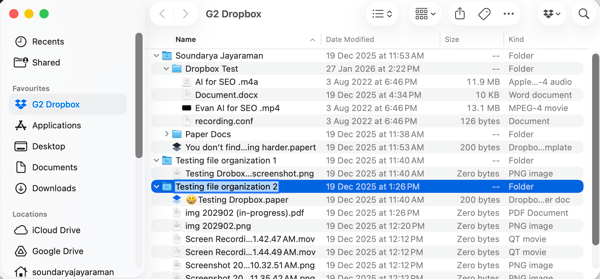
Beyond the usual Shared and Starred sections (which both Drive and Dropbox have), Dropbox let me create my own custom sections. I could pin any folder or file I wanted there for quick access, which quickly became my active projects area. It felt flexible in a way that adapted to how I work, not the other way around.
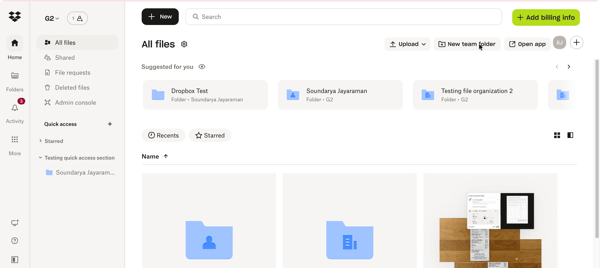
The feature I genuinely loved, though, was tagging. Dropbox lets you add up to 20 tags per file, and this completely changed how I thought about organization. Imagine running a campaign with copy docs, logos, screenshots, and videos flying in from different team members.
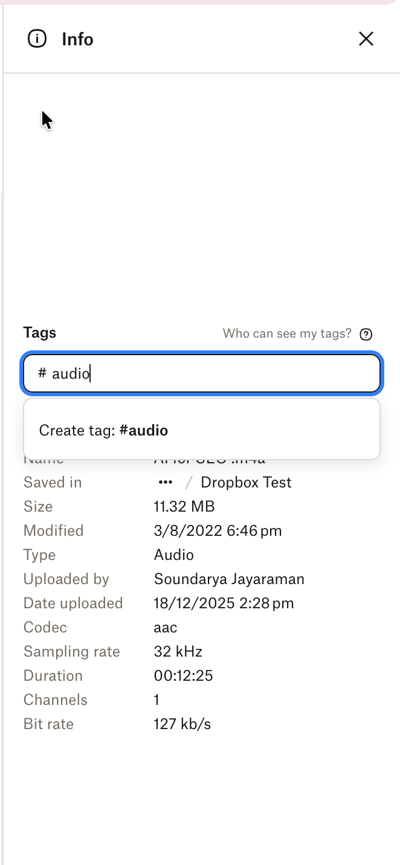
Instead of nagging everyone to follow a perfect naming convention (which, let's be honest, never happens), I could just tag files by campaign name, channel, or asset type and then search by tag later. For teams that struggle with consistent file naming, this was a lifesaver.
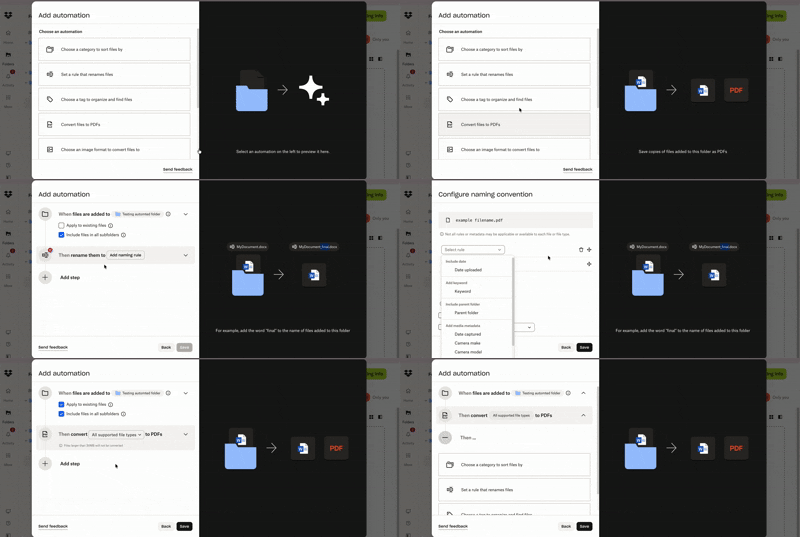
Another standout for me was the automated folders. I set up rules that felt incredibly powerful, like automatically watermarking every image dropped into a "Proofs" folder, or instantly converting Word docs to PDFs. It even handled the boring admin work, like auto-unzipping uploads or renaming files to follow a pattern. It felt powerful without being overwhelming, like Dropbox actually understood what I was trying to do.
Google Drive was a different story. It doesn’t hold your hand as much with auto-sorting; It’s functional, but it took more mental effort to keep track of where things lived. Drive does offer color-coded folders and creates shortcuts to files and folders in places we want, which are helpful, but there’s nothing quite like Dropbox’s tagging system or quick sections. I often found myself relying more on memory or search than structure.
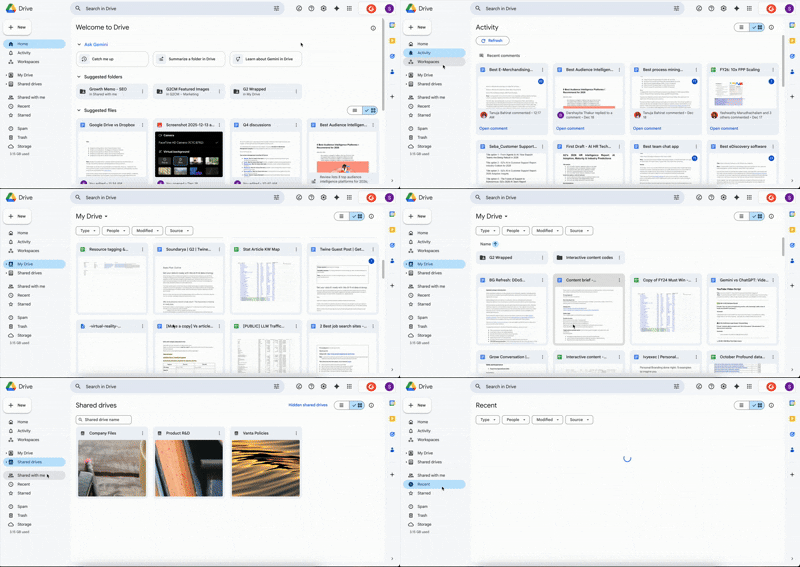
I did appreciate the Workspaces feature in the Priority tab. I could bundle relevant docs — like a Budget Sheet, a PDF invoice, and a slide deck into a single workspace for a specific project. It’s great for quick access, though I found the main "My Drive" view often felt cluttered, especially with that "Suggested" row at the top constantly guessing to show me what I wanted.
This one goes to Dropbox for me. Its simpler layout, custom sections, tagging, and automation features made it much easier to stay organized, especially when working with messy, asset-heavy projects. Google Drive works, but Dropbox made organization feel intentional instead of accidental.
Winner: Dropbox
If file organization is about how tidy you are, file search is about how lazy you can afford to be. And in this department, Google Drive is basically magic.
To test this, I ran a simple search experiment. I took a photo of a random grocery receipt that had the word "Avocado" on it, but I named the file just IMG_202902.jpg. I uploaded it to both platforms and waited a few minutes.
Then, I typed "Avocado" into the search bar.
Google Drive found it instantly. Its optical character recognition (OCR) is scary good. It scans the actual content of your images and PDFs, not just the file names. This works even on the free plan. I’ve used this feature multiple times, not just in Google Drive but also in Photos, to find the most obscure, years-old photos. If you’re the type of person who dumps everything into one giant folder and prays you can find it later, Google Drive is your safety net. It’s the Google for your files.
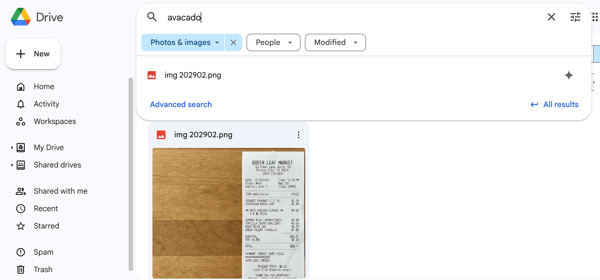
I also loved the "Search Chips", little clickable buttons that pop up under the search bar (like Type: PDF, Modified: Today), which let me drill down to exactly what I needed without learning complex search codes.
Dropbox struggled here. Searching for "Avocado" returned zero results. Dropbox does have this image-text search capability, but it didn’t work for me when I tried this specific test. It worked well when I knew roughly what I was looking for with file names, types, folders, or tags, but it wasn’t quite as magical with fuzzy queries like this.
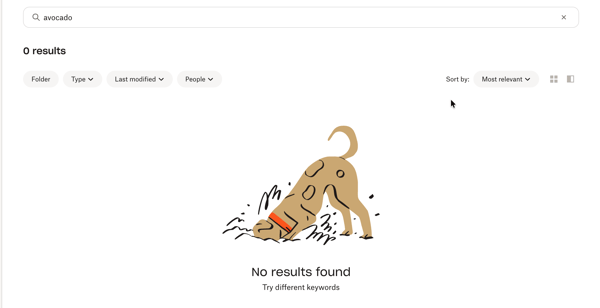
So, for the average user, I felt Dropbox relies heavily on you being organized first. If you didn't name it or tag it correctly, it’s going to be hard to find.
If you are meticulously organized, Dropbox’s search is fast and accurate. But if you want the freedom to be messy and still find that one screenshot from three years ago by typing a single word that was in it, Google Drive wins hands down.
Winner: Google Drive
If syncing is about how the tools work on your computer, sharing is about how they work with other people. After testing both, I realized they have completely different personalities: Google Drive is best for teammates, while Dropbox is best for clients.
Both tools nailed the basics of link sharing. In both Dropbox and Google Drive, I could decide whether someone could view or edit, and whether access was limited to invited people or opened up to anyone with the link.
But the difference shows up in nuances. With Google Drive, sharing with another Gmail user is seamless; you type their email, they get a notification, and they can jump right into the Doc or Sheet to edit with you.
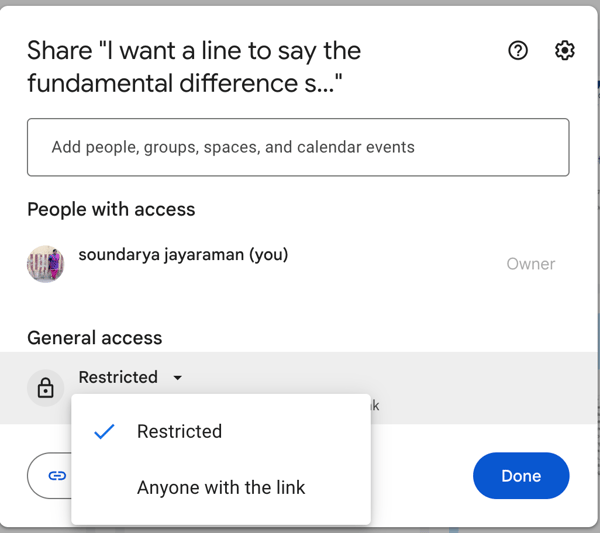
However, the moment I tried to share a secure file with a non-Google user, things got clunky. Google often forces them to either sign in with a Google account or go through a visitor sharing flow. To avoid that friction, I often found myself lazy-sharing by selecting "Anyone with the link can view," which is easy but comes with its own package because you can't natively password-protect those links.
Dropbox felt more straightforward right away, especially when I was sharing files with people outside my org. Creating a share link, setting access (view vs edit), and knowing exactly who could see what felt simple and predictable. I liked that the receiver didn’t have to create their own Dropbox account to view the link.
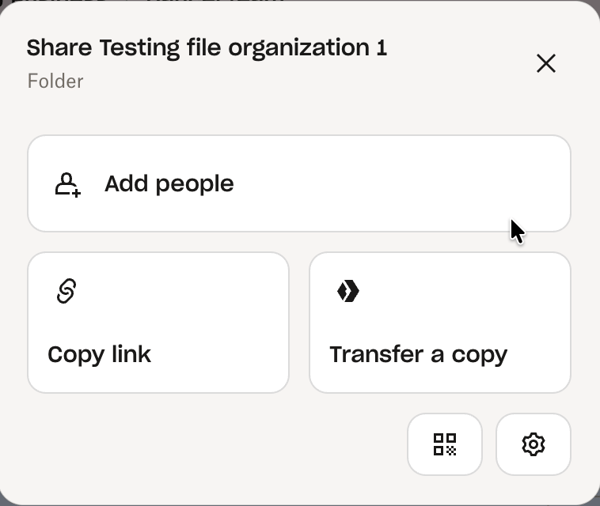
And on paid plans, I could generate a link and crucially add a password and an expiration date like "expires in 48 hours". This is huge for security. It means I can send a sensitive link via email and know that even if the email gets forwarded, the file is safe. Plus, when the recipient opens the link, they see a clean, branded preview without needing to sign up or log in.
I should be fair and mention that Google Drive does technically allow for expiration dates, but the workflow feels much heavier. You generally have to share the file with a specific email address first, and then go into the settings to add an expiration timer for that specific user. You can’t just easily create a public link with a password and a self-destruct timer unless we do it from admin settings, which is where Dropbox really shines for quick, secure external sharing.
So, Dropbox wins for me here. The combination of simple sharing flows and strong link-level controls made it easier to share files confidently, especially outside my organization. Google Drive is great for internal, doc-heavy collaboration, but Dropbox made sharing feel harder to mess up.
Winner: Dropbox
Users rate Google Drive (Google Workspace) slightly higher for file sharing.
This is where the difference between document collaboration and file collaboration really showed up.
Google Drive is built for real-time collaboration. If the work happens inside Google Docs, Sheets, or Slides, it’s hard to beat. I can be in a document with three other people, see their cursors moving in real-time, and leave comments that resolve instantly. It feels fluid and fast. And version history was simple to navigate. For native Google files, that history is basically infinite, which made my experimentation feel safe. I never worried about breaking a document.
That said, I found an important nuance that matters if you aren't using Google's own tools. For non-Google files, like images, PDFs, ZIPs, or videos — Drive typically keeps versions for only 30 days or 100 versions, whichever comes first. I realized I could manually mark specific versions to keep forever, but I had to remember to actually do it. That is fine if you are disciplined, but it's very easy to forget when files are moving fast.
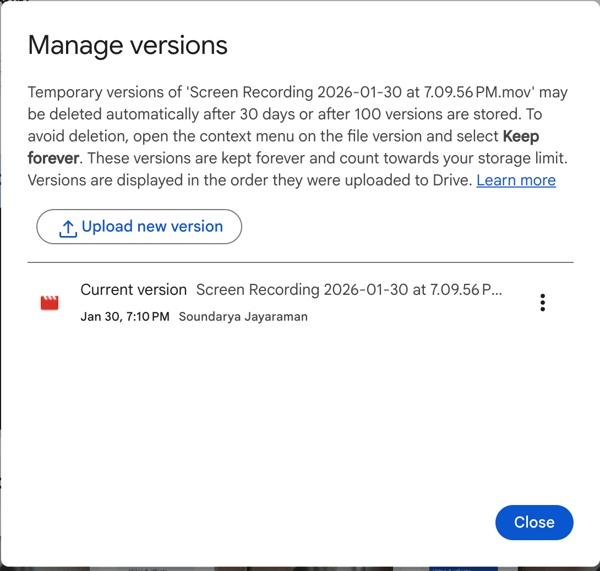
Dropbox takes a different, more file-first approach, and honestly, for file-heavy workflows (design assets, video projects, legal docs), it felt better suited. I initially thought the big difference was file locking, but it turns out Google Drive has added that feature too. So, while both tools can now lock a file to prevent conflicts, the real differentiator for me was the safety net.
Dropbox keeps 30 days to 1 year of version history for every single file type, depending on your plan. In my standard plan, it was 180 days, higher than Google’s 30-day limit. For non-Google files, Dropbox’s longer and more consistent version history felt safer than Drive’s default limits, especially in fast-moving, file-heavy workflows.
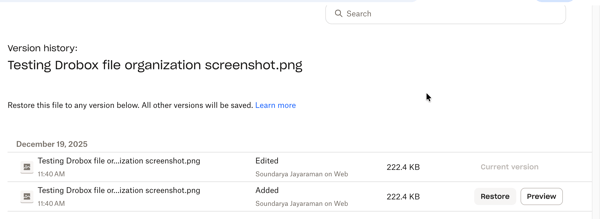
One more thing that stood out to me with Dropbox’s version control is that it doesn’t stop at individual files. It applies to entire folders, too. When I accidentally deleted a folder during testing, I didn’t have to hunt down individual files or recreate anything. I could simply restore the folder or even rewind it to a previous state, which brought everything back in one shot.
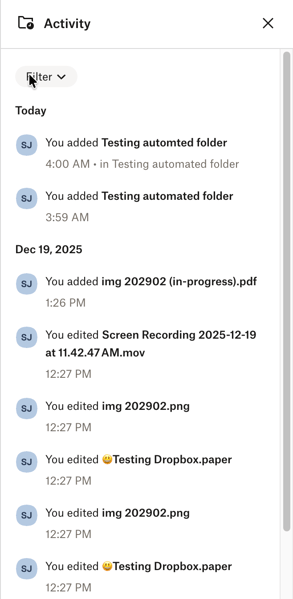
That kind of recovery feels especially valuable in shared folders where lots of changes are happening at once. Instead of untangling a mess file by file, I could roll the folder back and move on. Dropbox also provides Dropbox Replay, a rich media review and approval tool that allows collaborators to mark up, comment on, and finalize video, image, and audio projects.
On the whole, the version control for folders tipped me to Dropbox over Google Drive. Of course, Drive wins for real-time, in-the-doc collaboration, and Google Docs/Sheets/Slides plus near-infinite version history is hard to beat. Dropbox wins for file-heavy work, where version history for non-Google files and folders feels more consistent (and often longer on paid plans), so recovering from mistakes is less stressful.
Winner: Dropbox
Security isn’t something I want to notice. I want it to quietly work in the background. And for the most part, both Dropbox and Google Drive delivered on that expectation.
At a baseline, both platforms cover the essentials well. I could turn on two-factor authentication, manage who had access to files and folders, and review sharing activity when needed. Nothing felt flimsy or underbuilt on either side, which is reassuring given how much important work ends up living in these tools.
Where Dropbox stood out for me was how visible and actionable security controls felt during everyday use. Especially on paid plans, things like password-protected links, expiration dates, download restrictions, and file-level controls were easy to find and quick to apply. Security felt baked into the sharing workflow.
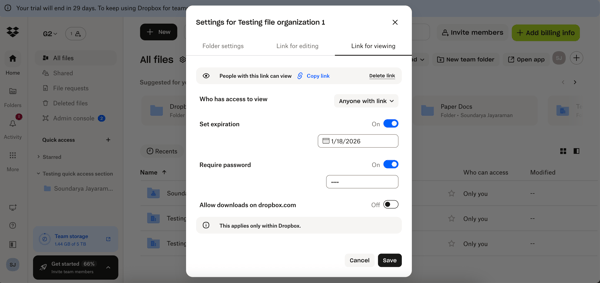
Google Drive’s strength is more on the admin and policy side, particularly within Google Workspace. There’s a lot of power there: access rules, sharing restrictions, audit logs, DLP, but much of it lives at the organization level. For example, an admin can set a rule that any Google Drive link shared publicly can expire within two months. As an individual user, I sometimes felt like I was relying more on preset policies than actively controlling security myself.
That said, if your team already runs on Google Workspace, Drive’s security model makes sense. Everything ties together across Drive, Docs, Gmail, and Calendar, which can be a big advantage for larger or more regulated teams.
For me, this one is split along usage lines. Dropbox felt more intuitive and confidence-boosting for everyday file sharing, while Google Drive made more sense for teams already deep into Google Workspace that need centralized, org-wide security controls.
Winner: Split
This section was a little uneven for me, not because the features aren’t interesting, but because I didn’t get to properly test Dropbox Dash hands-on.
Dropbox’s big AI play right now is Dropbox Dash. From what Dropbox positions it as, Dash is basically a universal search and an AI chat layer that can pull answers and surface files across Dropbox and other connected apps (think links, docs, conversations, etc.). It also leans into “organization without reorganizing,” with things like Stacks (group-related content) and a dashboard-style start page.
So the promise is: instead of digging through five tools and 20 folders, you just ask Dash. I like the idea. I just can’t confidently judge how well it works day-to-day since I didn’t test it.
Google Drive feels like AI is already built into the product. With Gemini in Drive (paid plans), I could do things like ask for insights on files/folders and use prompts like “Catch me up” to summarize recent changes and comments across my Drive activity.
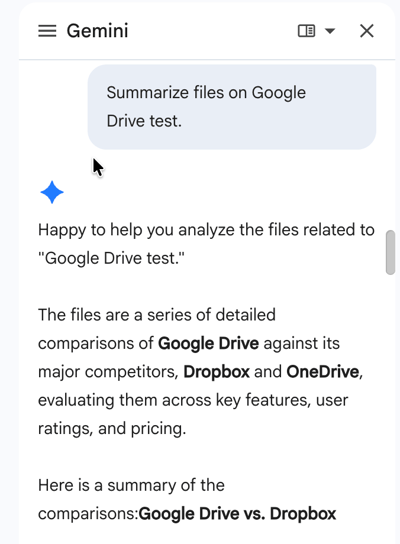
Google’s also been expanding what Gemini can summarize inside Drive, like PDFs and even videos (where supported), which makes sense if Drive is your team’s default dumping ground for meetings, docs, and recordings.
Right now, Drive’s AI feels most useful for catching up after you’ve missed a lot of activity and getting quick summaries of what changed. Dash sounds like it could be more powerful if your work is spread across tools; I just can’t claim that from firsthand testing.
Winner: Google Drive
Integrations mostly came down to where my work already lives.
I think I’ve already mentioned this a million times, but Google Drive feels deeply embedded into the Google ecosystem. If you’re already using Gmail, Calendar, Meet, Docs, Sheets, and Slides, Drive integrations almost disappear, in a good way. Files attach naturally to emails, meeting invites link back to Drive assets, and collaboration flows without much setup. When everything stays inside Google Workspace, Drive feels cohesive and hard to break.
But the moment I tried to edit a Microsoft Word document someone sent me, Google politely converted it into a Google Doc, which often messed up the formatting.
Dropbox, on the other hand, plays incredibly nice with everyone since it doesn't have its own word processor or spreadsheet engine. Creating or editing a Microsoft Word doc happened in the actual Microsoft Word. If I wanted to create a Google Doc, I could connect Google Drive nicely and get it going, but with a slight twist that the Google files will sit as "Shortcuts" on my Dropbox account.
My verdict? This one’s split depends on your stack. Google Drive makes the most sense if you’re already all-in on Google Workspace, while Dropbox felt like the better fit for mixed-tool environments and cross-company collaboration.
Winner: Split
If this were purely a feature comparison, the two platforms would be neck and neck, but when you look at the pricing structures, they take very different approaches.
Starting with the free tier, Google is generous, offering 15GB of storage shared across Drive, Gmail, and Photos, which is often enough for personal use for quite a while. Dropbox offers a lighter entry point of 2GB, which serves more as a way to test the waters and sync a few active projects rather than a long-term storage solution for free users.
As you move into paid plans, Google and Dropbox take very different approaches. Google Workspace is about value through bundling. You’re not just paying for storage. You’re getting your email, calendar, meetings, chat, docs, and collaboration tools in one package. For teams, that often works out cheaper overall, especially since storage is pooled across users. If one person needs more space, the rest of the team can balance it out.
Dropbox, on the other hand, is unapologetically specialized. It’s not trying to be your email or office suite — you’re paying specifically for advanced file management. That does mean it’s an additional line item in your stack, and the entry point is higher (especially since team plans require a minimum number of users). But what you’re paying for is depth: faster syncing, longer version history, folder rewind, and creative-friendly tools like built-in PDF editing and Dropbox Replay for video feedback.
I’ve seen this pattern before in other comparisons: Google offers everything, and it works well. Specialized tools offer fewer things, but do those things exceptionally well. If you want an affordable option that keeps things simple and functional, Google Drive is hard to argue against. If you want a tool purpose-built for heavy files, creative workflows, and tighter control, Dropbox justifies its price by delivering exactly that.
Google Drive is the pragmatic choice for value, it covers storage, collaboration, and communication in one lower monthly bill. Dropbox is a premium choice, and a deliberate one: you’re not paying for extra office apps you may never use, you’re investing in advanced file management built for serious, file-heavy work.
Winner: Google Drive
Here’s a table showing all my evaluations with the winner and the reason.
| Test | Winner | Why |
| File uploads | Google Drive🏆 | Handled a ~3,000-file mixed folder upload faster and more reliably via the web app. |
| Sync and desktop experience | Split | Dropbox is faster for large, frequently edited files; Drive offers better storage flexibility with Stream vs. Mirror. |
| File organization | Dropbox🏆 | Cleaner structure, tagging, and automated folders work better for asset-heavy projects. |
| File search | Google Drive🏆 | OCR and content-based search make files easy to find even when naming breaks down. |
| File sharing | Dropbox🏆 | External sharing is simpler and more predictable with passwords, expirations, and access controls. |
| Collaboration and version control | Dropbox🏆 | Stronger version history and rewind for non-Google files felt safer for file-heavy workflows. |
| Security | Split | Dropbox excels for hands-on sharing security; Drive fits admin-led Workspace environments. |
| AI features | Google Drive🏆 | Gemini is immediately useful for summaries and activity catch-ups. |
| Integrations | Split | Drive is best inside Google Workspace; Dropbox handles mixed tools and Microsoft files better. |
| Pricing and value | Google Drive🏆 | More generous free plan and better bundled value with Workspace tools. |
Google Drive Workspace and Dropbox are in #1 and #3 positions on the G2 Grid for the Cloud Content Collaboration category. I also reviewed other G2 Data to see how real users rate Dropbox Suite and Google Drive Workspace. Here’s what stood out:
For teams choosing between Microsoft 365 and Google Workspace, this OneDrive vs. Google Drive guide explains which platform fits better depending on how you organize, search, and share files.
Have more questions? Find the answers below.
Google Drive is better for collaboration, while Dropbox is better for file syncing and sharing. Google Drive works best for teams using Google Docs, Sheets, and Slides with real-time editing. Dropbox excels at fast syncing, large file handling, and version control across devices.
Google Drive is the better free cloud storage option. It offers 15 GB of free storage, compared to Dropbox’s 2 GB. For personal use or light business needs, Google Drive provides more value without upgrading to a paid plan.
Dropbox is the better file-sharing platform, while Google Drive is better for collaboration. Dropbox offers advanced link controls, faster syncing, and better handling of large files. Google Drive is ideal when multiple users need to edit and comment on files in real time.
No—Dropbox and Google Drive offer similar security levels. Both use encryption in transit and at rest, support two-factor authentication, and meet major compliance standards. Dropbox offers more granular admin controls, while Google Drive benefits from Google’s broader security infrastructure.
Google Drive is better for collaboration-first businesses, while Dropbox is better for file-centric teams. Google Drive integrates tightly with Google Workspace, making it ideal for distributed teams. Dropbox offers stronger file management, admin controls, and syncing performance.
Google Drive is Dropbox’s biggest competitor. Other Dropbox alternatives include Microsoft OneDrive, Box, iCloud Drive, and pCloud, depending on whether users prioritize collaboration, enterprise controls, or privacy-focused cloud storage.
The best Google Drive alternatives include:
Yes, Dropbox and Google Drive can be integrated using third-party tools. Platforms like Zapier, MultCloud, and CloudHQ allow users to sync, move, or automate file transfers between Dropbox and Google Drive, but there is no native integration.
Yes, Dropbox is generally better for large files. It offers faster syncing, more reliable uploads, and advanced version control, making it a stronger choice for media files, design assets, and large datasets.
The best cloud storage platform depends on your ecosystem:
There is no universal winner. Each platform excels in different use cases.
Usually, yes. Google Drive is better for small businesses that want lower-cost storage plus Docs, Sheets, Gmail, and Meet in one bundle. Dropbox is better for file-heavy teams that need stronger sharing and sync controls.
Google Drive is stronger for real-time co-editing, Google-native search, and Workspace integration. On the other hand, Dropbox is stronger in fast sync, external sharing controls, tagging and automation, and longer version history on paid plans.
Google Drive and Dropbox deliver enterprise-grade security with AES-256 encryption at rest and TLS/SSL in transit for both, plus 2FA support. Google Drive offers integrated Workspace threat detection, granular permissions, audit logs, DLP, and malware scanning, while avoiding ad use of personal files. Dropbox provides advanced sharing (passwords, expiration, download limits), ransomware detection, remote wipe, and optional zero-knowledge E2EE in higher tiers. Moreover, both comply with GDPR and HIPAA.
Google Drive is built around creating and co-editing documents inside Google Workspace, while Dropbox is built around syncing, sharing, and managing files across many tools and devices. Google Drive is usually the better fit for document collaboration and value, while Dropbox is usually the better fit for file-heavy delivery, external sharing, and tighter file management.
After living with both platforms, I realized that choosing between Google Drive and Dropbox isn’t really about "storage." Both store files perfectly fine. The real choice is about what kind of work you do every day.
Google Drive is the ultimate open-plan office. It is built for speed, collaboration, and value. If your day involves writing documents, crunching numbers in spreadsheets, and jumping onto video calls with your internal team, it is the obvious winner. It removes the friction of file formats and offers an unbeatable price by bundling your entire digital office into one subscription. It is the best choice for general business, administration, and teams that need to "make" things together in real-time.
Dropbox, on the other hand, is more like a private studio. It is built for craftsmanship, security, and delivery. If your work involves heavy assets like 4K video, complex design files, or sensitive legal contracts, Dropbox offers the performance and protection you need. The higher price tag buys you a smoother syncing engine that doesn't choke on large files, a "Rewind" safety net that saves you from ransomware, and client-facing tools that look professional. It is the best choice for creatives, agencies, and freelancers who need to "deliver" finished work to the world without friction.
Ultimately, you might find that you don't even have to choose. Many effective teams end up using both: Google Drive for the messy, collaborative work of drafting and brainstorming, and Dropbox as the secure, final vault for the assets that really matter. But if you have to pick just one, ask yourself: do you need a better way to write with your team, or a safer way to deliver to your clients? That answer will tell you exactly which tool to buy.
File storage is just one piece of how teams actually collaborate today. To explore how collaboration tools work together, check out G2’s guide on the best free collaboration tools.


Published: June 2025 · Last updated: April 2026 When I started my fractional content...
 by Sagar Joshi

I evaluated Google Workspace, Microsoft OneDrive, Dropbox, Box, Egnyte, IBM Aspera on Cloud,...
 by Washija Kazim

Cloud storage – isn’t it great?
 by Adrijan Arsovski