


Ever catch yourself drowning in a flood of ideas, so many that you don’t even know where to start? Trust me, I’ve been there. When my thoughts feel all over the place, and I need something to spark clarity (and maybe a little creativity), mind mapping is my go-to.
The best part? You don’t need expensive software to do it. Free mind-mapping tools give you a digital canvas to brainstorm visually, organize complex information, and unlock new ideas without spending a dime. Many of them even come with surprisingly powerful features like real-time collaboration, drag-and-drop editing, and customizable templates.
I’m breaking down the top free mind-mapping tools below, what makes each one unique, and how they stack up side-by-side, so you can find the perfect fit for your workflow.
*The software list is arranged alphabetically. These tools offer free trials, free forever options, or freemium models.
If you feel overwhelmed by the wealth of information about free mind mapping software, this comparison table will help you with all the important aspects:
| Best free mind mapping software | G2 Rating | Free plan | Paid plan |
| ClickUp | 4.7 /5 ⭐ | Free plan available | From $7.00/month |
| Creately | 4.4 /5 ⭐ | Free plan available | From $5.00/month |
| Lucid Visual Collaboration Suite | 4.5 /5 ⭐ | Free plan available | From $9.00/month |
| MindManager | 4.5 /5 ⭐ | Free 30-day trial available | From $99/year |
| Miro | 4.7 /5 ⭐ | Free plan available | From $8.00/month per member |
| Padlet | 4.9 /5 ⭐ | Free plan available | From $9.99/month |
| Whimsical | 4.6 /5 ⭐ | Free plan available | From $10.00/month per editor |
*All pricing details mentioned in the article are based on publicly available data at the time of publication and are subject to change.
Mind mapping has become one of the most effective ways for teams to brainstorm, plan, and visually organize complex ideas, and its popularity continues to grow every year. As workflows get more collaborative and projects become more detailed, the need for simple, intuitive visual thinking tools has never been higher.
Whether you're planning content, mapping out processes, organizing ideas for a project, or just trying to bring clarity to a messy brainstorm, there’s a free tool out there that can fit seamlessly into your workflow. It helps you think more clearly, connect concepts faster, and move from rough thoughts to structured plans without getting lost in documents or scattered notes.
And what surprised me most while reviewing real user feedback is that several free mind mapping tools offer impressive flexibility, real-time collaboration, and smooth diagramming experiences that rival premium platforms.
These are the seven mind mapping tools that consistently stood out for their ease of use, visual clarity, and overall value, especially for teams and individuals who want powerful features without paying for a full suite.
To build this list, I began with G2 Data, shortlisting top-rated tools based on their G2 scores and consistent performance in the free survey tools category.
From there, I reviewed product specs and recent, verified user feedback to confirm that these products deliver real value and to understand where each one stands out.
The goal was simple: to see whether these tools are as good as they claim, what each one is best for, and whether there’s a free version or free trial you can try with minimal risk. And because this is a free-focused list, I paid extra attention to what you can actually do without paying, such as whether the free tier includes core features, how long the free trial lasts, and what limitations might prompt you to upgrade.
The screenshots featured in this article may be a mix of those taken from the vendor’s G2 page or from publicly available materials.
The free mind mapping list below contains real user reviews from the best mind mapping software category page. It’s important to note that in the context of this list, vendors offering a free trial are also considered free. To be included in this category, a solution must:
*This data was pulled from G2 in 2025. Some reviews may have been edited for clarity.
Think beyond tasks and lists. ClickUp offers robust mind mapping functionality. You can brainstorm freely, organize thoughts visually, and connect ideas effortlessly. ClickUp empowers you to transform fleeting ideas into actionable plans, all within a single, customizable platform. A generous free plan makes ClickUp a compelling option for individuals and small teams, while paid versions offer advanced features for larger groups. According to G2 Data, it ranks as the 2nd easiest to use tool.
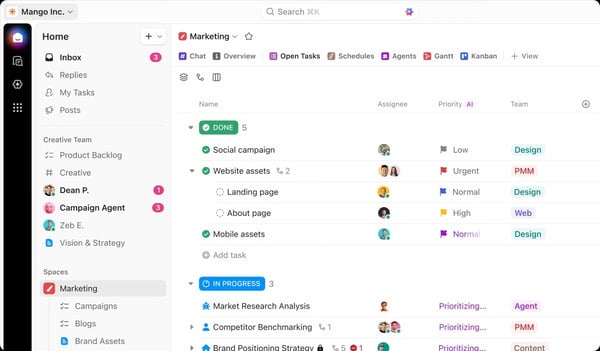
| Pros of ClickUp | Cons of ClickUp |
| All-in-one application | Tricky to organize large projects |
| Custom templates for quick project creation | Slow refresh and reload time |
| Efficient color-coding for easy task tracking | Limited offline access |
“ClickUp is fully customizable, allowing us to create workflows that make sense for every aspect of our business. Whether it's the finance team, marketing folks, legal, or the folks working the frontlines of operations, ClickUp can manage every bit of information and every process in a seamless, integrated, no-hassle, frictionless way.”
- ClickUp Review, Lindy L.
"Its Kanban-type board is dynamic, intuitive, and easy to use. However, it is important to segment a large project so that we are not overwhelmed by using relatively large boards. This is more related to the methodology used than to the use of the tool itself."
- ClickUp Review, Marianela F.
Ready to level up your brainstorming? Explore the top free collaboration tools online and build a more powerful, connected workflow.
Beyond mind mapping, Creately stands out as a visual collaboration hub for various projects. You can create flowcharts, org charts, and wireframes (low-fidelity design mockups) and even collaborate with team members on documents in presentation modes, from ideation to planning and execution. This flexibility makes Creately a well-rounded choice for teams of all sizes who need to plan, organize, and communicate ideas effectively visually. What’s more, Creately offers both free and paid plans. According to G2 Data, it is mostly used by small businesses.
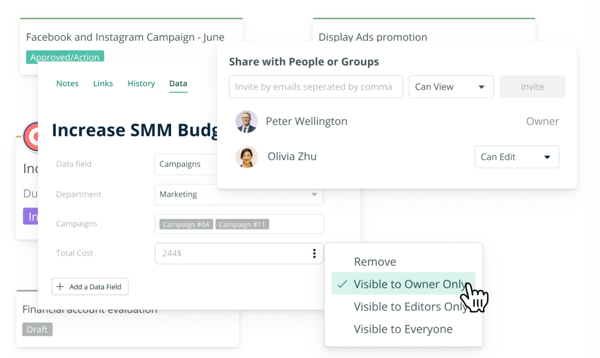
| Pros of Creately | Cons of Creately |
| Versatile platform for different flowcharts | Learning curve for advanced features |
| Real-time collaboration features | Limited offline access |
| Intuitive and user-friendly interface | Limited features with the free plan |
“Creately is easy to use and design with. We find it particularly easy to design all our network diagrams for clients in Creately. Exporting them is a breeze as well. Creately offers a user-friendly interface that makes it easy for users to create various types of diagrams without extensive training or experience.”
- Creately Review, Surya Prakash M.
“The least helpful aspect of Creately might be its limited functionality in the free plan, which may restrict users from fully experiencing the platform's capabilities without upgrading to a paid subscription. Next is its dependency on an Internet connection. Since Creately is a cloud-based tool, it requires a stable internet connection to access and work on diagrams. This dependency on internet connectivity may pose challenges for users in areas with poor internet infrastructure.”
- Creately Review, Padilla P.
Found a tool you love? Now learn how to use it like a pro. Explore how to use mind mapping to plan your next great idea for inspiration and best practices.
The Lucid Visual Collaboration Suite isn't just one tool; it's a powerhouse for visual thinking. It comes with a toolbox with dedicated programs for mind mapping (Lucidspark), diagramming (Lucidchart), and even cloud infrastructure visualization (Lucidscale). This suite seamlessly integrates these tools, allowing teams to brainstorm freely, plan thoroughly, and visualize complex systems in a connected environment. Free and paid plans cater to individual and team needs. According to G2 Data, it is ranked as the 2nd-highest-rated tool.
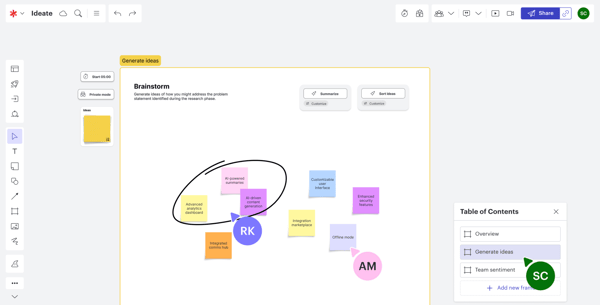
| Pros of Lucid Visual Collaboration Suite | Cons of Lucid Visual Collaboration Suite |
| Comprehensive customer support and resources | Learning curve for new users |
| Seamless integration features | Potential for feature overload |
| Security features to protect sensitive data | Limited storage with the free plan |
“What I like about the Lucid Visual Collaboration Suite is its blend of user interface and powerful features. The drag-and-drop interface and ready-to-use templates make it easy for anyone to create diagrams and flowcharts. Real-time collaboration allows teams to work together seamlessly, seeing changes instantly daily. The suite includes tools like Lucidchart, Lucidspark, and Lucidscale, all in one place, and integrates well with other platforms like Google Workspace and Slack.
Built-in features for comments, chat, and notifications keep everyone aligned, while customizable templates make it versatile for different projects. It also scales well, catering to small teams and large organizations. Overall, it's great for enhancing productivity and teamwork.”
- Lucid Visual Collaboration Suite Review, Lisa M.
“While the free version is excellent, some advanced features are only available in the paid version, which might be a consideration for those on a tight budget.”
- Lucid Visual Collaboration Suite Review, Pietro S.
Got your ideas mapped out? Take the next step by pairing them with powerful free project management tools that help you plan, prioritize, and execute seamlessly.
With MindManager, you have a digital brainstorming tool that allows you to organize ideas, explore connections, and develop plans visually. It extends beyond simple mind maps with features like task management, Gantt charts, several fonts, and budgeting tools, making it ideal for project planning and strategic thinking. MindManager, too, offers free trials and paid plans. According to G2 Data, it is used by businesses of all levels.
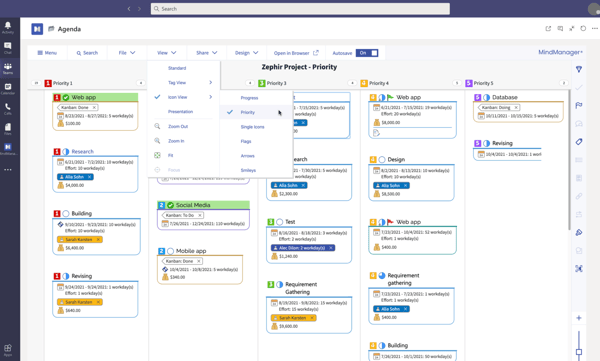
| Pros of MindManager | Cons of MindManager |
| Cross-platform collaborative editing | Limited integrations |
| Extensive mind-mapping functionalities | Steeper learning curve for extensive features |
| Complete offline access | Performance issues with large or complex mind maps |
“The ability to brain dump ideas and factors that are playing in the natural order of understanding and decision making, then being able to link, move, and attach supporting concepts and data (attachments and links) into a framework structure that leads your communication and socializing of ideas, arguments or concepts to others.”
- MindManager Review, Paul S.
“You need separate licenses and different versions to use the product on Windows and MacOS. It would be better if there were one license for everything, and the same version was running on every platform.”
- MindManager Review, Peter I.
Miro is an online whiteboard platform that acts as a digital workspace for brainstorming, collaboration, and project management. Imagine an infinite canvas where you can add sticky notes, mind maps, diagrams, and even video chat with teammates in real-time. Miro appeals to remote teams or anyone who wants to organize central ideas visually and boost productivity, with both free and paid plans available. According to G2 Data, it ranks as the 3rd easiest to use tool.
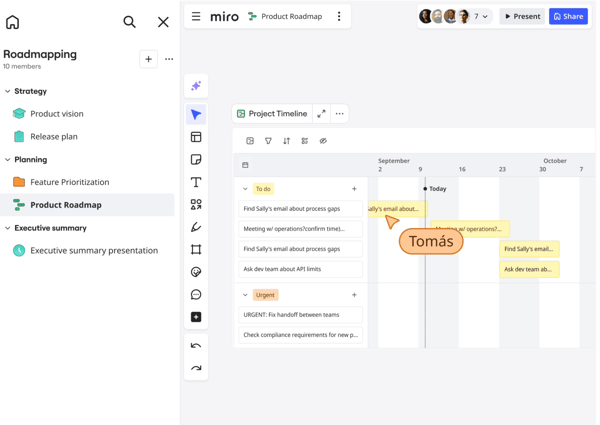
| Pros of Miro | Cons of Miro |
| Video conferencing integration for immersive collaboration | Steep learning curve for advanced features |
| Flexibility and ease of use | Potential performance issues |
| Template library | Limited storage with the free plan |
“First, I like the scalability of Miro Whiteboards. You can quickly start with a small drawing and add more and more information, pictures, notes, and references to it, and you can end up with a large-scale drawing that still works and provides a decent overview of what you did. As a proper cloud-based solution, these results are available everywhere, on your PC, in the home office, virtual, and even in real-life meetings. So results are not lost but could be reused and enhanced in collaboration. That’s the way I love to use whiteboards.”
- Miro Review, Detlev P.
“Though it's a must-have for marketing and salespeople, designers, developers, and project managers, too many things sometimes overwhelm it. Also, integration with Zoho apps is missing. And when I add comments, I need to manually link each comment to the elements, which is very frustrating. I wish there could be an easier way to do this.”
- Miro Review, Manish S.
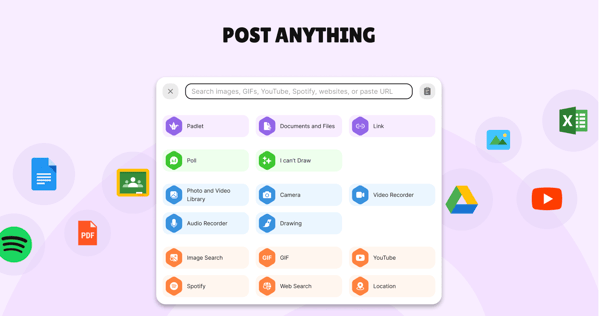
Padlet is more than just a mind mapping app for complex projects; it's about creating interactive digital pinboards. With Padlet, you can create a virtual pinboard where you can pin ideas and use it for notes, images, and even videos. With Padlet, you can easily share and collaborate on information with colleagues, students, or anyone with an internet connection. Free and paid versions offer different levels of customization and privacy control.
| Pros of Padlet | Cons of Padlet |
| Interactive digital bulletin board | Limited functionality for complex projects |
| Easy information sharing | Limited offline access |
| Real-time multiple-user collaboration | Limited integration with third-party tools |
“Padlet provides many opportunities for students to engage with authentic problem-solving, critical thinking skills, and visual collaboration. Because the students see their work product appear instantaneously, they are ready to jump in with enthusiasm. Often, the learning activities and experiences bring laughter, excitement, and joy to a teacher's ears.
As a teacher, I like how I can remake Padlets for different classes. I have so many features, such as the background, the ease and ability to copy a link to each Google Classroom, the visual appeal for each Padlet, and how easy it is to moderate the Padlets.”
- Padlet Review, Tina G.
“Right now, the only thing I don't like is that I am limited in the number of Padlets I can create with the free version. I'd make a lot more of them if I could.”
- Padlet Review, Kirstin D.
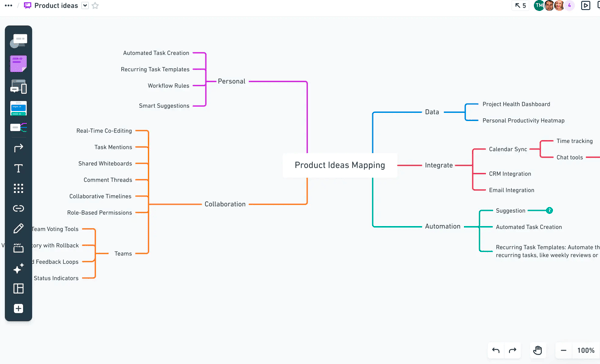
Whimsical provides more than mind maps; it's a versatile workspace for product teams. Think of it as a digital toolbox combining mind maps, wireframes, flowcharts, and collaborative documents. Whimsical optimizes the product development process by allowing teams to brainstorm visually, plan workflows, and create prototypes. Both free and paid plans are available.
| Pros of Whimsical | Cons of Whimsical |
| Versatility for product teams | Less-than-ideal community support |
| High-quality images with export features | Inconsistent drag-and-drop functionality |
| Real-time collaboration on projects | Limited features in the free plan |
“Whimsical has continued to improve over the years and offers a comprehensive package of tools. I use it for brainstorming during ideation sessions, site architecture, user experience experiments, wireframes, and anything else I can think of. Also, love the new feature where you can invite clients to collaborate, and they don't have to set up an account – so refreshing!”
- Whimsical Review, Sarah L.
“I wish it had a way to save components. For example, I would love to turn my navbar into a component, and if I make any changes to that component, it will update every instance where the navbar is located.”
- Whimsical Review, Alejandro H.

While free tools offer a surprising amount of functionality, online mind mapping tools can have limitations compared to paid versions. Here are some common ones:
Security practices can vary between free mind map makers. Choose a reputable developer and check their privacy policy to understand how your data is stored and used.
Yes, most of the free mind mapping software can be downloaded and used offline. However, it is important to note that free plans may have some limitations with offline workflows.
Several modern diagramming tools now offer AI-powered features that generate flowcharts, mind maps, org charts, and process diagrams automatically from text prompts. Platforms like Miro, Lucidchart, Whimsical, and ClickUp Whiteboards include built-in AI assistants that can turn ideas or descriptions into structured diagrams with minimal manual work.
Upgrading makes sense if you need features unavailable in the free version, such as increased collaboration needs, concept maps, more storage space, or advanced formatting options. Try out the free version first to see if it meets your needs!
Vendors such as Lucidchart, Miro, Whimsical, Creately, and Figma (via plugins) all offer AI tools that help users generate diagrams and charts instantly. These features usually work by taking a text input, such as a workflow description, and converting it into a formatted diagram, saving users time on layout and structure.
Yes. While Google doesn’t offer a dedicated “flowchart app,” tools like Google Drawings, Google Slides, and Google Docs (via Drawing) allow users to build simple flowcharts using shapes and connectors. For more advanced diagrams, users can integrate Google Workspace with add-ons, such as Lucidchart.
Yes. Microsoft Excel includes shapes, smart connectors, and flowchart symbols that enable users to create simple to moderately complex flowcharts directly within a spreadsheet. Excel isn’t a specialized diagramming tool, but it works well for basic workflows, process diagrams, and quick visualizations.
Now that I have explored so many free mind-mapping tools, I have realized there’s really no excuse to let my ideas sit in a messy heap. Having these options at my fingertips makes it so much easier to organize my thoughts, visualize connections, and actually bring my ideas to life. Using mind maps has opened up a whole world of creativity, structure, and productivity for me, and I’m confident it can do the same for you.
Of course, the “best” tool will always be the one that fits your personal workflow and feels intuitive to you, so don’t be afraid to test a few and see what clicks.
I hope this roundup of the best free mind-mapping software helps you find the right solution and inspires you to start mapping your ideas today.
Want to optimize your thinking approaches better? Learn design thinking for problem-solving.
Edited by Monishka Agrawal
This article was originally published in 2024. It has been updated with new information


Tired of wrestling with flowchart roadblocks? I’ve been there. The good news is you don’t need...
by Samudyata Bhat

When I first started exploring mind mapping software, it wasn’t just about finding tools to...
 by Washija Kazim

When I first started collaborating across departments, I thought I had a decent grasp of who...
 by Harshita Tewari