


Tired of wrestling with flowchart roadblocks? I’ve been there. The good news is you don’t need to overspend to create clean, effective, visually polished flowcharts. I’ve found that free flowchart software can be surprisingly powerful, offering the functionality and features individual creators and collaborative teams actually need.
Whether you've spent a lot of time using flow charts or none at all, these budget-friendly options will help you visualize your ideas without sacrificing quality.
In this guide, I’ll walk you through the 9 best free flowchart software tools for 2026. For each one, I’ll break down the key strengths and potential drawbacks so you can quickly understand how well it matches your workflow. I’m also including a quick comparison table to help you evaluate them side by side.
By the end of this listicle, you'll be equipped to make an informed decision and select the free flow chart software that complements your workflow and budget.
*The software list is arranged alphabetically. These tools offer free trials, free forever options, or freemium models.
If you feel overwhelmed by the wealth of information about free flow chart software, this comparison table will help you with all the important aspects:
| Best free flowchart software |
G2 Rating | Free plan | Paid plan |
| Cacoo | 4.5/5 ⭐ | Free plan available | From $6/month |
| Cloudcraft | 4.5/5 ⭐ | Free plan available | From $49/month |
| Creately | 4.4/5 ⭐ | Free plan available | From $5/month |
| Gliffy | 4.4/5 ⭐ | 14-day free trial available | From $6/month |
| Lucid Visual Collaboration Suite | 4.5/5 ⭐ | Free plan available | From $11.93/month |
| Miro | 4.7/5 ⭐ | Free plan available | From $8/month |
| Sketch | 4.5/5 ⭐ | 30-day free trial available | From $144/year |
| SmartDraw | 4.5/5 ⭐ | 7-day free trial available | From $7.95/month |
| Visio | 4.2/5 ⭐ | 30-day free trial available | From $15/month |
*All pricing details mentioned in the article are based on publicly available data at the time of publication and are subject to change.
The market for flowchart software is growing faster than ever as companies adopt more visual, collaborative ways to map processes and improve efficiency. By 2025, the global online flowchart software market is projected to reach $1.49 billion, growing at a strong 12.88% CAGR through 2031 as enterprises intensify their focus on visual process optimization and real-time collaboration.
And after trying several options myself, I’ve learned that you don’t need a paid plan to build clean, professional flow diagrams. Many free flowchart software options go far beyond the basics, offering intuitive editors, ready-made templates, and real-time collaboration that seamlessly integrates into a team’s workflow.

These tools have made it easier for me to break down complex processes, share ideas visually, and keep projects aligned without adding another expense to the tech stack.
To build this list, I started with G2 data, shortlisting the top-rated flow chart and diagramming tools based on their G2 scores, category standing, and consistent performance in the Free Flow Chart Software category.
From there, I dug into product feature sets and recent, verified user reviews to understand how each tool performs in real workflows, what users genuinely love, and where each product shines. This helped me identify which platforms offer genuine value, rather than just impressive marketing.
Since this is a free-focused list, I also paid special attention to what you can actually do on the free plan: whether the free tier includes core flow chart features, the limitations you might run into, and whether a free trial gives enough time to test advanced tools without committing.
The screenshots featured in this article may be a mix of those taken from the vendor’s G2 page or from publicly available materials.
The free flow chart software list below contains user reviews from the best diagramming software category page. It’s important to note that in the context of this list, vendors that offer a free trial are considered free. To be included in this category, a solution must:
This data was pulled from G2 in 2025. Some reviews may have been edited for clarity.
Overcome all your diagramming challenges with Cacoo! This cloud-based tool allows you to collaborate with your teammates from any device with an internet connection. With drag-and-drop functionality and an extensive library of shapes, it's easy to create flowcharts, mind maps, and wireframes. Real-time editing ensures everyone knows what they’re doing, and features like in-app chat and video calls keep communication flowing smoothly.
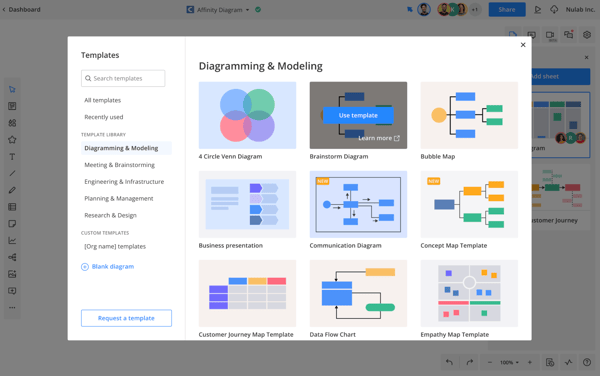
| Pros of Cacoo | Cons of Cacoo |
| Cloud-based collaboration features | Limited offline access |
| Built-in chat and video call functionality | Potential lag with large teams |
| Wide variety of pre-built shapes library | Limited customization compared to advanced diagramming software |
“I love that I can create custom icons and workflow elements that fit my needs and even save my reusable templates. I also love sharing view-only links with clients that allow them to add their comments without worrying about them messing things up.”
- Cacoo Review, Sarah D.
“It is difficult to share designs with people not registered with the same company.”
- Cacoo Review, Ana Luna P.
Want to take your workflows even further? Explore the best business process management software to automate, streamline, and optimize the processes you map with these flowchart tools.
CloudCraft simplifies Amazon Web Services’ (AWS) cloud infrastructure visualization. This software automatically scans your existing AWS account and generates professional-grade diagrams. You can see your resources, connections, and estimated costs in one place. CloudCraft helps you design, document, and manage your AWS architecture.
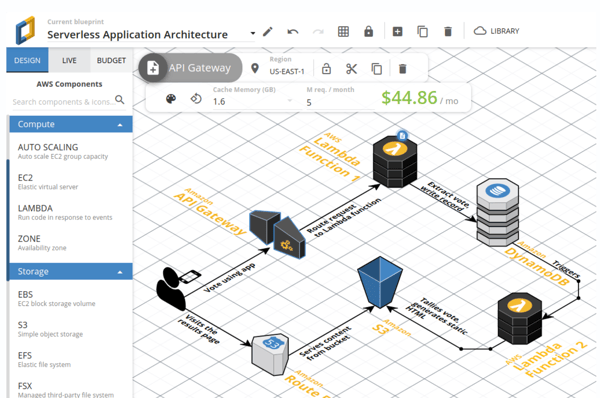
| Pros of Cloudcraft | Cons of Cloudcraft |
| Effortless AWS visualization | Only designed for AWS cloud infrastructure |
| Real-time synchronization | Limited diagramming features beyond AWS |
| 3D view and clear visuals | Primarily focused on visualization and documentation |
“The 3D view and integration with AWS (including the synchronization feature) make it incredibly easy to visualize and maintain your cloud infrastructure in real-time. As a cloud architect, I've tried many tools, but none of them have had the impact that CloudCraft diagrams produce on clients. They remain amazed at how much they can see about their existing or proposed infrastructure. It's also a fantastic tool for teaching about AWS cloud infrastructure and services.”
- Cloudcraft Review, Walter J.
“It's a bit difficult to use the user interface on a laptop due to the trackpad. I always prefer using a physical mouse. Also, if they could provide suggestions based on the resources I use in my architecture diagram, that would be a great feature.”
- Cloudcraft Review, Aman M.
If you enjoy visual thinking beyond flowcharts, check out the best mind mapping software I’ve tested to help you brainstorm ideas, plan projects, and organize complex information.
Creately stands out as a visual collaboration hub for various projects. A digital canvas lets you create flow charts, org charts, and wireframes. You can even collaborate on documents and presentations from ideation to planning to execution – in real-time. This flexibility makes Creately a well-rounded choice for teams of all sizes who need to plan, organize, and communicate ideas visually. According to G2 data, it ranks as the 3rd easiest to use tool.
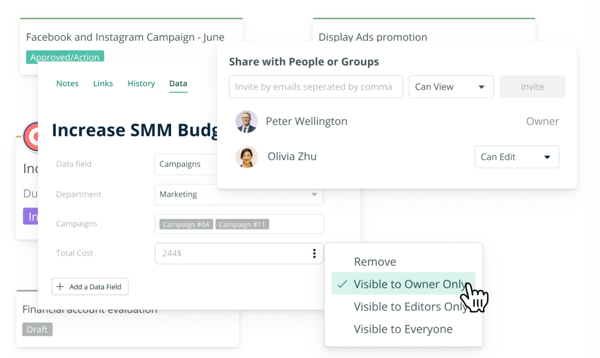
| Pros of Creately | Cons of Creately |
| Versatile platform for different flow charts | Learning curve for advanced features |
| Real-time collaboration features | Limited offline access |
| Intuitive and user-friendly interface | Limited features with the free plan |
“We find it particularly easy to design all our network diagrams for clients in Creately, and exporting them is also a breeze. Creately offers a user-friendly interface that makes it easy for users to create various types of diagrams without extensive training or experience.”
- Creately Review, Surya Prakash M.
“The least helpful aspect of Creately might be its limited functionality in the free plan, which may restrict users from fully experiencing the platform's capabilities without upgrading to a paid subscription. Next is its dependency on an internet connection. Since Creately is a cloud-based tool, it requires a stable internet connection to access and work on diagrams. This dependency on internet connectivity may pose challenges for users in areas with poor internet infrastructure.”
- Creately Review, Padilla P.
Mapping a process is only the first step. Learn how to refine it with proven methods in this guide on process optimization and real-world challenges.
Gliffy simplifies diagramming with an online drag-and-drop interface. Choose from a library of shapes for flow charts, Unified Modeling Language (UML) diagrams, and wireframes. Enhance teamwork with real-time collaboration features, allowing your team to brainstorm, edit, and create diagrams. Integrations with Confluence and Google Drive enhance workflow.
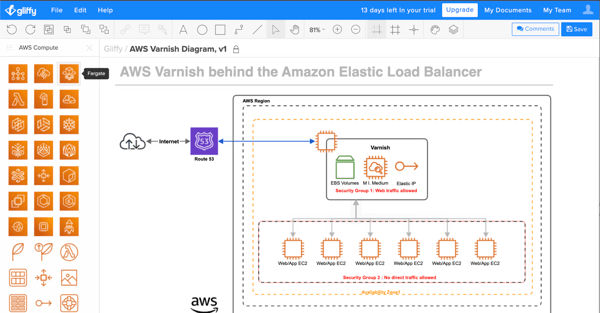
| Pros of Gliffy | Cons of Gliffy |
| Pre-built shapes cater to different diagramming needs | Limited customization options |
| Real-time collaboration features | Potential learning curve for advanced features |
| Integration with Confluence and Google Drive | Requires a stable internet connection for functionality |
“Gliffy is easy to learn and use. It comes with a significant number of templates, diagramming elements, and examples to build on. Gliffy offers convenient collaboration tools, some simple automation, and is very flexible.”
- Gliffy Review, Jon D.
“Selecting specific elements of a diagram can sometimes be difficult, especially when elements overlap. This drawback can be particularly frustrating when creating rough user experience mockups.”
- Gliffy Review, Matthew L.
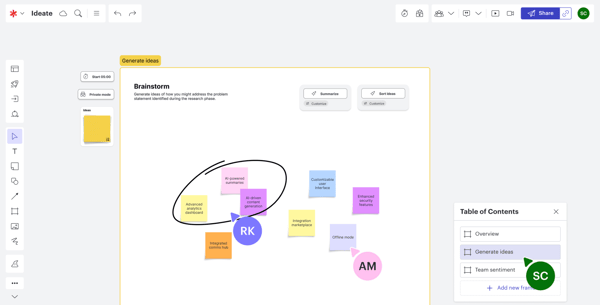
The Lucid Visual Collaboration Suite is a well-known free flow chart maker and a visual thinking powerhouse. This suite offers a toolbox of dedicated programs.
These programs work together seamlessly, allowing improved team communication for brainstorming, planning, and visualization, all within a connected ecosystem. According to G2 Data, it ranks as the highest-rated tool in this category.
| Pros of Lucid Visual Collaboration Suite | Cons of Lucid Visual Collaboration Suite |
| All-in-one visual thinking hub | Learning curve for multiple tools |
| Seamless integration features | Potential for feature overload |
| Real-time collaboration features | Limited storage with the free plan |
“What I like about the Lucid Visual Collaboration Suite is its blend of user-friendliness and powerful features. The drag-and-drop interface and ready-to-use templates make it easy for anyone to create diagrams and flow charts. Real-time collaboration allows teams to work together seamlessly, seeing changes instantly daily. The suite integrates well with other platforms like Google Workspace and Slack.
Built-in features for comments, chat, and notifications keep everyone aligned, while customizable templates make it versatile for different projects. It also scales well, catering to small teams and large organizations. Overall, it's great for enhancing productivity and teamwork.”
- Lucid Visual Collaboration Suite Review, Lisa M.
“There are a lot of creation options, so make sure you watch their demos and step-by-step instructions so you don't get lost. Copy/cut/paste are not the same shortcuts in Lucid as in other platforms.”
- Lucid Visual Collaboration Suite Review, Erin H.
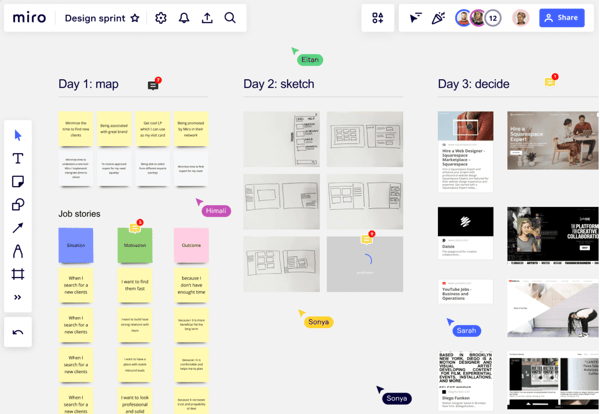
Miro goes beyond basic flow charts. It's a sprawling digital canvas for brainstorming, teamwork, and project tracking. Imagine a whiteboard with endless space to add sticky notes, mind maps, complex diagrams, and even live video chat with your team. Miro is ideal for remote teams or anyone who thrives on visual organization. Boost productivity with a toolbox that includes flow charts and other visual collaboration tools. According to G2 Data, it ranks as the second-highest-rated tool in this category.
| Pros of Miro | Cons of Miro |
| Visual collaboration | Steep learning curve with advanced features |
| Flexibility and ease of use | Potential performance issues |
| Flow chart template library | Limited storage with the free plan |
“First, I like the scalability of MIRO Whiteboards. You can quickly start with a small drawing and add more and more information, pictures, notes, and references to it. You can also end up with a large-scale drawing that still works and provides a decent overview of what you did. As a proper cloud-based solution, these results are available everywhere: on your PC, in the home office, virtually, and even in real-life meetings. So, results are not lost but can be reused and enhanced in collaboration. That’s the way I love to use whiteboards.”
- Miro Review, Detlev P.
“Though it's a must-have for marketing and salespeople, designers, developers, and project managers may sometimes find that too many things overwhelm it. Also, integration with Zoho apps is missing. And when I add comments, I need to manually link each comment to the elements, which is very frustrating. I wish there could be an easier way to do this.”
- Miro Review, Manish S.
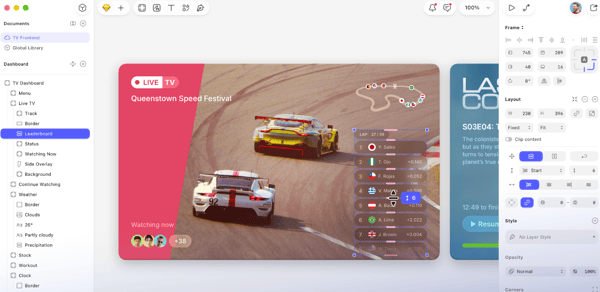
Sketch is a designer's playground! This flowchart app lets you create digital interfaces, websites, and even mobile apps. With Sketch, you can design everything from user flow charts to high-fidelity mockups within a clean and intuitive interface. Unique features like powerful vector editing, symbol libraries, and real-time collaboration make Sketch a favorite for creating, prototyping, and collaborating. According to G2 Data, it is used by 53% of small businesses.
| Pros of Sketch | Cons of Sketch |
| Clean interface and intuitive tools | Only available for macOS |
| A vast library of plugins for specific needs | Requires integration with other tools for advanced interactions |
| Precise and scalable graphics | Struggles to handle large or complicated designs |
“I think the interface of Sketch is efficient, especially for a new designer. The artboard system is also good. I really like how the symbols work and how they can be used and reused throughout. The responsiveness is also a plus.”
- Sketch Review, Annirudha G.
“Sketch is presently only accessible for macOS. This limitation may disadvantage graphic designers who prefer or specifically use other operating systems.”
- Sketch Review, Deepak G.
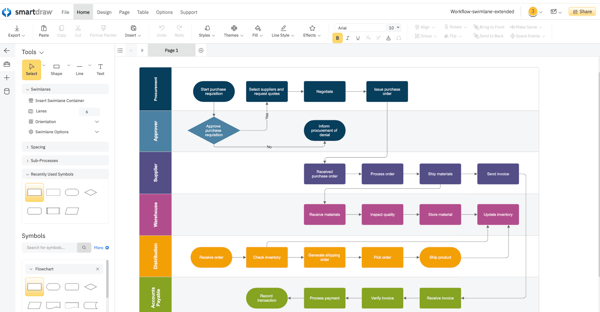
SmartDraw transforms ideas into clear and impactful visuals. With this diagram program, you can create flow charts, mind maps, org charts, network diagrams, and even floor plans, all within one powerful toolbox. SmartDraw covers data visualization tools, as well as integration with popular platforms like Microsoft Office and Google Drive. According to G2 data, it ranks as the 7th easiest to use tool.
| Pros of SmartDraw | Cons of SmartDraw |
| Versatile solution for a range of visual needs | Steep learning curve |
| Data linking to connect your diagrams to real-time data | Occasional glitches with loading times |
| Integrates with Microsoft Office and Google Drive | Lack of real-time collaboration |
“SmartDraw's intuitive interface stands out as its best feature. It simplifies creating complex diagrams, flow charts, and other visuals, making it accessible even for those without extensive design experience. The drag-and-drop functionality and a vast library of templates and symbols enhance user-friendliness and efficiency.”
- SmartDraw Review, Nick B.
“I wish that the learning curve could be gentler. Understanding where to go and what buttons to click (or avoid clicking) to achieve specific tasks was challenging. This uncertainty sometimes led to lost work.”
- SmartDraw Review, Don L.
Visio is your one-stop shop for professional diagramming. Think of it as a digital toolbox overflowing with shapes, templates, and connectors specifically designed for flow charts, org charts, and network diagrams. Standout features like data linking let you connect your diagrams to real-time Excel data for dynamic updates. Visio also integrates flawlessly with other Microsoft Office products to make collaboration and sharing a breeze.
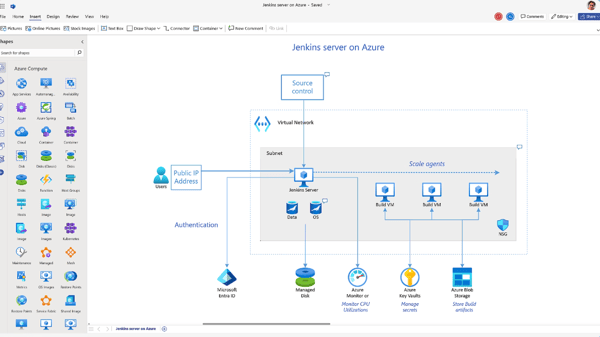
| Pros of Visio | Cons of Visio |
| Vast library of shapes, connectors, and templates | No native Mac versions of Visio |
| Data linking feature for diagrams in Excel for interactive visualizations | Overwhelmingly extensive features |
| Seamless Microsoft integration | Lack of real-time collaboration |
“The features I appreciate most in Visio are its simple user interface and welcoming design tools. Creating flow charts and diagrams is now more straightforward than ever before. Thanks to the wide range of templates and shapes offered, it is a versatile tool that can be used for various tasks, from process mapping to organizational charts.”
- Visio Review, Sidharth K.
“The learning curve can be steep for users who are new to the software. Although the interface is user-friendly, mastering advanced features and customization options requires time and effort. Additionally, the cost of Visio licenses is high compared to other diagramming tools on the market.”
- Visio Review, Katie T.

Look for tools that offer drag-and-drop editing, customizable shapes, templates, and easy export options. Real-time collaboration, AI-assisted diagramming, and integrations with apps like Google Drive or Microsoft Office are also valuable if you’re mapping complex workflows.
Yes, several tools now include AI assistance for generating flowcharts from text prompts. Canva, Miro, and Whimsical offer free or limited AI flowchart generation, allowing you to describe a process and instantly convert it into a diagram.
Yes, many free tools support real-time or shared editing. Platforms like Miro, Canva, and Lucidchart (free tier) allow teams to view, comment on, or edit diagrams together, though some advanced collaboration features may require a paid plan.
Absolutely. Several flowchart tools offer free mobile apps on iOS and Android. Apps like Lucidchart, Miro, and Canva let you create and edit flowcharts on the go using drag-and-drop tools and templates.
Most free flowchart tools offer export options to PDF, PNG, or JPG. Some platforms also allow PowerPoint (PPT) export, though this may be limited to paid tiers. Look for “Download,” “Export,” or “Share” options inside the editor.
Free flow chart tools are designed to be user-friendly, with intuitive interfaces and drag-and-drop functionality. While the basic functionality is easy to pick up, there might be a slight learning curve for more advanced features or specific software. Look for software that offers tutorials or in-app help guides.
If you're dealing with sensitive information, be sure to research the software's security practices. Some free options might store your data on their servers, so it's vital to check their privacy policy beforehand.
Yes, many free flowchart tools are fully capable for professional work.
Lucid, Miro, Cacoo, and Creately offer strong free plans with real-time collaboration, templates, and clean exports. Cloudcraft is highly professional for AWS and cloud architecture diagrams. Gliffy works well for simple business workflows via browser.
Tools like SmartDraw and Visio are more enterprise-oriented, but their free trials or limited online versions can still deliver professional-grade results for short-term needs.
Consider your specific needs! You must understand which features are most important to you and choose software that offers those functionalities.
Some free software might limit advanced features like collaboration tools, cloud storage space, or advanced export options, like high-resolution PDFs.
Free flowchart software has been a surprisingly powerful solution for me whenever I need to create diagrams or map out processes. It’s impressive how many features these tools offer at no cost, making them a great fit for students, businesses, and anyone working on a budget.
I hope this list of the best free flowchart software gives you the key details you need to make an informed choice. By looking at factors like features, ease of use, security, and your specific workflow, you can find the tool that truly supports your work and improves communication.
Start today!
Learn about different types of team collaboration tools and their importance.
This article was originally published in 2024. It has been updated with new information.


Recently updatedSummer 2026 Grid® Report · published May 26, 2026 This guide was last...
 by Harshita Tewari

Ever catch yourself drowning in a flood of ideas, so many that you don’t even know where to...
by Samudyata Bhat

I evaluated more than 25 products to identify the best mind mapping softwarefor different...
 by Washija Kazim