


Published: February 2026 · Last updated: April 2026
I’ll be honest: I’ve spent way too many hours of my life staring at survey builders, trying to figure out which one won’t make me want to throw my laptop out the window.
Whether you’re running a quick team poll, collecting customer feedback, or trying to settle the age-old debate about pineapple on pizza (it doesn’t belong — fight me), you need a form builder that works well.
But once you start shopping around, two names suck up all the oxygen in the room: SurveyMonkey vs. Google Forms.
And that makes sense. Based on G2’s latest grid report, these two consistently hold the #1 and #2 spots in survey software category. They’re the heavyweight champions of data collection. But after testing both on the exact same survey project, I can tell you they’re built for two very different types of users.
So, which one should you actually use?
In this breakdown, I’m cutting through the marketing noise and getting into what matters in real life, setup speed, customization, logic, reporting, and the annoying limitations you only notice after you hit send.
TL;DR: Google Forms is best for straightforward surveys and basic data collection, especially for teams already working within Google Workspace. SurveyMonkey is better suited for more advanced survey programs that require stronger branding, logic, and analytics, although many of these capabilities are available only on paid plans.
| Feature | SurveyMonkey | Google Forms (Google Workspace) |
| G2 rating | 4.4/5 | 4.6/5 |
| Best for | Professional market research, complex customer feedback, and deep data analysis. | Quick polls, event RSVPs, student projects, and $0 budgets. |
| Ease of use | G2 rating: 9.2 Easy and powerful, but the dashboard can be crowded with features. |
G2 rating: 9.3 Extremely easy to use. If you can send an email, you can build a form in 5 minutes. |
| Free plan |
|
|
| Pricing and plans |
Individual plans
Team plans
|
Comes free with a Google account |
| Customization | Advanced. Custom fonts, footer removal, white-labeling, and CSS control (Paid only). | Basic. Header image and matching color theme. That’s it. |
| Survey logic | Pro level. Branching logic, answer piping, randomization, and A/B testing. | Simple. Basic “go to section” logic. |
| Analytics and reporting | Advanced analytics, filters, exports, and insights | Data goes to Google Sheets. Basic charts and response summaries |
| Templates | Large library of professional templates over 500 | Limited template library (17 templates) |
| Integrations | Broad integrations (CRM, marketing, analytics tools) | Native Google Workspace integrations (Sheets, Drive) |
| Collaboration | Team features available on paid plans | Real-time collaboration via Google |
Note: Both Google and SurveyMonkey roll out new updates to their survey software. The details here reflect the most current capabilities as of December 2025, but may change over time.
Google Forms is enough for internal surveys, team polls, event RSVPs, and basic feedback collection. SurveyMonkey is worth paying for when you need advanced logic, white-label branding, deeper analysis, or integrations that connect survey responses to business workflows.
Before we get into the nitty-gritty of why one costs $0, and the other can cost $400+ a year, let's clear up a common misconception. At their core, these two platforms share more DNA than you might think. They are both trying to do the exact same job: get questions in front of people and get answers back to you.
But the way they handle that job, and specifically how they treat you as a user, is where the split happens.
I found that the biggest difference isn't actually in the survey-building part; it's in what happens after. Google Forms creates data; SurveyMonkey interprets it. But the most noticeable difference for new users is usually the pricing wall.
This is where the differences start to matter.
Choose Google Forms for fast, simple surveys for internal use, basic data collection, or quick team workflows. It is a better fit for teams already using Google Workspace because forms are easy to build, share, and analyze in Google Sheets. That simplicity shows up in G2 data too: Google Workspace has a 4.6/5 rating, plus 94% ease of use and 93% ease of setup, which is exactly why it works so well for straightforward survey creation.
Choose SurveyMonkey if you need polished external surveys, stronger branding, more advanced logic, and more hands-on analytics. SurveyMonkey’s paid plans offer advanced logic, piping, white-label branding, richer reporting, and integrations that make it more useful for customer and market research. On G2, SurveyMonkey holds a 4.4/5 rating, scores 85% for conditional logic and 88% for custom fields, which supports its position as the stronger choice when surveys are part of a more serious feedback or research workflow.
Despite their differences, these tools share a solid foundation. For many teams, either platform can get the job done, at least at a basic level.
To keep this comparison fair, I used Google Forms through my existing Google Workspace account and tested SurveyMonkey using its free plan. I built and ran the same survey in both tools to compare their performance. Here’s what I tested in both platforms:
To keep things consistent, I used the exact same questions, structure, and logic in both tools, no rewording, no shortcuts, and no platform-specific optimizations. If something felt harder or more limited in one tool, that was part of the experience. I evaluated both platforms based on the following criteria:
I also cross-checked my hands-on findings with G2 reviews, making sure my experience aligned with how other users describe Google Forms and SurveyMonkey in real-world use.
Disclaimer: I share my experience testing the two tools as of January 2026. If you read this after a few months, some features and functionality might have evolved. The companies can provide you with the most up-to-date information.
This is where it gets practical. For every category, from the first click to the final report, I broke it down into three simple questions:
I started the test where every survey begins: the blank canvas. On Google Forms, the options are familiar and intentionally simple. I could start from scratch, pick from a small set of templates, or ask Gemini to generate a form for me. It’s straightforward and frictionless, especially if you’re already living inside Google Workspace. Nothing feels intimidating.
SurveyMonkey, by contrast, immediately felt more intentional about how people actually create surveys. In addition to starting from scratch or using AI, it gave me options that felt genuinely practical.
I could paste in a list of questions and let SurveyMonkey turn them into a structured survey, or choose from over 500 templates (compared to Google’s 17).
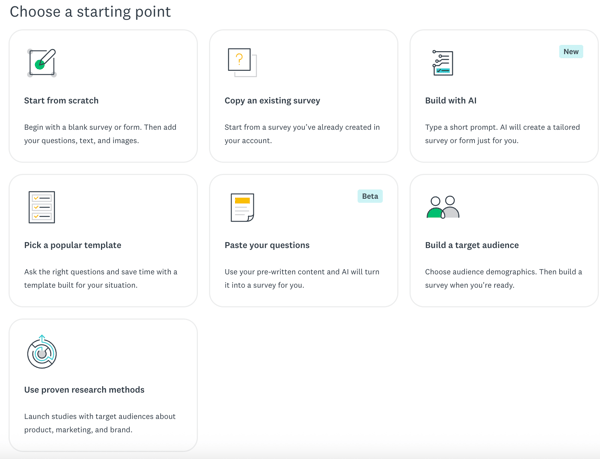
SurveyMonkey lets me work two ways: start with the audience and build the questions around them, or pick an audience and have it generate a survey designed for that group. On top of that, it offered access to proven research methods tied to its market research offering.
That last option stood out to me the most. It’s clearly designed for marketers and product teams who don’t just want responses, but statistically sound ones. It was clear immediately: Google is for forms, SurveyMonkey is for research.
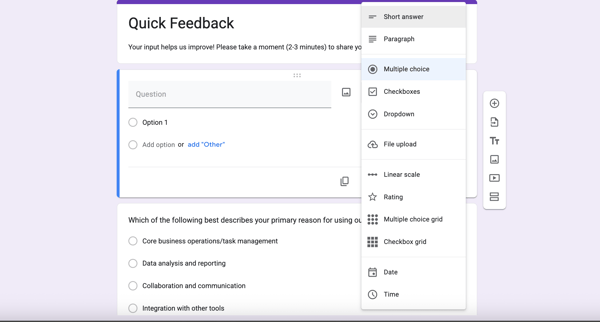
The actual building process reinforced that feeling. As I started adding questions manually to Google Forms, I had access to the standard 12 question types, everything you need from checkboxes and grids to long answers, but nothing you don't. I liked having the file upload option as a question type as well as the ability to add images to my questions. It was functional, like a reliable sedan.
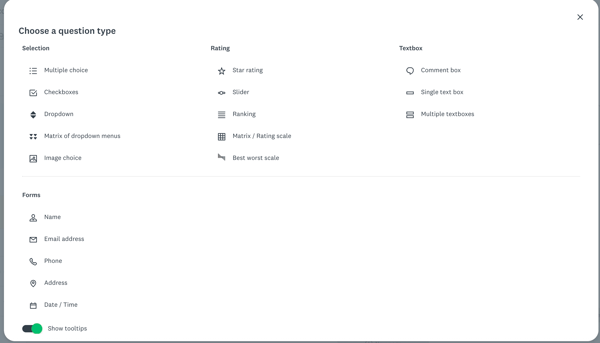
SurveyMonkey, however, offered 18 question types and felt far more intuitive. When I typed a question in SurveyMonkey, it automatically guessed the right question type, like switching to “Multiple Choice” when I asked a yes/no question. It even suggested better ways to phrase things from its question bank.
Google Forms was capable, offering basic suggestions via Gemini, but it was passive. SurveyMonkey felt like it was actively helping me build a better survey, which saved me mental energy, even if the interface was a bit busier. But the catch with SurveyMonkey is the free plan caps surveys at 10 questions and some of the question types are premium.
By the end of this test, the takeaway was clear. Google Forms wins on simplicity. It’s clean, fast, and easy to use. But SurveyMonkey won me over with the practical touches: smarter defaults, better guidance, and features clearly built for people who create surveys as part of their job, not just as a one-off task.
Winner: SurveyMonkey
Customization and branding are where the contrast between these two tools really shows.
On Google Forms, I had exactly three levers to pull: a header image, a color theme, and a font style. I uploaded a clean company logo as the header, and to Google’s credit, it automatically pulled the dominant colors from the image and applied a matching theme across the form. That was a genuinely nice magic moment. But that’s also where the flexibility stops. I couldn’t move the logo, adjust spacing, or remove the “Google Forms” branding at the bottom. What you see is what you get.
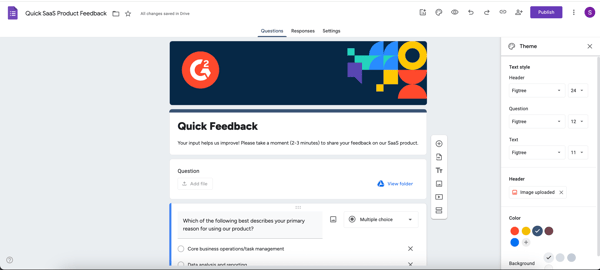
Switching to SurveyMonkey felt like unlocking a more advanced mode. The Themes tab goes much deeper. I wasn’t just picking a color. I could add my logo properly, customize fonts, layouts, backgrounds, and even remove the SurveyMonkey footer entirely. The level of control makes it possible to create something that actually looks like a branded, professional asset rather than a generic form. That said, it’s important to call out the trade-off: most of these customization features sit behind a paywall.
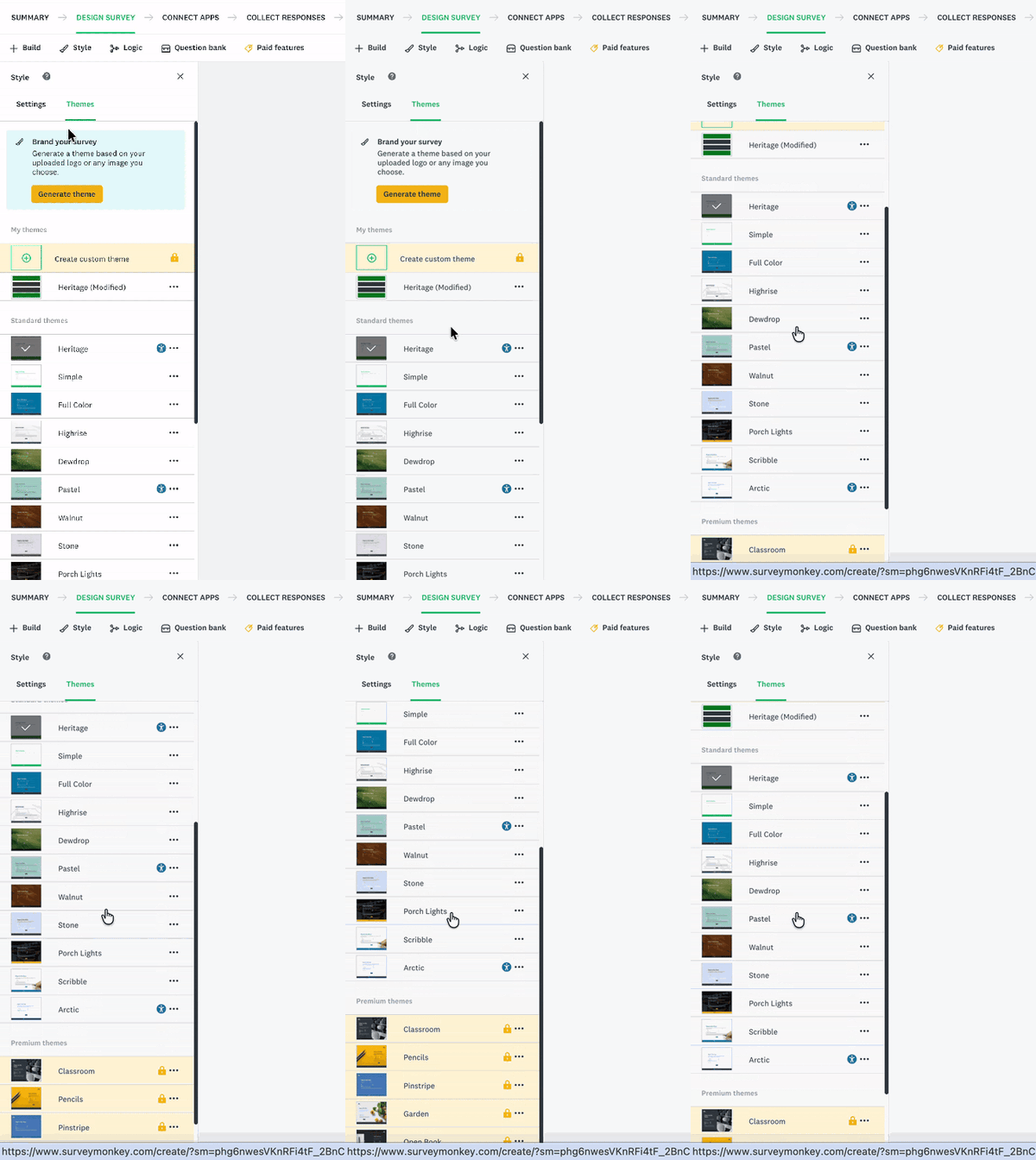
While Google Forms is foolproof, it is also rigid — you can never escape the “Google” look. SurveyMonkey is the clear winner because it offers true white-labeling, deep design control, and the ability to make your survey look like a seamless part of your brand identity, provided you are on a paid plan.
Winner: SurveyMonkey
If customization is about looking good, logic is about being smart.
This is where I wanted to see whether the survey could actually react to what respondents were telling me, instead of forcing everyone through the same static set of questions.
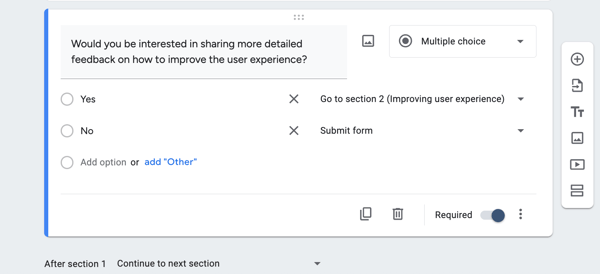
In Google Forms, logic lives behind a small three-dot menu called “Go to section based on answer.” I set up a simple flow: Are you interested in providing detailed feedback? If yes, send them to the next section. If not, submit the form. The whole thing took me maybe 20 seconds. It’s not fancy. You can’t stack conditions or do things like “if the respondent is female and under 30,” but for most everyday surveys, this kind of fork-in-the-road logic gets the job done. You just have to be intentional about how you structure your questions.
SurveyMonkey, on the other hand, brought a lot more firepower. The sheer depth here is intimidating but impressive. I tested their page skip logic, which works similarly to Google’s, but then I started peeling back the layers.
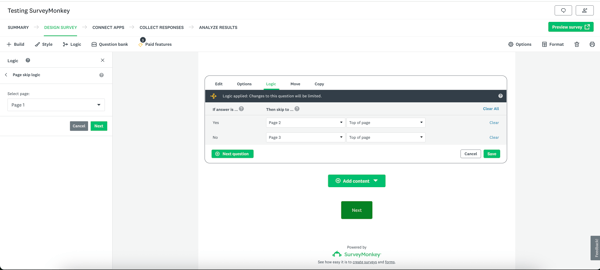
You have control over how options appear, you can skip to a specific question (rather than just a whole page), and you can set up both question randomization and block randomization to remove bias.
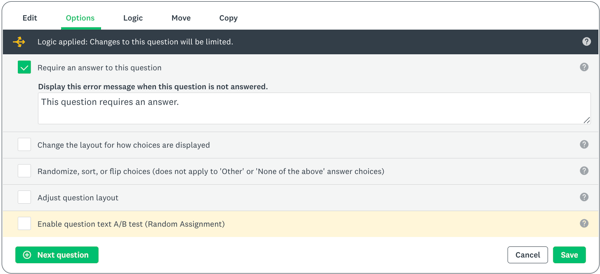
I was even able to set up answer piping, where I could get a previous answer into a future question to make it feel more personal. While these advanced features sit behind paid tiers, they allow for more complex, respondent-driven logic. Google Forms is fast and practical for basic conditional flows, but SurveyMonkey offers the depth needed to build surveys that adapt meaningfully to different respondents.
Winner: SurveyMonkey
Getting the survey out is easy. What happens after depends on the tool.
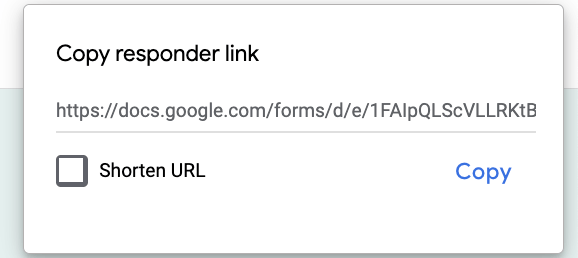
When it was time to actually get the survey out there, Google Forms kept things simple. I hit publish, copied the link, and pasted it into an email and whichever channel I wanted. That’s it. The real beauty here is where the data goes: straight into a Google Sheet. It’s reliable, and if you’re a bit scrappy with formulas or Google Apps Script, you can even set up some basic automation, like sending yourself an email when a new row is added.
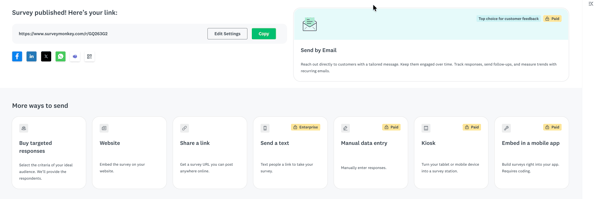
SurveyMonkey, however, felt less like a simple tool and more like a distribution command center. On the free plan I could grab a link or embed the form on a website. But beyond that, the sheer variety of ways to hunt down respondents was impressive. You can buy targeted responses directly from them if you don't have an audience, or if you're on the higher tiers, turn a tablet into a Kiosk mode for events, send surveys via text message, or even embed the survey directly inside your own mobile app using their SDK.
What impressed me, though, was the “Connect to App” section. While Google sends response data into Sheets, SurveyMonkey integrates directly with the tools businesses actually run on Slack, HubSpot, Mailchimp, and Zapier. That makes it possible to build workflows around feedback. Imagine a customer gives you a low rating on a feedback form; SurveyMonkey can instantly ping your support team on Slack and open a ticket in HubSpot without you lifting a finger. For teams running structured feedback programs, the value is hard to overlook. But the bummer here is that these are paywalled, and so is the number of responses we can get in the free plan, a mere 25.
From the respondent's perspective, the person actually tapping the buttons, both tools worked flawlessly on mobile and desktop, so there are no complaints there. But I have to call this round a split. If you need professional distribution and automated business workflows, SurveyMonkey is untouchable. But if you just need raw volume? Google Forms wins hands down because it is one of the only tools left that gives you unlimited responses for free.
Winner: Split
I wanted to answer two questions: “Can I understand what people told me?” and “Can I get my data out?”
Google Forms gives you raw access. I clicked on the “Responses” tab and saw the standard summary view: colorful pie charts and bar graphs for every question. It’s basic. You can’t filter the charts to show only how “Marketing Managers” answered, for example, but it’s instant and clean. Gemini also powers summaries for text answers.
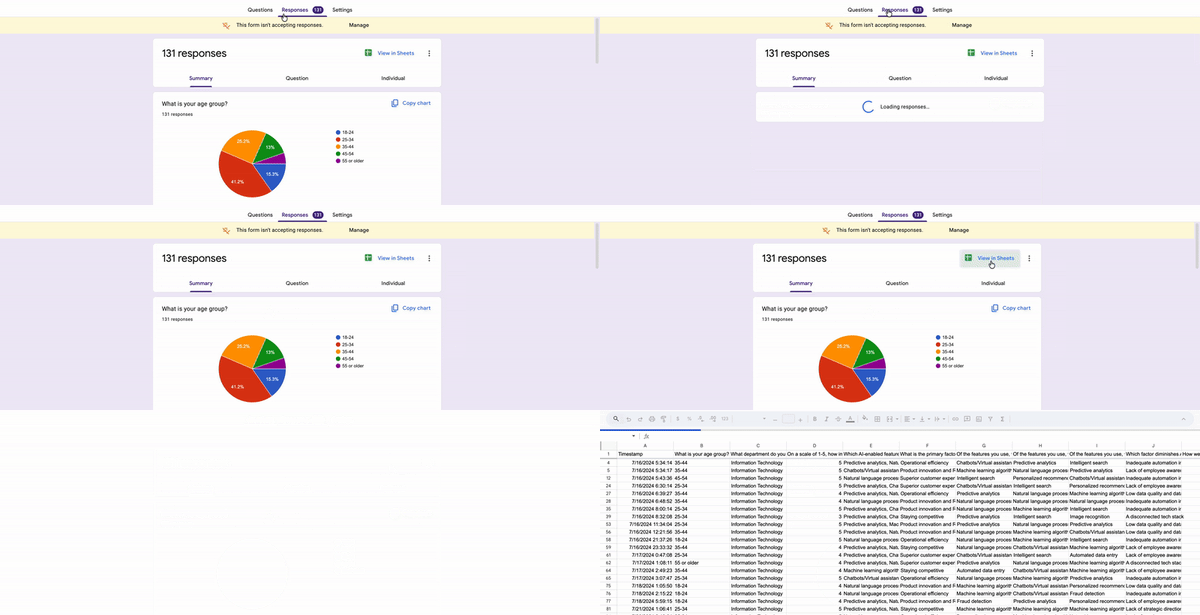
The real power, though, is the little green Sheets icon in the top right. One click, and I had every single data point in a Google Sheet. From there, I was free. I could pivot, filter, and export to Excel or CSV and customize the charts without hitting a single barrier. It felt like my data. With Gemini in Google Sheets, I could also get some AI assistance for data analysis.
SurveyMonkey takes a different approach. The analysis dashboard is polished and highly visual. I could see charts, customize those charts, the layouts, and the color of them. I could use Analyze with AI to get the insights without even having to do any math.
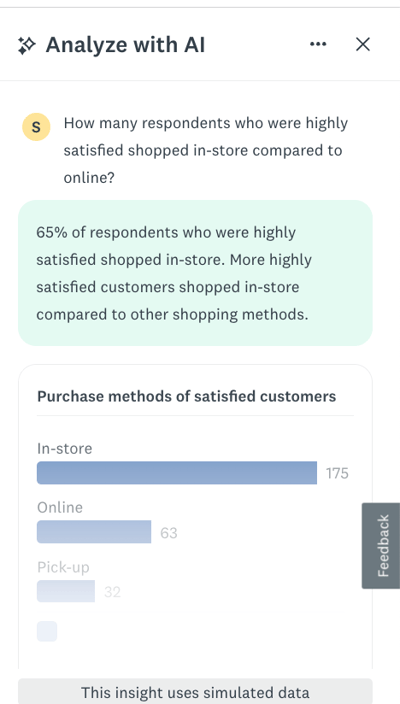
Beyond AI summaries, SurveyMonkey offers built-in filters, comparisons, and analysis tools that make it easier to slice responses by segment and spot patterns quickly. This is especially useful once you move past “What did people say?” and into “Why does this matter?” or “What should we do next?” It feels designed for teams that need answers, not just data.
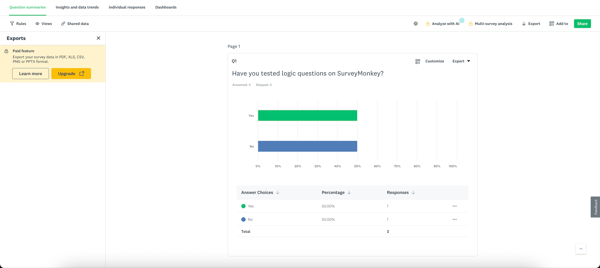
Again, most of these advanced reporting features live behind a paywall. But even seeing what’s possible makes the difference clear. Google Forms gives you the data and trusts you to analyze it. SurveyMonkey assumes you want insights handed to you, faster and with less manual effort.
For me, this round ends in a split. Google Forms is better if you want raw data you can manipulate freely, especially if you already live in Google Sheets. SurveyMonkey is stronger if you want insights surfaced for you with minimal effort. One gives you flexibility; the other gives you speed and interpretation.
Winner: Split
This is where the rubber meets the road, because pricing isn’t just about the monthly fee.
It’s what you’ve to pay for when you hit a wall.
Google Forms follows a refreshingly simple “all-you-can-eat” model. If you have a personal Google account, it is genuinely free. You get unlimited surveys, unlimited questions, and unlimited responses without ever seeing a credit card field. Only thing missing is Gemini on Forms. Even if you are a business user on Google Workspace, you are likely already paying for it as part of your email and Drive subscription, which starts at around seven to nine dollars a month per user. There are no hidden tiers or response caps; you simply pay for the seat and get the full tool.
SurveyMonkey takes a very different approach. While it does offer a free plan and allows you to test all the premium features even in the free plan as you build a survey, it’s firmly a freemium product. You can build a survey and even collect responses, but meaningful usage hits limits fast. On the free plan, surveys are capped at 10 questions, and you can only view 25 responses at a time. There are workarounds, but once you cross that threshold, you’ll be looking at an upgrade.
What stood out to me wasn’t just that features are paywalled. It’s which features. Advanced logic, branding controls, reporting tools, integrations, and AI-driven insights are all tied to paid tiers. That means SurveyMonkey’s real value only becomes visible once you’re willing to pay for it.
To be fair, this pricing model makes sense for the audience SurveyMonkey is targeting. If surveys are central to your work, whether that’s market research, customer feedback programs, or product discovery, the paid plans can replace a lot of manual analysis and downstream tools. But if you’re just trying to run quick polls or collect basic feedback, the jump from free to paid can feel steep.
My takeaway is straightforward. Google Forms wins on accessibility and cost, hands down. SurveyMonkey only makes sense if you already know you need advanced survey capabilities and are prepared to pay for them. Otherwise, the free plan feels more like a preview than a long-term solution.
Winner: Google Forms
Here’s a table showing all my evaluations with the winner and the reason.
| Test | Winner | Why |
| Survey creation | SurveyMonkey🏆 | Smarter defaults, more question types, auto-detected question formats, a massive template library, and research-first workflows make building surveys faster and more intuitive for serious use. |
| Customization and branding | SurveyMonkey🏆 | True white-labeling, deeper design controls, and brand-first layouts make it possible to create fully branded surveys on paid plans. |
| Logic and workflow | SurveyMonkey🏆 | Advanced skip logic, question and block randomization, answer piping, and granular control make surveys feel adaptive rather than static. |
| Response collection | Split | SurveyMonkey excels at professional distribution and workflows, while Google Forms wins on unlimited free responses and frictionless sharing. |
| Reporting and analysis | Split | Google Forms gives full ownership of raw data via Sheets; SurveyMonkey surfaces insights faster with built-in analytics. |
| Pricing | Google Forms🏆 | Truly free with no response caps or feature lock-ins, especially compelling for teams already on Google Workspace. |
Google Forms works well for quick surveys, but teams with more advanced form needs may also compare it with Jotform. This Google Forms vs. Jotform guide covers the key differences.
I also looked at review data on the G2 Winter 2026 Grid Report for the survey software category to see how real users rate SurveyMonkey and Google Forms Workplace (including Google Forms). Here’s what stood out:
Got questions? G2 has got the answers.
Google Forms is rated #1 on G2 under survey software, while SurveyMonkey is at #2. Which is best depends entirely on your goal. If you need a user-friendly tool that allows for unlimited responses for $0, Google Forms is the best choice. If you need a powerful market research platform that offers deep insights, professional branding, and advanced logic, SurveyMonkey is superior, provided you have the budget.
The biggest disadvantage is the “paywall trap.” While it has incredible features, almost all the ones you actually want — like exporting data to Excel, adding your company logo, or using advanced logic — require a paid subscription. Additionally, the free plan is extremely restrictive, capping the number of responses you can actually view (usually around 25), even if you collect hundreds.
The main drawback is that it always looks like a Google Form. You can’t fully brand it with your own fonts or layout, which can feel unprofessional for high-stakes business clients. It also lacks deep analytical power; you won’t get built-in sentiment analysis or industry benchmarks, meaning you have to do all the data crunching yourself in a spreadsheet.
Yes. You can create surveys (up to 10 questions) and send them out, but you hit a hard limit on viewing your response data (25).
For budget-conscious teams, Google Forms is the best survey software for small businesses. It is arguably the leader among affordable survey platforms, offering the best features and unlimited responses for free. It is also the most user-friendly survey software for small teams, as you can invite unlimited collaborators to edit and view results.
SurveyMonkey is the superior choice for users requiring deep, automated data analysis. It is widely considered the survey tool with the best analytics because it offers built-in features that automate the heavy lifting of data interpretation. In contrast, Google Forms offers limited, basic analytics. Users receive simple summary charts (pie charts and bar graphs) for a quick overview. Therefore, SurveyMonkey is best for automated insights, while Google Forms is best for free access to raw data.
SurveyMonkey is the most recommended tool for business surveys when professionalism is key. It allows for full branding control (white-labeling) and complex logic, ensuring client-facing surveys look polished and trustworthy. Google Forms is a suitable alternative for internal business tasks where functionality matters more than branding.
SurveyMonkey is a widely popular survey app for market research because it offers specialized tools for researchers, including audience panels to buy targeted responses, statistical significance testing, and sentiment analysis. Google Forms is efficient for collecting raw data, but it lacks the built-in analytical depth required for serious market research.
SurveyMonkey is widely considered the top survey app for employee feedback. It includes dedicated HR templates and allows companies to benchmark their engagement scores against industry standards. While Google Forms can handle basic anonymous feedback, it lacks the trend tracking and comparative features that HR teams need for long-term engagement programs.
Use Google Forms if you need simple surveys, unlimited questions and responses, and easy analysis in Google Sheets. Pay for SurveyMonkey when you need branded surveys, advanced logic, deeper analytics, or integrations for business workflows.
SurveyMonkey adds advanced logic and piping, white-label branding, AI-assisted analysis, richer exports, and 200+ native integrations. Google Forms covers basic logic, branding, collaboration, and Sheets export, but it is simpler by design.
Google Forms is better for fast, free, straightforward survey creation. SurveyMonkey is better for business surveys that need stronger logic, branding, audience research, and more detailed analysis.
So, after spending way too many hours clicking buttons, sending test surveys to my own spam folder, and analyzing fake data, where do I land? Honestly, for most of the quick polls, team RSVPs, and “just curious” questions I run in my daily life, I’m sticking with Google Forms. It’s the comfortable pair of jeans of the survey world. It fits, it’s free, and it never asks me for a credit card just to see my own data.
But when I need to look professional — like, really professional — or when I need to ask complex questions that adapt to the user, SurveyMonkey is the tool I’d use. It’s not just a form builder; it’s a research platform that makes you look smarter than you are, which is exactly what you pay for. If you have no budget or are already deeply embedded in the Google ecosystem, Forms is the obvious choice. But if you need white-label branding, advanced logic like A/B testing, or boardroom-ready reports, SurveyMonkey is the only one that can handle the weight.
If neither option feels like a perfect fit, or you’re still exploring what’s out there, you can compare more tools and use cases in my guide to the best survey tools, which breaks down options based on real user reviews, features, and business needs.


Recently updatedSummer 2026 Grid® Report · Published May 26, 2026 This guide was last...
by Soundarya Jayaraman

The best free survey software solutions for small businesses are Constant Contact, Google...
 by Sagar Joshi

Most lead generation campaigns do not fail because of weak traffic. They fail because the...
 by Aishwarya Pillai