


Most project management tools promise flexibility. Fewer deliver it without creating chaos.
They often force teams into rigid lists and spreadsheets, making you bend your workflow to fit the tool’s pre-set structure, not the other way around. monday.com makes a different promise. It pitches itself not just as a tool, but as a "Work OS".
Does that promise hold up beyond marketing?
That is exactly what I set out to answer in this monday.com review. I tested its work management platform to see if it holds up under real-world pressure as project management software. And I’m not the only one impressed. With a massive 4.7 out of 5 stars on G2 from nearly 15,000 users, monday.com isn't just popular. It is a verifiable titan in the project management space.
But will it suit your needs? Whether you’re a freelancer with multiple clients, a fast-moving startup, a growing marketing team, or an enterprise managing complex cross-functional work, I’ll help you decide if monday.com is the right fit. I’ll break down its real pros and cons, where it shines, the tradeoffs to watch for, and who it’s actually best for before you commit in 2026.
If you want the best option for managing multiple projects in one place, monday.com delivers.
monday.com is a work management platform designed to help teams plan projects, track work, and collaborate in one place.
While it’s often labeled as project management software, that undersells what it actually does. In practice, monday.com functions more like a configurable work OS. You’re not locked into a single way of managing projects, which is both its biggest strength and its biggest learning curve. You build the tool you need using templates.
Need a content calendar? You build it. Need a bug tracker? You build it. Need a HR pipleline? You build that, too.
From what I’ve seen, teams use monday.com for everything from traditional project tracking to marketing campaign planning and product roadmaps. Review data also points to a relatively fast ROI payback period of about 11 months, suggesting teams don’t just try monday.com. They stick with it once workflows are in place.
For clarity, this review focuses specifically on monday Work Management — the core project and task management product within the broader monday.com platform.
| Metric | G2 score | Insight |
| G2 rating | ⭐4.7/5 | Consistently high user satisfaction, indicating strong product-market fit and reliability in real-world use |
| User adoption | 75% | Widely adopted by teams, suggesting low friction in onboarding and day-to-day usage |
| Time to ROI | 11 months | Most teams see measurable value within the first year, making it a relatively fast-return investment |
| Customer segment | Small business: 63% Mid-market: 29% Enterprise: 8% |
Primarily adopted by SMBs, with growing traction in mid-market organizations |
*Data for monday Work Management from G2 Winter Grid Report 2026 for Project Management Software category
Here is a breakdown of the key features that make this system work.
I started by signing up for a free monday.com account with a 14-day Pro plan trial for work management, then built workflows from scratch to mirror how most teams get started. I focused on project setup, task tracking, collaboration, reporting, and the ease to adapting the tool when requirements changed.
To ground my experience, I also looked at the recurring themes in G2 reviews, especially around usability, setup time, and long-term scalability.
Disclaimer: I share my experience testing monday.com as of January 2026. If you read this after a few months, some features and functionality might have evolved. The official website can provide you with the most up-to-date information.
Below, I share how monday.com performed across everyday tasks like workflow setup, collaboration, reporting, and automation.
One of monday.com's strongest assets is its immediate, self-serve onboarding. When I first logged in, I wasn’t forced to start from a blank board. Based on a few onboarding questions, monday.com automatically created a starter project with relevant columns, which made the platform feel approachable right away.
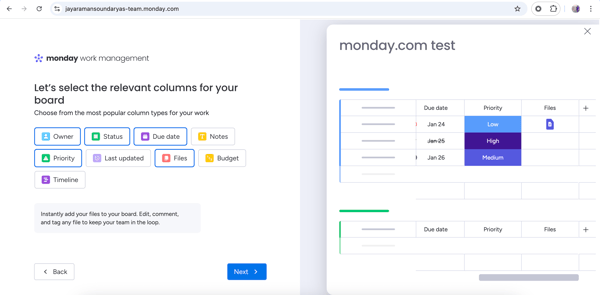
Even so, I chose to start with the Content Calendar template to better reflect how I actually work. The template came preloaded with status columns, date fields, and even a few basic automations. In practice, this meant I could begin organizing work immediately instead of spending time on structural setup.
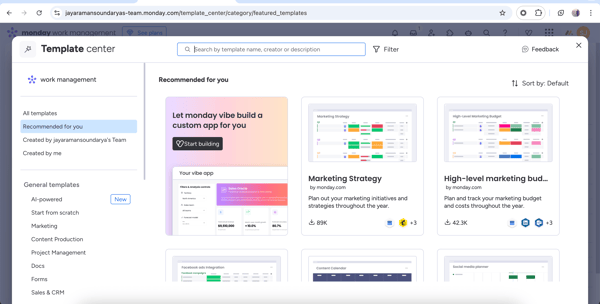
The interface itself is intuitive. I liked the use of color, and most actions follow a clear “click and figure it out” pattern. I could use different views like Kanban, GNATT, timeline, calendar, and more.
That said, getting the workspace exactly how I wanted it still took some effort. For my content calendar, I needed very specific columns and task groupings tied to different projects, which required some upfront mental mapping.
In my experience, templates get you about 90% of the way there. We have to plan a bit for customizing columns, views, and naming conventions to fit our workflow.
My advice? Always start with a template, even if you plan to delete most of it. Editing an existing structure is far easier than creating one from zero.
According to G2 review data, monday.com is widely regarded as one of the most user-friendly project management tools.
These scores reinforce that while customization takes some upfront effort, most users find monday.com intuitive once they start using it.
Task management is where monday.com’s flexibility is most visible and where its strengths and tradeoffs become clear quickly. At its core, everything lives inside a board, built on rows and columns. The difference is how much control you have over what those columns represent and how tasks move through them.
For my content calendar, I wasn’t working with a generic to-do list. I could create groups, and then add tasks and subtasks with specific columns like status, priority, content type, due date, primary topic, and more. I could also customize status columns to reflect my creative pipeline, like working on it, proofreading, moved to DAM, published, and stuck, which immediately turned the board into a live workflow tracker instead of a static spreadsheet.
Renaming statuses, adding columns, and adjusting workflows mid-project didn’t break existing tasks, which mattered since priorities and timelines shifted often.
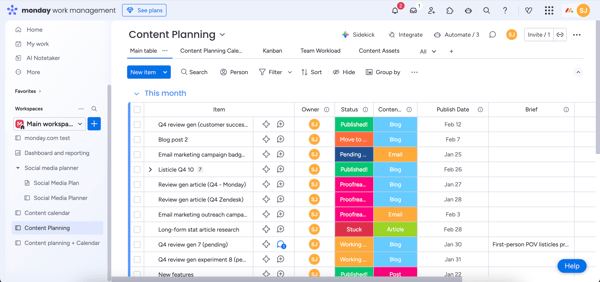
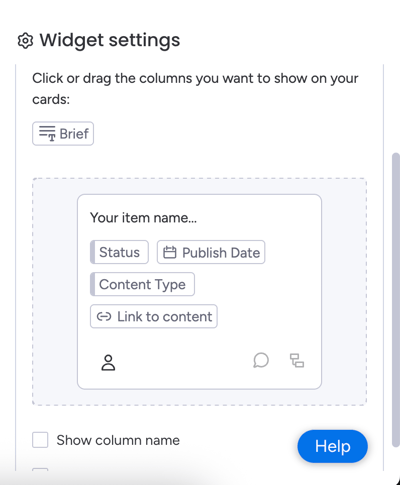
One thing I genuinely liked was how many ways monday.com lets you view the same work. It was possible to switch between table, Kanban, timeline, and card-style views as needed. In Kanban view, I customized task cards and controlled which fields appeared at a glance, so I wasn’t digging through unnecessary details.
For day-to-day work, the “My Work” view stood out. Instead of jumping between multiple boards, it pulled all the tasks assigned to me into one place. I could actually select between different views for the same, like by boards, by due dates, by priority, or by status. It solved the “too many boards” problem and made daily task management far more efficient. I could clear my daily queue directly from this screen without ever opening the specific project boards.
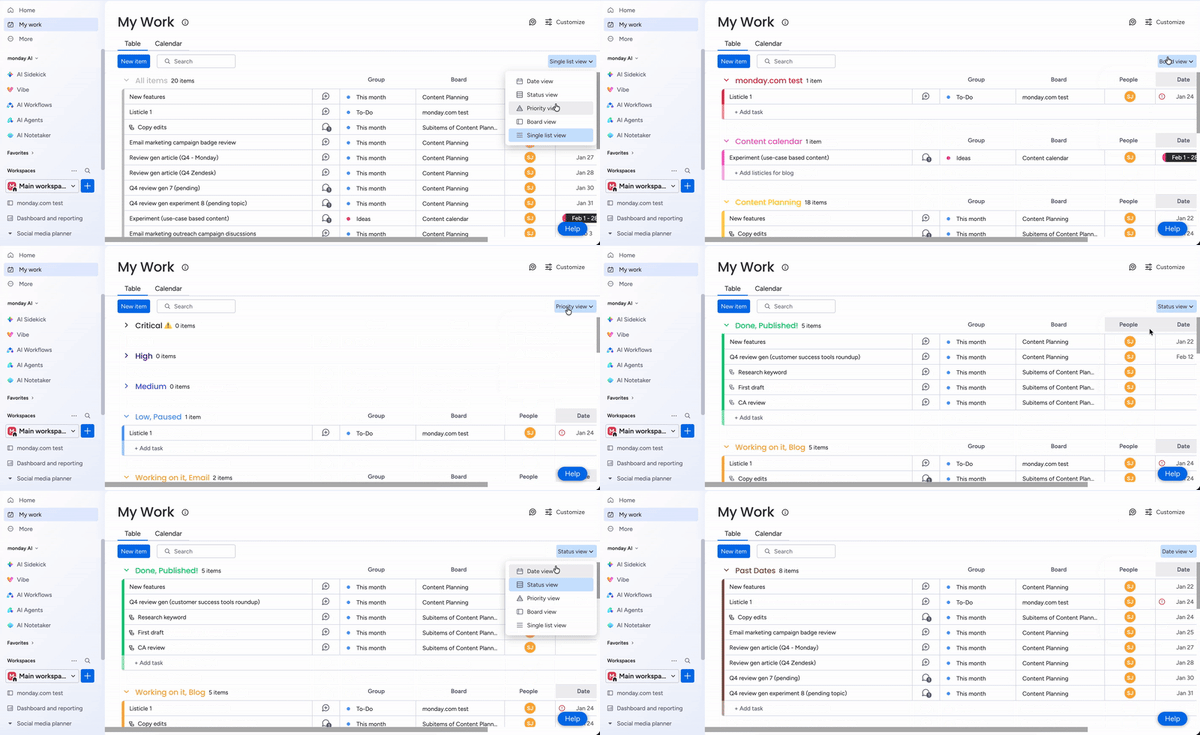
That said, this flexibility does require some intentional setup upfront. I found myself spending time thinking through how tasks mapped to projects and which fields truly mattered. Similar to using templates, starting simple worked best for me — adding columns only once they solved a real problem. With so many customization options available, it’s easy to overbuild a board if you’re not careful.
One area that felt slightly less seamless was working with sub-items in Kanban view. While the functionality is there, it took me a bit of time to understand how everything connected. When I opened a main task card, I couldn’t always see related sub-items at a glance, and I eventually realized I needed to click into the sub-items view to get a full overview. For tasks with multiple moving parts, that meant an extra click or two during quick status checks — not a dealbreaker, if you use list view but something to note when using Kanban boards.
Overall, monday.com handles task management and evolving workflows well, especially for teams that value customization and multiple ways to view work.
My hands-on experience aligns closely with G2 user sentiment. According to G2 user ratings, its highest rated features include:
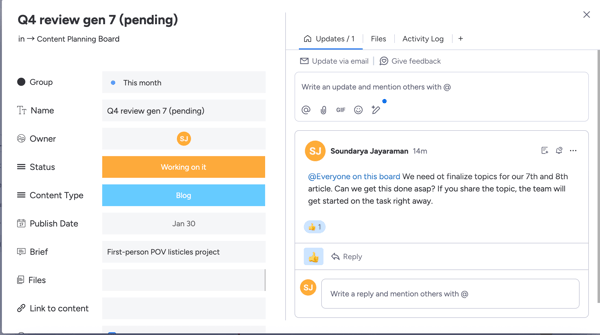
monday.com stays close to the work itself, which made a noticeable difference in my day-to-day. Most of our communication happened directly inside the Updates panel of the task card. Every file, @mention, and question is tied to a specific task; the context is preserved forever.
I found mentions particularly useful for coordination. I could tag a writer for a specific edit or use @everyone on this board to flag a blocker. For freelancers or small businesses that don't want to pay for a dedicated IM tool like Slack, monday.com is actually a reliable messaging tool. It became our default way to keep track of "who said what" related to a task without needing a separate app open. Although if you have too many tasks, or part of a number of them, you might get a lot of notifications and updates.
Visibility is where monday.com really shines, especially for cross-functional work. I set up a dashboard that pulled data from multiple boards into a single view, which saved me from constantly clicking into individual projects just to check progress.
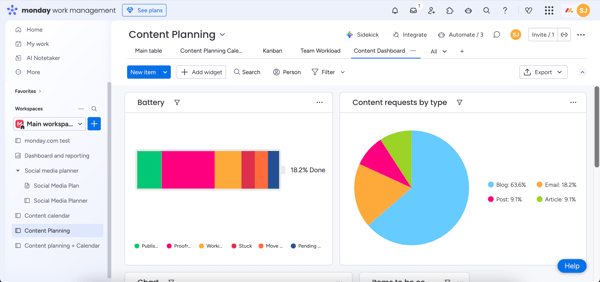
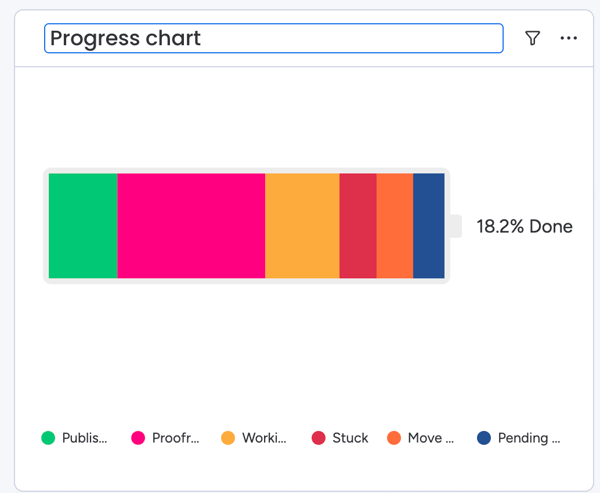
One widget I genuinely enjoyed using was the battery widget. It visualizes tasks as a single, multi-colored bar that shows the overall health of a project at a glance. Seeing the green section grow throughout the week was oddly satisfying — and surprisingly motivating.
Beyond just looking at the dashboard, the Scheduled Export feature turned out to be a massive time-saver. I didn't have to manually compile a status email every week. I simply set the dashboard to generate a report and email a PDF snapshot to my stakeholders every Monday morning automatically. It turned the dreaded "weekly status report" into a set-it-and-forget-it task that ran without me lifting a finger.
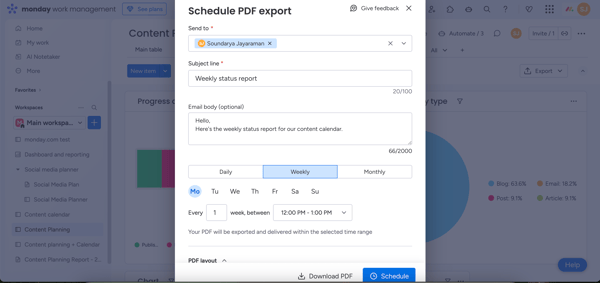
That said, dashboards don’t surface insights automatically. I had to be intentional about what I wanted to track. For my weekly status updates, I focused on a few specific metrics — content in progress, content published that week, and content in review — and adjusted the dashboard widgets to reflect exactly that. Once configured, status reporting became faster, more consistent, and far less manual.
According to G2 review data, monday.com’s dashboards are well-received by users:
These scores suggest that while dashboards are a strong visibility tool, teams see the most value when they’re configured around specific reporting needs rather than used out of the box.
Automations are where monday.com starts to deliver real-time savings, once you move past the basics. Setting up simple automations was straightforward, thanks to the rule-based builder that follows a clear “when this happens, do that” logic. I didn’t need to write anything custom to automate common actions like status changes, assignments, or notifications.
In practice, these automations helped reduce manual updates, especially for recurring work, without constant check-ins or reminders. To give you an idea of how this actually worked for my Content Calendar, here is an automation I used:
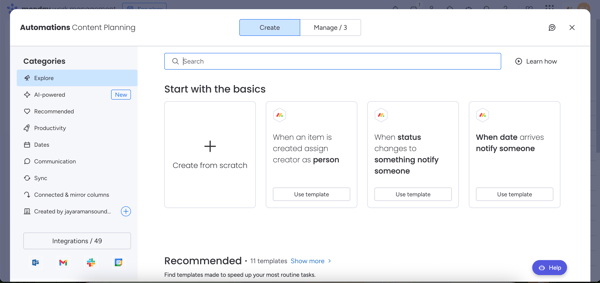
That said, automations work best when your boards are already well structured. If your statuses or columns are still evolving, automations can feel premature rather than helpful.
Integrations follow a similar pattern. monday.com connects with many tools teams already use, like Slack, G-Suite, Outlook, Zendesk, Excel, Typeform, and adding integrations is generally painless.
Where I had to be more mindful was automation and integration limits. On lower-tier plans, actions are capped, and it’s easy to hit those limits faster than expected, especially if automations trigger frequently. This didn’t break workflows, but it did force me to be intentional about which processes truly needed automation versus which were nice-to-have. Overall, automations and integrations felt powerful but best used selectively.
To balance my hands-on experience, I looked at recent G2 reviews from 2025–2026 to understand where monday.com consistently delivers value and where users still feel friction.
| What G2 users like: Pros of monday.com | What G2 users dislike: Cons of monday.com |
| Highly customizable workflows – Boards, columns, and statuses adapt well to different team needs | Learning curve for new users - features, templates, and extensive customization options can be overwhelming for new users |
| Strong task tracking fundamentals – Clear ownership, due dates, prioritization, and drag-and-drop workflows | Automation and feature limits on lower-tier plans – Action caps can push teams to upgrade |
| Collaboration stays close to the work – Comments, mentions, and updates live inside tasks, reducing context switching | Mobile app could be more robust – Better suited for quick updates than deep project management |
Navigating monday.com's pricing requires a little bit of math because of its unique 'seat bucket' model. To help you budget accurately, here is a breakdown of how the plans scale with your specific team size.
| Plan | Cost | Best for | What you get |
| Free | $0 | Students, solo Freelancers, and individuals or very small teams tracking basic work (1-2 users) |
|
| Standard | $12 /seat/ month (minimum 3 users) | Teams that need collaboration, visibility, and light automation (3–9 users) |
|
| Pro | $19 / seat/month (minimum 3 users) | Growing teams managing complex workflows at scale (Teams of 10-50 users with heavy client-facing roles and guest access needs) |
|
| Enterprise | Custom | Big organizations (50+). |
|
*Pricing is in USD based on annual billing, and accurate as of January 2026. For the latest info, visit monday’s pricing page or contact their sales team.
If you're evaluating ClickUp also right now, read my in-depth review answering the question: ls ClickUp worth it?
Most monday.com customers come from small businesses (63%) and mid-market teams (29%), with an average user adoption rate of around 75%.
Industry-wise, monday.com sees the highest adoption in Marketing & Advertising, Information Technology & Services, and Computer Software, which aligns closely with the types of teams that benefit most from flexible, visual work management.
| Who | Ideal use cases | Why it fits |
| Marketing and creative agencies | Content calendars, campaign tracking, creative asset reviews, and client collaboration | Highly visual views (Kanban, Timeline, Calendar) make it easy to track work stages, approvals, and deadlines. Strong fit for creative workflows and cross-team coordination. |
| Small to mid-sized businesses (SMBs) | General operations, HR & recruiting, internal projects, light CRM, inventory tracking | One flexible platform can replace multiple tools like spreadsheets, basic CRMs, or collaboration tools. Easy for non-technical teams to adopt, which aligns with the large SMB presence on G2. |
| Project management teams | Project planning, milestones, Gantt charts, portfolio tracking, resource coordination | Customizable boards and dashboards support both high-level oversight and detailed task tracking across multiple projects. |
| Sales teams (light CRM use cases) | Lead tracking, pipeline visibility, contact management, onboarding workflows | Visual pipelines and simple automation make it easier to manage deals and handoffs without the complexity of traditional enterprise CRMs. |
| Non-technical departments | HR onboarding, legal case tracking, event planning, internal requests | No-code setup and drag-and-drop configuration make it approachable for teams that don’t want rigid systems or technical overhead. |
| Remote and hybrid teams | Asynchronous updates, sprint planning, weekly check-ins, status reporting | Task-level updates and centralized communication reduce reliance on email and chat tools, helping distributed teams stay aligned. |
| Product and software teams (light Agile) | Sprint planning, bug tracking, roadmaps, cross-functional collaboration | Works well for teams that need to collaborate closely with marketing, sales, or operations on shared workflows. |
Note: These plan suggestions reflect common use patterns and typical workflow needs, not strict rules. Ultimately, the right plan depends on your team’s specific requirements. Many teams start on a free or lower-tier plan and upgrade as their needs grow.
Curious how Asana stacks up against monday.com? Check this out: Asana vs Monday.com: Which is better?
Got more questions? Here are the answers.
Yes, monday.com offers a free plan, and also comes with 14-day free trial. But the free plan is limited to individuals or very small teams and lacks key features like automations, advanced views, and dashboards. For most growing teams, a paid plan is necessary to unlock the platform’s real value.
monday.com is one of the better tools for managing multiple projects visually, particularly if your work doesn’t fit neatly into a single template. Its boards, dashboards, and cross-project views make it easier to track progress across teams. However, teams that prefer stricter structures or developer-centric workflows may find tools like Jira more suitable.
Some popular monday.com alternatives include:
The right alternative depends on whether you value flexibility, simplicity, or deep technical control.
If you’re deciding between structured tools, read my Asana vs Jira comparison to see which one fits your workflow better.
It depends on how complex your workflows are.
If flexibility and visual organization matter most, monday.com usually comes out ahead.
monday work management sits between Asana and ClickUp in terms of pricing and complexity.
| Tools | Best for | Vaue |
| ClickUp | Most features per dollar | Best overall value, especially for small/mid teams and budgets |
| Monday | Visual work & easy adoption | Strong middle ground; good features for cost |
| Asana | Structured enterprise work | Higher price, but great for large orgs needing reliability |
monday work management can handle product roadmaps well if your team wants flexibility, visual timelines, and easy cross-team collaboration. It’s especially useful for product managers working closely with marketing, design, or operations. Jira is often the better fit for engineering-heavy teams that need strict agile frameworks, sprint tracking, and issue-level depth. If your roadmap spans multiple departments, monday.com is usually easier to adapt and maintain.
monday work management can handle lightweight sales pipeline tracking using customizable boards and automations, and is one of the best work management tools for tracking sales. However, monday.com also offers a dedicated monday Sales CRM, which is purpose-built for sales teams and includes features like contact management, deal pipelines, and sales-focused reporting. If sales pipeline tracking is a core use case, the CRM product is the better fit; work management is best for basic or cross-functional sales workflows.
For most 10-person startups, the Standard plan is the best starting point. It unlocks timeline views, integrations, and basic automations. If dashboards are critical for leadership reporting or cross-project visibility, the Pro plan is a better fit, though it comes at a higher cost.
monday work management offers a solid mobile app for task updates, notifications, and quick edits. It works well for staying on top of work while away from your desk. That said, complex setup and dashboard configuration are still better handled on a desktop, so it’s best viewed as a strong companion app rather than a mobile-first-only solution.
Marketing teams that want more advanced or pre-built automation may prefer ClickUp or Asana. monday.com’s automations are powerful but often gated behind higher-tier plans. Teams that rely heavily on automated workflows without extensive setup may find better value elsewhere.
monday work management is one of the best project management software for remote teams that need visibility across projects, async collaboration, and customizable workflows. Its visual boards, automations, and dashboards make it easier to keep distributed teams aligned without constant meetings.
monday.com is worth using in 2026 if you don’t want your project management tool to dictate how your team works. Its real strength isn’t any single feature. It’s the fact that it can flex.
During my testing, I saw how easily it could adapt as a team grows, reorganizes, or goes fully remote, without forcing you to rip out your infrastructure and switch tools every year. That flexibility shows up in real-world user feedback. monday.com consistently earns high marks on G2 for ease of use, customization, and cross-team visibility — reinforcing what I experienced firsthand.
But to me, it rewards teams that are intentional. So if you’re evaluating monday.com right now, start small with the free trial. Spend the initial time designing your boards and see if it clicks for your workflow. Once it does, it transforms from a simple task list into a true system of record.
If you are still exploring options, check out our list of the best AI project management tools to see how monday.com stacks up against the competition.

The dream of the "Everything App" is incredibly hard to resist.
by Soundarya Jayaraman
I can usually tell a project is about to get weird when the simplest question takes five...
 by Washija Kazim

If your weekly sync exists mainly to ask, “What’s the status?” the problem is structural.
 by Alveena Ali