

The dream of the "Everything App" is incredibly hard to resist.
If you are a project manager tired of chasing status updates across three different channels, or an agency owner trying to stop bleeding money on ten separate subscriptions, you know exactly what I’m talking about.
Imagine finally closing your dedicated docs app, your whiteboard tool, and your task and time tracker, replacing them all with a single, unified workspace in a project management tool. That is the massive value proposition ClickUp brings to the table.
As you vet this platform, the big question isn't just "Does it offer these features?” It is: Are they actually good enough to run my business on?
That is exactly what I tested for this ClickUp review.
With a 4.7 out of 5 rating on G2 and more than 10,000 user reviews, the data suggests ClickUp might have cracked the code of being one of the best project management tools.
In this review, I’ll combine my hands-on experience with G2 user insights to see whether this “one app” can actually handle the weight of your real-world workflow.
ClickUp is one of the best all-in-one project management platforms built for teams that want to manage tasks, docs, goals, and workflows in one place. It stands out for its deep customization, generous free plan, and wide range of features that reduce the need for multiple tools. That said, the platform can feel complex at first, with a learning curve for new users.
ClickUp is a flexible work management platform that helps teams organize what they’re working on, who owns it, and when it’s getting done. It combines task management, collaboration, and productivity tools in one workspace.
Instead of having your tasks in a spreadsheet, your documents in Google Drive, and your chats in Slack, ClickUp brings that entire ecosystem under one roof. It creates a single "source of truth" where the plan (the doc) lives right next to the execution (the task).
That approach resonates with buyers. G2 Data shows 74% user adoption, higher than the 71% average user adoption rate of project management tools.
| Metrics | G2 score | Insight |
| G2 rating | ⭐ 4.7/5 | Strong overall satisfaction across core project management use cases. |
| User adoption | 74% | Widely adopted by teams standardizing on a single work platform. |
| Customer segment | 77% SMBs, 18% Mid-market, 4% enterprise | Primarily used by SMBs |
| Ease of use | 88% satisfaction rating | Users find daily task management intuitive once set up. |
| Ease of setup | 85% satisfaction rating | Initial configuration requires effort due to deep customization. |
| Quality of support | 90% satisfaction rating | Support is consistently rated as responsive and reliable. |
| Time to ROI | 11 months | Teams see measurable value within the first year of use. |
The following are the most important features of ClickUp for team and project management:
I signed up for a free ClickUp account with a 14-day Business plan trial, then built workflows from scratch to mirror how most teams actually get started. My testing focused on project setup, task tracking, collaboration, reporting, and how easily the platform adapted when requirements changed.
I also analyzed 1,000+ G2 reviews using AI, especially around usability, setup time, and long-term scalability, to ground my experience.
Disclaimer: I share my experience testing ClickUp as of January 2026. If you read this after a few months, some features and functionality might have evolved. The official website can provide you with the most up-to-date information.
So, how does it actually feel to use it every day? I broke down my testing into the parts that matter most — getting set up, working with your team, pulling reports, and automating the busy work. Here's how it went.
I’ve tested a lot of work management tools over the years, like Monday, Asana, Notion, you name it. ClickUp was the first platform where I didn’t start with a template. ClickUp’s onboarding prompts asked me to think through how my workflow actually works. Based on my answers, it created a blank workspace that reflected those inputs.
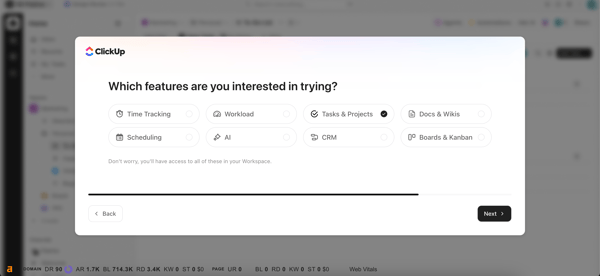
From a flexibility standpoint, I liked the personalized approach, but if you prefer starting from a template, ClickUp has a massive template center where you can pick and choose the one you are comfortable with and get started.
That said, the UI is overwhelming. There are buttons everywhere, sidebars, menus, settings, tabs, and a dizzying array of options, competing for attention. It’s very easy to get distracted, click into settings, and lose track of what you were trying to set up in the first place. However, once you get past that initial "feature shock," the onboarding process is surprisingly logical.
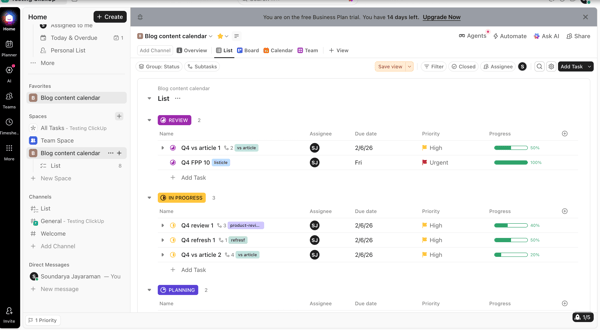
One thing that helped a lot was mapping out ClickUp’s hierarchy before building anything. I literally wrote it down. I treated Spaces as high-level functions (like Marketing), Folders as sub-teams or initiatives (Content Marketing, Social Media), and Lists as the place where actual tasks lived. Skipping this step and jumping straight into list creation is how you end up with a messy board that’s hard to untangle later.
As I customized my board, I could add custom fields, like content type, tags, progress bar, and more. You’ll also be tempted to turn on Time Tracking, Sprints, Milestones, Email, and Tags all at once. Don’t do this.
If you enable everything on day one, you’ll overwhelm yourself. What worked better for me was starting with the bare minimum: lists and tasks. Once that foundation felt solid, I gradually introduced the advanced features only when there was a clear need for them.
According to G2 review data, ClickUp scores 88% for ease of use and 85% for ease of setup.
These scores reinforce that while ClickUp can feel overwhelming at first, most users find it manageable once they get past the initial learning curve and settle into a structured workflow.
Once you get past setup, task management is where ClickUp really starts to flex its muscles. At a basic level, tasks work the way you’d expect: you can assign owners, set due dates, add priorities, attach files, and leave comments. But the level of customization ClickUp allows goes far beyond the basics, and it’s genuinely impressive.
I could visualize the same set of tasks in different ways, including List, Kanban, Gantt, and Workload views, depending on what I needed at the moment. At the task level, ClickUp lets you add rich detail.
/Views%20on%20ClickUp.webp?width=600&height=414&name=Views%20on%20ClickUp.webp)
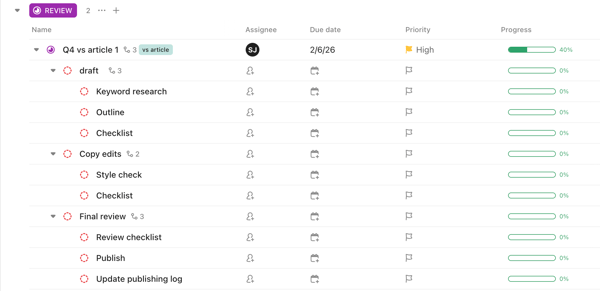
I could create custom fields, add subtasks and checklists, and attach files. Mapping complex relationships using dependencies, marking a task as "Waiting on" a particular subtask or "Blocked by" approval, was easy enough. I could even create custom relations between completely different tasks. Did I mention a task could have multiple assignees?
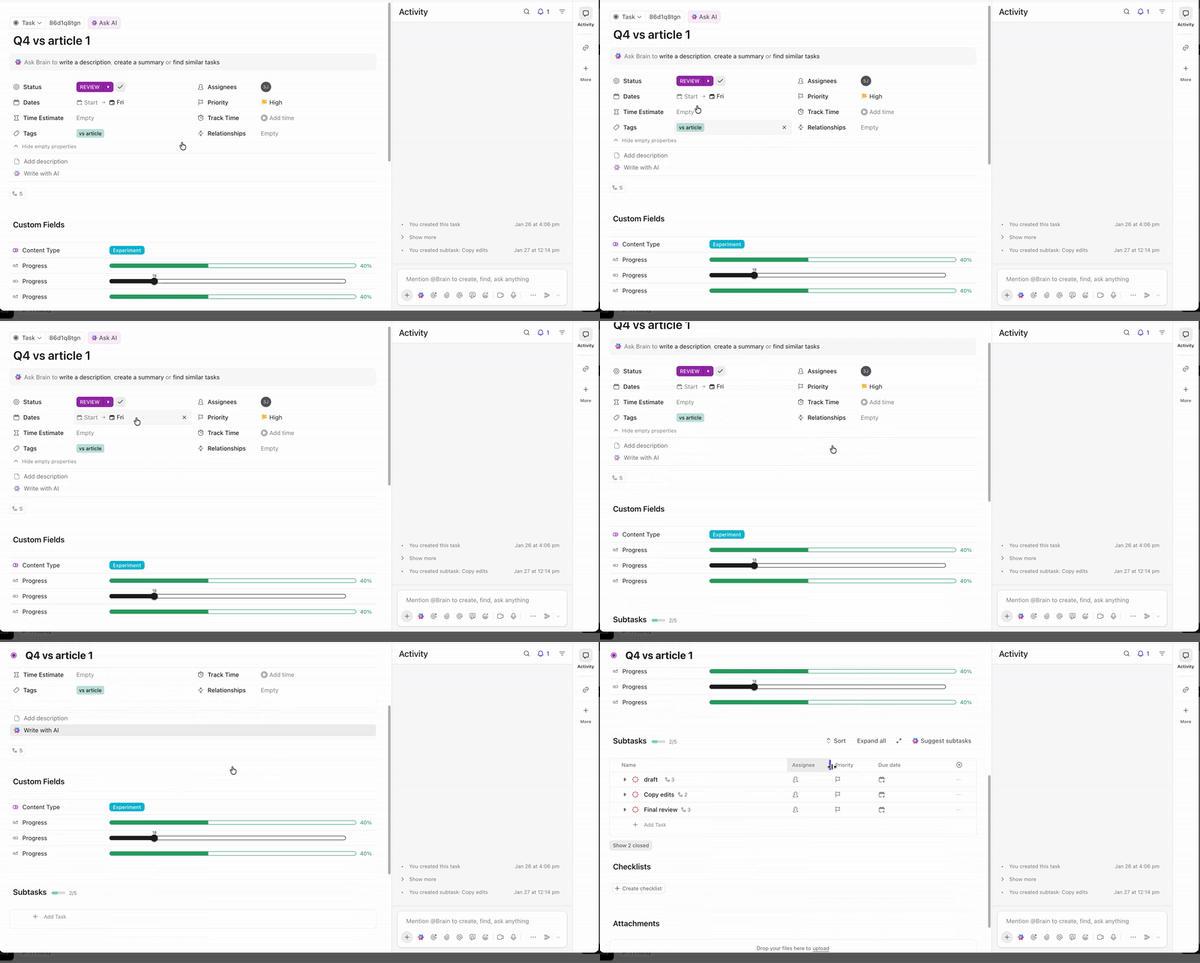
But the feature I loved the most was the progress bar custom field. You can set it to update manually or auto-populate based on completed subtasks. Adding it gave me a quick visual snapshot of the project's health without having to open every single card. It turns a boring list into a data-rich dashboard.
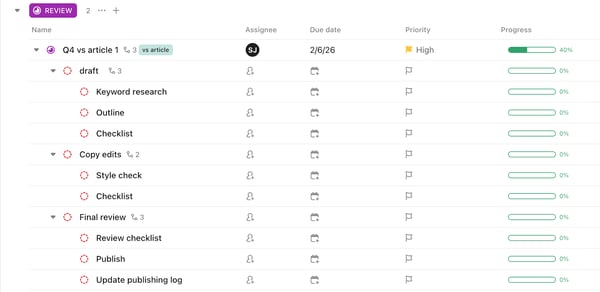
Beyond that, the library of custom fields is massive — dropdowns, currency, email, ratings, formulas. You can essentially build a mini-database inside your project.
I also leaned heavily on tags. While folders kept things structured, tags acted as my "search engine," allowing me to pull up every task related to "Q4 launch" or "listicle" across the entire workspace instantly.
But the feature that really impressed me was the nested subtasks. In ClickUp, the hierarchy is crystal clear. I could create a Task > Subtask > Nested Subtask, and everything remains visible and organized in the main view. This is in contrast to many task management tools, where adding or linking subtasks feels clunky or restrictive.
On the personal productivity side, the My Tasks view was surprisingly useful. Clicking into Assigned to Me, Today, or Overdue gave me an immediate snapshot of what I needed to focus on versus what I’d delegated. I could also create personal task lists to manage my own work separately. You can customize this if you want, but for simple users, the default setup works perfectly to answer the question: "What do I need to do right now?"
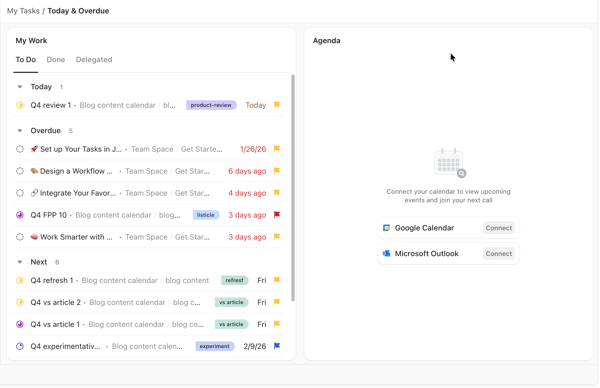
A quick word of caution: As the projects got populated and I added on more tasks, ClickUp became slightly slow to load, although it didn’t affect my workflow too much.
My hands-on experience aligns closely with G2 user sentiment. According to G2 user satisfaction ratings, ClickUp's highest rated features include:
Honestly, I feel collaboration features in ClickUp is a big differentiator. Most PM software allows you to comment on a task or, at most, have a threaded discussion. But I found I could use ClickUp as a full-blown instant messaging tool. I could see who’s online, DM a specific person to ask a quick question. I could create a dedicated channel for a specific Space, like a #marketing channel to keep the conversation focused. It’s also easy to tag team members and have real-time conversations on tasks.
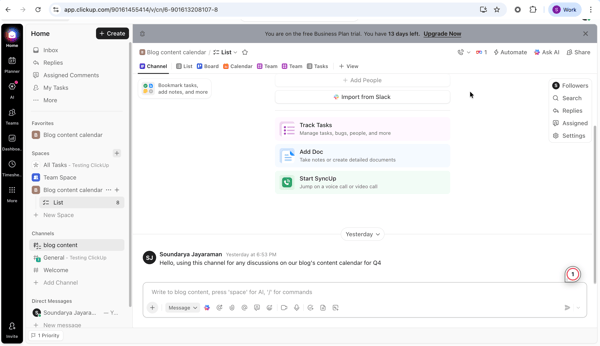
And the features are extensive. I could use Clip to record a video and share it to a task, or create a threaded conversation from one of the comments on chat, and even use GIFs as reactions.
For creative teams, the collaboration suite goes even deeper. Images or PDFs can be uploaded, and teammates can click anywhere on the design to leave a comment. It streamlines the approval process significantly compared to long email chains.
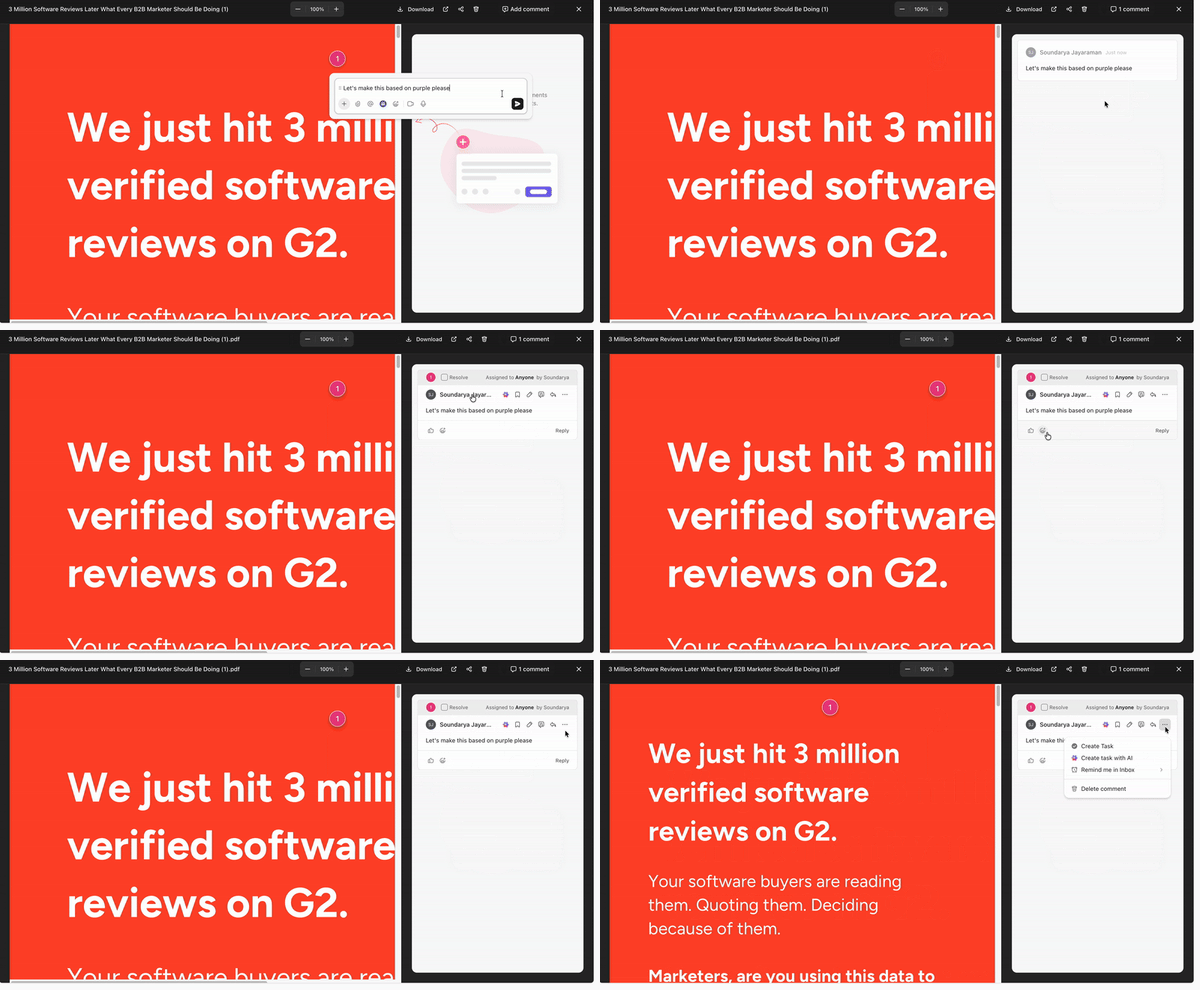
Then there are the Docs. Usually, I’d have to link out to a Google Doc or a Notion page, which creates a disconnect between the plan and the execution. In ClickUp, Docs makes it easy to write SOPs, meeting minutes, or project briefs.
Another standout is the ability to invite guests (like clients) to view specific folders, which is unlimited on most paid plans. Of course, the free plan has some caps on these features, but being able to bring people directly into the workflow with the IM tool saves endless email back-and-forth and keeps expectations transparent.
One thing to be mindful of is notification overload when using ClickUp for IM. With the right settings in place, it works smoothly, but without that initial setup, the volume of alerts can add up.
Does it replace Slack entirely? For "watercooler" chat, probably not. But for project-specific communication, yes. You never have to ask "Where is that file?" because it's linked directly to the conversation.
Unlike "Views" (which are just different ways to see specific tasks), dashboards are high-level reporting canvases that pull data from your entire workspace to tell you the story behind the work.
ClickUp dashboards are made up of cards, basically widgets that display specific slices of data. I liked that ClickUp had different cards for different purposes like time tracking, workloads, tasks, status, etc.
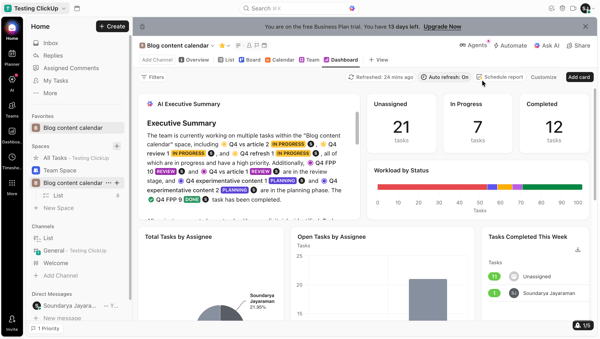
I could pull in a Workload by Status card to visualize team capacity, or a Tasks by Assignee card to instantly spot who was overloaded. For agencies and freelancers, I felt the timesheet and billable reports might be of huge help. And if the pre-built options didn't fit my exact needs, I always had the flexibility to create a custom card to visualize the data exactly how I wanted.
Scheduling reports was something I loved and saved me hours of admin work. Dashboards can be scheduled to be sent via email at a specific time. So instead of spending my Monday morning taking screenshots and pasting them into a PowerPoint for team standup, I could set ClickUp to automatically email a snapshot of the dashboard to my manager every Monday at 9 AM. It keeps stakeholders informed without you having to lift a finger.
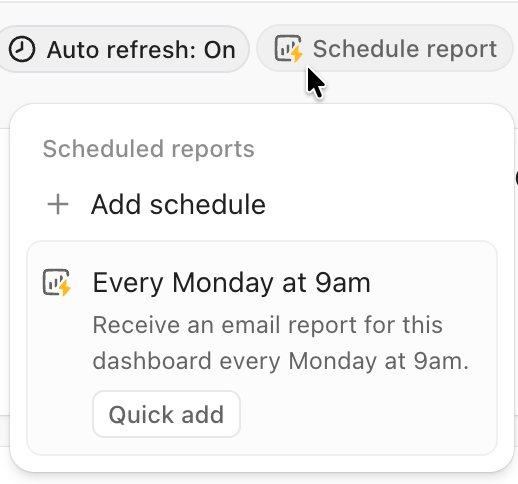
Of course, you need to spend some time configuring widgets to match your workflow. But once they’re dialed in, they eliminate the need for separate reporting tools and manual status updates.
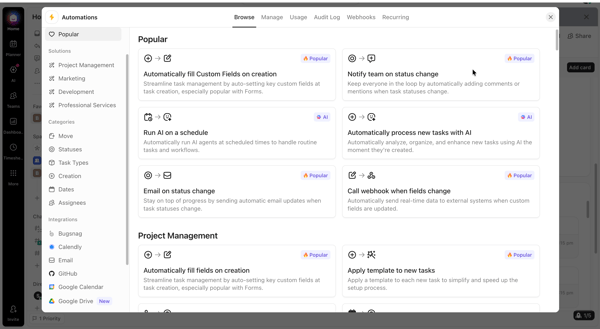
ClickUp’s automation engine is designed to stop you from being a "task pusher" by handling the repetitive admin work for you. What I liked most is that you don't need to be a developer to build these; the interface is a simple "When > Then" sentence builder.
I browsed their library and found pre-built recipes for almost every scenario. There are simple triggers like "Automatically fill fields on creation" or “Apply templates to new tasks," ensuring nothing slips through the cracks. For more specific needs, I saw recipes like "Automatically apply campaign templates" for marketing workflows or “˘Sync bug reports to GitHub” for developers.
ClickUp also has ClickUp Brain, an AI assistant that has all contextual awareness of my workspace.
And of course, you don't live in ClickUp alone, and the platform recognizes that with integrations with 1,000+ tools with direct connections for tools like GitHub, Dropbox, Figma, Google Drive, Outlook, Salesforce, Zoom, and more.
On the whole, ClickUp is genuinely a good project management and collaboration tool that satisfies all major needs like task management, tracking, collaboration, automations, and reporting, in my view.
To balance my hands-on testing, I also dug into recent G2 reviews from 2025–2026 to see where ClickUp consistently delivers value and where users still feel some friction. The themes below come up across small teams, mid-market companies, and larger organizations.
| Pros of ClickUp: What users like | Cons of ClickUp: What users dislike |
| All-in-one functionality – Many G2 users highlight ClickUp’s ability to consolidate tasks, docs, time tracking, and reporting into one platform. | Initial setup requires planning – Teams often mention needing to spend time defining workflows and structure upfront to get the most value. |
| Highly flexible workflows – Custom fields, statuses, automations, and views are frequently cited as standout features. | Takes time to get comfortable – New users may need a short adjustment period to learn where features live and how to use them efficiently. |
| Strong reporting and dashboards – Managers and agencies appreciate real-time visibility into progress, workload, and time tracking. | Interface offers many options – The platform provides a lot of controls, which can feel like “too much” until you tailor it to your needs. |
| Advanced task management – Nested subtasks, dependencies, and task relationships are often praised for handling complex work. | More than some teams need – Teams with very simple workflows may not use the full depth ClickUp offers. |
| Automations and integrations – Users value the ability to reduce manual work and connect ClickUp with existing tools. | Best results come with intentional use – Automations and advanced features work best once workflows are clearly defined. |
ClickUp’s pricing is aggressive, in a good way. Unlike competitors that lock essential features (like Gantt charts) behind high-tier paywalls, ClickUp gives you almost everything upfront. The strategy is simple: Hook you with features, upgrade you for storage.
Their "Free Forever" plan is genuinely usable for solo work, but as soon as you try to scale a team, you will hit the storage cap. Here is how the tiers break down so you can find the "sweet spot" for your budget.
| Plan | Cost (Per user/month) | Best for | What you get |
| Free Forever | $0 | Individual users | • Unlimited Tasks & Members • 60MB Storage • Collaborative Docs & Kanban Boards • Sprint Management & In-App Video Recording |
| Unlimited | $7 | Small teams | Everything in Free, plus: • Unlimited Storage & Integrations • Unlimited Dashboards & Gantt Charts • Guests with Permissions • Native Time Tracking & Goals • AI Compatible |
| Business | $12 | Mid-sized teams | Everything in Unlimited, plus: • Workload Management (Capacity Planning) • Advanced Automations & Time Tracking • Unlimited Timelines & Mind Maps • Google SSO & Private Whiteboards |
| Enterprise | Contact Sales | Large organizations | Everything in Business, plus: • White Labeling & Advanced Permissions • HIPAA Compliance & Data Residency • Custom Roles & Single Sign-On (SSO) • Live Onboarding Training |
*Pricing is in USD based on annual billing, and accurate as of January 2026. For the latest info, visit ClickUp’s pricing page or contact their sales team.
The Unlimited Plan ($7) is usually the "sweet spot" for most small businesses because it unlocks unlimited storage and guests. However, if you are a manager who needs to see Workload Capacity or use advanced Time Tracking reports, you will need to jump to the Business Plan ($12).
G2 Data makes it pretty clear who ClickUp resonates with most. The majority of users come from small businesses, followed by mid-market teams, with enterprises adopting it more selectively. That breakdown lines up well with ClickUp’s strengths.
On the industry side, ClickUp is especially popular with marketing, software, IT, consulting, and design teams — places where projects change quickly, and rigid workflows just don’t work.
| Who | Ideal use case | Why it fits (based on G2 insights) | Recommended plan |
| Small businesses | Managing projects, clients, and internal work in one tool | Strong adoption among small teams that want an all-in-one platform without paying for multiple tools | Unlimited (or Free to start) |
| Marketing and advertising teams | Campaign planning, content production, and cross-team collaboration | Flexibility with custom workflows, Docs, and dashboards | Unlimited or Business plan |
| Software and IT teams | Sprint planning, backlog tracking, and technical project coordination | Task depth, dependencies, and reporting for complex work | Business plan |
| Agencies and consultants | Client work, time tracking, and billable reporting | Dashboards, time tracking, and permissions align well with client-facing workflows | Business plan |
| Design teams | Managing creative workflows and feedback loops | Collaboration tools, proofing, and visual task views | Unlimited or Business plan |
Note: These plan suggestions reflect common use patterns and typical workflow needs, not strict rules. Ultimately, the right plan depends on your team’s specific requirements. Many teams start on a free or lower-tier plan and upgrade as their needs grow.
Got more questions? Here are the answers.
Yes. ClickUp has a Free Forever plan. G2 Data shows many users start here, but most teams eventually upgrade for automation, reporting, and advanced views.
For many teams, yes. ClickUp is one of the top options for combining tasks, docs, and goals in a single platform. G2 adoption is strongest among teams that want flexibility and fewer tools, even if setup takes time.
Desktop works better overall. G2 users consistently prefer the desktop app for planning, setup, and reporting. The mobile app is best for checking tasks, updates, and quick edits — not full workflow management.
The Business Plan. Based on G2 usage patterns, agencies benefit most from dashboards, workload views, time tracking, and permissions — all unlocked at the Business tier.
Monday.com. G2 reviewers frequently cite Monday as easier to navigate, while noting that ClickUp offers deeper customization and reporting at the cost of complexity. Explore other ClickUp alternatives like Wrike, Hive, Teamwork.com on G2.
ClickUp offers the most value if you want one tool. G2 Data shows ClickUp is favored by remote teams that want tasks, docs, and reporting in one place, while Asana wins on simplicity and Monday on visual clarity.
It depends on the team. G2 Data shows Jira is better for software development and issue tracking, while ClickUp is preferred for cross-functional, non-technical, or mixed teams.
Yes, if flexibility matters. G2 adoption is highest among small businesses and startups, especially those that expect workflows to evolve quickly as they scale.
The Free or Unlimited plan. G2 reviewers in solo roles report the best experience when they keep features minimal and avoid advanced configurations early.
Time tracking, yes. Invoicing, no. G2 users frequently praise ClickUp’s native time tracking, but invoicing typically requires integrations, making it a strong project hub rather than a full billing tool.
After using ClickUp daily to manage projects, teams, and what felt like my entire life, the short answer is yes — but only if you are willing to build it. ClickUp is not a tool you just "download and use." It is a construction kit to build your own perfect project management house.
Here is the one thing most reviews won't tell you: ClickUp amplifies your existing process — good or bad. Because it is so customizable, it acts like a mirror. If your team is disorganized and you dump them into ClickUp, the infinite features will create chaos.
However, if you have a clear workflow, ClickUp is the only tool that can mold itself perfectly around that process. It doesn't fix a broken process; it simply digitizes it. So if you’re evaluating ClickUp, get on the free plan, map your workflow, see if it fits, and move from there. ClickUp gives you all the bricks you need to build a skyscraper — just make sure you bring the blueprint.
If you are still exploring options, check out our list of the best AI project management tools to see how ClickUp stacks up against the competition.


Most project management tools promise flexibility. Fewer deliver it without creating chaos.
by Soundarya Jayaraman
If your weekly sync exists mainly to ask, “What’s the status?” the problem is structural.
 by Alveena Ali
I can usually tell a project is about to get weird when the simplest question takes five...
 by Washija Kazim