


Here's a situation I'm willing to bet you've been in.
You open a file someone sent you. It's a .xlsx. You don't have Excel. You open it in Google Sheets, and half the formatting is broken, one formula throws an error, and the pivot table is just a sad block of static numbers.
Or the reverse: you share a Sheets link with a colleague, and they reply asking for "the actual file."
If you work with data regularly, this back-and-forth between Google Sheets vs. Excel standoff isn’t an edge case, but a routine. Most people pick a side based on habit, not evidence. Which is exactly why it's worth actually settling.
I tested both tools properly for this comparison. Google Sheets on a Google Workspace Business Standard plan, Microsoft Excel as part of Microsoft 365, which is how the vast majority of Excel users access it. Both are Leaders on G2's Spring 2026 Grid Report, and between them, they account for nearly every spreadsheet being built anywhere in the world right now.
I ran them through formulas, pivot tables, collaboration, charts, automation, and cross-compatibility, and I dug through hundreds of G2 reviews to see where my experience matched what other users report at scale.
Here’s what I found: Excel wins on formula depth, data handling, and advanced analytics, making it the go-to for finance professionals and power users. Google Sheets wins on real-time collaboration, cost, and accessibility, making it the better fit for teams and everyday use.
Depending on who you are and how you work, one of these tools fits your life considerably better than the other. I know which one fits mine. Let's find out which one fits yours.
This table compares Google Sheets and Microsoft Excel across core features, pricing, and capabilities, while the sections below explain which tool performs better for specific use cases.
| Feature | Google Sheets (Google Worskpace) |
Microsoft Excel |
| G2 rating | 4.6/5 ⭐ | 4.7/5 ⭐ |
| Best for | Teams and individuals who need free, browser-accessible spreadsheets with strong real-time collaboration and Google Workspace integration | Finance professionals, data analysts, and power users who need advanced formula depth, large dataset handling, and deep Microsoft 365 integration |
| Platform | Browser-based; no native desktop app for Windows or Mac. Available as a native app on Chrome OS, or as a PWA via Chrome or Edge on Windows and Mac | Desktop app (Windows and Mac) + web version |
| Collaboration | Real-time multi-user editing built from the ground up; up to 100 simultaneous editors, live cursors, comments, and three permission levels | Co-authoring available via OneDrive; improved but still prone to sync conflicts with simultaneous editing |
| Formula depth | 400+ functions, including XLOOKUP, dynamic arrays, LAMBDA, and QUERY for SQL-style data analysis | 400+ functions, including XLOOKUP, LET, LAMBDA, and the deepest statistical and financial function set of any spreadsheet tool |
| Data limits | Up to 10 million cells per spreadsheet | Up to 17 billion cells; handles large datasets significantly faster on desktop |
| Automation | Google Apps Script (JavaScript-based, cloud-native, free); macro recording available | VBA macros (desktop only, highly powerful); Office Scripts on the web; macro recording available |
| AI features | Gemini: built-in, reads sheet context, writes formulas, analyzes data; requires Google Workspace Business Standard ($14/user/month) or Google One AI Premium ($19.99/month) for personal users | Copilot: built-in, requires Microsoft 365 Personal ($8.33/month) or higher; not available on bundled or free versions |
| Autosave | On by default, always. | On by default when files are saved to OneDrive or SharePoint. Off by default for locally stored files. |
| Offline access | Available via Chrome or Edge with one-time setup, or through Google Drive for Desktop app | Available via OneDrive sync; most reliable on Windows |
| Integrations | Google Workspace (Docs, Drive, Forms, Gmail, Slides); Workspace Marketplace add-ons | Microsoft 365 (Word, PowerPoint, Teams, Outlook); Power BI, Power Query, SQL |
| Templates | Functional built-in library with third-party options; some require add-ons | Larger, better-organized library with a search bar and more polished financial templates |
| Free plan | Fully free with a Google account; no feature restrictions on the core app | Free web version available but limited; full Excel requires Microsoft 365 |
| Pricing | Free for personal use; Google Workspace Business Starter at $7/user/month | Microsoft 365 Personal at $99.99/year; Business Basic at $6/user/month (rising to $7 from July 2026) |
| Ideal user | Collaborative teams, budget-conscious users, and anyone working across multiple devices | Finance teams, data analysts, enterprise users, and anyone already invested in the Microsoft 365 ecosystem |
Note: Both Google and Microsoft regularly roll out updates to their products. The details below reflect the most current features and pricing as of April 2026, but may change over time.
Here's the thing about these two tools: they look almost identical until you actually start working in them. Same grid, same formula bar, same basic idea. But spend a week using both for real tasks, and the differences become pretty hard to miss.
Same category, very different personalities. Here's where they go their separate ways.
Before this starts sounding like a one-sided fight, these two share more than you'd think:
Now we know how these two stack up on paper. But specs only tell half the story. So I put both through their paces across real work tasks, the kind that show up in actual jobs.
To keep this comparison grounded, I used Google Sheets on a Google Workspace Business Standard plan and Excel as part of Microsoft 365 Personal. No artificial test cases. No cherry-picked demos. Just the kind of work that actually shows up in real jobs.
Here's what I tested both tools on:
I evaluated both tools across four criteria:
I also cross-checked my findings against G2 reviews to see where my experience matched or differed from what other users report at scale.
Disclaimer: Spreadsheet behavior can vary based on your browser, device, internet connection, and file complexity. Everything here reflects my testing experience as of April 2026.
Alright, this is the part you've been waiting for. I ran both tools through nine real-world test categories, the kind of tasks that pile up on a Tuesday afternoon. For each one, here's how I'll break it down:
Let's get into it!
I'll be honest, as someone who has used both tools for years, testing "ease of use" meant actively trying to forget what I already knew. I had to put myself in the shoes of someone opening either tool for the first time or switching from one to the other. Turns out, that perspective gap is exactly where these two tools differ the most.
Sheets opened in seconds. Clean grid, minimal toolbar, nothing asking me to configure anything. I clicked the blank spreadsheet and was ready to work almost immediately. The menus are logical, the formatting options are easy to find, and nothing feels buried. There's a lightness to the interface that makes it genuinely easy to just start.
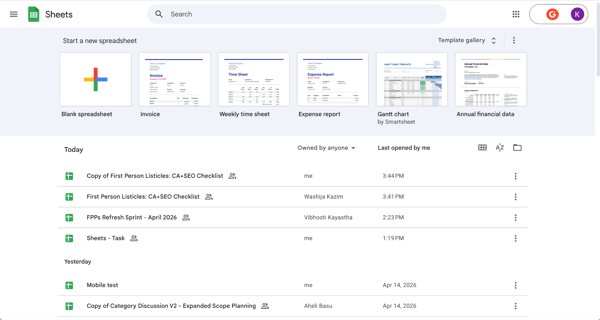
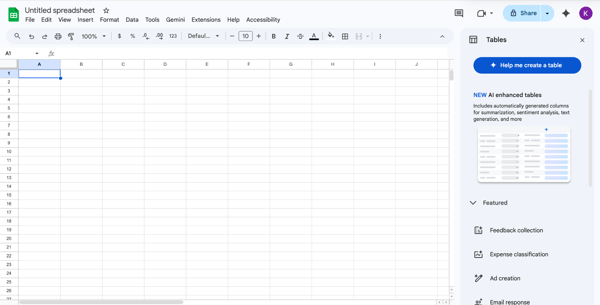
Sheets Home Screen and Blank Spreadsheet
Excel's Start screen is polished, but there's noticeably more going on. The ribbon is dense, grouped into labeled sections across the top: Font, Alignment, Number, Styles, and Cells. For someone already comfortable with Excel, that structure feels like power. For someone new to it, it can feel like a lot before you've even typed anything.
G2 reviewers flag this consistently. One called it "not beginner-friendly at all," adding they had no idea what half the buttons did when they first started. Another described feeling overwhelmed by how many things you can do, saying it feels intimidating at first. That tracks with my experience of trying to look at it with fresh eyes.
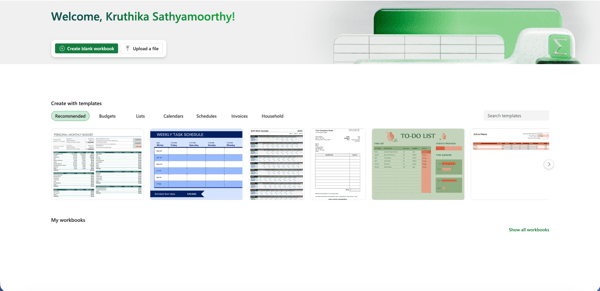
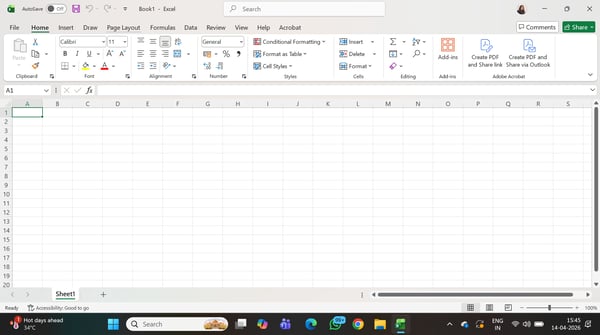
Excel Home Screen and Blank Spreadsheet
To be fair, Excel's complexity isn't without reason. Once you know where things live, the interface is incredibly efficient. It's just a steeper climb to get there.
G2's Spring 2026 data reflects this exactly. Ease of use scores 94% for Google Workspace and 88% for Microsoft Excel. Six points across thousands of reviews isn't noise. It's a pattern.
The difference I kept coming back to was this: Sheets gets you productive faster. Excel makes you more productive once you've put in the time.
Winner: Google Sheets — Lower barrier to entry, faster to start, and easier to navigate for everyday tasks.
I'll put it plainly: I went into this test already knowing Excel would win. What I didn't expect was to find something in Sheets that Excel genuinely can't do.
I ran both tools through the same set of tasks: everyday formulas, XLOOKUP, nested IF logic, dynamic arrays like FILTER and UNIQUE, and then the harder stuff, LET and LAMBDA.

Excel's dedicated Formulas tab with a categorized function library
Excel was in its element here. The autocomplete is excellent. As you type, it tells you exactly what each part of the formula expects, which sounds like a small thing until you're three levels deep into a nested formula at 11 pm. LET let me define variables inside a formula instead of repeating the same reference six times. LAMBDA let me build reusable custom functions without writing a single line of code. These aren't features I use occasionally. Once you know they exist, you use them constantly.
Sheets handled most of this well. XLOOKUP works. FILTER, SORT, UNIQUE all behave as expected. LET and LAMBDA exist in Sheets too, and the autocomplete tooltips look broadly similar. But there's a catch that only shows up when you move files between tools. Named LAMBDA functions in Excel and Named Functions in Sheets are not compatible with each other. Export a complex LAMBDA-based Excel workbook to Sheets, and those functions break until manually fixed, one by one. It's a documented limitation that matters most for anyone working across both tools regularly.
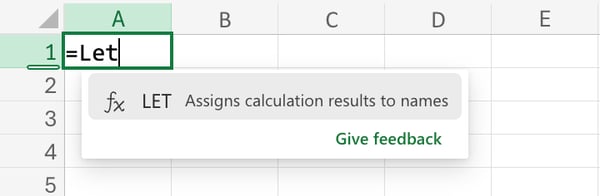
LET function in Google Sheets
Where Sheets genuinely surprised me though was with its QUERY function. It lets you run SQL-style queries on your data using plain language syntax, something Excel has no native equivalent for. For filtering and aggregating data without building complex nested formulas, it's a genuinely powerful tool that Excel users simply don't have access to.
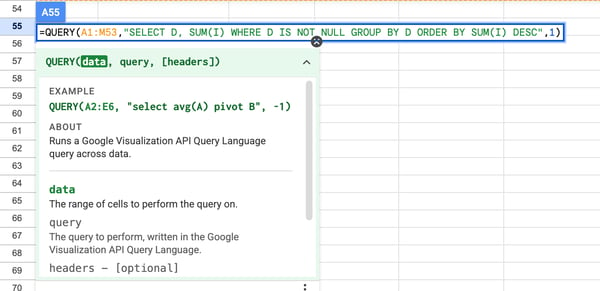
Google Sheets QUERY function: SQL-style queries in a single formula
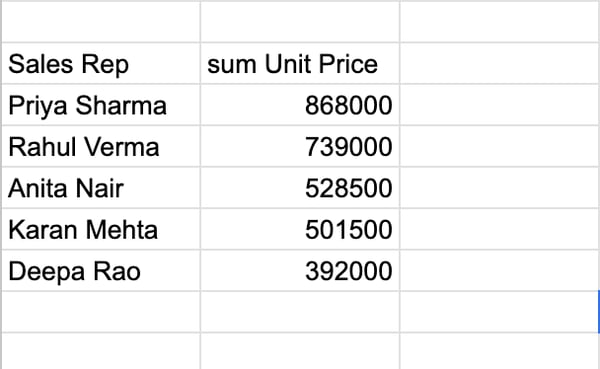
QUERY output: sales data aggregated cleanly without a pivot table
One more thing worth calling out. G2's feature comparison data shows Excel scoring 95% on Functions compared to Sheets' 91%. That four-point gap might sound small, but it reflects thousands of users consistently rating Excel's formula experience higher. That matches what I found in testing.
Winner: Excel — Deeper formula library, more reliable handling of advanced functions, and better cross-tool compatibility for complex workbooks. Sheets covers everyday needs well, and QUERY is a genuine differentiator, but for serious formula work, Excel is the stronger tool.
I started with something painfully familiar. A messy dataset, around 500 rows of sales data with inconsistent formatting, duplicate entries, and numbers stored as text. The kind of file that lands in your inbox on a Monday morning and immediately sets the tone for your day.
The first thing that caught me off guard with Excel was AutoSave. It's right there in the top left corner, and its behavior depends on where your file lives. If your file is saved to OneDrive or SharePoint, AutoSave is on by default, which is how most Microsoft 365 users work. But if you're working with a locally stored file, as I was during testing, AutoSave is off until you manually enable it.
Coming from Sheets where everything saves automatically regardless of where the file lives, that distinction is worth knowing upfront.
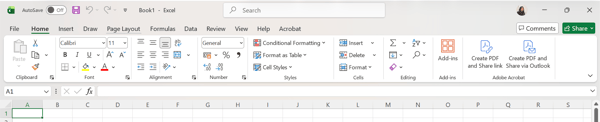
AutoSave is off by default in Excel desktop
Once I got past that, Excel's ribbon started showing its value. The Number formatting group has dedicated buttons sitting right there in the ribbon, currency, percentage, comma formatting, increase and decrease decimals, all accessible without opening a single menu. When you're formatting a financial report and switching between formats constantly, having those one click away matters more than you'd think.
Format as Table was the moment Excel genuinely impressed me. One click, pick a style, and your raw data instantly becomes a structured table with alternating row colors, filter dropdowns on every column, and formatting that actually looks professional. It's the kind of feature that makes you wonder why you ever did it manually.
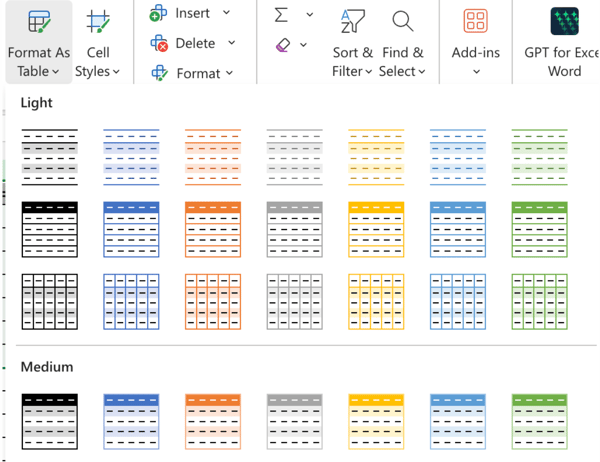
Format as Table: one click to a structured, styled dataset
Sheets takes a different approach. The Insert menu now has "Generate a table" powered by Gemini, and "Pre-built tables" for common use cases. Worth noting: this required my paid Google Workspace account. I typed a simple prompt, and Sheets structured my data into a clean table instantly. For quick setup, that's genuinely impressive and arguably more accessible than Excel's Format as Table for users who aren't sure where to start.
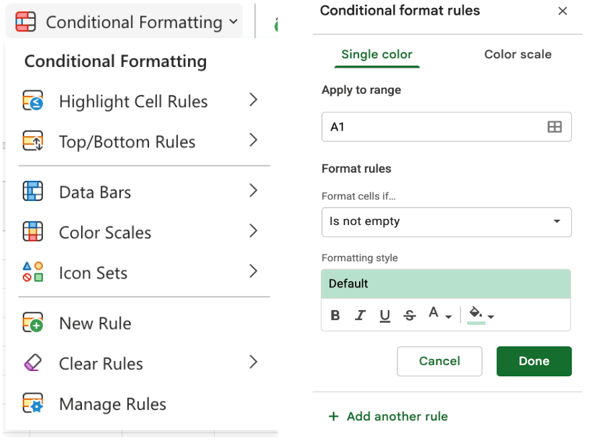
Excel vs. Sheets conditional formatting options
That said, for more granular formatting control, Excel pulls ahead. Conditional formatting in Excel has more rule types, Data Bars, Icon Sets, Top/Bottom Rules, on top of what Sheets offers. Number formatting is more configurable too.
And then there's the small stuff that adds up over a week of real work. In Excel, once you pick a fill color it stays active in the toolbar. Select another cell, click the button, and the same color applies. In Sheets, you open the color picker every time. Yes, there's Paint Format, which copies formatting from one cell to another, but that's still a source cell click, a Paint Format click, and then the target cell. It sounds minor. It isn't when you're formatting a large dataset.
Winner: Split — Excel has more formatting depth, more granular controls, and persistent fill color behavior that speeds up repetitive formatting work.
I tried to do something pretty standard: create a bar chart showing total revenue by region from my raw sales data. Same dataset, both tools. The experience was night and day.
Sheets was surprisingly smooth here. The chart editor opened as a clean side panel. I could see my X axis, Y axis, and series as simple dropdowns, easy to change, easy to understand. When the chart initially looked messy, I spotted an Aggregate checkbox right there in the Setup tab. One click. Clean chart. Done.
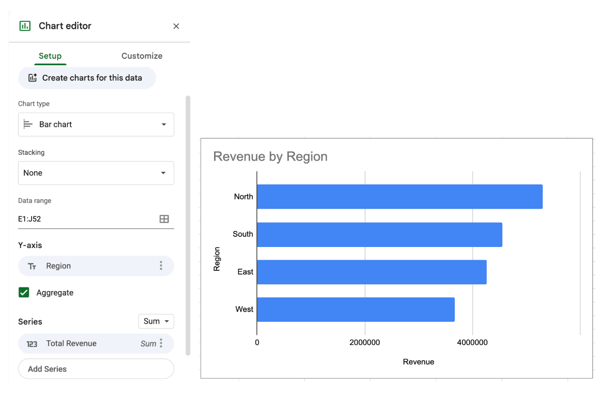
Sheets chart editor and output: One checkbox to aggregate raw data instantly
Excel told a different story. The same data produced a chart that plotted every single row individually. North appeared over and over down the Y-axis instead of grouping by region. I went through the chart panel looking for a way to fix this quickly. Couldn't find one.
The workaround? Copy-paste the columns you need next to each other first, then chart. Or hold Ctrl to select non-adjacent columns. Or build a PivotChart. They all work, but none of them are obvious if you don't already know Excel well. And honestly, most everyday users won't.
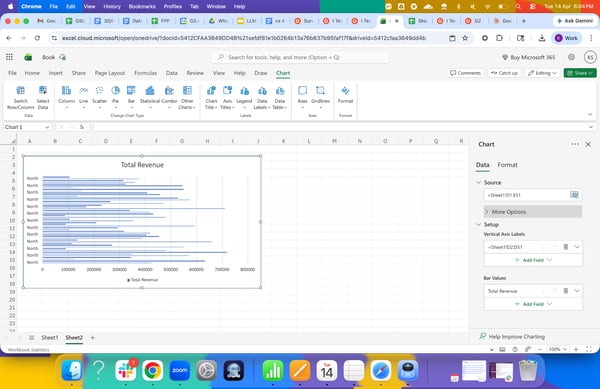
Excel plotting every row individually without aggregation
Where Excel does pull ahead is in chart variety and filtering tools. The Insert ribbon shows chart types right there: Column, Line, Scatter, Pie, Bar, Statistical, Combo, and Other Charts. Excel also has Slicers, a visual filtering tool that lets you filter pivot tables and charts with clickable buttons. Sheets doesn't have a native equivalent. For building polished, interactive reports, that matters.
On customization, both tools open a right-side panel. Sheets has collapsible sections for chart style, titles, series, legend, and axes. Excel's Format panel has toggle switches for titles and legend. Both are functional; neither is dramatically better than the other for standard chart customization.
Winner: Google Sheets — The Aggregate option and intuitive axis selection make Sheets significantly more accessible for everyday chart building from raw data. Excel has more chart types, Slicers, and deeper customization on desktop, but the friction of getting a clean chart from unsummarized data is a real barrier for regular users.
Want to go beyond spreadsheet charts? If you need full dashboards and interactive reports, check out this tested breakdown of the best free dashboard software available right now.
I'll be upfront: this is the section where the gap between these two tools is most obvious. Not because Excel can't collaborate, it can, but because Sheets was built for this from day one, and it shows in ways that matter during actual work.
Sharing in Sheets took about ten seconds. Click Share, type an email or paste a link, and pick a permission level. Three options: Viewer, Commenter, Editor. That middle option matters more than it sounds. If you're sending a report to a manager or a client for review, Commenter lets them leave feedback without accidentally editing anything. It's a small thing until the day someone overwrites your data, and you can't figure out what changed.
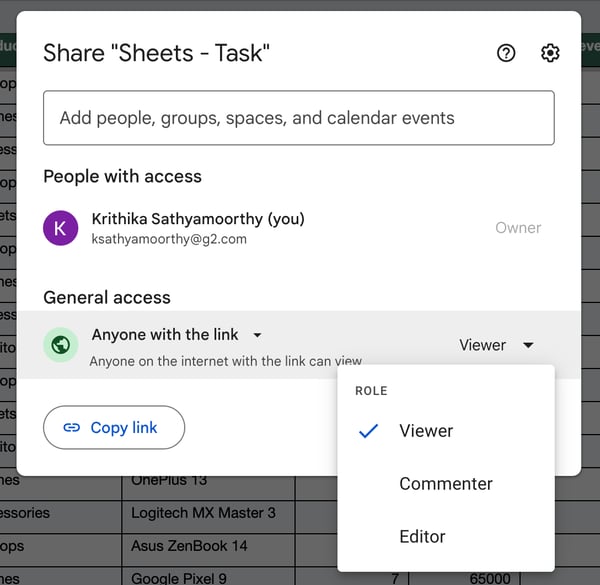
Google Sheets sharing: Three permission levels including Commenter
Excel's sharing dialog is clean and straightforward, but it only gives you two options: Can edit and Can view. No Commenter equivalent. If you want someone to review without editing, you're choosing between giving them full edit access or locking them out completely. For a lot of real-world review workflows, neither option is ideal.
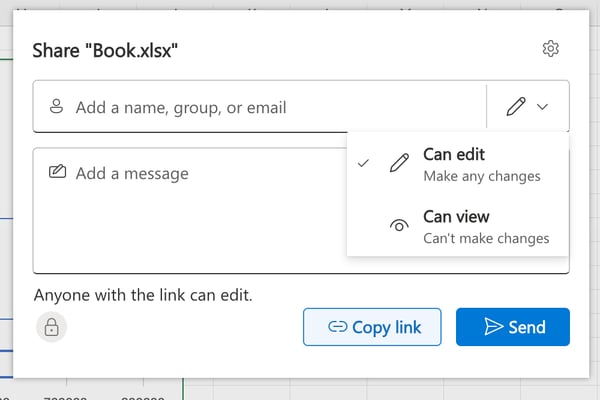
Excel sharing: Only Can edit and Can view, no Commenter option
The real-time editing experience in Sheets is genuinely seamless. You can see exactly where collaborators are in the sheet, edits appear instantly, and nothing requires a refresh. It just works the way you'd want it to. Multiple G2 reviewers describe it as having a "single source of truth," no more emailing files back and forth, no more final_v2_FINAL.xlsx confusion.
Excel's co-authoring has come a long way and works well for most everyday team situations, especially when files are stored on SharePoint or OneDrive. It does rely on syncing in a way that Sheets simply doesn't, and one G2 reviewer noted that co-authoring can occasionally get into a weird state where someone's edit won't show up until a refresh or reopen, or a sheet lock lingers longer than it should. These aren't dealbreakers, and for teams already working within the Microsoft 365 ecosystem, co-authoring in Excel is a genuinely capable option that keeps getting better with each update.
G2 Data tells a similar story at scale. Collaborative Editing is Google Workspace's second-highest-rated feature at 95%, while it's Excel's lowest-rated feature at 86%. That nine-point gap across thousands of reviews isn't a coincidence. It's the single biggest feature satisfaction gap between the two tools in the entire dataset.
Winner: Google Sheets — More permission options, zero setup friction, and a real-time editing experience that simply works more reliably. Excel collaborates, but Sheets was built for it.
If collaboration is your priority, spreadsheets might only be part of the answer. Check out my colleague's review of the free online collaboration tools to see what else teams are using to stay organized.
Nobody got into spreadsheets because they love doing the same thing fifty times. I certainly didn't. Both tools have answers to this. They're just different answers.
The simplest one I use constantly? Auto-fill. Type a pattern, drag down, done. Dates, months, sequences. Both tools handle this the same way, and honestly, it's one of those features you stop noticing because it just works.
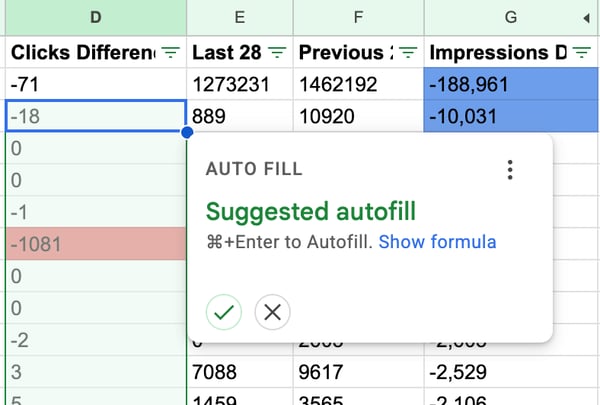
Auto-fill in Google Sheets
Beyond that, things get interesting.
I'll admit I assumed macro recording was an Excel-only thing. It's not. Sheets has it too. Extensions, then Macros, then Record Macro. I recorded a simple sequence, formatting a range, sorting a column, saving it, and running it again. Worked exactly as expected.
Excel's macro recorder works the same way, and for the kind of repetitive desktop work I do, formatting reports, cleaning up data, it's genuinely useful. The thing that kept coming up, though, both in my testing and in G2 reviews, is that macros only work on the desktop app. Switch to the web version, and they're gone. For anyone mixing both, that's a real limitation.
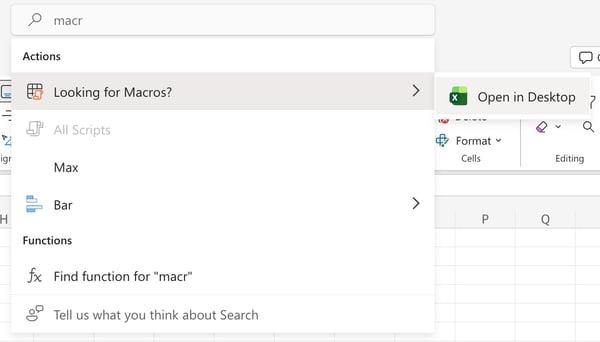
Excel's macro recorder: Desktop only
Here's where Sheets genuinely surprised me, though worth noting that this required my paid Google Workspace account. I typed "format the data as a table" into Gemini. Done in seconds. Then I pushed it further. I asked it to analyze my data and tell me which country had the highest difference in clicks. It showed me its analysis steps and came back with a clear, structured answer, the exact country, the exact numbers, broken down cleanly. That used to take me a pivot table and a few minutes. Now it's one question. If you're on a qualifying Workspace or Google AI Pro plan, this is genuinely one of the most useful things either tool can do.
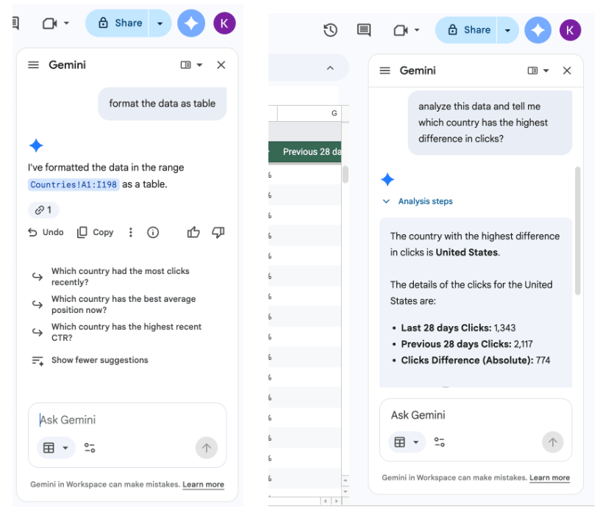
Gemini formatting raw data as a table in seconds and analyzing data to return a structured answer
On top of that, Sheets' Apps Script runs automations in the cloud automatically, on a schedule, on form submission, without you doing anything, all built natively into Sheets. Excel can do something similar through Office Scripts connected to Power Automate, but that requires setting up a separate tool and workflow. For most everyday users, that's a meaningful extra step.
Verdict: Split — Excel's macro recorder is quicker to learn for simple repetitive desktop tasks. But Sheets surprised me more than I expected. Between its own macro recorder, Apps Script running quietly in the background, and Gemini turning multi-step analysis into a single question, it covers a lot more ground than its reputation suggests.
I want to be upfront about something. I went into this test expecting to compare Gemini against Copilot. That's not what happened.
When I opened Excel on my desktop, there was no Copilot. My version came bundled with my laptop through Windows, and Copilot in Excel requires a specific Microsoft 365 plan that goes beyond the standard subscription. For a lot of everyday users, that's just the reality.
So I did what most Excel users in the same situation would do. I looked for alternatives. GPT for Excel Word showed up as an add-in. I clicked it. "Add credits to start." Paid from the first screen. Closed it.

GPT for Excel Word paid from the first screen and Autopilot's free edition with upgrade option
Autopilot had a free edition. I tried it. Asked it to format my selected data as a table. It responded: "Sure, please provide the selected data." It couldn't read what was already on my screen. I had to copy and paste my own data into the chat window for it to do anything.
I asked it the same formula question I'd asked Gemini. Write a formula to calculate click differences only if the impressions difference column is greater than 10000. It gave me a generic formula with placeholder references, A2, B2, C2. No context. No column names. No offer to apply it across the sheet.
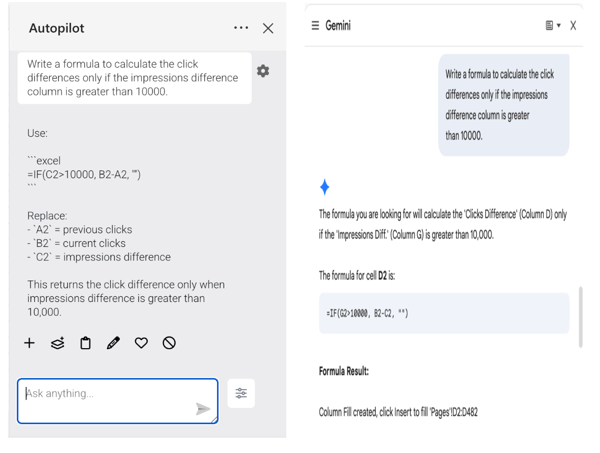
Gemini identifying actual column names and writing the exact formula vs. Autopilot's results
Then I opened Sheets and asked Gemini the exact same question. It identified my actual column names and gave me the exact formula. Then offered to fill it across 480 rows with one click.
That difference isn't small. One tool understood my data. The other asked me to explain it.
Here's where I need to be transparent though. Gemini in Sheets isn't free either. For personal users, it requires Google One AI Premium at $19.99/month. For business users, it's included from Google Workspace Business Standard at $14/user/month. I was testing from a Google Workspace account, which is why Gemini was available to me. On a free personal Google account, you won't see it in Sheets.
So both tools sit behind a paywall. But the experience gap between them on qualifying plans is still meaningful. On a Google Workspace plan, Gemini is already there, no add-in setup, no credits, no third-party tool. It opens with your sheet, reads your data, and is ready to work immediately.
Beyond formula writing, I asked Gemini to analyze my data and tell me which country had the highest difference in clicks. It walked through its analysis steps and came back with a clear, structured answer, the exact country, the exact numbers, broken down cleanly. That used to take me a pivot table and a few minutes. Now it's one question.
For Excel users who do have Copilot through a higher-tier plan, G2 reviewers describe it as genuinely useful for formula writing and data analysis. One called it innovative. But several others noted it feels limited and that the most powerful features are locked behind even higher tiers. Agent Mode, Python in-grid analysis, the really impressive stuff, that's not what most standard subscribers are getting.
Winner: Split — Both require a paid plan. For personal users, Microsoft 365 Personal at $99.99/year is more affordable than Google One AI Pro at $19.99/month. For business users, Copilot comes with Microsoft 365 Business Standard at $12.50/user/month and Gemini with Google Workspace Business Standard at $14/user/month. Since I tested Gemini on a paid Workspace plan and couldn't access Copilot directly, a fair head-to-head sits outside the scope of this test.
Curious how Gemini and Copilot stack up as standalone AI tools beyond spreadsheets? Check out this tested Gemini vs. Copilot comparison based on real prompts and G2 Data.
I'll be honest, templates aren't usually the first thing I go to when I open a spreadsheet. But when you're starting something from scratch, a good template saves more time than you'd expect. So I went through both galleries properly.
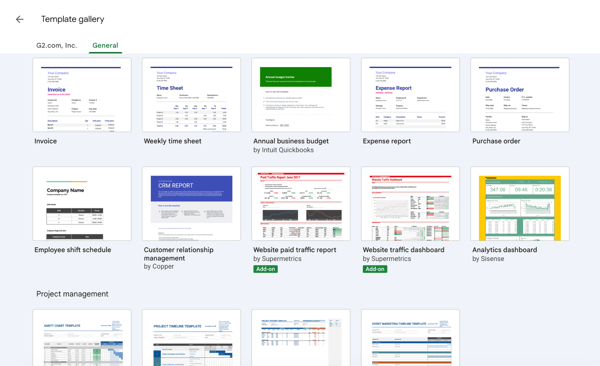
Google Sheets template gallery
Sheets' template gallery is organized into categories. General, Project management, and more as you scroll. The basics are all there. Invoice, time sheet, expense report, purchase order, CRM. Functional and ready to use. What caught my eye, though, were the third-party templates from partners like Intuit Quickbooks, Copper, and Supermetrics. Some of them are genuinely useful, especially if you're already using those tools. The catch: a few are marked as Add-on required. You have to install something extra before they actually work. That's an extra step I didn't expect.
Excel's gallery felt more organized from the start. Category tabs across the top, Recommended, Budgets, Lists, Calendars, Schedules, Invoices, Household, and a search bar on the right. That search bar is a small thing but genuinely useful when you know what you're looking for and don't want to scroll through everything.
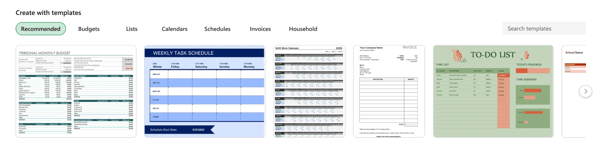
Excel's template gallery
The templates themselves looked more polished. The Personal Monthly Budget had detailed formulas pre-built across multiple sections. The To-Do List had progress tracking built right in. These weren't just blank structures with placeholder text. They were closer to ready-to-use tools.
The visual quality difference is noticeable too. Excel's templates look like something you could open, fill in your numbers, and send to someone without any extra formatting work. Some of Sheets' templates needed a bit more cleanup before they'd look professional.
That said, Sheets' connection to the Google Workspace ecosystem means some templates work in ways Excel's can't. A CRM template that connects natively to Google Forms for data collection, for example, is something Excel simply doesn't offer out of the box.
Winner: Split — Excel's template gallery is better organized, has a search bar, and the templates themselves look slightly more polished out of the box. But Sheets covers all the everyday bases, and its third-party template partnerships add options that Excel doesn't have natively.
Let's be real. Nobody's building complex financial models on their phone. But checking a number before a meeting, making a quick edit on the go, or pulling up a file a colleague just shared? That happens all the time. So I opened both apps on my iPhone to see how they held up for exactly that kind of light, on-the-go use.
Sheets felt immediately familiar on mobile. The file opened cleanly, the formatting carried over, and the green header row was intact. What I appreciated was the bottom toolbar showing formatting options right away, bold, font color, alignment, fill, borders, without needing to tap into anything first. For quick edits or light formatting on the go, everything I needed was already visible.
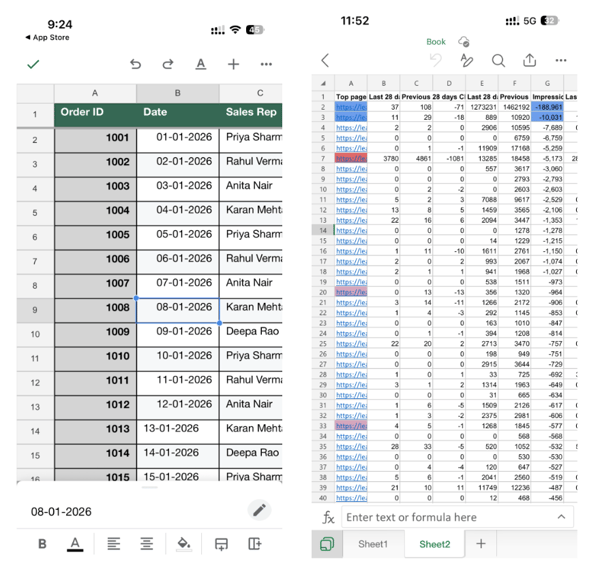
Sheets mobile: formatting tools visible immediately at the bottom vs. Excel mobile: clean but formatting options require an extra tap
Excel opened the same file, and the data was readable. The conditional formatting had carried over too, colored cells were visible. The experience felt slightly more stripped back though. The toolbar at the top is minimal: undo, edit, search, share, and the formatting options aren't immediately visible the way they are in Sheets. You have to tap into a cell first to get to them.
Both apps handle the basics of mobile spreadsheet use. Scrolling, viewing, light editing. Neither is going to replace your desktop for serious work, and honestly, they shouldn't have to.
Verdict: Split — Both apps are solid for what most people actually use mobile spreadsheets for: checking data, making quick edits, and sharing files. Sheets has a slight edge in showing formatting tools upfront. But neither tool is where you'd want to do serious spreadsheet work, and both are honest about that.
Here's a quick look at how each tool performed across all nine tests:
| Task | Winner | Why It Won |
| Ease of use and interface | Google Sheets 🏆 | Lower barrier to entry, faster to start, and easier to navigate for everyday tasks. Excel rewards experience but asks more upfront. |
| Formula and calculation power | Excel 🏆 | Deeper formula library, better autocomplete, and more reliable handling of advanced functions like LET and LAMBDA. Sheets covers everyday needs well, but Excel pulls ahead for serious formula work. |
| Data management and formatting | Split | Sheets has closed the gap with Gemini-powered table generation, but Excel still leads on formatting depth, conditional formatting options, and granular number formatting controls. |
| Charts and visualization | Google Sheets 🏆 | The Aggregate option and intuitive axis selection make Sheets significantly more accessible for everyday chart building from raw data. Excel has more chart types and Slicers, but requires more manual setup. |
| Collaboration and sharing | Google Sheets 🏆 | Three permission levels vs. two, seamless real-time editing, and no sync dependency. Sheets was built for this. Excel is still catching up. |
| Automation | Split | Excel's macro recorder is quicker to learn for simple repetitive desktop tasks. Sheets' Apps Script runs automatically in the cloud and Gemini handles most everyday automation needs without any scripting. |
| AI features | Split | Both require a paid plan. On a qualifying Workspace plan, Gemini is natively integrated, reads your sheet context, and works without any additional setup. G2 reviewers describe Copilot as genuinely useful for formula writing and data analysis, but note the most powerful features are locked behind higher tiers. A direct feature comparison between the two on equivalent plans would need a separate test. |
| Templates | Split | Excel's gallery is better organized with a search bar and more polished templates. Sheets covers the basics and adds third-party options. G2 scores are just two points apart. |
| Mobile experience | Split | Both handle viewing and light editing well. Sheets shows formatting tools upfront without extra taps. Neither is built for serious mobile work. |
I dug into the G2 Spring 2026 Grid Report for the Spreadsheets category to see how real users rate Google Workspace (Google Sheets) and Microsoft Excel. Here's what stood out:
Here are a few more head-to-head breakdowns worth checking out:
Still have questions? Get your answers here.
Not exactly. Both are spreadsheet tools with overlapping features, formulas, pivot tables, charts, and conditional formatting. But they're built differently. Sheets is browser-based, free, and optimized for collaboration. Excel is desktop-first with deeper formula depth, more data capacity, and stronger analytical features. They look similar on the surface but behave differently once you push either tool beyond the basics.
For most everyday users, yes. Sheets handles collaboration, budgets, project tracking, and data analysis well, all for free. Where it can't match Excel is in complex financial modeling, large datasets, and VBA automation. For serious data work, Excel still leads.
Yes, for core spreadsheet functionality. Google Sheets is fully free with a Google account, with no restrictions on formulas, collaboration, pivot tables, or charts. Google accounts come with 15 GB of storage shared across Drive, Gmail, and Photos. The one notable exception is AI: Gemini in Sheets requires a paid Google Workspace plan or Google AI Pro at $19.99/month. Business features and increased storage start at $7/user/month.
Full Excel requires Microsoft 365, starting at $99.99/year for Personal plans, which includes Copilot with an AI credits allotment. A limited free web version exists but lacks VBA macros, Power Query, and full Copilot access. Business plans start at $6/user/month, with price increases coming in July 2026.
Yes. Sheets was built for simultaneous editing from day one, with live cursors, instant updates, and three permission levels, including Commenter, which Excel doesn't offer. For teams that need to work together across devices without sync dependencies, Sheets is the more reliable and accessible choice.
Google Sheets. It's fully free with a Google account, handles everything most small businesses actually need, and collaborates better than Excel out of the box. If you need more structure, Google Workspace Business Starter at $7/user/month adds business email, admin controls, and more storage.
Yes. Power Query, Power Pivot, VBA macros, Python integration, and a deeper financial function library make Excel the professional standard for data-heavy work. Google Sheets handles everyday analysis well but hits its ceiling faster with large datasets.
Yes, and simple file transfer is clean. Formulas like XLOOKUP and SUMIF carry over well. Where things break: pivot tables flatten into static data, VBA macros don't transfer, and complex Named LAMBDA functions require manual fixes.
Both require a paid plan. Gemini in Sheets needs a Google Workspace plan or Google AI Pro at $19.99/month for personal users. Copilot is included with Microsoft 365 Personal at $99.99/year. On a qualifying Workspace plan, Gemini is natively integrated and reads your sheet context without any additional setup. For personal users, Microsoft 365 Personal is more affordable annually.
Both have capable mobile apps, but Google Sheets has a slight edge for everyday mobile use. It shows formatting tools immediately without extra taps, syncs automatically, and feels more consistent across devices. Excel mobile is solid for viewing and light editing, but requires an extra tap to access formatting options. Neither is built for serious data work on mobile.
Yes, with a one-time setup. Enable offline mode in Chrome or Edge and install the Google Docs Offline extension. You can also access files offline through Google Drive for Desktop. Changes sync automatically when you reconnect.
VBA macros, Power Query for external data connections, Power Pivot for data modeling, Python integration, and handling datasets well beyond Sheets' 10 million cell limit. For serious data work, these gaps are significant.
IMPORTRANGE pulls live data from another spreadsheet using just a URL, something Excel has no native equivalent for. QUERY runs SQL-style queries in a single formula. And on a qualifying Workspace plan, Gemini is natively built in and reads your sheet context automatically.
Yes, and many professionals do. Sheets for day-to-day collaboration and shared tracking, Excel for heavy analysis and financial reporting. Simple files move between the two tools reasonably well. Complex workbooks with VBA macros or Power Query connections are where friction shows up.
Yes. Sheets has a lighter interface, more intuitive menus, and almost no setup required. Excel rewards the time you put into learning it, but asks significantly more upfront. Real users consistently flag Excel's learning curve as one of its biggest barriers, especially for Windows users new to spreadsheets.
For most marketing workflows, yes. Campaign trackers, content calendars, and reporting dashboards that multiple people need to edit in real time are natural fits for Sheets. Easy sharing, instant collaboration, and no subscription make it a more practical daily driver for most marketing teams.
It depends on your work. If you do complex data analysis, financial modeling, or rely on VBA macros and Power Query, Excel is worth the Microsoft 365 subscription. If your work is mostly collaborative, everyday tasks, Google Sheets gives you everything you need at no cost.
For most personal users, Google Sheets is the better starting point. It's free, has solid budget templates, and syncs across devices automatically. Excel has more polished built-in budget templates and deeper formula support, but requires a Microsoft 365 subscription. If you're already paying for Microsoft 365, Excel's budget templates are worth using.
Google Sheets is the closest free alternative, covering most everyday formula needs and offering Apps Script for cloud-based automation. It won't fully replicate Excel's VBA macros, Power Query, and advanced statistical functions, but it handles most everyday work well and at no cost.
Excel has a more polished template gallery with a search bar and ready-to-use project management templates. But Google Sheets' connection to Google Workspace means project tracking templates can link natively to Google Forms for data collection and Google Calendar for scheduling, something Excel can't replicate out of the box. For pure template quality, Excel wins. For connected workflows, Sheets has the edge.
After weeks of testing, formatting, formula-writing, collaborating, and occasionally wanting to throw my laptop out the window, here's where I've landed.
There is no universally better tool. But there is almost certainly a better tool for you.
If you work in finance, accounting, or any role where data complexity is the job, Excel is worth every penny of that Microsoft 365 subscription. The formula depth is unmatched. The data handling is in a different league. The templates are more polished. And the ecosystem, Power Query, Power Pivot, Power BI, is genuinely powerful in ways Sheets simply can't replicate today. G2 users who rely on it for serious work don't just use it. They trust it. That 94% likelihood to recommend isn't an accident.
If you work on a team, move fast, and don't want to think about subscriptions or setup, Google Sheets is the smarter default. It's free. It opens in seconds. Collaboration is seamless in a way that Excel still hasn't fully matched. And if you're on a Google Workspace plan, Gemini is already there, ready to write your formulas, analyze your data, and organize your tables without any additional setup.
The honest truth? A lot of people don't need to choose. Many teams use both, Sheets for day-to-day collaboration and quick shared trackers, Excel for the heavy lifting. That's not indecision. That's pragmatism.
But if you're starting fresh and picking one? Ask yourself one question: am I working mostly alone with complex data, or mostly with other people on everyday tasks? The answer almost always points you to the right tool.
For me, Sheets has become my daily default. Excel is what I reach for when the work gets serious.
Google Sheets and Excel aren't the only players in the room. If you're still exploring your options, check out this tested breakdown of the best spreadsheet software out there, from Zoho Sheet to LibreOffice and beyond.


I tested several tools, and my research points to these as the best spreadsheet software:...
 by Washija Kazim

Whether it’s for work, fun, or research, creating charts and graphs in Google Sheets can add a...
 by Devin Pickell

Microsoft Excel has many capabilities.
 by Izabelle Hundrev