.png?width=400&height=150&name=Untitled%20design%20(56).png)


The internet runs on HTML. Whether you’re building a personal site, prototyping a landing page, or learning web development from scratch, HTML is often the first step behind the websites and web apps you use every day.
The good news: you don’t need an expensive IDE to get started. The best free HTML editors make it easier to stay organized, catch mistakes early, and write cleaner HTML with features like syntax highlighting, auto-complete, and extensions.
In this guide, I’ll break down the best free text/HTML editors, what each one does best, and the trade-offs to consider before you choose.
BBEdit: Best for macOS-focused editing performance
For fast, reliable text editing with strong code support
Bluefish: Best for lightweight open-source web development
For multi-language editing with snippets and clean workflows
Brackets: Best for front-end web design and editing
For a lightweight editor built around web development needs
CodePen: Best for browser-based HTML/CSS/JS experimentation
For instant prototyping and quick learning without setup
Edit+: Best for Windows users who want a simple, speedy editor
For practical coding features and syntax highlighting
Gedit: Best for straightforward Linux text editing
For easy editing with plugins and developer-friendly features
Notepad++: Best for plugin-powered editing on Windows
For lightweight performance and customizable workflows
Sublime Text: Best for fast, customizable coding workflows
For a smooth editing experience across languages
TextPad: Best for reliable Windows text editing
For classic productivity features and plugin support
UltraEdit: Best for large files and advanced editing needs
For high-performance editing with IDE-like capabilities
Visual Studio Code: Best for modern development with extensions
For scalable workflows and built-in Git support
* The product list is arranged alphabetically. Many offer free tiers, open-source options, or free trials.
Overwhelmed by all the details on HTML/text editors? This comparison table simplifies the key aspects for you.
| Best free HTML editors | G2 Raring | Free plan | Paid plan |
| BBEdit | 4.5/5 ⭐ | Yes |
Paid upgrades available
|
| Bluefish | 4.2/5 ⭐ | Yes | Free |
| Brackets | 4.4/5 ⭐ | Yes | Free |
| CodePen | 4.6/5 ⭐ | Yes, feature-limited |
Paid upgrades available
|
| Edit+ | 4.4/5 ⭐ | Free trial available |
Paid upgrades available
|
| Gedit | 4.0/5 ⭐ | Yes | Free |
| Notepad++ | 4.6/5 ⭐ | Yes | Free |
| Sublime Text | 4.5/5 ⭐ | Free to try | $99 paid license |
| TextPad | 4.4/5 ⭐ | Free trial available |
Paid upgrades available
|
| UltraEdit | 4.7/5 ⭐ | Free trial available |
Paid upgrades available
|
| Visual Studio Code | 4.7/5 ⭐ | Yes | Free |
HTML is still one of the most useful skills to have in 2026 — whether you’re building web pages from scratch, customizing templates, or just trying to understand what’s happening behind the scenes of a website.
And from what I’ve seen, “best” doesn’t always mean “paid.” Some free HTML/text editors I’ve tried deliver impressive functionality, helping you write cleaner code, troubleshoot errors faster, and stay productive without locking you into expensive software.
To build this list, I began with G2 data, shortlisting top-rated tools based on their G2 scores and consistent performance in the free text editors category.
From there, I reviewed product specs and recent, verified user feedback to confirm that these products deliver real value and to understand where each one stands out.
The goal was simple: to see whether these tools are as good as they claim, what each one is best for, and whether there’s a free version or free trial you can try with minimal risk. And because this is a free-focused list, I paid extra attention to what you can actually do without paying, such as whether the free tier includes core features, how long the free trial lasts, and what limitations might prompt you to upgrade.
The screenshots featured in this article may be a mix of those taken from the vendor’s G2 page or from publicly available materials.
To be included on this list, a solution must have at least one of the following features:
*This data was pulled from G2 in 2026, and the product list is ranked alphabetically. Some reviews may have been edited for clarity.
BBEdit is a text editor designed to cater to the needs of software developers on macOS. It has a rich set of features for editing, searching, and manipulating prose, source code, and textual data, making it a go-to tool for professionals. BBEdit allows you to access many coding features and get data science support without sacrificing speed.
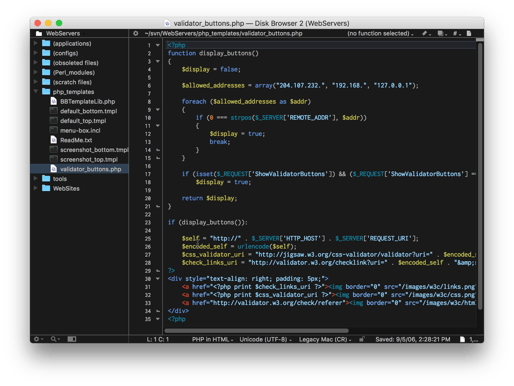
| Pros of BBEdit | Cons of BBEdit |
| Fast, stable performance on macOS |
Some advanced features are locked behind paid upgrades
|
| Excellent search, replace, and file tools |
Can feel “pro-level” for casual users
|
| Great for both code and plain text editing |
Not ideal if you want a full IDE
|
"BBEdit supports many file formats like HTML, CSS, JavaScript, etc. It offers developers many features, such as syntax highlighting, auto-completion, and search and replace. BBEdit maintains its reliability and meets the evolving needs of its users by regularly releasing updates that introduce new features and fix bugs.”
-BBEdit review, Jayant J.
"I have noticed that the launch time and tab switching in the latest macOS versions can be pretty slow, causing significant lag when using the tool.”
-BBEdit review, Shubham V.
Bluefish is a free, open-source text editor. It supports HTML, CSS, JavaScript, and Python, to name a few. Bluefish has a clean interface with features like syntax highlighting, code folding, auto-completion, and code snippets. It also includes built-in support for remote file editing and version control systems like Git.
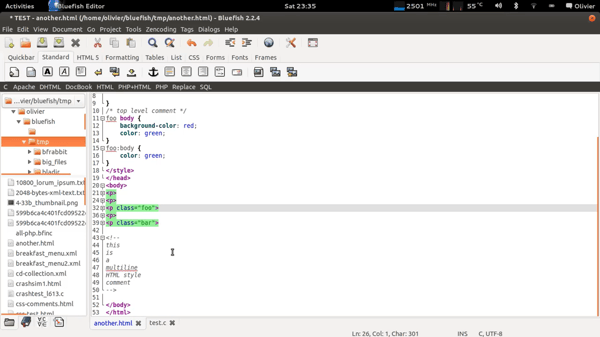
| Pros of Bluefish | Cons of Bluefish |
| Lightweight and fast to install |
Can slow down with very large files
|
| Helpful features like snippets and folding |
UI feels less modern than newer editors
|
| Supports multiple programming languages |
Not as extensible as VS Code
|
"Bluefish takes up very little space on your hard disk. It is user-friendly and relatively accessible, making it easy to use without technical knowledge. Additionally, it allows one to work seamlessly with various programming languages.”
–Bluefish review, Salini K.
"While Bluefish allows you to manage multiple open text files on various tabs simultaneously, it often becomes slow or unresponsive, particularly for files with more than 50,000 lines.”
-Bluefish review, Jake S.
Brackets is a powerful, lightweight text editor tool for web designers and front-end developers. It’s a source code editor focused primarily on web development. Developed by Adobe Inc. and licensed under the MIT license, Brackets is written in JavaScript, HTML, and CSS. It’s currently maintained by open-source developers on GitHub, ensuring its continued evolution and relevance in the fast-paced world of web development.
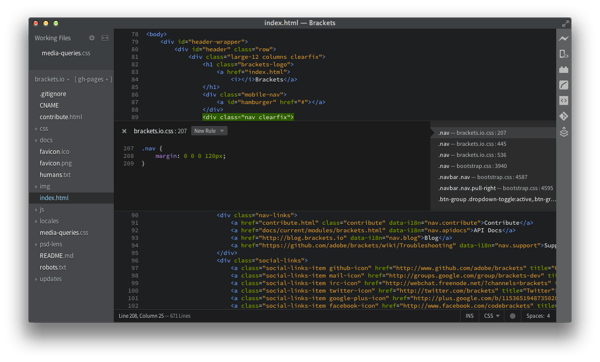
| Pros of Brackets | Cons of Brackets |
| Simple and beginner-friendly UI |
Can lag with large or complex files
|
| Useful features for web editing |
Code completion isn’t always strong
|
| Lightweight compared to IDEs |
Limited theme options by default
|
"Brackets has a simple and intuitive interface, which makes it ideal for beginners. It has comprehensive features such as find and replace, autocompletion, and code collaboration that satisfy the requirements of most developers.”
-Brackets review, Janak R.
"It takes a lot of time to open large files, and the program occasionally hangs when working with complex Extensible Markup Language (XML) file codes. It does not offer optimal code completion suggestions. Additionally, the default theme selection is limited. While the default is a dark theme, it might not suit those who prefer lighter interfaces.”
- Brackets review, Jeevan K.
CodePen is a dynamic social development environment for front-end designers and developers. It has an open-source code editor that allows you to create HTML, CSS, and JavaScript code snippets, called “pens,” and test them instantly. With its vast user community, you can always find someone to collaborate with.
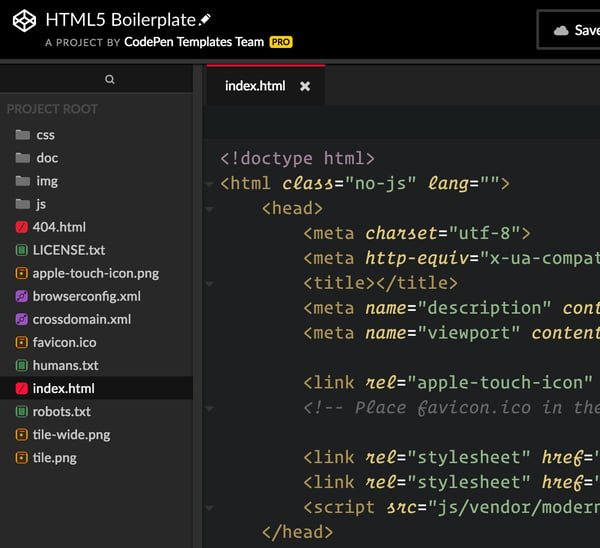
| Pros of CodePen | Cons of CodePen |
| No installation required | Not usable offline |
| Instant preview and fast prototyping |
Some features require a paid plan
|
| Great for learning and collaboration |
Not ideal for full-scale projects
|
"CodePen is an easy-to-use code editor on the web. It can be very handy for running quick and simple programs. As someone who teaches coding, I recommend using CodePen for beginners since you don't have to deal with complex processes of including localhost or anything like that.”
-Codepen review, Betsegaw G.
"Many tools are available but not practical for real code development situations. The premium version is costlier, and you can't work on it offline. Additionally, the auto code completion is a little poor compared to others.”
- Codepen review, Lokesh S.
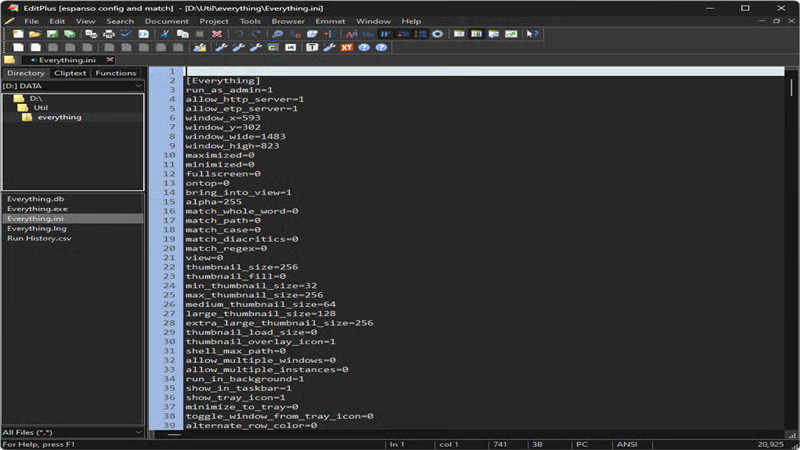
Edit+ is a robust, versatile text editor designed specifically for Windows users. It comes with advanced features essential to web developers and programmers. The software supports syntax highlighting and allows users to add custom syntax files for other programming languages.
| Pros of Edit+ | Cons of Edit+ |
| Fast and lightweight |
Limited autocomplete compared to newer tools
|
| Supports syntax highlighting |
Missing some modern “IDE-like” features
|
| Useful multi-tab workflow | Not free forever |
"The best part about using Edit+ is that I can open multiple tabs simultaneously while coding, and it not only highlights the error in the code but also in the tab, which makes it easy to locate the error."
-Edit+ review, Mubeen M.
"They should add a few libraries and code autocomplete features. One of the must-have features of editors nowadays is file comparison, and Edit+ does not have that.“
- Edit+ review, Rahul G.
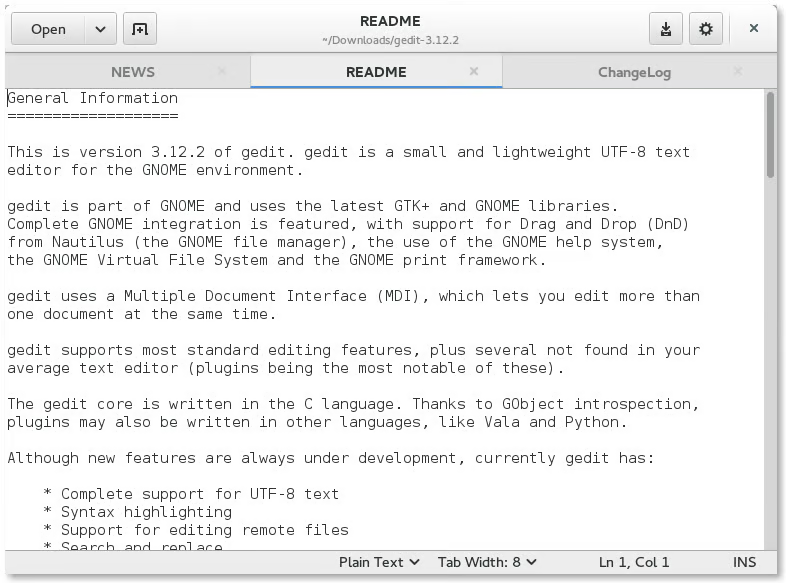
Gedit is a versatile and user-friendly text editor initially developed in 1998 as part of the GNU Network Object Model Environment (GNOME) project. With Gedit, you can open and edit various American Standard Code for Information Interchange (ASCII) files quickly and easily. This makes it suitable for simple note-taking and more complex software development tasks. Its advanced features, such as syntax highlighting, search and replace, and plug-in support, make it a powerful tool.
| Pros of Gedit | Cons of Gedit |
| Easy to use and beginner-friendly |
Some features can be hard to discover
|
| Plugin support expands capabilities |
UI can feel dated depending on distro
|
| Solid coding basics like highlighting |
Not as powerful as IDE-style editors
|
"Gedit's user-friendly interface makes it a good choice for users of all experience levels. The comprehensive set of features that enables one to code effectively. It is a widely recognized tool and a popular choice for developers. Moreover, you can find many resources and articles for user support.”
- Gedit review, Miquel G.
"This tool offers comprehensive features but can be challenging to apply effectively. In particular, the command-line interface (CLI) tools require a better user interface, especially for Linux OS users. To enhance the overall usability of the software, the developers must focus on making the existing features more accessible. They should also develop new features that compete with popular editors like Sublime Text.”
- Gedit review, Apoorv N.
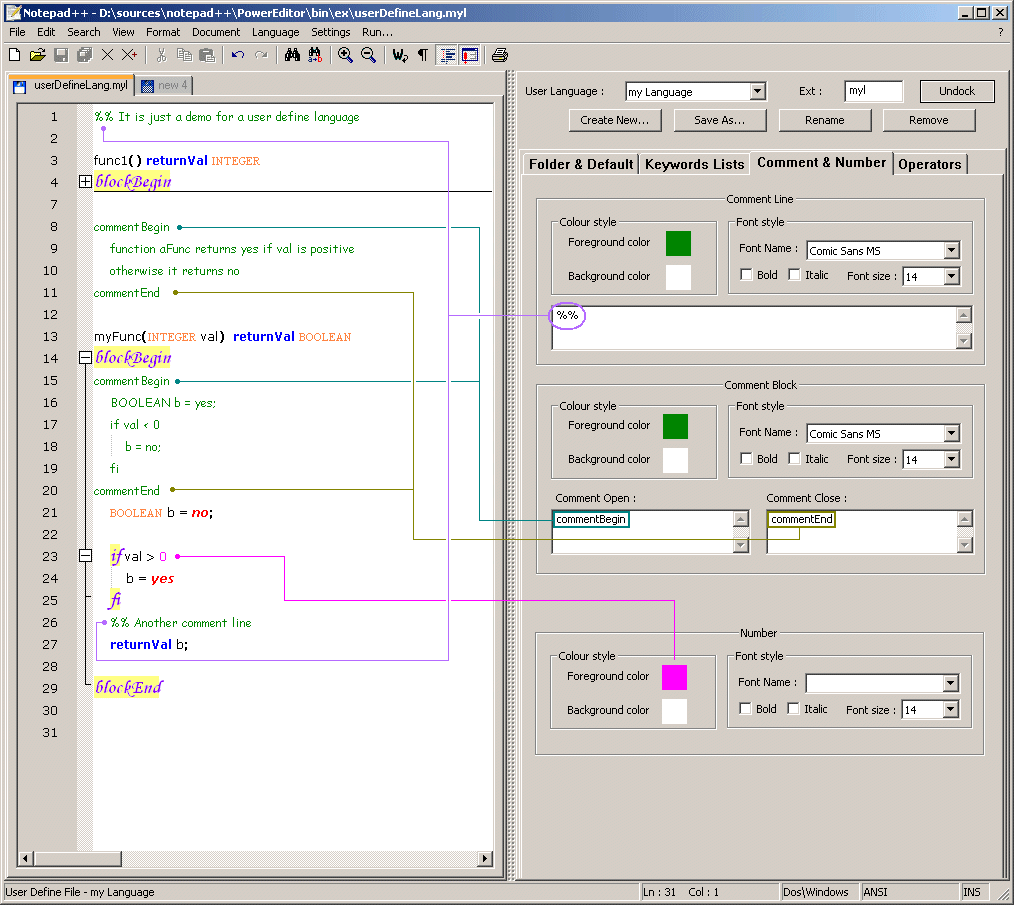
Notepad++ is a free text editor based on the Scintilla open-source library. The developers behind Notepad++ strongly focus on power conservation and minimizing their users' carbon footprints. As an open-source tool, Notepad++ supports user-made plugins and tutorials.
|
Pros of Notepad++
|
Cons of Notepad++
|
| Free and open-source |
Interface feels dated
|
| Plugin ecosystem adds flexibility |
Autocomplete could be smarter
|
| Fast and lightweight | Windows-only |
"Notepad++ stands out for being both a free and powerful text editor. The tool has numerous features that can be enhanced with plugins. Notably, it supports formatting HTML, XML, and JSON and encoding and decoding BASE64. You can edit by column, search and replace across multiple files in a folder, make live edits over File Transfer Protocol (FTP), and much more. Overall, Notepad++ is worth checking out.”
- Notepad++ review, Patrick R.
"The tool could benefit from overall user interface improvements, especially for file display. It also requires intelligent auto-completion of code functions and features.”
- Notepad++ review, Andrew H.
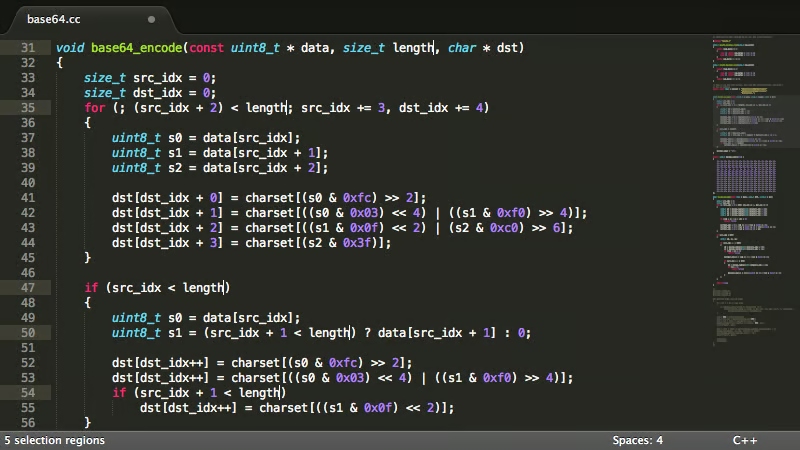
Sublime Text is a powerful text editor with all the tools you need to refine your workflow and achieve your goals. Its advanced features make it a favorite among developers, writers, and designers. With lightning-fast performance and a range of customizable options, Sublime Text is a top choice for anyone who needs a reliable and efficient text editor.
|
Pros of Sublime Text
|
Cons of Sublime Text
|
| Very fast and responsive |
Some features feel missing without plugins
|
| Customizable workflow |
Free version has limitations
|
| Great for multi-language coding |
Not as beginner-friendly as simpler editors
|
"The software has a lightweight and sleek design, supporting various languages such as JS and HTML. It also consists of plugins like JSON that help enhance its features. It is highly customizable, and the free version works exceptionally well. I have yet to find a need to pay for any alternative software.”
- SublimeText review, Amit K.
"The software lacks many basic features, such as a multi-level clipboard, bullets and numbering, auto-correct, and spell check. Including these features could help improve user productivity and efficiency.”
- SublimeText review, Adnan N.
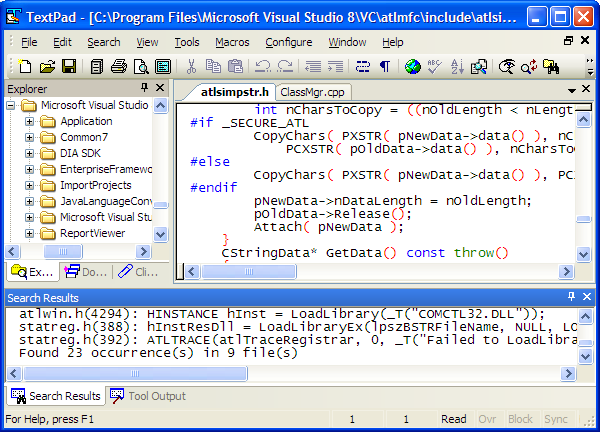
TextPad is a text editor for Windows that has existed since 1992. Developed by Helios Software Solutions, it supports various formats and allows you to open, create, and modify plain text documents easily. With its intuitive user interface and powerful features, TextPad is an excellent choice for developers.
| Pros of TextPad | Cons of TextPad |
| Stable and reliable | Windows-only |
| Useful plugins and tools |
Limited modern UI features
|
| Supports multi-language programming |
No native macOS/Linux support
|
"TextPad is a versatile tool that can be used for programming in multiple languages. It allows users to take notes and compare two texts simultaneously. Additionally, it offers various plugins, which expand the tool's functionality.”
- TextPad review, Uddipan M.
"TextPad is only available on the Windows platform, which limits the scope of use. It would be nice to see a macOS and Linux version of this editor. Additionally, adding a choice of a dark mode could be helpful to many users.”
- TextPad review, Aeshwer T.
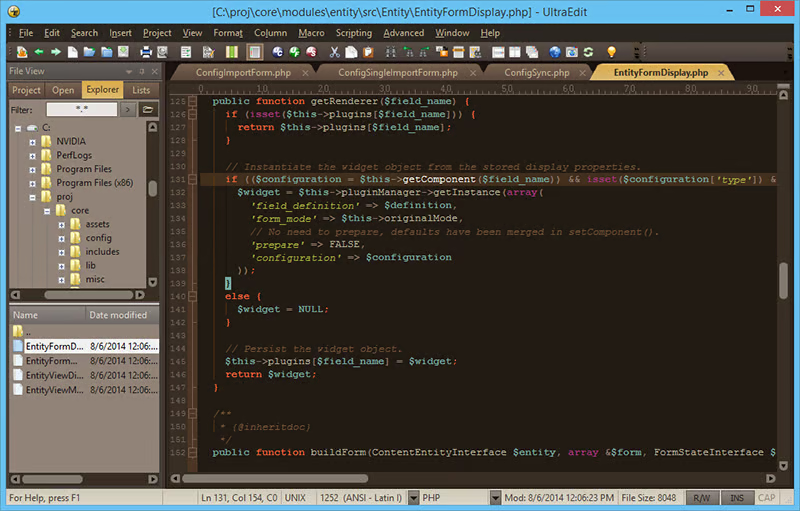
UltraEdit is a high-performance text editor used by over 4 million professionals and many Fortune 500 enterprise customers. A trusted tool for professionals, it meets to most critical editing needs across various industries. UltraEdit is also a highly customizable, themable code editor known for its exceptional performance and ability to handle and process large files and data, with support for almost any language or syntax. It is closest to an integrated development environment (IDE), offering Git integration, debugging features, and workspace management.
| Pros of UltraEdit | Cons of UltraEdit |
| Excellent performance on large files |
Menus can feel overwhelming
|
| Macros and automation tools | Not free forever |
| Highly customizable |
Takes time to learn fully
|
What G2 users like about UltraEdit:
“UltraEdit combines multiple capabilities in a single product, making it easier to use and automate repetitive tasks using macros. The recorded macros are fast, and feedback during macro execution is excellent. It excels at editing large files and outperforms other products.”
-UltraEdit review, Doug F.
“Despite its impressive feature set, UltraEdit's menus can sometimes become overwhelming, making it challenging to find specific functionalities. As a long-time user of over 15 years, I've experienced this firsthand.”
-UltraEdit review, Robert S.
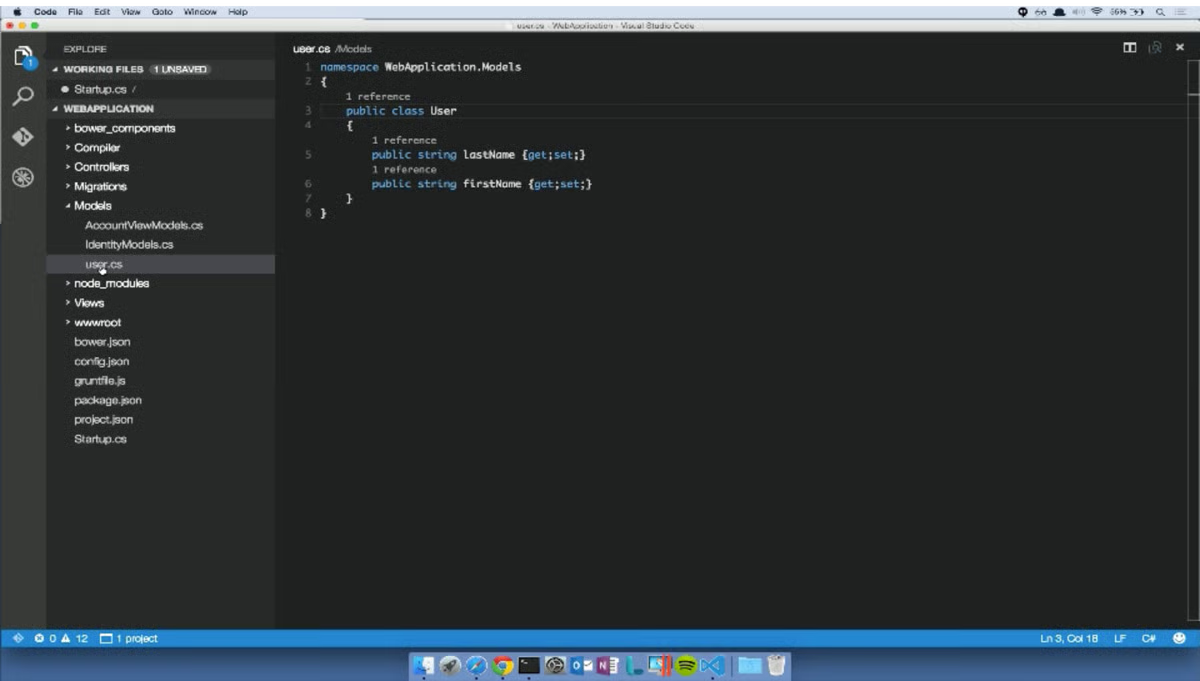
Visual Studio Code is a free and open-source text editor with a library of extensions to customize your experience. It contains built-in support for JavaScript, TypeScript, and Node.js. The platform’s various extensions are designed to run in separate processes to prevent the editor from slowing down.
|
Pros of Visual Studio Code
|
Cons of Visual Studio Code
|
| Huge extension ecosystem |
Can feel complex for beginners
|
| Built-in Git support |
Easy to get “plugin overload”
|
| Great for web development workflows |
Setup takes time to personalize
|
"Visual Studio Code is the best IDE! It supports adding many extensions and plugins. It supports all programming languages, including Java, Python, JavaScript, HTML/CSS, and C#. The best thing is that GitHub is already integrated into the editor. “
-Visual Studio Code review, Vijay B.
"It can be challenging for new users to navigate. While many plugins are available for download, it can take time to locate and determine which best suits your needs.”
-Visual Studio Code review, Sahil K.
CodePen is one of the easiest places to start because you can write HTML/CSS/JS in your browser and see results instantly without setup.
BBEdit is a strong option for macOS users who want fast performance and reliable editing with code-friendly features.
Notepad++ is one of the best free choices for Windows thanks to its speed, lightweight design, and plugin support.
Brackets is a great pick if your focus is mostly HTML/CSS and you want a lightweight tool built around web design workflows.
UltraEdit stands out for handling massive files smoothly, with advanced editing and automation tools.
Sublime Text is a favorite for customization and workflow speed, especially if you like keyboard shortcuts and extensions.
Gedit is a simple and effective option for Linux users who want easy editing and plugin support.
No — many free editors include essentials like syntax highlighting, snippets, and multi-file editing. Paid plans usually unlock advanced workflows.
Visual Studio Code is the top choice for modern development thanks to its extensions, built-in Git support, and scalability.
CodePen is ideal for fast experimentation because it runs in your browser and gives instant previews.
If you’re paying attention to how software teams are building today, you’ve probably noticed the shift: low-code and no-code platforms are everywhere. They let you create apps with visual builders, drag-and-drop components, and prebuilt logic — which means you can launch useful tools without writing (much) code.
Here’s my advice: don’t treat that as a reason to skip HTML. Even if you use an app builder, a little HTML know-how gives you an edge. It helps you tweak layouts, clean up embeds, customize templates, and understand what’s happening under the hood when something breaks. And when you pair that with a solid free text editor, you can go from “I’m not technical” to “I can ship this” a lot faster than you’d expect.
So whether you’re a beginner learning the basics, a marketer editing landing pages, or a founder building your first site, pick an editor you’ll actually use — then practice in small, repeatable ways. A few minutes of HTML each week can turn into real confidence over time.
Ready to go beyond editing code? Explore the best AI app builders to create full web and mobile apps with low-code and no-code tools.
.png)

In college, I used to think creating something meaningful in tech required superhero-level...
by Devyani Mehta

Are you an audio editor trying to create that dream mix without spending money?
 by Alexandra Vazquez

Musicians, podcasters, and content creators often spare no expense for high-definition audio...
 by Sudipto Paul