


Video has quietly become one of the most important tools in my day-to-day work as a marketer. Best video communication software solutions help me walk teammates through campaigns, share asynchronous updates, and explain ideas to clients when a long message just won’t cut it. When the goal is clarity, “let me show you” almost always works better than another meeting on the calendar.
The challenge isn’t deciding whether to use video; it’s choosing the right tool. In a large organization, I’ve seen teams test everything from simple screen recorders to AI-powered presenters and enterprise-grade video platforms. Every product claims to save time, reduce meetings, or improve communication, and after a while, the feature lists start to blur together.
That’s what pushed me to look past marketing claims and focus on how these tools actually perform for real teams. I analyzed verified G2 reviews, tracked recurring user sentiment, and evaluated 20+ video communication platforms to identify the 10 best tools for 2026, including Loom, Synthesia, VEED, Snagit, Riverside, Camtasia, AKOOL, Vyond, HeyGen, and Vidcast.
The result is a curated list of the 10 best video communication tools for 2026. These are platforms that consistently help teams replace unnecessary meetings, speed up knowledge sharing, and make recording and sharing videos feel effortless.
Synthesia: Best for camera-free training and communication videos
Turns scripts into polished presenter-style videos using realistic AI avatars. ($29/month)
Snagit: Best for precise screenshots and annotated visuals
Captures screens with accuracy and adds clear markup for training and documentation. (Pricing from $39/year)
Riverside: Best for high-quality podcast and multi-track recording
Delivers studio-grade audio and video recordings for interviews and content creators. ($15/user/month)
Camtasia: Best for structured tutorials and step-by-step screen demos
Combines reliable screen recording with a built-in timeline editor for training videos. (Pricing from $39/year)
AKOOL: Best for AI-driven face swaps and personalized video creation
Provides realistic, frame-accurate swaps and fast AI edits for marketing and creative teams. ($21/month)
Vidcast: Best for async video updates inside Webex workflows
Makes it easy to record and share walkthroughs, updates, and explanations asynchronously. (Pricing available on request)
*These video communication tools are top-rated in their category, according to G2's Spring 2026 Grid Report. I’ve also added their monthly pricing to make comparisons easier for you.
For me, the best video communication software is the one that stays out of the way. If recording or sharing takes more than a few seconds, people won’t use it. The strongest video communication software is built for speed and simplicity, making video feel as easy as sending a quick message when teams need to explain something fast.
Clarity matters just as much. Video should reduce confusion, not add to it. Whether it’s a walkthrough, bug explanation, sales update, or onboarding step, the right tools help teams communicate visually in ways text and screenshots can’t.
Scalability is the final piece. As teams grow, they need more storage, better editing, stronger collaboration, analytics, or AI-driven features. The platforms that stand out are the ones that evolve with these needs instead of forcing teams to add more tools.
This shift is reflected in the market itself. The global video conferencing market is projected to reach $24,459.2 million by 2033, growing at a CAGR of 8.2%. As video becomes more central to work, expectations for video communication software continue to rise.
To build this list, I analyzed top-rated platforms in G2’s Video Communication category and examined how real users describe them across ratings, Grid placements, and detailed feedback. Instead of relying only on scores, I used AI-assisted analysis to review thousands of verified G2 reviews, looking for consistent themes around recording quality, ease of sharing, collaboration impact, editing limitations, performance, and overall reliability.
Because video tools vary by team size and workflow, I focused on practical factors that matter in daily use: how quickly users can start recording, how intuitive the interface is for non-technical teams, how well storage and sharing work, and how effectively each tool supports async communication.
I cross-referenced professional use cases with broader G2 review patterns to keep the analysis balanced and accurate. This helped surface how each platform performs in real scenarios like onboarding, documentation, client communication, and internal updates.
Screenshots in this article are either vendor-provided G2 images or publicly available UI visuals to show the user experience, without implying hands-on testing.
As I evaluated platforms in the video communication space, one thing became clear: the tools that stand out are the ones that fit naturally into how teams already work. The right video communication tool can replace long emails, prevent unnecessary meetings, and make complex ideas easier to understand.
To finalize this list, I reviewed 20+ video communication tools and selected the 10 that consistently performed best based on verified user feedback, product capabilities, and real-world usage patterns. The criteria below explain what I prioritized and why each factor matters when choosing a video communication platform.
Not every platform excels in all areas, and that’s expected. Some shine for quick async communication, others for training content, others for client-facing presentations. The goal here is to surface the trade-offs so you can choose the tool that fits your workflow perfectly, not just the one with the strongest marketing.
This list features platforms from G2’s Video Communication category. To be included in this category, a product must meet the following criteria:
*This data was pulled from G2 in 2026. Some reviews may have been edited for clarity.
From what I’ve seen, Loom is built for fast, no-friction async screen and camera recordings that help teams explain ideas without scheduling meetings. What stood out immediately in Loom’s G2 reviews is how often users highlight the speed and simplicity of recording. Many mentioned that they can start capturing their screen or camera within seconds, without configuring anything beforehand.
According to G2 Data, Loom holds a 95% satisfaction score for ease of use and 96% for ease of setup, which matches how reviewers describe the experience of recording and sharing a link almost instantly. This immediacy also makes Loom a practical, real-world answer to the question “What is the best video platform for remote business collaboration?” because it lets distributed teams visually explain things faster than typing long messages or scheduling unnecessary meetings.
Reviewers also point to Loom’s usefulness in clarifying work across distributed teams. Walking through tasks, explaining bugs, sharing updates, or reviewing work visually helps reduce the need for back-and-forth messages. The link-based sharing structure was often cited as a strong positive; users appreciated that recordings could be viewed immediately without needing to download or export. According to G2 Data, Loom maintains a 94% “meets requirements” rating, which aligns with how seamlessly reviewers said it fits into their daily async communication.
Another notable pattern in the feedback is the effectiveness of Loom in supporting recurring internal content. Teams described using it for onboarding explanations, process walkthroughs, internal demos, and weekly updates. Because videos are automatically saved and accessible across devices, reviewers found it easy to build a lightweight internal library without needing dedicated storage or editing tools. For fast-paced environments, this helps reduce repetitive explanations and allows people to absorb information at their own pace.
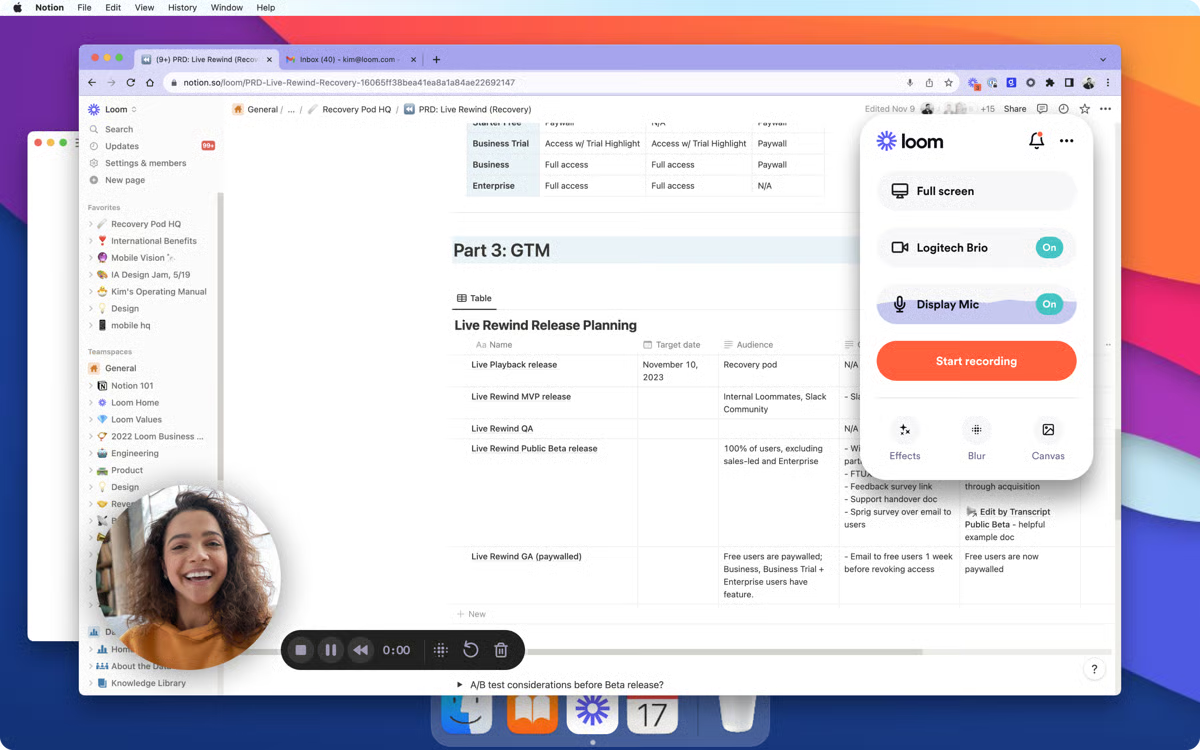
Loom continues to stand out for its simplicity and speed, helping teams communicate quickly through short, shareable videos. Some G2 reviewers mention that as libraries grow, organizing and managing recordings can become challenging, making it best suited for teams focused on quick updates or lightweight documentation rather than long-term video storage.
A few reviewers also note minor instability with the Chrome extension or desktop recorder, such as the camera not loading or needing a quick restart, so Loom is ideal for everyday async communication and brief walkthroughs rather than continuous, high-volume video production.
All things considered, reviewers describe Loom as a tool that fits smoothly into everyday communication workflows, especially when quick explanations or visual context are needed. For use cases centered on walkthroughs, clarifications, and short internal recordings, many teams found that Loom supports their work in a straightforward and efficient way.
“Loom is a software that helps us in recording our mobile screen, and after recording the screen, it generates an automated link that can be shared through email or WhatsApp to all of our employees so that they can access the video without even downloading. This software makes the video detailing process much easier for us.”
- Loom review, Abhijeet K.
“A few of our field-team folks have said the buffered video stalls, which interrupt the “watch on the go” benefit we were hoping for. Additionally, because it’s built for speed over deep editing, if I need fine-grained video editing (cutting between multiple scenes, layering graphics), I still end up moving to a dedicated video editor. So for “quick and clear” it’s excellent; for “studio-grade polished”, less so.”
- Loom review, Avyan S.
For teams using video tools to support training, onboarding, or SOPs, our guide on how to make instructional videos will walk you through creating content that’s clear, repeatable, and scalable.
I’ve always known Synthesia as an AI video generator that turns text into avatar-led presenter videos, making it ideal for scalable training and camera-free communication. As I read through Synthesia’s G2 reviews, it became clear that teams choose this platform because it turns written scripts into polished, presenter-led videos without the complexity of filming or editing. In fact, it's also ranked a Leader on the G2 Video Communication Grid.
Reviewers consistently described the workflow as smooth and predictable, which aligns closely with its G2 Scores: 92% satisfaction for ease of use, 95% for ease of setup, and 93% for ease of doing business with. These numbers align with the experiences described: quick onboarding, minimal friction, and a production process that fits into day-to-day communication.
Many G2 reviewers emphasized how the utility of Synthesiar creating structured updates, onboarding materials, and training content. The AI avatars play a significant role here, helping teams deliver information in a clear, standardized style that doesn’t require recording talent or managing reshoots. Synthesia’s 95% likelihood-to-recommend rating reflects how confidently teams incorporate it into their communication routines, especially when they need predictable, professional output.
G2 reviewers noted how the range of avatars and languages helps them create videos for different audiences without sacrificing consistency. This was especially important for organizations that shared formation across regions. The data supports this as well: with a 90% “meets requirements” rating, Synthesia seems to align well with what teams need when they produce recurring communication in multiple languages or formats.

Several reviewers also mentioned how quickly they were able to produce new content once they settled into the workflow. The repeatability of the script-to-video process makes Synthesia a practical tool for environments where updates, training modules, or internal explanations need to be delivered repeatedly, particularly those that operate on tight schedules or lack dedicated video resources. This consistency helps them keep communication flowing without delays.
Synthesia continues to impress reviewers with its ability to create polished, professional videos quickly using realistic AI avatars and voices. Some G2 reviewers mention that while the avatars look professional, they aren’t always as expressive as real presenters, making the platform better suited for structured training, product demos, and internal communication rather than emotionally driven storytelling.
A few reviewers also note that certain languages, like Chinese, can sound slightly more mechanical than others, so Synthesia works best for teams prioritizing clear, multilingual communication over highly natural or personality-driven delivery.
On the whole, Synthesia stands out as a dependable platform for creating consistent, presenter-style videos without the logistical overhead of traditional production. For teams focused on training, internal communication, and process explanations, it fits smoothly into existing workflows and delivers results that are both scalable and predictable.
"I initially chose Synthesia after it was recommended for AI-powered video translation. There are three standout features in this area:
1. It translates spoken content with about 90% accuracy,
2. It preserves the speaker’s original voice, tone, and intonation, and it offers a lip sync function that elevates the experience by making it appear as though the person is genuinely speaking the selected language. This works best with front-facing footage rather than side views.
3. Uploading a video for translation is straightforward, and the user interface is very intuitive and easy to navigate.
Being a new user, I was very impressed with customer support helping answer questions to my problems (learning curve issues)."
- Synthesia review, MarkandLera H.
“I find it challenging that, when I write a script, the pronunciation can be completely inaccurate, even after I try to adjust the script. Additionally, the cost of the enterprise plan is unreasonable. There really should be an option between the creator and enterprise plans that would be more suitable for a wider range of users.”
- Synthesia review, Rhianna K.
Using video tools to keep your teams aligned? Strengthen the foundation behind every message with our guide to building an effective internal communications strategy.
VEED is a browser-based video editor that makes it easy to trim, caption, and polish videos quickly, which is why it fits perfectly for everyday video communication. One of the clearest trends in VEED is how quickly they can make essential edits, especially when they need to trim clips, clean up recordings, or add captions without using advanced editing tools. Many described being able to prepare communication-ready videos in minutes, which aligns well with VEED’s 93% satisfaction score for ease of use and 94% for ease of setup, according to G2 Data.
For people who record on the fly and need their videos ready to share quickly, that simplicity is what makes VEED a practical choice. This makes it a natural fit for anyone wondering “Which video communication platform offers the most reliable conferencing features?”, because VEED excels at turning raw recordings from any conferencing tool into clean, shareable clips in seconds.
A recurring theme across the reviews is the convenience of the built-in captioning and text tools. Reviewers appreciated being able to add subtitles automatically and make quick adjustments without additional software. This is especially useful for teams sharing product walkthroughs, internal explainers, or training content where clarity helps reduce follow-up questions. Many users rely on these features to make their videos more accessible for distributed teams or colleagues who prefer or require captioned content.
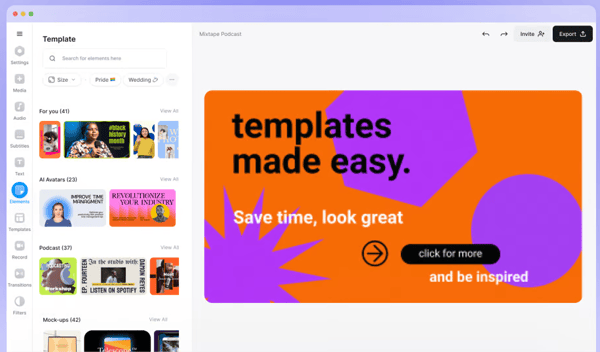
Another recurring point in the dataset is how helpful VEED’s browser-based editing environment is when teams collaborate on video communication. Users often highlighted that being able to edit from any device without installing a separate program made it easier to jump in, update a clip, or finalize a recording before sharing it across their organization.
VEED is praised for its accessibility and ease of use, allowing teams to create professional videos quickly without needing advanced editing experience. Some G2 users mention that performance can slow with longer or more complex projects, making it best suited for teams producing short explainers, updates, or social clips rather than high-resolution, multi-layer productions.
A few reviewers also note that exports can take extra time for larger or more detailed videos, so VEED is ideal for creators managing light to moderate video workloads rather than those working on tight, high-volume production schedules.
When you weigh it all up, reviewers consistently describe VEED as a straightforward, browser-based editor that supports modern video communication without requiring specialized skills. Its fast editing tools, accessible interface, and helpful captioning features make it a strong fit for teams creating short walkthroughs, internal updates, and polished explainer content.
“VEED is incredibly easy to use and is fairly versatile. The learning curve is relatively small, even if you have little to no video editing experience. It creates great-looking videos quickly and has so many options for voiceovers, stock footage ,and effects. Implementing VEED has been easy, and the onboarding was smooth. The customer support is top-tier tier and people are very responsive. I use VEED frequently for my role, and have very few issues”.
- VEED review, Erin B.
“I find VEED to be fairly buggy, which can be frustrating. The application undoes some of my actions occasionally, necessitating frequent page refreshes to restore functionality. Furthermore, accessing certain controls, like changing the theme, font, and color after setup, is cumbersome. Many features are locked behind a higher-tier subscription, which I find too costly to justify upgrading, thereby limiting my usage of those potentially beneficial tools”.
- VEED review, Ben S.
Snagit is best known as a precise screen capture and annotation tool, helping teams explain processes visually when screenshots or short recordings say more than text. Many Snagit reviewers emphasized how dependable the tool is for capturing high-quality screenshots in different formats, whether it's a single window, a fixed region, or an entire webpage.
According to G2 Data, Snagit’s 98% rating for screen capture reflects how consistently users rely on it to get clean, accurate visuals without any setup. For teams that need to show exactly what they’re seeing rather than describing it in text, this ability to capture on demand is a core strength that appears throughout the reviews. This makes Snagit a strong answer for teams asking “What is the most affordable video communication software for SMBs?”, because its one-time pricing and dependable capture tools give small teams professional-quality visuals without the higher cost of full video suites.
Reviewers also talked extensively about Snagit’s annotation tools and lightweight editing features. They often mentioned how easy it is to add callouts, highlight steps, mark errors, or build visual instructions using Snagit’s editor. The tool’s 93% image editing score, according to G2, reinforces how well Snagit supports this type of everyday documentation work. Many reviewers said they use these features when creating internal training materials, process guides, or simple explainer visuals where clarity matters more than complex design.
A third theme across the dataset is how helpful Snagit is for recording short, instructional clips. Users rely on the built-in recorder to capture quick demos or walkthroughs when screenshots alone won’t tell the full story. This is supported by Snagit’s 95% rating for screen recording, which aligns with reviewers describing the tool as fast, predictable, and easy to use for short-form communication. In many cases, teams used Snagit for the initial demonstration and only moved to heavier editing tools if a project needed more advanced production.
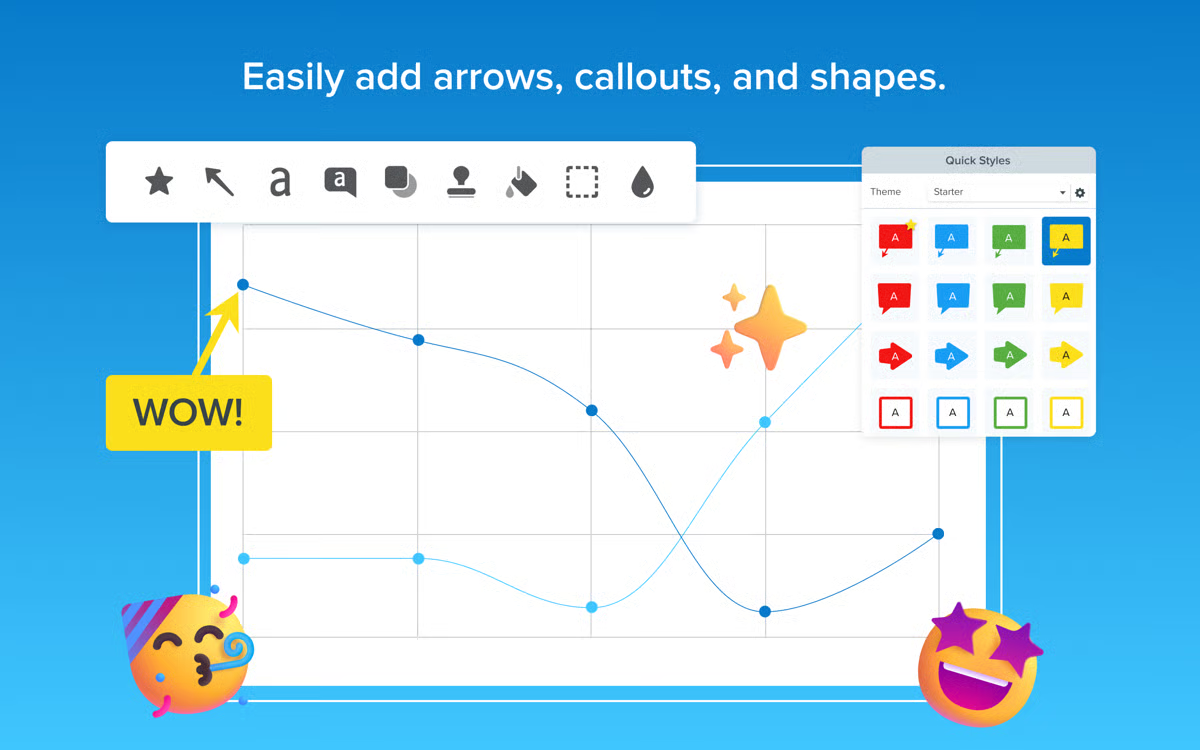
However, G2 reviewers noted that Snagit’s video editing capabilities are intentionally lightweight and may feel limited for teams looking to produce polished, long-form videos. This mostly affects users who need multi-track editing or motion graphics, but for teams focused on step-by-step explainers or quick visual instructions, the simplified workflow tends to be a good fit.
A smaller group pointed out that exporting larger recordings can take more time, especially on older devices. This matters more for teams producing long, high-resolution videos on tight deadlines. For users who primarily rely on screenshots, short recordings, or annotated visuals, these delays are minimal and don’t disrupt day-to-day workflows.
Snagit’s one-time pricing and simple workflow make it a strong video communication software for small businesses. Its strong capture performance, reliable recording options, and clear annotation tools help teams turn complex processes into easy-to-understand visuals, making it especially useful for training, support, and documentation work.
“Snagit is very handy and easy to use. We can capture the whole screen or a small part of it, or even a scrolling page. It allows editing easily post taking a screenshot, like adding arrows, text, shapes, or even highlighting things. It also helps to record the screen, which can be used for evidence or tutorials. Snagit also stores all captures in one place, so we can find them easily later. I personally use Snagit on a daily basis for my project work evidence to capture and edit evidence. It also has helpful features like auto-numbering steps, removing backgrounds, etc. And in case of any help or support, the customer support feature is also very handy and quick in response."
- Snagit review, DISHA B.
“Sometimes it won't select the specific required window on Figma. Also, at least they should have given basic features for editing the captured screen recordings. I know this is an image editing tool, but while modifying the GIF, if i want to highlight the specific part the way we do it for images, we have to change it through Camtasia, then convert it to GIF."
- Snagit review, Atul B.
Riverside is designed for high-quality podcast, interview, and multi-track video recording, making it a strong “record once, repurpose everywhere” communication tool. What makes Riverside immediately stand out is its multi-track recording setup. Being able to capture each participant’s audio and video separately gives you far more control when shaping the final version of a conversation.
If your workflow depends on refining dialogue, adjusting levels independently, or cleaning up background noise without affecting the entire recording, this structure becomes one of Riverside’s biggest advantages. It is the kind of flexibility that matters when you're producing interviews or podcast episodes where clarity and editability are essential. This level of control is why Riverside is often viewed as a strong solution for teams asking, “Which solution supports large-scale webinars and virtual events?” Its studio-grade capture makes complex, multi-speaker content easier to edit and repurpose at scale.
Another key strength is Riverside’s ability to maintain consistently high-quality recordings across different environments. Because the tracks are captured locally, you’re not relying on internet stability to produce clean footage. According to G2, the platform holds a 94% rating for video capture, which reflects how effectively Riverside preserves quality even when guests join from different devices or locations. This makes it well-suited for creators working with remote speakers or those who regularly produce content with participants in different time zones.
Riverside is also used for screen-based recordings when creators want to combine interviews with visual demonstrations. The platform’s 89% screen-capture score supports this kind of workflow, allowing users to record browser activity, product walkthroughs, or presentation materials without switching tools. When paired with multi-track audio and video, this makes Riverside practical for producing more complex content such as tutorials, explainer videos, or mixed-format sessions where both conversation and visuals matter.
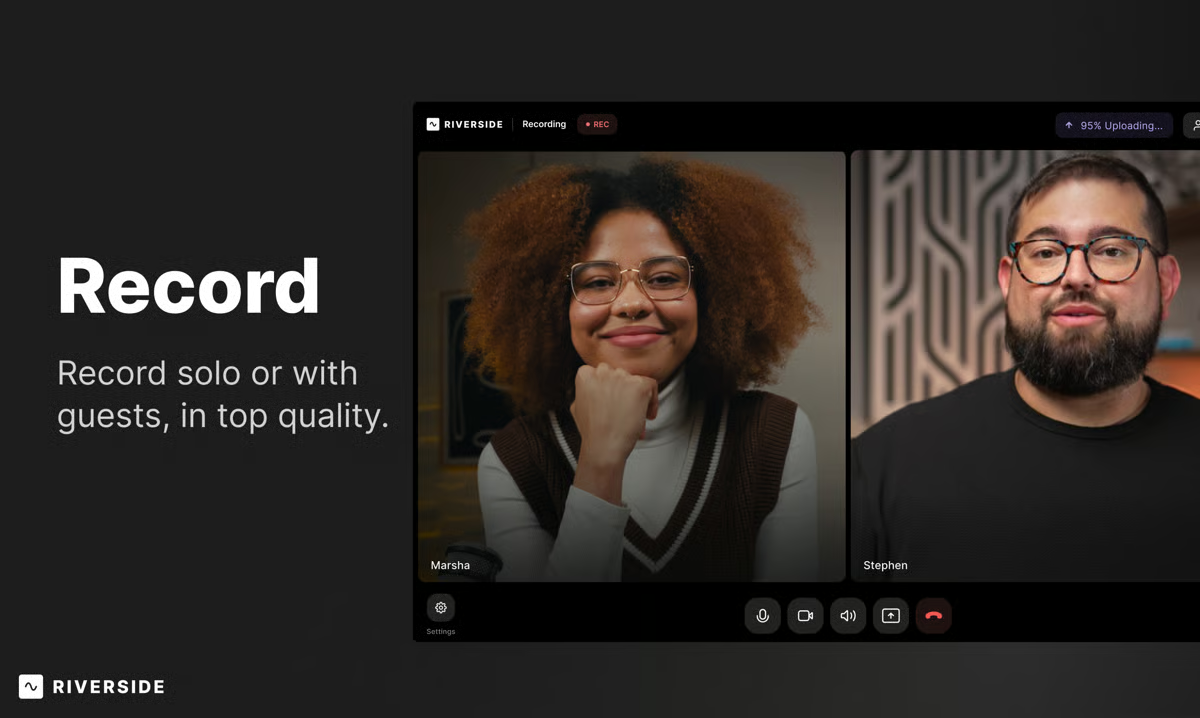
Some teams also rely on Riverside for repurposing content, especially when they need written material or highlights from their sessions. The platform’s 90% text-extraction rating, according to G2 Data, aligns with workflows where transcripts or pulled text are used for summaries, documentation, or quick editing references.
A few G2 reviewers did mention that older devices may feel strained during longer recordings, especially in multi-participant setups. This tends to affect teams working on extended interviews or high-resolution, multi-camera sessions. For users focused on shorter conversations, lightweight interviews, or quick content segments, this is far less likely to be an issue.
Another group pointed out that longer episodes sometimes require re-uploads or additional syncing during post-production. This is more relevant for teams producing long-form podcasts or detailed multi-track projects with heavier editing needs. For creators focused on shorter clips, straightforward interviews, or internal conversations, these occasional interruptions generally don’t impact the overall workflow.
Riverside ultimately offers a dependable way to produce high-quality recordings without needing a physical studio. Its multi-track control, strong capture performance, and browser-based setup make it especially useful for teams and creators who want professional results while working remotely.
“Although the feature set is packed with impressive technology and powerful tools, the learning curve remains gentle, largely due to the excellent tutorials provided. Even as you are getting started, you can create your first podcast right out of the box, while Riverside continues to work its magic behind the scenes. The improved video quality, made possible by importing localized video, leads to even better final results. I really love it!”
- Riverside review, Dr. F. Gianmichael S.
“What I like least about Riverside.fm is the long export times. After an otherwise efficient recording and editing process, waiting for exports can be frustrating and slow down the overall workflow—especially when working on tight timelines. Reducing export time would make the experience feel truly seamless from start to finish.”
- Riverside reviews, Mike C.
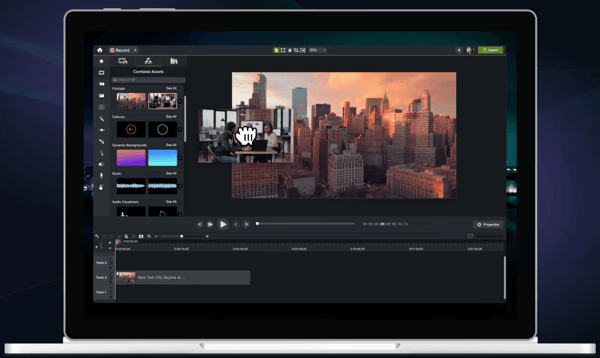
I see Camtasia as a screen recording and editing tool built for structure, combining reliable capture with a timeline editor that works well for step-by-step tutorials. The strongest thing about Camtasia is how naturally it blends high-quality screen recording with a full editing timeline.
Instead of stitching together multiple tools or exporting files back and forth, everything happens in one place. You can record your screen, webcam, or both simultaneously and drop the footage straight into the editor to refine pacing, structure, and emphasis. According to G2 Data, Camtasia’s 96% rating for screen recording and 96% for screen capture reflect how reliably it handles this core workflow, which is why it’s so commonly used for producing structured tutorials, onboarding videos, and software walkthroughs.
What also stood out in the feedback is the flexibility you have inside the editor. Camtasia isn’t trying to compete with high-end cinematic editing platforms; it focuses on the kind of work most teams actually need: trimming clips, adding callouts, highlighting cursor movements, layering narration, and creating step-by-step instructional content. Its 95% video-capture rating supports this flow, since the footage recorded directly in Camtasia integrates cleanly with the timeline, making it easy to build clear, well-paced educational material without relying on external tools.
Another area where Camtasia performs especially well is long-form visual explanations. Features like scrolling capture, which hold an 86% rating, enable the recording of full webpages, extended documents, or long interface flows that span multiple screens. This is a meaningful differentiator because it allows trainers, educators, and support teams to demonstrate entire processes rather than relying on fragmented screenshots. It’s one of those features that becomes essential once you start using it for detailed walkthroughs.
There are, however, a few things to keep in mind depending on project complexity. Some reviewers noted that heavier editing projects, especially those with multiple layers, long sequences, or high-resolution footage, can take more time to render and export. This tends to affect teams producing fully polished courses or lengthy training modules. For users creating straightforward tutorials or short explainers, export times are generally manageable and don’t slow down production.
Another group mentioned that Camtasia’s editing environment can feel more involved for users who are new to timeline-based editing. This is less of an issue for teams familiar with instructional video workflows, but it may require a short learning curve for people who prefer quick, one-take recordings with minimal editing. For those building structured training content, the added controls become an advantage rather than a barrier once they adapt to the interface.
All things considered, Camtasia is a strong fit for anyone creating detailed, instructional videos where clarity, structure, and integrated editing matter more than flashy effects. Its recording quality, capture tools, and purpose-built editing features make it ideal for training teams, educators, and software instructors who need dependable results with a high level of control.
“I appreciate the amazing cost and balanced set of features Camtasia and Audiate offer. It provides just the right amount of capabilities necessary for my work, mainly focused on screen and video capture, without overwhelming me with unnecessary features. This helps me stay efficient without feeling bogged down by too many complexities. I value that, despite being feature-packed, Camtasia has managed to maintain simplicity and usefulness. Additionally, the whole Camtasia suite stands out for its ease of use, with an initial setup that is both straightforward and intuitive, making the learning curve virtually non-existent. This ease considerably enhances the user experience by allowing me to focus on creating and editing videos smoothly. Camtasia has continually improved over the decade I've used it, becoming faster, more reliable, and more useful, which reflects its commitment to consistent advancement and reliability”.
- Camtasia review, Michael C.
“The main downside is performance. Rendering often takes a considerable amount of time, particularly with high-resolution projects, and the app may lag when handling more complex edits. While the effects library is decent, it does feel somewhat limited. The pricing also seems rather high for individual creators or small teams, and the collaboration features could definitely be improved. Nevertheless, despite these issues, Camtasia continues to be a dependable and easy-to-use choice for most video creation tasks”.
- Camtasia review, Vishal D.
I think of AKOOL as an AI video creation platform focused on realistic face swaps and personalized visuals, which is why it stands out for creative and marketing teams. What stood out immediately while going through AKOOL’s G2 reviews is how consistently users praise its face-swap engine. Nearly every reviewer highlights how realistic, frame-accurate, and production-ready the swaps look, even in fast-moving footage.
This makes AKOOL a compelling choice for teams exploring “Which vendor offers the most secure encrypted video calls?”, not because it handles calling itself, but because users rely on its high-quality, privacy-respecting AI outputs for marketing, internal communication, and sensitive media where trust and accuracy matter. For a tool built around media transformation, that kind of core performance matters, and AKOOL’s reviewers make it clear that this is the platform’s strongest capability. According to G2, the tool meets requirements at 96%, which aligns with how often users say the results look natural, accurate, and usable without cleanup.
AKOOL isn’t limited to simple swaps. G2 reviewers talk about how well the platform handles AI-driven video editing, lip-syncing, and image rendering. These aren’t treated as side features; people describe using them as part of real workflows for marketing videos, localized content, and short-form creative projects.
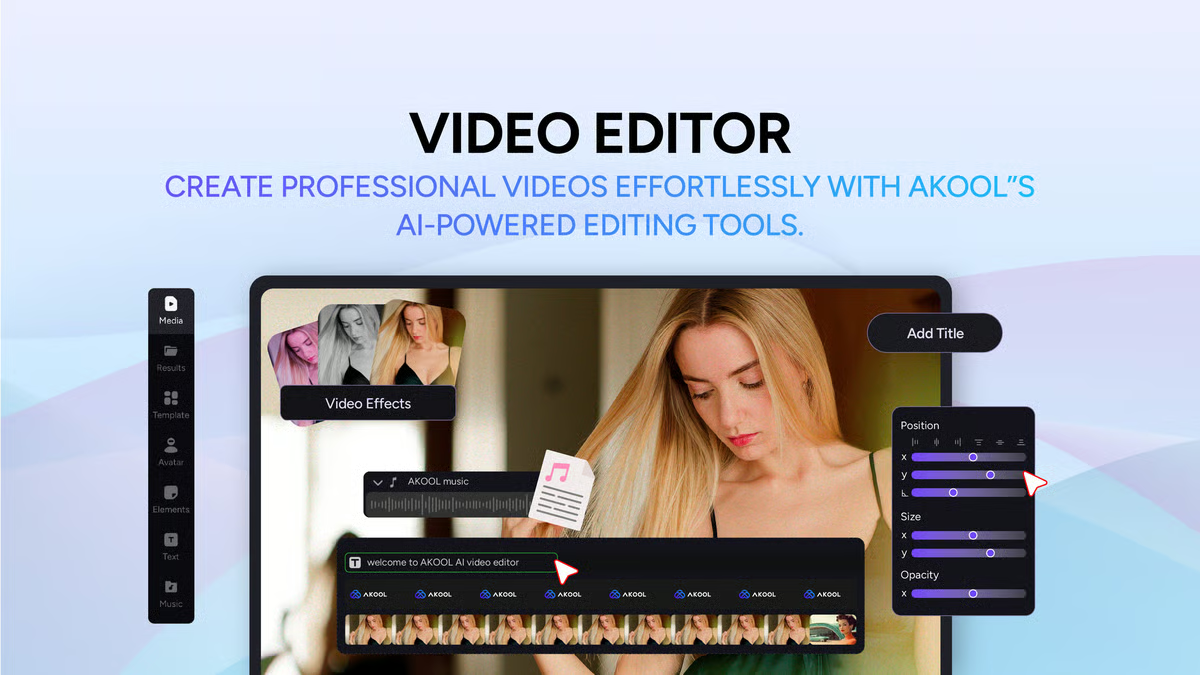
Many reviewers describe getting high-quality results in minutes, which makes AKOOL particularly appealing for small teams or solo creators who need polished assets without running complex software. The third theme is usability; despite AKOOL’s advanced AI features, users repeatedly mention that learning the workflow feels manageable. According to G2, the tool meets requirements at 96%, which reflects how consistently reviewers highlight its strong core features, from reliable output quality to smooth performance across different use cases.
I did notice a couple of things reviewers call out in their feedback. One recurring theme is the credit-based pricing model. Several users mentioned that costs can add up quickly, especially for creators producing a high volume of videos each week. This doesn’t affect everyone, but teams on tight budgets or independent creators who generate content frequently may want to keep an eye on how many credits they’re using.
Another point reviewers highlighted is that AKOOL’s video swaps can occasionally struggle with very complex movement or difficult lighting conditions. These situations appear to be rare, but for teams working on highly polished, cinematic, or fast-motion footage, it may take an extra pass or light touch-up to get the exact result they’re aiming for. For typical marketing, social media, and business videos, reviewers generally report consistent and reliable performance.
Overall, the sentiment behind AKOOL is strongly positive. Reviewers consistently highlight how realistic the face swaps look, how quickly the AI processes videos, and how the platform keeps improving in ways that match what users need. If you’re a creator, marketer, or team looking for fast, accurate, and production-ready AI media, AKOOL is a reliable choice that continues moving in the right direction.
“If you’re into marketing or content creation but don’t want to show your real face, Akool is a game-changer. It’s an AI-powered video creation tool that makes it super easy to produce professional videos using realistic AI-generated faces.
I’ve been using Akool for marketing projects, especially for private property promotions, and it’s honestly one of the best tools I’ve tried. The face swap technology is incredibly realistic, and it saves me tons of time compared to traditional editing or filming.
If you want to create high-quality videos without being on camera yourself, Akool is definitely worth checking out”.
- AKOOL review, Gigi J.
“A little bit expensive in my opinion, not like other AI tools that give you a free limit, in this case, I need to wait a long time to try”.
- AKOOL review, William S.
What stands out to me about Vyond is how quickly it turns a rough training or explainer concept into a polished animated video without making the creation process feel intimidating.
What I kept seeing in the G2 reviews is that Vyond’s real strength is not just animation for animation’s sake, it’s animated communication built for business use. Reviewers repeatedly use it for training modules, internal communications, explainers, and learning content, and that focus shows up in how the platform is designed.
Instead of asking users to build everything from scratch, Vyond gives them a structured starting point with scenes, characters, props, and templates that help them move from script to finished video much faster. According to G2 Data, ease of setup sits at 97% and ease of use at 93%, which lines up with how often reviewers describe the platform as approachable even for people without a design or animation background.
The asset library is one of the biggest reasons that comes through so strongly. Across the reviews, I saw a lot of praise for the range of built-in characters, scenes, expressions, and visual elements that make it easier to match different business contexts and storytelling needs. That matters because with a tool like this, the quality of the built-in library often decides whether you can work quickly or get stuck improvising around limitations. In Vyond’s case, reviewers often say the ready-made visuals help them create videos that look more polished than they could manage on their own.
I also noticed that templates are doing a lot of heavy lifting here. Reviewers mention them often as a practical time-saver, especially when they need to create repeatable content for onboarding, compliance, or customer education. Rather than spending hours on structure, they can start with a framework and spend more energy tailoring the message.
For teams creating lots of short-form communication or training content, that speed advantage feels central to the product’s value. It is less about cinematic customization and more about getting to a usable, engaging result quickly, which is exactly why so many reviewers seem to rely on it for business storytelling.
Another strength that shows up clearly in the reviews is how well Vyond supports voice-led communication. Users frequently call out the built-in voiceover options, text-to-speech, captions, and translation-related features because those tools make video production more scalable. That is especially useful when teams are creating learning content for distributed audiences or trying to localize material without rebuilding every asset from scratch. According to G2 Data, video capture, image editor, and screen capture all sit at 83%, which reinforces the sense that reviewers see Vyond as a capable content-creation environment rather than a narrow animation tool.
The reviews also make it pretty clear that Vyond works best when the goal is clarity. A lot of users talk about using it to explain processes, simplify abstract ideas, and hold attention better than static slides or plain text. That makes it particularly well-suited for L&D teams, instructional designers, enablement teams, and anyone building explainers where comprehension matters more than visual experimentation. I kept getting the sense that Vyond succeeds because it helps people communicate information in a format that feels more engaging without requiring them to become animators first.
Support and onboarding come through as another meaningful plus. I saw repeated mentions of helpful tutorials, responsive support, and a generally smooth ramp-up experience, which matters a lot for a platform that sits between creative software and business software. According to G2 Data, the quality of support is 95%, and that fits with the reviewer sentiment that people are not left figuring everything out alone. For teams adopting video creation more broadly across departments, that kind of support makes the platform easier to operationalize.
At the same time, the reviews suggest Vyond is built to help users create videos quickly within a more structured environment, and that comes with some tradeoffs. Users appreciate how much the platform simplifies the process, but some still want more control over character actions, poses, clothing, asset behavior, and scene flexibility. That means teams with highly specific animation needs may run into limits sooner, while teams creating training, explainer, or internal communication videos are more likely to find that structure useful.
I also noticed that Vyond keeps the editing experience manageable for most everyday projects, which is a big reason so many users describe it as easy to work with, but some reviewers do mention friction once edits become more detailed. Things like managing layers, refining searches, making repeated caption changes, or adjusting scene actions more precisely can feel a bit cumbersome for users doing heavier production work. That makes Vyond a better fit for teams that value efficient business video creation over frame-by-frame editing control.
Taken together, Vyond reads to me like a tool built for people who need business videos to be clear, fast to produce, and engaging enough to hold attention.
"Vyond is easy to use, and I’ve had great support from the Vyond team. They’re also constantly improving the program, which makes it better over time."
- Vyond review, Diane R.
"If I want to use something outside of the AI/Text to video templates, it can take a really long time to put something together. I wish there were more robust options for the text to video feature."
- Vyond review, Missy H.
HeyGen turns plain scripts into polished avatar videos with very little production work. HeyGen feels strongest when the goal is to create presenter-style videos that look clean and professional without going through a full filming setup.
The avatar quality comes up again and again in G2 reviews, and that makes sense because it is the feature doing most of the heavy lifting here. Users repeatedly describe the avatars as realistic, polished, and good enough for real business use, whether that is marketing, training, sales outreach, or internal communication. According to G2 Data, 96% of users are likely to recommend it, which lines up well with how often reviewers connect avatar quality to the overall credibility of the finished video.
What also stood out to me is how much HeyGen reduces production drag. Instead of recording takes, fixing mistakes, and stitching everything together manually, users can move from script to finished video much faster inside one workflow. That speed shows up throughout the reviews as one of the platform’s biggest advantages, especially for people creating repeatable content rather than one-off creative projects. G2 Data also shows 95% ease of use and 94% ease of setup, which reinforces the idea that HeyGen is appealing because it helps users get publishable results without much ramp-up.
The voice side of the platform seems to add a lot to that efficiency. Reviewers frequently mention text-to-speech, voice cloning, lip-sync, and multilingual video creation as features that make the tool much more practical at scale. For teams creating the same message across different markets or languages, that matters a lot. According to G2 Data, screen capture and text extraction both score 86%, which supports the broader sense that users see HeyGen as a useful video creation platform, not just an avatar generator with a narrow use case.
I also noticed that templates and prebuilt workflows seem to make a meaningful difference in how quickly users get to a finished result. A lot of reviewers describe the platform as structured in a helpful way, especially when they need to create polished videos without spending too much time designing from scratch. That seems particularly useful for marketing teams, trainers, and creators who care more about consistency and turnaround time than about building every scene manually. The platform’s workflow appears to support that kind of repeatable production really well.
Another positive theme is customization, though it shows up in a more business-practical way than a studio-style editing way. Users often mention being able to personalize avatars, scripts, scenes, and layouts enough to fit different content types. That flexibility seems to work well for explainers, promotional videos, onboarding material, and social content. G2 Data also points in that direction, with frames and background at 86% and customizable templates at 84%, which helps explain why reviewers often feel they can tailor the output without overcomplicating the process.
The ease factor matters here too, but more as an outcome than a headline feature. From the reviews, HeyGen seems to make video creation feel accessible to people who are not traditional editors, and that is a big reason it comes across as useful rather than intimidating. For smaller teams in particular, that matters. The customer mix in G2 Data leans heavily toward small business usage, and that matches the overall tone of the reviews, where users often value speed, simplicity, and professional-looking results over advanced production control.
HeyGen’s polished avatar output is clearly one of its biggest strengths, but that same strength seems to work best when the goal is clean, structured business communication rather than highly nuanced human delivery. Some users still want more natural movement, more expressive gestures, and more lifelike facial behavior, so teams producing realism-heavy content may find it better suited to explainers, training, and marketing videos where polish matters more than subtle performance detail.
The platform also seems to do a very good job of making video creation faster and more manageable, which is a big part of its appeal. At the same time, some reviewers mention that credits, plan limits, and premium-gated features become more noticeable as usage increases. For individuals or teams creating occasional videos, that may feel easy to work around, but teams planning higher-volume production may want to look more closely at whether the pricing model fits their workflow.
Overall, HeyGen comes across as a strong choice for teams that want AI video creation to be fast, polished, and easy to scale across different formats and languages. It seems to work best when the priority is getting professional avatar-led content out quickly, especially for marketing, training, and business communication.
"I'm astonished at how well this works. The avatars are well varied, and can almost always pronounce wildly difficult words from chemistry and medicine. There are enough avatars and settings to choose from that surely you can find one (or several) that will work for your requirements. We're using it for explainer/training videos in a prototype, but would feel comfortable going to production with them wherever a budget doesn't allow for real actors. Download and usage is super easy, the website is friendly and relatively easy to navigate (there's a tutorial mode to help you along if you find you even need that)."
- HeyGen review, Lorenzo G.
"Only the avatar feature gives just 200 credits for generating videos (avatar videos), and that feels like too little."
- HeyGen review, Krish C.
From what I’ve seen, Vidcast is an async video communication tool designed for Webex users, helping teams turn recordings into reusable updates and walkthroughs. What immediately stood out when reading Vidcast’s G2 reviews is how often users praise its ability to simplify asynchronous communication. Vidcast is purpose-built for asynchronous communication and is often called one of the best asynchronous video communication software choices for Webex users. Reviewers consistently describe how easy it is to record a quick walkthrough, explain complex ideas with visuals, and share a link that teammates can watch at any time.
This makes Vidcast a direct, practical answer for teams asking “What platform integrates video conferencing with productivity tools?”, because it fits seamlessly into Webex workflows and turns meeting recordings into reusable training and communication assets. For many, this replaces a surprising number of live meetings and helps streamline collaboration across teams. According to G2 Data, Vidcast maintains a 96% ease-of-use rating, and that aligns with how frequently users say they were able to start recording instantly without any setup or software installation.
Beyond its simplicity, many reviewers call out the overall recording experience, clean screen capture, smooth transitions, reliable audio, and the ability to switch between screen and webcam on the fly. Integrations also play a big role in how users work. Vidcast’s connection to Webex repeatedly comes up as a strength, especially for teams that want to import meeting recordings, edit them, and reuse them for training, onboarding, or project updates. Some reviewers even mentioned using playlists, pages, and analytics to organize content and understand viewer engagement, showing that Vidcast supports more than just one-off recordings. For users who rely on transcripts or AI summaries, the automation provides an additional level of clarity to their recordings.
Vidcast earns strong praise from users for its simplicity, reliability, and ease of sharing async videos, making it a favorite for teams that value speed and collaboration. However, many G2 reviewers mentioned that its editing tools stop at the basics, trimming and clipping, without offering transitions, filters, or detailed cuts. This makes Vidcast better suited for quick updates, training clips, and walkthroughs, while teams needing full post-production control may prefer pairing it with a dedicated video editor.
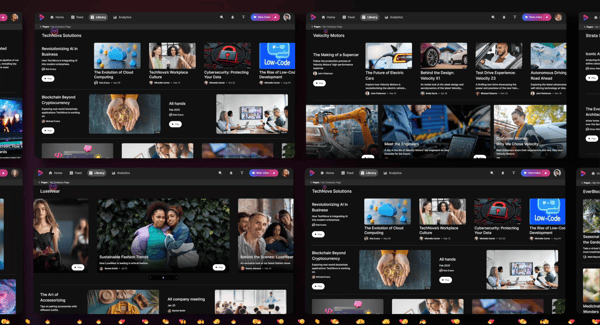
The platform’s browser-based design also contributes to its accessibility and ease of use. Still, some G2 users noted that Vidcast performs best in Chrome or Microsoft Edge, with limited functionality in Safari or Firefox. For most Webex or Chrome-native teams, this isn’t a blocker, but organizations with mixed device environments or strict browser policies may want to factor that into setup planning.
Vidcast comes across as a reliable, intuitive tool that helps teams communicate faster and more clearly through video. Reviewers consistently highlight the time it saves by replacing meetings, its seamless integration with existing workflows, and its accessibility across different skill levels. If your team relies heavily on Webex or benefits from asynchronous video messaging, Vidcast is a strong, practical choice that continues to move in the right direction.
“What I like best about Vidcast is how it makes asynchronous communication actually feel personal. It bridges the gap between email and live meeting, so you can convey tone, energy, and visuals without needing to schedule another call. It’s a huge win for efficiency and engagement.”
- Vidcast review, James S.
“While Vidcast offers powerful features for professional video content, it can sometimes feel less intuitive compared to simpler tools like Loom, especially for quick recordings. The user interface could be more streamlined to reduce the learning curve for new users. Additionally, since it focuses on longer, enhanced recordings, it may feel like overkill for users who need just quick, short videos. Finally, Vidcast’s pricing and feature set seem geared toward business users, which might not be the best fit or budget for individuals or small teams looking for a basic screen recording solution”.
- Vidcast review, Nivedraj P.
Have more questions? Find more answers below.
Several video communication platforms offer AI-powered transcription, but Loom, VEED, and Riverside are the most relevant here.
These tools are commonly used to improve async communication and content insights rather than traditional meeting intelligence.
Loom supports regulated business communication needs with enterprise-focused security controls and compliance capabilities that help organizations manage video communication more safely.
Among the tools listed, AKOOL is the most relevant for multi-language and AI-driven localization use cases. AKOOL focuses on AI-powered video generation, translation, and localization, including multilingual video content and avatar-based communication.
Loom is a strong enterprise video communication platform because it is designed for asynchronous business messaging, team collaboration, and company-wide video sharing at scale.
After analyzing thousands of user insights and performance patterns across today’s most popular Video Communications Software, one thing became clear: the best tools don’t just help you record, they help you communicate better.
Across the ten platforms in this list, a consistent theme emerged: teams save time, reduce meetings, and get work done faster when video becomes a natural part of their workflow. Whether it’s AI-generated presenters, lightning-fast async updates, polished hosting, or studio-quality recordings, each tool here solves a real communication problem with measurable impact.
And that’s what truly sets these platforms apart. They remove friction. They make explanations clearer. They help distributed teams stay aligned without adding more meetings or more tools to learn.
Whether you’re standardizing training videos, improving onboarding, scaling documentation, or replacing live calls with async clarity, the right video communication software becomes more than a tool; it becomes part of how your team operates.
If your goal is to turn everyday communication into something faster, clearer, and easier to revisit, the solutions on this list will help you get there with confidence.
Explore our guide to the best screen and video capture software to find even more tools that boost productivity and help your team communicate with precision, no meetings required.


Try explaining a complex workflow to a remote teammate without sharing your screen. It quickly...
 by Somya Jain

My life took a cinematic turn in 2013.
 by Sudipto Paul

I'll be honest: When I first started testing AI video generators, I was skeptical. For years,...
 by Soundarya Jayaraman