

This guide was last updated on April 23, 2026. A newer report has since been published. The tools below reflect the scores from G2's Summer 2026 Grid® Report.
Based on verified G2 reviews and the latest Grid® placement.
*Liked and disliked highlights are summarized from verified G2 user reviews.
The tools below have also been exhaustively tested and evaluated, and continue to hold their place among the best Project Management Software on G2.
Keeping projects on track didn't always seem difficult to me. I still remember my first big project, back in university, when I helped organize an event with multiple teams managing everything from logistics to marketing. At first, it felt simple: divide the tasks, set deadlines, and make sure everyone kept things moving. But soon enough, things spiraled out of control.
Missed deadlines, lost updates, and constant confusion made it clear how quickly things can fall apart without proper systems. That experience made me wonder: how do teams actually manage complex projects without things falling apart? And what is the best project management software to keep everything on track?
Fast forward to today, and I've found that the difference between chaos and clarity often comes down to the tools teams use. These platforms are built to handle modern workflows, streamline collaboration, and keep everyone aligned.
At first, I thought these tools were just for managers, but I soon realized they play a critical role for everyone on the team. In fact, roughly 82% of organizations rely on work/project management software to improve efficiency. In my current role, I don't directly manage projects but rely on project management tools daily. They ensure I know what's expected of me, keep deadlines visible, and create clarity around team priorities. For both individual contributors and managers, these tools bring much-needed structure to fast-moving teams.
As I became more familiar with these tools, I started noticing patterns. Some tools made collaboration effortless, while others felt clunky or unintuitive. That got me thinking: Are we using the best tool for our needs? Or is there a better option that could enhance how we work together?
Driven by curiosity, I decided to dig deeper. I evaluated 25+ project management tools, analyzed G2 review data, and spoke with teammates about their real-world experiences. Tools like Asana, ClickUp, Monday.com, Wrike, and Smartsheet consistently stood out for their capabilities, usability, and flexibility across different team needs. Along the way, I uncovered what makes a project management tool truly effective and, just as importantly, what doesn't.
Whether you're managing projects or contributing to them, here are the best project management software options to help your team stay organized, productive, and on track.
Let's explore which tools can transform how your team manages projects.
*These project management software are top-rated in their category, according to G2's Spring 2026 Grid Report. I've also added their monthly pricing to make comparisons easier for you.
Choosing the best project management software often comes down to which features actually support how your team plans, tracks, and delivers work. If you want a clearer breakdown of the features that matter most, this G2 guide to project management software features lays it all out.
In my view, project management software is like a well-oiled machine that keeps everything moving in sync — tasks, deadlines, teams, and progress all working together seamlessly. It's designed to bring order to what can often feel like chaos, especially when dealing with complex projects or multiple moving parts.
When I first started exploring project management software, I didn't realize how many options there were. There's something for everyone, whether you're managing personal to-do lists or large-scale collaborative projects with tight deadlines. Some tools focus on simplicity, while others pack powerful features for advanced planning and reporting.
What I noticed was that each tool seemed to have its strengths. A few were great for breaking down tasks into manageable steps, others shined when tracking timelines, and some specialized in team collaboration. But for me, the tools that stood out offered a good balance, simple enough to use daily but powerful enough to handle big projects without missing important details.
Finding the best project management software is about understanding what actually helps teams plan, collaborate, and deliver work efficiently.
I started by analyzing G2 Grid reports to identify the top-performing project management tools and created a shortlist based on user satisfaction, market presence, and feature depth.
To go beyond rankings, I used AI to analyze hundreds of G2 user reviews. This helped me identify recurring themes like ease of use, workflow customization, collaboration capabilities, and challenges such as steep learning curves or limited reporting. I also spoke with project managers, operations leads, and cross-functional team members who use these tools daily to understand what works well in real-world project execution.
In cases where I couldn't directly evaluate a tool due to limited access, I consulted project managers and product team members with hands-on experience and validated their insights using verified G2 reviews.
By combining G2 data, AI-driven insights, and real user feedback, I was able to evaluate and compare project management tools based on their usability, flexibility, and ability to support different team workflows.
The screenshots featured in this article may include a mix of those captured during evaluation and those sourced from the vendor's G2 page.
Choosing the right project management software can make or break a team's productivity. Here's what I focused on when evaluating these tools:
Over the past few weeks, I evaluated 25+ project management tools and quickly realized that flashy features and complex designs don't always lead to better project outcomes. My goal was simple: to find tools that effectively support project planning, resource management, and task execution. After a thorough evaluation, I narrowed it down to 9 standout tools that truly delivered.
To be included in the Project Management Software category, a product must have:
*This data has been pulled from G2's Grid Report. Some reviews have been edited for clarity.
Read our guide to the best project management software for Salesforce integration to compare top tools, integration options, pricing, and use cases for sales-to-delivery workflows.
Jira is a widely adopted project management tool built primarily for agile software development teams. When I evaluated it against other tools in this category, what stood out from G2 reviews was how well it supports structured, fast-moving development work. It holds a satisfaction score of 100 and a market presence score of 99 on G2, reflecting its strong adoption and position in the market.
Agile teams, in particular, rely on Jira for sprint planning, backlog management, and bug tracking, all of which are deeply embedded into how the platform works. That strength is reflected in G2 data as well, with 93% of users rating its issue tracking capabilities highly, reinforcing its role as a core system for managing development workflows.
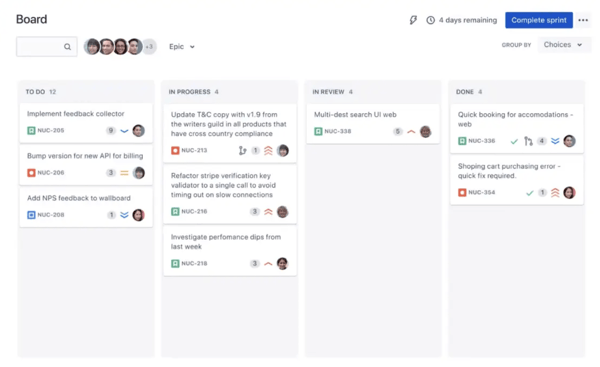
Flexibility is another area where Jira consistently stands out. Across G2 user feedback, customizable workflows, issue types, and fields are often called out as major strengths. This becomes especially useful when different teams, like engineering, QA, and product, need slightly different processes but still want to work within a unified system. Jira makes that possible without forcing rigid structures.
Another aspect I paid attention to was how well Jira fits into a team's existing ecosystem. From G2 reviews, integrations with tools like GitHub, Bitbucket, and CI/CD pipelines are a big advantage. Being able to connect code, tasks, and releases in one workflow reduces context switching and makes it easier to maintain traceability across the development lifecycle.
Jira brings a high level of depth, which means there's a bit of a ramp-up period at the start. G2 reviewers often mention that getting familiar with the interface and setting up workflows takes some time, especially for teams new to structured or agile project management. Once that foundation is in place, though, teams tend to benefit from the clarity and control it provides, particularly as projects grow in complexity.
When deciding if Jira is the right fit, it really comes down to how your team approaches project management. From what I evaluated, Jira aligns best with engineering teams, product organizations, and teams working in iterative development cycles. If your work involves dependencies, releases, or continuous delivery, Jira provides the structure and flexibility needed to keep everything organized and moving forward as projects scale.
"Jira's strongest feature is its extensive customisation. It lets you build detailed workflows and custom fields tailored to your team's specific needs. It also offers robust Agile-focused reporting, such as burndown charts and velocity tracking, which provide valuable insight into overall project status. On top of that, its seamless integration with developer tools like Bitbucket and GitHub makes the transition from task management to code delivery much easier."
- Jira Review, Abu Zaher Mohammad B.
"One thing I noticed is that Jira can feel a bit complex when you first start using it. There are many features and settings, so it takes time to get comfortable with it. Also, if workflows are not designed properly, things can become confusing. Keeping it simple is important, otherwise it may slow down the process."
- Jira Review, Ritik J.
If your workflow revolves around managing bugs, tickets, and development cycles, there are several other issue tracking-focused tools worth exploring on G2.
Asana is often positioned as a task management tool, but in practice, it plays a bigger role in how teams organize and coordinate work. Going through G2 reviews, I noticed that teams rely on it not just to track tasks, but to bring structure to planning and execution.
Collaboration is where I saw a lot of consistency in user feedback. Teams use Asana to share notes, attach files, and add context directly within tasks, which keeps conversations tied to the work itself. Instead of switching between tools, everything stays in one place, making it easier to move from discussion to execution without losing context.
When it comes to prioritization, I noticed that Asana keeps things simple but effective. Tasks can be organized with clear ownership, deadlines, and priority levels, which helps reduce noise and keeps attention on what actually needs to get done. That's reflected in the data as well, with 90% of users rating its task prioritization highly, which speaks to how well it helps teams stay focused on what matters. G2 users frequently highlight this clarity as a reason they're able to stay on top of multiple projects without feeling overwhelmed.
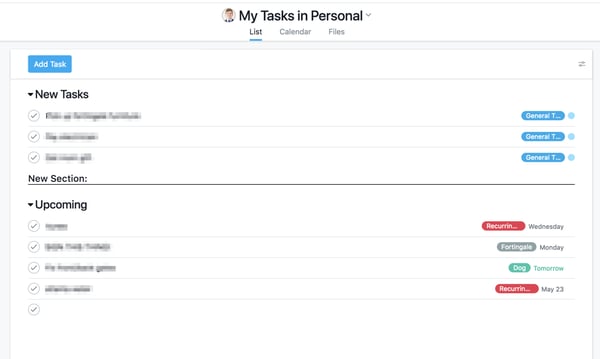
What stood out in a different way is how often users mentioned the personal tasks section. While Asana is built for teams, it also works well for managing individual work. From follow-ups to personal deadlines, it gives a simple way to keep everything organized in one place, which adds to its overall flexibility.
Asana offers a broad set of features to support different workflows. At the same time, I came across consistent feedback from G2 users that some advanced capabilities, like custom fields and reporting, are available only in higher-tier plans. For teams that need deeper customization, this may require an upgrade. That said, many users also mention that the core features are strong enough to manage day-to-day work effectively, especially for teams getting started or working on simpler projects.
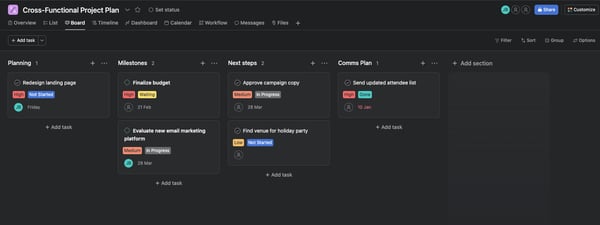
When I look at where Asana fits best, it works well for teams that prioritize clarity and collaboration over complexity. It's especially useful for cross-functional teams that need a structured way to manage tasks without adding unnecessary friction. If the goal is to keep work visible, organized, and easy to coordinate, Asana does that consistently well.
"Asana is helpful in structuring the execution part because it organizes the task, timeline, and owner in a system. There are various views, including the ability to see the task in a list, board, timeline, and calendar. Dependencies, milestones, and real-time updates make the system highly visible. Thus, the team is always on the same page without the need for follow-ups."
- Asana Review, Sawant S.
"While Asana is great overall, I think there's room for improvement in the reporting feature. For users on the basic plans, reporting is somewhat limited, and for more advanced insights, you'd need to upgrade to a higher-tier plan. Additionally, the automation capabilities, though helpful, aren't as robust compared to some other tools."
- Asana Review, Akshata M.
Asana and Jira come up in almost every project management shortlist. Read our in-depth guide on Asana vs Jira with hands-on testing.
Smartsheet leans heavily on a spreadsheet-style interface, which makes it feel familiar right away. While going through G2 reviews, I noticed that this familiarity plays a big role in how quickly teams get comfortable with it. It doesn't require a complete shift in how work is organized, especially for teams already used to tools like Excel.
That familiarity carries into how teams manage larger projects. Instead of switching between different tools, Smartsheet brings planning, tracking, and collaboration into one place. G2 users often mention using it to manage timelines, coordinate across teams, and keep work structured without adding unnecessary complexity.
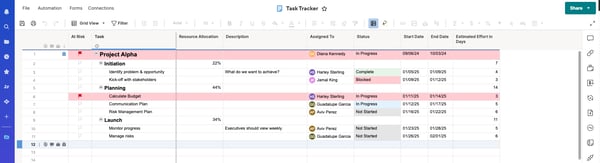
Planning is where it really starts to stand out. Features like Gantt charts and timeline views make it easier to map dependencies and track progress across projects. This is also reflected in G2 data, with 84% of users rating Gantt charts highly.
Another area that comes up often in reviews is how Smartsheet handles data across projects. Automation reduces repetitive updates, and cell linking helps keep information consistent across multiple sheets. For teams working with large datasets or interconnected plans, this adds a layer of control that's hard to replicate with simpler tools.
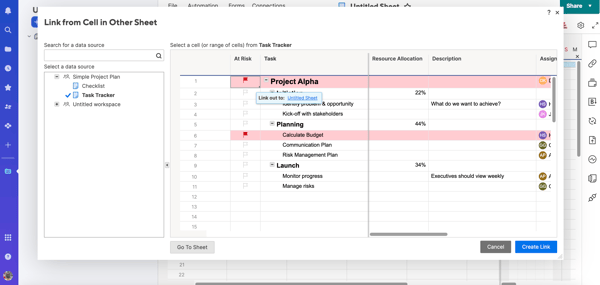
Smartsheet is designed to handle detailed, multi-step projects, and that depth shows up in how features like dependencies and integrations work. G2 reviewers mention that setting up relationships between tasks or syncing data across tools can take a bit of time to get right. With clearly defined templates and structured workflows in place, teams are able to maintain consistency and keep projects running smoothly as they scale.
For teams evaluating Smartsheet, it fits best where planning, structure, and coordination are central to the workflow. From what I reviewed, it works particularly well for operations teams and project managers handling large, interconnected projects that require visibility across multiple moving parts.
"I think Smartsheet's closeness to Excel makes it easy to pick up. It's quite straightforward to build out sheets and build your own forms. The report function is really cool, and the ability to easily group and filter out datasets or sheets is quite helpful. The reports allow you to combine information from multiple sheets in a user-friendly wizard-like way, making it much more user-friendly than Excel. The ability to group information is really cool, and my favorite part of reports is that they're interactive. So, if I update something in a report, it updates in the underlying sheet."
- Smartsheet Review, Antonio C.
"While I really appreciate what Smartsheet brings to my workflow, there are a few areas where it can feel a bit clunky or could use improvement. Sometimes, especially with larger projects or more complex sheets, the interface can feel a little slow or overwhelming, and it takes extra clicks to get to the information I need quickly. I also wish that some of the more advanced features, like automation or reporting, were a bit more intuitive — there's a learning curve, and it can be frustrating when I just want things to 'just work' without spending time troubleshooting or looking up tutorials."
- Smartsheet Review, Sraca D.
Looking for project management solutions that won't cost you a dime? Check out these free project management tools to find the perfect match for your team's needs.
monday AI Work Platform leans heavily into visual organization, and that's something that comes through clearly in G2 reviews. Instead of rigid project structures, it gives teams a workspace they can shape around how they actually operate. Boards don't feel fixed. They evolve based on what you're trying to track, whether that's daily tasks or more complex project timelines.
That flexibility shows up most in how workflows are built. Columns, statuses, and views can be adjusted without much friction, which makes it easier to align the tool with different team needs. From what I saw across G2 user feedback, this is one of the main reasons teams stick with monday. It adapts as processes change rather than needing a complete reset.
Where it starts to feel more powerful is in how everything connects. Integrations with tools like Slack and Google Drive keep work from getting siloed, and automation takes care of repetitive updates in the background. Once those pieces are in place, managing multiple workflows feels a lot less manual and a lot more streamlined.
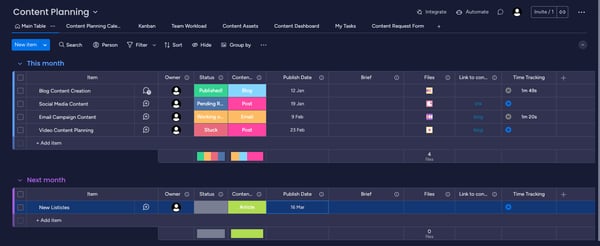
Templates and features like time tracking add another layer of practicality. Templates reduce the effort needed to get started, while time tracking gives visibility into how work is actually being spent. G2 data supports this usability angle as well, with 93% of users rating its task tracking capabilities highly, reflecting how effectively it handles everyday work tracking.
monday AI Work Platform brings together a wide range of features to support different workflows. Insights from G2 reviewers suggest that its AI capabilities are still evolving and may not always deliver reliable or context-aware suggestions. Some users mention needing to double-check outputs or not finding it useful for their workflows yet. As the feature matures and integrations improve, it has the potential to become more impactful for teams looking to automate and optimize their processes.
For teams evaluating monday AI Work Platform, it fits well where flexibility and visibility are key. From what I reviewed, it works particularly well for teams that want a customizable workspace to manage projects, automate routine work, and adapt workflows as needs evolve.
"monday AI Work Platform is incredibly efficient and well-constructed, it literally serves us in every way. Everything is in one place and accessible to the entire team, making things simple and practical on a daily basis. I particularly appreciate the superb visuals that make the use pleasant and the intuitive nature of the software. I love that everything is centralized, and the platform offers incredible flexibility with a clear and pleasing visual. The real-time tracking and the structure of the software reduce errors, and collaboration is greatly simplified. The automation is also super practical and helps avoid oversights, duplicates, and reduces errors."
- monday AI Work Platform Review, Danika B.
"Some features feel a bit overwhelming at first, and the pricing can get expensive as you scale. Some features are limited unless you upgrade to a higher pricing tier. Customizing workflows and automations took some trial and error at first."
- monday AI Work Platform Review, H N.
ClickUp didn't just meet expectations — from what I evaluated, it stands out as one of the most versatile tools in the project management space. Rated 4.7/5 on G2, it is widely recognized as a reliable solution for managing projects.
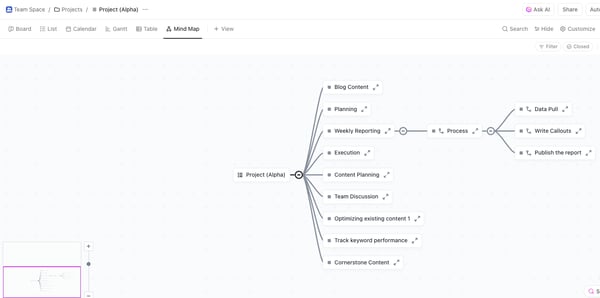
As I went through G2 reviews and compared features, what became clear to me was how easily ClickUp adapts to different workflows. Its flexibility is hard to miss. Whether I'm thinking about a simple to-do list or a fully visual Kanban board, ClickUp offers multiple views like List, Board, Calendar, Gantt, and even mind maps. That range makes it easier to switch perspectives without feeling restricted to one way of working.
The built-in Docs feature is another standout. It allows teams to create detailed project documentation, store meeting notes, and draft reports directly within the platform. Instead of relying on separate tools for documentation, everything stays centralized, which makes it easier to link information and maintain context across projects.
Task hierarchies and dependencies also play a big role in how ClickUp handles larger projects. Breaking work into subtasks, defining relationships between tasks, and tracking dependencies feels structured and manageable. Features like the Gantt chart view make it easier to visualize timelines and identify potential delays, giving more control when managing complex workflows.
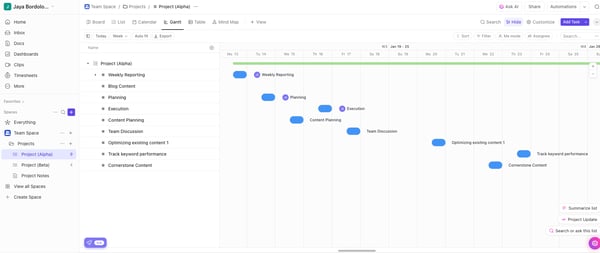
ClickUp brings tasks, docs, and goals into a single workspace, which adds a lot of flexibility, although it can introduce some complexity at scale. From G2 feedback, I noticed that performance can feel slower when working with very large projects or heavily automated workflows. Teams usually handle this by organizing work into smaller spaces, archiving completed items, and keeping active views streamlined, which helps maintain a smoother experience.
When I look at where ClickUp fits best, it works well for teams that prioritize consolidation and flexibility. It's a strong option for teams that want to manage tasks, documentation, and goals in one place without switching between tools. For growing teams especially, that ability to customize workflows and scale processes over time makes a noticeable difference.
"I really like ClickUp's intuitive UI, specifically its very structured and customizable way of handling projects. It's great with its AI features and multiple views like board views, calendar views, and list views, which make managing multiple projects smoother and ensure nothing slips through the cracks. The ability to link with Outlook or Google accounts is fantastic, handling meeting minutes, keynotes, and task assignments efficiently, letting me focus on the critical parts. It simplifies a lot of manual work and is pretty cool overall. The user experience is very good and intuitive, not overwhelming, making it accessible to both beginners and experts. Also, the setup was very easy, allowing us to roll with the basics without needing much handling."
- ClickUp Review, Harihar V.
"Its high level of customizability comes with a steep learning curve and can make the interface feel cluttered. At times, I've also experienced slow loading and occasional technical bugs. The mobile app is noticeably less intuitive than the desktop version. Finally, while the extensive feature set is powerful, it can feel overwhelming when you're working on simpler projects."
- ClickUp Review, Tony G.
Explore the best AI Note-Taking Software on G2 to keep your ideas organized and your team aligned.
Notion is often described as an all-in-one workspace, and as I went through G2 reviews, it became clear why. It's not limited to task management or documentation alone. Instead, it blends both into a flexible system that teams can shape around their workflows. That flexibility also shows up in how users manage everyday work, with 91% of users rating its to-do list capabilities highly, highlighting how effectively it supports structured organization.
Customization sits at the core of the Notion experience. Pages, databases, dashboards, and layouts can all be tailored to fit specific needs, whether that's managing tasks, organizing knowledge, or building internal wikis. Based on user reviews, this level of control is what draws teams in, especially those that want their workspace to mirror how they think and work rather than follow a predefined structure.
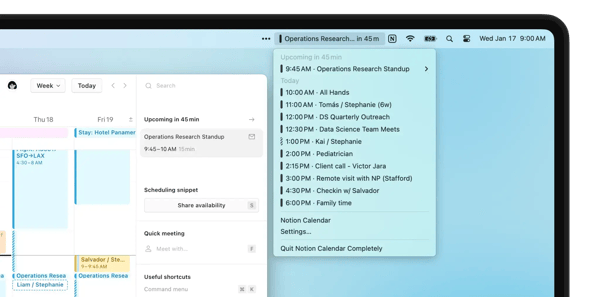
Another area where Notion stands out is how it brings different types of content together. Embedding videos, files, links, and notes within the same page keeps everything centralized. Combined with features like infinite page nesting and linked databases, it becomes easier to organize complex information without losing context. G2 users frequently highlight this as a key advantage when managing documentation-heavy workflows.
The addition of Notion AI adds another layer of usefulness. It helps with summarizing content, generating ideas, and drafting documents, which can speed up everyday tasks. Based on G2 feedback, this is especially valuable for teams working with large volumes of content or needing quick turnarounds on documentation.
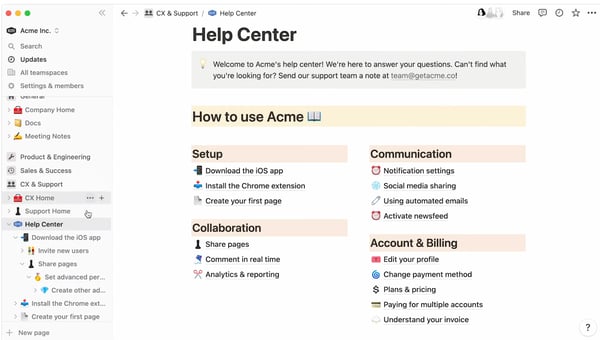
Notion offers a high degree of flexibility for structuring pages and databases. At the same time, G2 reviewers mention that exporting content to formats like PDF or Markdown can require some cleanup, especially for more complex layouts. Teams that use simpler templates or define export-friendly formats tend to manage this more smoothly, particularly when sharing content externally.
Overall, G2 users frequently highlight Notion AI as a meaningful boost to day-to-day work, speeding up summaries, idea generation, and quick drafts. Combined with Notion's adaptable pages and databases, it remains a strong hub for knowledge, collaboration, and content that teams can shape to their workflows.
"What I think is best about Notion is that everything is connected in one place. It can connect to other programs such as Slack or Google Calendar, and it actually does work well instead of being a mess, so everything remains organized instead of having to use multiple programs. It is also very versatile and can work well on a daily basis, and the AI is useful for summarizing notes or creating content, which can save a lot of time. It is also very reasonably priced for what you receive, and the free version is actually useful for most people's needs."
- Notion Review, Khaled M.
"What I dislike about Notion is that it can feel a bit slow or heavy at times, especially with large databases or when switching between pages. It also has a learning curve — the flexibility is great, but it can be overwhelming for new users. Sometimes I just want to do something simple, and it takes more steps than expected."
- Notion Review, Jose P.
Managing onboarding like a project only gets you halfway there.
See how client onboarding software is built specifically for post-sale execution.
Airtable is a project management tool that combines the simplicity of spreadsheets with the power of a relational database. When I evaluated the user feedback on G2, what stood out immediately was how naturally it lets you structure and organize data without feeling constrained by traditional spreadsheet limitations. It gives teams flexibility in how they scale their workflows. It works just as well for simple tracking as it does for more complex systems, which makes it appealing for teams that want to start small and expand over time without switching tools.
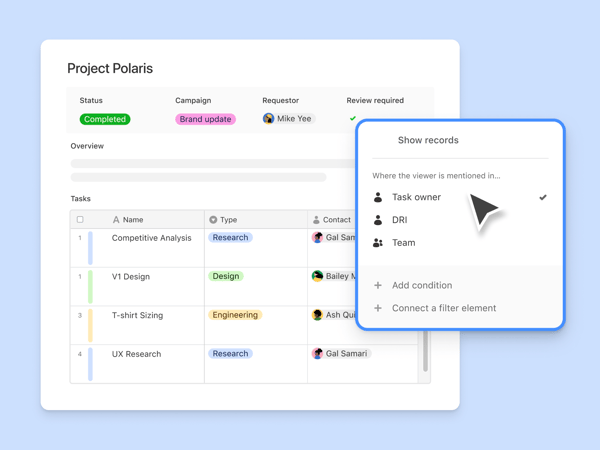
Another feature that caught my attention was Airtable's Apps (previously called Blocks). These add-ons extend functionality with tools like charts, maps, timelines, and page designers. Features like the Page Designer make it possible to create polished, presentation-ready outputs directly from your data, without needing external tools.
The database linking feature is where things start to feel more powerful. It allows tasks, projects, and datasets to connect with each other in a structured way, making it easier to track relationships across work. Once that structure is in place, managing interconnected workflows becomes far more intuitive, especially for teams handling layered or data-heavy projects.
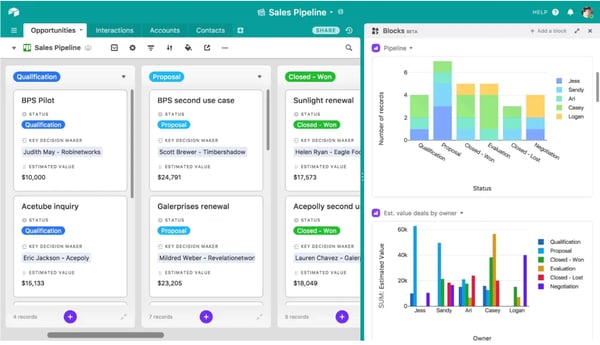
Airtable is strong when it comes to structuring relational data and workflows. G2 users note that workload visibility and advanced reporting may require additional setup, especially when managing capacity across multiple projects. With a clear structure for tracking ownership, effort, and timelines, teams are generally able to build systems that provide better visibility as their needs grow.
When I look at where Airtable fits best, it feels like a tool that rewards teams willing to think in terms of systems rather than just tasks. It's not just about tracking work, it's about structuring how information flows across projects. For teams dealing with interconnected data, custom workflows, or anything beyond linear task tracking, Airtable offers a level of flexibility that's hard to replicate without building something from scratch.
"It sits in that sweet spot between a database and an app builder, so you can model real operational workflows, not just track data. We've used it to power things like partner onboarding, network applications, and API-driven processes, and it holds up well if you structure it properly. The ability to layer automations, interfaces, and integrations on top of the same data model is huge. It lets you connect ops, product, and GTM without forcing everything into one rigid system or needing engineering for every change."
- Airtable Review, Lauren B.
"I genuinely have very few issues with Airtable, but as bases grow and datasets become larger, performance can slow slightly if they are not structured well. In my experience, this is largely mitigated through thoughtful architecture, clean relationships and good data organisation, but it does require some planning as systems scale."
- Airtable Review, Matthew W.
Ever feel like project management tools promise more than they actually deliver? I've come across that too.
While evaluating Wrike through G2 reviews and product capabilities, it felt like one of the few tools that actually balances depth with usability. It's robust enough to handle complex workflows, yet once things are set up, it doesn't feel unnecessarily heavy.
One feature that really stood out is the dynamic request forms. They help collect project requirements in a structured way, cutting down the usual back-and-forth across teams. This becomes especially useful for teams handling high volumes of incoming work or coordinating across departments.
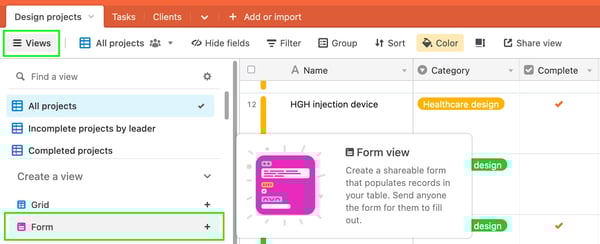
Another area where Wrike feels strong is collaboration. The proofing and approval system makes it easier to review documents, share feedback, and finalize decisions without switching tools. For teams working across functions, this keeps everything tied to the workflow instead of scattered across platforms.
Automation is another piece that adds to that efficiency. Assigning tasks, triggering updates, and sending reminders can all be handled in the background, which helps keep projects moving without constant manual follow-ups. That execution layer shows up clearly in G2 data as well, with 91% of users rating task creation and assignment highly, highlighting how well Wrike supports structured workflows in practice.
Real-time updates keep work visible across teams, which is one of Wrike's strengths in collaborative environments. Insights from G2 reviewers suggest that notifications can feel inconsistent without some tuning. Alerts may either be easy to miss or become too frequent, depending on how they're set up. Most teams address this by customizing notifications at the project level, relying on @mentions for critical items, and setting up digest summaries so important updates stand out without adding unnecessary noise.
When I step back and look at where Wrike fits, it feels like a tool built for teams that need coordination without chaos. It doesn't try to simplify everything — it gives structure to complex work. For cross-functional teams managing approvals, dependencies, and ongoing collaboration, that balance makes a noticeable difference.
"I like Wrike for its clean interface that makes it easy to create tasks, assign them, and track each task's progress without being time-consuming. The different views, such as list and board, are especially useful as they offer flexibility in task management. The list view helps me see all tasks in a structured way, including details like deadlines and priorities. Boards are handy for visualizing and tracking the progress of tasks by moving them between stages like To Do and Completed. Wrike also works well in organizing work and keeping everything in place, and the initial setup was straightforward."
- Wrike Review, Ajay B.
"One area where Wrike could improve is usability for new users. The platform is feature-rich, but the initial learning curve can feel steep, especially for teams new to structured project management tools. Some advanced features and settings take time to configure properly. Additionally, customization and reporting options can feel overwhelming without prior experience, and certain advanced capabilities are locked behind higher pricing tiers. With simpler onboarding and clearer guidance for beginners, Wrike could be even more user-friendly."
- Wrike Review, Lingeshwar K.
Backlog is built specifically for development teams, and that focus shows up in the user feedback on G2. Instead of trying to cover every possible project management use case, it stays centered on what developers actually need — managing issues, tracking bugs, and keeping code and tasks connected.
What stood out most is how cleanly it handles issue tracking. Tasks, bugs, and updates follow a structure that's easy to navigate, and there's very little friction in moving work across stages. From the review data, this simplicity comes up repeatedly, especially for teams that don't want to spend time configuring workflows before getting started.
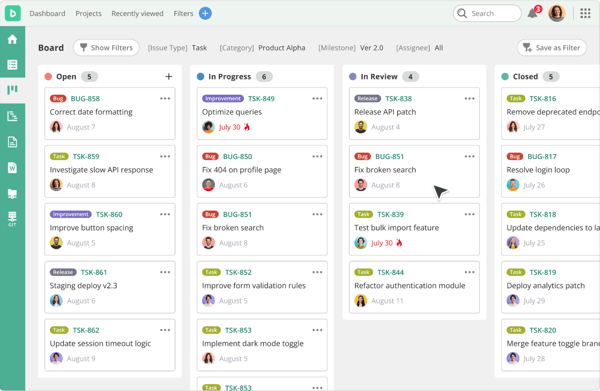
Another area where Backlog feels strong is how it brings version control into the same space as task management. Its built-in Git and Subversion repositories make it easier to connect code changes directly to tasks. That tight connection between development and tracking reduces the need for switching tools, which many users highlight as a key advantage in day-to-day workflows.
Collaboration is also handled in a straightforward way. Comments, file sharing, and updates are tied directly to tasks, which keeps discussions contextual and easy to follow. From what I saw across reviews, this helps smaller teams stay aligned without needing a heavier collaboration layer.
What adds to this experience is how quickly teams are able to get up and running. G2 data shows 95% of users rate ease of setup highly, which reflects how little effort is needed to start managing work.
Backlog keeps things intentionally simple, and that focus shapes where it fits best. Review data shows that teams looking for deeper customization, advanced reporting, or highly complex workflow configurations may find it limited. For teams that prioritize clarity and ease of use, this simplicity often makes it easier to maintain workflows without constant adjustments or overhead.
When I look at where Backlog fits, it feels like a tool that works best when the goal is to keep development work structured without overengineering the process. It's not trying to replace every tool in your stack. Instead, it does a few things well — issue tracking, version control, and collaboration — and keeps them tightly connected. For development teams that value simplicity and focus, that approach can be far more effective than a feature-heavy system.
"I find Backlog great for keeping my engineering projects on track by breaking down big goals into bite-sized tasks. I love seeing progress visually and moving tasks from 'In Progress' to 'Resolved'. Once a task is in Backlog, I can forget about it, which saves my brain for actual engineering work. I appreciate that Backlog remembers where I stopped, so I don't wonder if I've finished something. I like that when a task is complete, or a comment is left, notifications pop up in Slack or Teams. The flat-rate pricing for up to 30 users is fantastic for small groups, and the built-in Wikis and Git repositories are a massive win for engineering projects."
- Backlog Review, Tan S.
"There are a few things that could be improved based on my experience using Backlog. While the interface is generally clean, it sometimes feels a bit outdated and not as smooth or intuitive as some newer tools. Certain actions, like updating tasks or navigating between sections, can take more clicks than expected. I've also noticed that performance can slow down when working with larger projects or a high number of tasks. Another limitation is the lack of deeper customization. For example, it would be helpful to have more flexible dashboard options or ways to better organize tasks based on specific workflows."
- Backlog Review, Tan S.
Have more questions? Find the answers below.
monday AI Work Platform and Asana stand out for collaboration with shared boards, timelines, and real-time updates. For documentation-heavy collaboration, Notion adds wikis and databases alongside tasks, making it useful for teams managing both content and execution.
ClickUp, Wrike, and monday AI Work Platform offer built-in time tracking tied to tasks. These features make it easier to monitor effort, track progress, and improve planning without relying on external tools.
ClickUp and Notion are strong options for startups due to their flexibility and ability to handle multiple workflows in one place. Backlog is also a good fit for smaller development teams that need issue tracking and version control without added complexity.
Asana and ClickUp provide reliable mobile experiences for managing tasks, tracking updates, and collaborating on the go. monday AI Work Platform also supports mobile workflows, especially for teams that rely on visual project tracking.
Smartsheet and Wrike are commonly used in consulting environments where managing multiple clients, timelines, and approvals is essential. Their structured workflows and reporting capabilities make them well-suited for client-facing work.
Smartsheet and Wrike are often preferred for reliability in process-driven environments. For development-focused teams, Jira is a dependable option due to its structured workflows and strong issue tracking capabilities.
Jira is widely used for software development, especially for agile workflows, sprint planning, and bug tracking. Backlog is a simpler alternative that combines issue tracking with version control, making it suitable for smaller or growing dev teams.
Asana and monday AI Work Platform are known for their ease of use and clear interface. ClickUp offers more customization, while still remaining approachable once workflows are set up.
monday AI Work Platform, Asana, and ClickUp are widely recognized for their balance of usability, flexibility, and feature depth. Their consistent performance in G2 reviews makes them popular choices across industries.
monday AI Work Platform and Asana are frequently rated highly by mid-market teams due to their scalability and ease of adoption. Smartsheet also sees strong traction in this segment, especially for structured planning and portfolio management.
Here's the deal: there's no "perfect" project management tool for everyone — it's all about finding what works for you. Each tool has its strengths, and the right choice depends on your team's style and goals.
Looking for something flexible and visually clear? Monday Work Management is a standout. Want a tool that keeps tasks organized while boosting collaboration? Asana is built for teamwork. If you're all about structure and handling large-scale projects, Smartsheet has the power and precision you need. ClickUp and Notion let you customize everything to your heart's content. And if you're working in software development, Jira and Backlog give you the structure and control to stay on top of every release.
The best tool is the one that fits your flow, keeps you organized, and makes you wonder how you ever lived without it. So go ahead, test a few, and find the one that clicks. Because when your team's in sync, hitting goals feels less like work and more like a flex. Let's make 2026 the year of productivity done right.
Looking to streamline how work flows across your team? Check out my colleague's review of the best workflow management software for 2026.
This article was originally written in 2024 by Jaya Bordolai. It has been updated with new information based on findings from testing and evaluation of the latest list of top G2 products.


I evaluated 10+ tools to find the best free project management software for software teams....
 by Washija Kazim

I’ve managed enough projects to know the pain points by heart: chasing updates, piecing...
by Washija Kazim

Recently updatedSummer 2026 Grid® Report · Published May 26, 2026 This guide was last...
 by Yashwathy Marudhachalam