


I'm one of those people who can't resist tweaking photos until they look just right. You know, the kind of vibrant, scroll-stopping images that make you do a double take (and hopefully a double tap).
Photo editing software has been my secret weapon, whether fixing a slightly dull sunset, popping the colors of a flower, or turning a simple portrait into Picasso's work.
But I know (believe me!) how challenging it can get to spend hours fiddling with settings and filters only to end up with a photo that still doesn't feel right. That's why I set out to find the best photo editing software that struck the perfect chord between powerful features, ease of use, and creative freedom. After testing 25 options, I narrowed it down to 8 tools that truly stood out: Adobe Photoshop, Canva, Adobe Lightroom, Apple Photos, Picsart, Adobe Firefly, Luminar Neo, and 1min.AI.
And it’s not just a personal obsession, the photo editing software market is set to grow from $1.2B in 2025 to $1.82B by 2034 at 4.7% annually.
So, whether you're a pro photographer, an Instagram enthusiast, or someone who wants their photos to look amazing, this list has something for everyone. Let's make those pictures (picture) perfect.
* These photo editing tools are top-rated in their category, according to G2's Spring 2026 Grid Reports. I’ve also added their monthly pricing to make comparisons easier for you. Adobe Express, Lightroom Classic, and Photoshop Elements are not listed separately because they are part of Adobe’s broader product ecosystem, which includes Photoshop and Lightroom that are featured above.
Photography is one of those skills that always warrants improvement. But when it comes to editing and sharing my pictures, I want my tools to help me perfect those shots.
Today's photo editing tools go far beyond basic filters. They have the power and "intelligence" to revamp pictures, whether taken on a smartphone or a digital single-lens reflex (DSLR) camera. The tools I rely on for editing help me reshape images, enrich details, adjust hues, add special effects, and easily remove unwanted elements. G2 data shows that 92% of users are satisfied with ease of setup, and 91% rate these tools highly for ease of use, which speaks volumes about how accessible modern photo editors have become.
That said, choosing the right editing tool isn't always straightforward. What am I looking to enhance? Where do I plan to share these images? And how much does image quality matter to me? Answering these questions helped me find tools that fit my style.
My goal was simple: to find marketing calendar software that keeps campaigns organized, teams aligned, and deadlines on track. I started with G2’s Grid Report to create a shortlist, balancing user satisfaction and market presence.
Then I rolled up my sleeves and tested each tool, evaluating how well they handled campaign planning, scheduling and dependencies, collaboration and approvals, reporting, and key integrations. I also used artificial intelligence to analyze hundreds of verified G2 reviews to understand what marketers loved most, where they felt let down, and which platforms consistently delivered real value.
I also considered different real-world needs, from professional workflows to quick edits on basic devices because not everyone is working on a high-end setup.
The screenshots featured in this article come from G2 vendor listings and publicly available product documentation.
Photo editing apps are everywhere — free ones, expensive ones, basic tools, and advanced programs. If you’ve ever gone down a rabbit hole searching for photo editing stuff, you know how overwhelming it can get. So, how do you find the best fit? Here are the six things I look for in photo retouching software.
Considering all of this, I tested over 25 applications in the past few weeks, and the eight best photo editing software listed here are the ones that I liked best. I was impressed by their extensive photo enhancement features, intuitive design, AI automation, and creative possibilities.
To be included in the photo editing application category, a solution must:
*This data was pulled from G2 in 2026. Some reviews may have been edited for clarity.
Adobe Photoshop is widely popular — and for good reason. Whether I'm retouching portraits, adjusting colors, or completely transforming images, the tools at my disposal blow my mind. My favorite feature is the layering system, which lets me stack edits, play with transparency, and blend everything perfectly. Layer access makes it easy to separate different parts of an image, apply adjustments independently, and merge elements without altering the original file.
Masks are another of my favorites. I can selectively apply changes to specific areas without affecting the entire image. It’s no wonder professionals across creative industries rely on it. Even for tasks that seem simple, Photoshop offers a dozen different approaches, letting me choose the one that fits best. The flexibility is truly unmatched.
Plus, I rarely need other programs since Photoshop bundles everything into one platform — graphic design, photo editing, and even 3D rendering are all covered.
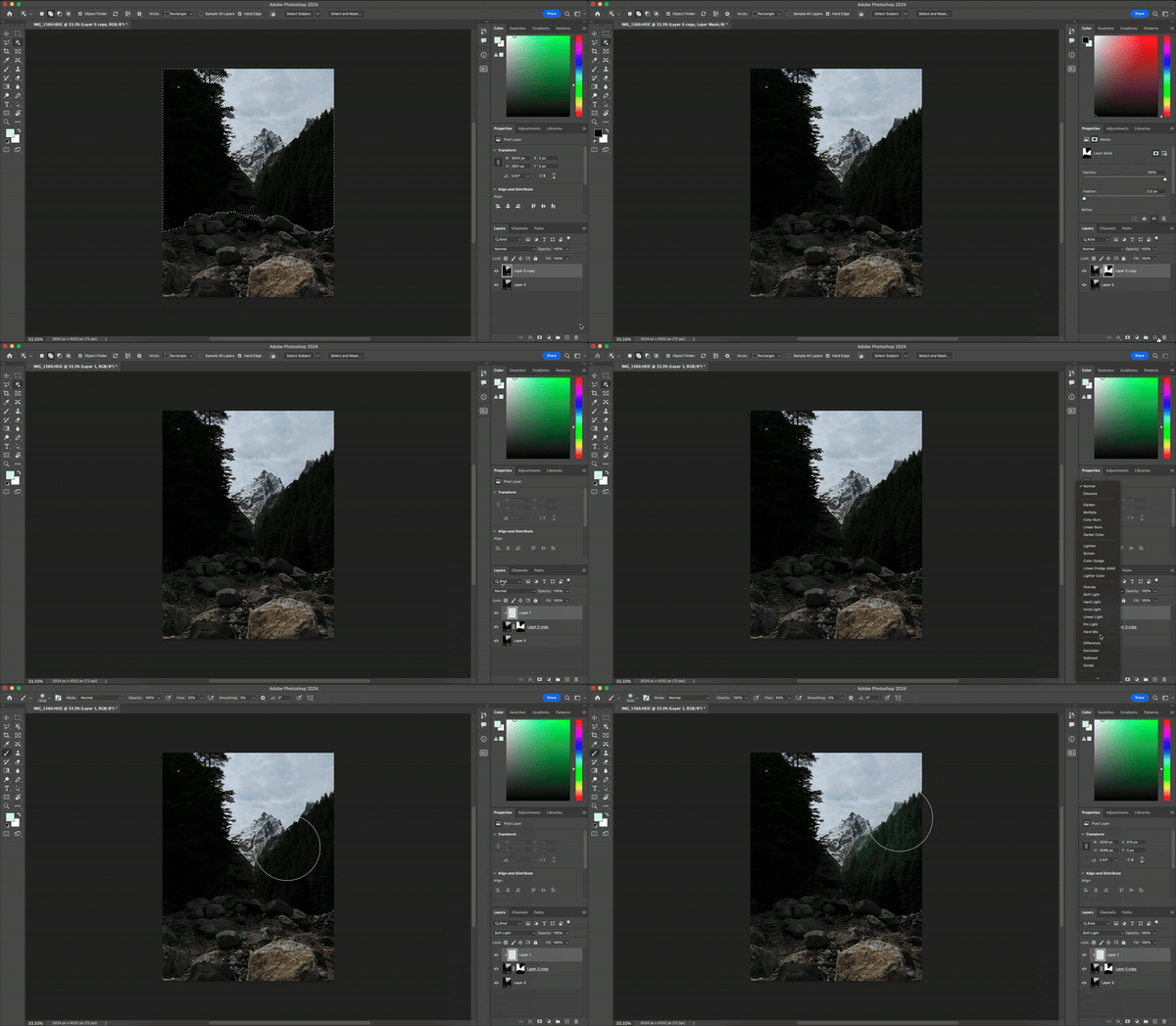
Photoshop remains one of the most powerful and versatile photo editing tools I’ve ever used. The depth of control it gives over layers, retouching, and creative effects is unmatched, once you get the hang of it, it feels like there’s nothing you can’t create.
What really stands out is how much G2 users echo this sentiment. With a 93% overall satisfaction rating and an impressive 95% “meets requirements” score, Photoshop is clearly living up to expectations among professionals who demand precision.
Adobe Photoshop remains the industry standard for image editing, offering unmatched creative control, precision, and versatility. From retouching and compositing to digital painting and graphic design, it’s built to handle virtually any creative workflow with professional-grade results.
Because of its depth, Photoshop is designed for users who want complete creative freedom. Some G2 users mentioned that mastering its vast range of tools and menus takes time, but that learning curve is part of what makes it so powerful, once you understand the interface, the possibilities are endless. With abundant tutorials, built-in guides, and a thriving creative community, getting comfortable with Photoshop becomes a rewarding process for both beginners and pros.
The software is optimized for high-performance systems, ensuring smooth operation when handling large files and advanced effects. While some users noted that it runs best on newer hardware and comes at a premium price, those factors reflect its professional-grade capabilities. For frequent creators, the value is clear, you’re investing in a platform trusted by the world’s top designers and photographers.
Adobe even makes it easy to explore before committing to the 7-day free trial, which lets users experience the full creative suite and decide how it fits into their workflow.
“What I like about Adobe Photoshop is its powerful editing capabilities and flexibility. The layer-based editing system makes it easy to work on different elements without affecting the whole image. Tools like content-aware fill, selection tools, and filters help me edit photos quickly and professionally. I also like how it supports a wide range of formats and integrates well with other Adobe tools. It has a bit of learning curve, but once you get used to it, it becomes very efficient for both basic and advanced editing tasks.”
- Adobe Photoshop review, Manav S.
“What I dislike about Adobe Photoshop is that it can feel overwhelming for new users due to its large number of tools and features. The interface, while powerful, has a learning curve that takes time to get comfortable with. It can also be resource-intensive, requiring a strong system to run smoothly, especially when working with large files or multiple layers. Additionally, some basic tasks could be more streamlined, as certain workflows involve multiple steps that slow down quick edits. Despite these points, the overall functionality still makes it a highly capable tool.”
- Adobe Photoshop review, Dhwanil K.
If you’re a beginner and just looking for some basic photo editing, Photoshop Elements may be worth a look. Or, if you want to make on-the-go changes to your creative pixel creations, try Adobe Photoshop Express.
Here’s a detailed comparison between Adobe Photoshop, Adobe Photoshop Express, and Photoshop Elements to give you a clearer idea.
While Canva is best known for its design templates, I’ve found its photo editing tools surprisingly handy. The intuitive interface and drag-and-drop functionality make editing effortless without dealing with the complexities of professional software.
I can fine-tune colors, add text or image overlays, and use simple retouching tools to polish images without spending hours editing. Cropping, rotating, and resizing is as easy as it gets, and with just a click, I can apply filters to change the vibe of a photo completely. When I need more precision, brightness, contrast, and saturation adjustments, help me get the look I want.
The background remover (which I unlocked with Pro) is unlike any other. With just a few taps, it completely changes or erases the background of a photo, saving me a lot of time when I want to isolate a subject or create a collage. Magic Switch tool is another gem — I can edit a photo once and resize it instantly for different platforms, which saves so much time when creating social media content.
/Edited%20with%20Canva.webp?width=600&height=279&name=Edited%20with%20Canva.webp)
Canva continues to impress me with how simple and accessible it makes design and photo editing. For quick touch-ups, resizing, or adding creative elements, it’s incredibly user-friendly and ideal for anyone who wants professional-looking visuals without needing advanced editing skills.
What’s even more striking is how much G2 data backs this up. Canva has a 95 % satisfaction score and an outstanding 96 % ease-of-use rating, proving that its appeal lies in just how intuitive it feels. Nearly 69 % of its users come from small businesses, showing that it empowers solo creators, startups, and marketers who want to produce studio-quality visuals without a learning curve.
Canva’s strength lies in its simplicity and speed. Some G2 users mentioned that it doesn’t offer the same level of precision as professional editing tools like Photoshop, with more basic controls for things like clone stamping, blemish removal, and gradients, but this streamlined setup is exactly what keeps Canva fast, approachable, and ideal for everyday design needs. The platform focuses on ease of use rather than complexity, making it perfect for quick turnarounds and consistent branding.
The file management system is built for collaborative workflows, giving teams easy access to shared designs. While a few reviewers noted they’d like more structured organization for large volumes of projects, Canva’s integrated folders and tagging tools help maintain efficiency without overcomplicating navigation.
For day-to-day editing, marketing, and content creation, Canva remains one of the most flexible tools available. It’s also one of the best desktop photo editors for quick social media pics that doesn’t lag, especially if you want something lightweight and efficient. Starting with the free plan lets you explore its core features, and upgrading to Pro or Team unlocks advanced functionality that’s well worth the investment. That’s also why I’d recommend Canva if you want a good beginner-friendly photo editor on Windows that still looks pro without complex tools.
“What i like most about canva is how simple and user friendly it is even for someone who is not a professional designer, In my day to day work, I use it to create presentations, social media posts, and quick visuals, and it savs a lot of time. The drag and drop interface makes designing very straightforward, and the availability of templates is a big advantages. it helps me get started quickly without having to design everything from scratch. I also like the variety f elements , fonts and images available within the platform..”
- Canva review, Ritik J.
“The main thing I dislike is that many of the best templates available in Canva are only in the Pro version, and I can’t access them unless I pay. This creates a limitation while working, because I sometimes can’t move forward with what I’m trying to do if I’m unable to pay for the Pro version. Also, the application lags sometimes when I’m working on larger projects.”
- Canva review, Aman G..
If you’re already familiar with Canva and have wondered is Canva Pro is worth it, find out here.
Adobe Photoshop Lightroom is one of those tools that makes life easier if you're dealing with a ton of photos. The batch editing feature allows me to throw on a preset and apply it across the board — done in minutes. This massive time-saver eliminates the need to manually edit each image while maintaining consistency and reducing errors.
It's also easy (after you've gotten used to the tool) to adjust shadows, tweak colors, fine-tune details, add effects, and give your photos that professional pop. The sliders and controls make precision editing accessible even to those without advanced editing skills.
Additionally, the organizational capability is a major pro because I can pick up where I left off and, with a few clicks, rate, label, and categorize multiple shots.
/Edited%20with%20Lightroom.webp?width=600&height=350&name=Edited%20with%20Lightroom.webp)
Adobe Photoshop Lightroom stands out for its clean interface, intuitive layout, and professional-grade photo enhancement tools. It’s especially powerful for color correction, exposure adjustments, and batch editing — offering photographers a fast and fluid editing experience without unnecessary clutter. For creators who want polished, natural-looking results, Lightroom delivers both quality and efficiency. This is easily one of the best photo editing programs for RAW files that’s not super complicated like Photoshop.
The data backs up its reputation, too. According to G2 reviewers, Lightroom earns an impressive 92% satisfaction rating and a 93% “meets requirements” score, showing that users truly find value in its precision and performance.
Because Lightroom is designed for precision editing rather than manipulation, it has a gentler learning curve focused on mastery. Some G2 users mentioned that it takes a little time to get fully comfortable, but that learning period pays off quickly — once you understand its tools, the workflow becomes second nature. And for advanced compositing or layering, Lightroom seamlessly integrates with Photoshop, letting users switch between the two for a complete editing pipeline.
Lightroom’s subscription model ensures continuous access to updates, cloud storage, and cross-device syncing. While a few reviewers noted they’d prefer one-time purchase options, this approach guarantees users always have the latest features and performance improvements.
Overall, Lightroom remains one of the best tools for achieving clean, consistent, and professional photo edits. The 7-day free trial offers the perfect opportunity to see how it fits into your creative workflow.
“Adobe Photoshop lightroom is one of the most finest and advance photo editing tool that I have ever used I mostly use this software to make sure that the photos that we are editing for professional marketing and social media optimisation stays in high resolution. This is a tool that help us in making sure that all of our digital data is secured from fraudsters and they also stays in high quality.”
- Adobe Photoshop Lightroom review, Bahadur M..
“I've noticed that the mobile version has limited features available when compared to the Windows version of the same tool. I would recommend new users to go for the Windows version of adobe Photoshop Lightroom rather than working on its Android or iOS version because they are useless..”
- Adobe Photoshop Lightroom review, Anshu K.
If you prefer storing your projects locally on a PC and want to avoid cloud storage costs, Adobe Photoshop Lightroom Classic is worth considering.
Here’s a detailed comparison between Adobe Photoshop Lightroom and Adobe Photoshop Lightroom Classic.
If you’re like me and love snapping tons of photos, Apple Photos is a fantastic tool for managing and editing your growing library. It’s more than just a photo viewer – you'll get everything from light adjustments to cropping, filters, and even noise reduction.
One feature I frequently use is the auto-suggested adjustments. With just one tap, the app intelligently tweaks brightness, contrast, and color balance to improve the overall appearance of the photo. While the results aren’t always perfect, they often provide an excellent starting point.
Organization is another area where Apple Photos shines. Location-based sorting and smart tagging make it easier to keep track of your memories without manually creating albums. For someone like me who takes hundreds of photos on trips, having the ability to search by a specific location is incredibly convenient.
/Edited%20by%20Apple%20Photos.webp?width=600&height=359&name=Edited%20by%20Apple%20Photos.webp)
Apple Photos continues to impress with its clean interface, seamless syncing, and effortless organization across iPhone, iPad, and Mac. It’s designed to make managing and accessing photos completely intuitive, automatically sorting images by memories, locations, and people, all while syncing quietly in the background through iCloud.
The experience feels as smooth as it looks, and G2 data supports that impression: 94 % of reviewers rate Apple Photos highly for ease of use, while another 94 % praise its setup experience, confirming just how plug-and-play it feels for Apple users.
The editing tools focus on simplicity and accessibility, offering just the right features for quick, everyday touch-ups. Some G2 users mentioned that it doesn’t provide the same level of precision as pro-grade tools, but that’s what makes it so convenient. Photos is built for fast, polished adjustments rather than advanced retouching. For users who want deeper control, Apple makes exporting to third-party apps seamless, ensuring flexibility without sacrificing ease of use.
Its tight integration within the Apple ecosystem ensures a smooth experience, from automatic device backups to easy media sharing. While a few reviewers noted that syncing with non-Apple devices or managing iCloud storage takes extra steps, this closed-loop design keeps your data secure and your workflow unified. Upgrading to higher storage tiers is quick and ensures that your entire photo library remains available across all devices.
Overall, Apple Photos is a reliable, intuitive choice for everyday image management, perfect for users who value simplicity, smart organization, and seamless cross-device accessibility.
“I use Photos to store and organize my pictures and videos, easily find old memories, and quickly edit images before sharing. It’s simple, convenient, and keeps everything in one place. I like the simplicity and smart search feature the most, which makes finding and managing photos quick and effortless. The simple interface makes everything easy to use, even when I have a large photo library. The smart search feature is especially valuable because it helps me find specific moments instantly, saving time and effort. "
- Photos review, Ngal L.
“The Photos app doesn’t automatically detect photos from the Files app. This can be pretty annoying at times, especially when I expect my images to show up without having to import them manually.”
- Photos review, Akash S.
Apple Photos does a great job organizing your photos, but if you want to take the matter into your own hands, read this article on photo management.
I’ve been using Picsart for quite a while now, and it was the first photo-retouching software I downloaded on my phone. The range of features is impressive — filters, effects, background changer and remover tools, animation options, and design elements. It's perfect for turning any basic image into an Instagram-worthy post.
I especially love the selection of filters: everything from turning your photo into art to turning it into a cartoon or making it HDR. The filters are truly unique. Whether I want a bold, vibrant look or a soft, subtle edit, there's always a filter that fits the mood I'm going for.
What makes Picsart so appealing is how fun and frictionless it feels. The interface is straightforward and beginner-friendly; filters, effects, and adjustments are just a few taps away. G2 data backs up that experience: 93 % of reviewers rated Picsart highly for ease of use, and 95 % say it’s heading in the right direction, which mirrors how regularly it evolves with user feedback.
Picsart also regularly introduces new tools, filters, and templates so I can keep my designs fresh, stay current with visual trends, and add new effects to my projects without needing extra software. It’s great knowing the platform evolves with creative needs. It’s no surprise that this is one of the most popular photo editing apps people use on their phones right now, especially for quick, social-first edits.
And for the best part, the application works powerfully on mobile. I can make high-quality edits directly from my phone, whether I’m traveling, at an event, or just relaxing at home — no laptop needed.
/Edited%20with%20Picsart.webp?width=600&height=291&name=Edited%20with%20Picsart.webp)
Picsart is one of those rare editing apps that make creativity easy and fun. Its interface feels natural and beginner-friendly — filters, effects, and adjustments are all just a few taps away. Whether you’re designing for social media, creating quick edits, or experimenting with new looks, Picsart delivers instant results without requiring professional editing experience.
The platform is designed to scale with your creativity. Some G2 users mentioned that certain advanced filters and tools are reserved for Pro users, but this tiered setup keeps the free plan lightweight and accessible while allowing professionals to unlock more powerful options when they need them. It’s a structure that fits both casual creators and seasoned editors.
Because Picsart supports high-quality effects and multilayer editing, it can occasionally slow down when working with large or complex files. However, this careful processing ensures that every adjustment maintains color accuracy and visual detail — a fair tradeoff for the depth it provides. A few reviewers also mentioned they’d like expanded export options, but its support for standard formats like JPEG and PNG keeps sharing fast and universal across platforms.
Overall, Picsart strikes a great balance between simplicity and creative control. Whether you’re editing on your phone or computer, it’s an ideal choice for making standout visuals quickly and confidently.
“Picsart allows me to create a lot of my own visuals. What I use most are the layers and blend modes in order to layer different sequence options and multiply them in order to highlight the direction of forces (the vectors), and therefore make my visuals easier to understand. I also utilize fade-style transition options to add very small story lines into each of my presentation. The editor seems very fluid and responsive, I utilized approximately 20 images within the editor and did not experience a single freeze. I also found that the templates were functional and easy to reuse.”
- Picsart review, Monica P.
“Many advanced features are available only in the paid versions, and the free version has many/frequent ads. Edited pictures also become very heavy in terms of storage size. More advancement is needed, like Photoshop. Overall, it’s useful for basic to intermediate use cases. Customer support, as I have come across, is not very responsive.”
- Picsart review, Pooja K.
If you're looking for a beginner-friendly masterclass on photo editing and want to understand the essential elements, check out this article on how to edit photos and get editing ideas.
Need to fill in parts of an image or generate new elements from scratch? Run to Adobe Firefly.
Firefly isn't your typical photo editing tool, but it’s more of a creative sidekick. With Firefly, you can remove objects from images, add new elements, or swap out backgrounds — all powered by AI.
The generative fill option works well when I want to fill in an empty space or remove an object to even out the background. You simply highlight the area you want to make changes to and write your prompt. Then, Firefly will offer multiple generative options for each prompt. The ability to choose from several variations not only saves time but sparks creativity by presenting ideas I may not have considered.
Another highlight is the integration with Adobe's ecosystem. Since I already use Photoshop and Lightroom, Firefly naturally fits into my workflow. I can start a project in Photoshop, tap into Firefly for AI-powered enhancements, and bring everything together without ever leaving the Adobe suite.
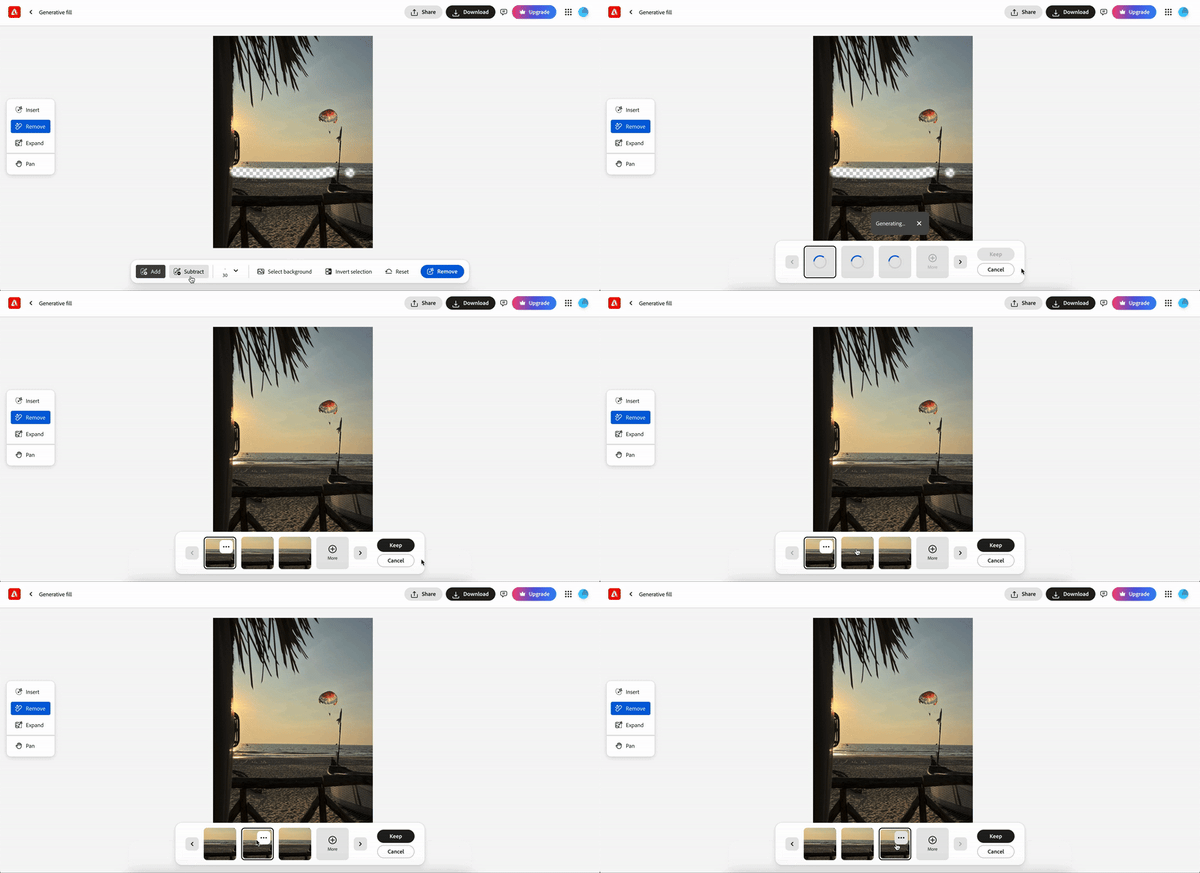
At its core, Firefly taps into Adobe Sensei (Adobe’s AI engine), using deep learning to make edits based on your prompts. I really like how well it handles artistic and abstract designs; it feels creative, responsive, and surprisingly intuitive for an AI tool. G2 reviewers echo that sentiment. Firefly earns an impressive 92 % satisfaction rating and an equally strong 92 % for “product direction,” showing users trust where Adobe is taking its generative tools.
Adobe Firefly stands out as one of the most intuitive and visually stunning AI design tools available today. It’s perfect for artists, marketers, and designers who want to experiment with generative imagery while staying within Adobe’s familiar creative ecosystem. The interface is simple yet powerful, offering a seamless balance between guided creativity and professional polish. Besides, it’s one of the most reliable options if you’re wondering which photo editing software has the most realistic AI background remover without needing advanced skills.
Firefly truly shines in producing stylized, artistic, and illustrative visuals. Some G2 users mentioned that it performs best for creative compositions rather than photorealistic results, especially when generating faces or hands, but this intentional focus on artistry over realism is what gives Firefly its unique charm. It’s built to spark imagination, helping creators explore concepts, textures, and moods without getting bogged down by technical perfection.
The credit-based system on the free plan is designed for flexibility and experimentation. A few reviewers noted that credits can run out quickly during refinement, yet this structure encourages more intentional prompting and exploration while maintaining accessible entry for casual users.
Overall, Adobe Firefly remains one of the most inspiring AI tools in Adobe’s lineup, offering a polished and beginner-friendly way to bring creativity to life with just a few prompts.
“Firefly excels at making the initial creation process incredibly fast. It enables you to create many visual possibilities, experiment with various styles, and try out many different creative options in just a few minutes. This is particularly useful for campaigns where you need to create rough outputs quickly because you are trying to get feedback from your internal team or clients services work.”
- Adobe Firefly review, Shams T.
“Often enough that i have noticed working as an UI/ UX designer, the outcomes will need some cleanup. The generated images lack precision, especially when it comes to such details as hands, text positioning, and correct proportions. Final output cannot be expected to be flawless without manual work.”
- Adobe Firefly review, Arushi B.
Image generators are trending for all kinds of reasons, from creativity to controversy. Discover what they can do and explore our top 10 free AI image generators list.
If I have to summarize my experience with Luminar Neo, it lets me make dramatic edits in the best way. The photo enhancement tools make my shots look sharper and more vibrant without feeling overprocessed. It makes complex tasks, like masking skies or enhancing details, almost effortless. Magic? Close enough! From simple touch-ups to complex color grading, there’s a lot packed into this software, and it’s definitely worth checking out.
One of Luminar Neo’s biggest selling points is its AI-powered tools. Features like Sky AI (sky replacement) and Structure AI (structure enhancement) feel intuitive and make a noticeable difference in just a few clicks. I’ve always found sky masking tricky in other software, but with Luminar Neo, it feels almost too easy. It’s the kind of app that makes you feel like a pro, even if you’re just starting out.
Another reason I stick with it is that it can be used as standalone software or as a plug-in for Adobe Photoshop, Lightroom Classic, and Apple Photos. It blends magically into my existing workflow, so I can jump between apps without losing momentum. That ease of use isn’t just my impression; G2 reviewers echo it. 91 % rate Luminar Neo easy to use and 91 % praise its quality of support, making it one of the most accessible pro-grade tools on the market. Its overall satisfaction score of 88 % highlights how consistently it delivers on creative expectations, even among demanding photographers.
/Edited%20with%20Luminar%20Neo.webp?width=600&height=350&name=Edited%20with%20Luminar%20Neo.webp)
Luminar Neo continues to impress with its powerful AI-driven enhancements and intuitive workflow. Its intelligent tools for lighting, composition, and sky replacement make it easy to transform photos into polished, professional-grade images in minutes, with no steep learning curve required. For photographers who value creativity and speed, Luminar Neo delivers both.
The platform’s advanced AI processing ensures exceptional detail and precision, even with complex edits. Some G2 users mentioned that performance can slow slightly when handling large RAW files or multiple AI tasks at once, but this deliberate processing prioritizes image quality over speed, producing cleaner, more realistic outcomes. Occasional restarts help recalibrate performance, ensuring stable, high-fidelity rendering for larger projects.
Luminar’s modular pricing model also reflects its flexibility. While a few reviewers found the separate add-ons confusing at first, this structure allows users to pay only for the features they need, making it a scalable solution for both hobbyists and professionals. It’s also a strong pick if you’re looking for the cheapest legit Photoshop alternative for basic portrait retouching, thanks to its AI-powered tools that simplify complex edits.
Overall, Luminar Neo remains one of the best tools for creative photographers who want premium results with minimal manual work. Its AI innovation, elegant interface, and consistently high output make it a standout choice in modern photo editing.
“I use Luminar Neo for its AI-driven background remover, which I find offers professional-level results with minimal effort. It's a good photo editing software that I've preferred over others. One of the reasons I stick with Luminar Neo is that it's free to use, not so complicated, and very user-friendly. Many users, including myself, appreciate swapping complex manual editing in Lightroom for the one-click AI automation Luminar Neo provides. It's extremely simple and beginner-friendly, making the transition from other software smooth and enhancing my editing experience.”
- Luminar Neo review, Rupak P.
“Sometimes it gets a bit slow with bigger RAW files, and not every AI mask is perfect, especially when there’s tricky lighting or fine details like hair or trees.”
- Luminar Neo Review, Marharyta M.
If I had to sum up my experience with PicMonkey, I’d say it makes photo editing feel approachable without making the results look basic. It gives me enough creative control to polish images, create social graphics, and put together branded visuals without the kind of steep learning curve that usually comes with more advanced design software. When I want something that feels quick, clean, and dependable, PicMonkey is easy to come back to.
One of the first things that stood out to me is how intuitive the platform feels. The interface is clean, the tools are easy to find, and I don’t have to spend forever figuring out where basic edits live. That ease of use shows up consistently in user feedback too, with many reviewers praising how simple it is to jump in and start creating right away. So, if you’re looking for a photo editor that’s great on a low-end laptop and won’t crash, PicMonkey’s lightweight, browser-based setup makes it a reliable choice.
Another reason PicMonkey works so well is speed. When I’m editing photos, building social posts, or making quick marketing creatives, I can move through the workflow without getting bogged down. Reviewers repeatedly mention how fast it is to create polished visuals, and that convenience makes a real difference when I’m working on repeat content or short deadlines.
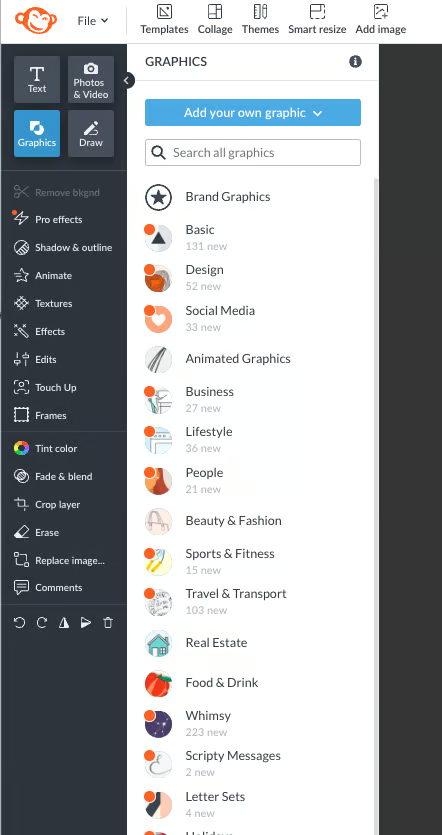
Templates are another big strength. PicMonkey gives me a solid starting point for social media graphics, collages, promotional images, and other visual assets, which saves me time when I don’t want to start from scratch. A lot of users seem to feel the same way — the ready-made layouts and easy customization make it much easier to create consistent-looking designs without needing advanced design skills.
I also like that it’s web-based. Being able to access my work from different places without being tied to one device makes it especially convenient for quick edits or last-minute updates. That flexibility comes up often in reviews, particularly from users who like having an online photo editor they can open wherever they are.
Another standout is how well PicMonkey balances photo editing with design. It’s not just about touching up images, I can add text, resize graphics, create branded assets, and build content that feels presentation-ready. That combination makes it especially useful for social media, small business marketing, and day-to-day content creation where I need more than just a basic photo editor.
Value is another area where PicMonkey earns points. Quite a few reviewers describe it as a practical alternative to heavier, more expensive tools like Photoshop, especially for people who don’t need deep professional-grade editing. For beginners, hobbyists, and small teams, that balance of affordability, simplicity, and creative flexibility is a big part of its appeal.
That said, PicMonkey isn’t the strongest option for highly advanced or detail-heavy design work. Some users mentioned wanting deeper customization, more refined typography controls, better layer flexibility, or more advanced editing tools for complex projects. It handles everyday creative work well, but if I were doing highly technical edits, I’d still want something more robust.
I also noticed a recurring complaint around feature limits and occasional finicky behavior. Some reviewers said certain tools can feel inconsistent at times, while others pointed out that the free version is fairly restrictive if you want access to the full experience. Those issues don’t seem to overshadow the platform’s overall value, but they are worth keeping in mind.
With a score of 94% for ease of admin, PicMonkey stands out as an easy, flexible, and efficient tool for anyone who wants polished visuals without the complexity of traditional design software. Its intuitive interface, quick workflow, useful templates, web-based access, strong branding features, and solid value make it a smart choice for everyday photo editing and content creation.
“The most helpful thing is that PicMonkey is an online photo editing and graphic creation tool. I can access it wherever I am, and that has been SO convenient on the occasions I've had an urgent need away from home. I also find it intuitive and easy to use and it offers so many editing and creating options.
- PicMonkey review, Becky S.
“While PicMonkey works well for most design needs, more advanced design controls and deeper customization options would be helpful for complex and detailed projects. Adding advanced layout controls, finer typography options, and greater flexibility in layer management would make PicMonkey more suitable for complex design requirements while still keeping it easy to use.”
- PicMonkey review, Verified User in Information Technology and Services.
Before I wrap up, let me answer some common questions about photo editing software.
The best photo editing software depends on your needs. Adobe Photoshop is a top choice for professionals due to its advanced features. Adobe Lightroom is a good option for professionals and beginners, offering decent features and ease of use. For casual users, apps like Picsart provide a variety of simple and straightforward editing tools.
Yes, free photo editing tools such as Pixlr and Canva are available. Although these may have limitations, such as watermarks or fewer advanced features, they provide basic editing features like cropping, resizing, and applying filters. Check out the 16 best free photo editing software.
Consider your goals and requirements when looking for photo editing software for Mac. Popular options include Adobe Photoshop for advanced editing, Luminar Neo for AI-powered enhancements, and Apple Photos for basic edits and organization.
Software like Lightroom, Luminar Neo, or Apple Photos are great beginner options. They offer user-friendly interfaces with powerful tools to enrich photos without being overwhelming. Lightroom, in particular, is a great entry point for those new to photo editing but also has plenty of advanced features for when you're ready to grow your skills.
Professionals mostly rely on Adobe Photoshop for its wide array of editing tools, versatility, and industry standards. Lightroom is also highly recommended for photographers.
The choice is yours to make. Lightroom is better for photographers who need to quickly organize and edit large batches of photos, focusing on exposure, color, and basic retouching. Photoshop, on the other hand, is more versatile. It offers advanced tools for detailed editing and compositing. Lightroom would be the way to go if you're focused on photography, while Photoshop is ideal for more complex editing tasks.
A lot of creators use a mix of apps rather than just one. Canva and Picsart are great for quick, polished social posts, while Lightroom is popular for maintaining a consistent aesthetic across an entire feed, which answers what photo editing app do most influencers actually use for Instagram pics.
If you’re used to editing on your phone, Canva, Picsart, and Apple Photos feel the most natural, easily some of the easiest photo editing software options for someone who’s used to phone apps only.
For mobile-first editing, apps like Picsart, Canva, and Apple Photos remain popular because they make it easy to crop, retouch, apply filters, and post quickly without needing desktop software.
Canva, Adobe Firefly, and Luminar Neo all offer strong AI background removal tools, but the best option depends on your workflow. Canva is great for speed and simplicity, while Firefly and Luminar Neo are better suited for more creative or advanced AI-assisted edits.
If you want a cheaper Photoshop alternative for basic portrait retouching, Luminar Neo is a strong option thanks to its AI tools and beginner-friendly interface. Canva can also work for lighter touch-ups if you don’t need detailed manual edits.
Ready to make those photos pop? These eight best photo editing software tools cover everything from basic touch-ups to detailed edits, giving you the freedom to create exactly how you want. Each tool offers something unique and is powerful enough to handle essential tasks like resizing, color correction, brightness, contrast, shadow adjustment, and fine-tuning details.
Whether you’re just starting out, aiming to level up your skills, or adding another tool to your creative stack, these options have got you covered.
For me, the key was finding the right combination of tools that matched my style and workflow. I experimented, explored their features, and discovered how to mix and match or switch between them depending on the photo I was editing.
Your needs and creative flow are uniquely yours so now it’s your turn. Dive in, try them out, and find the tool (or tools) that feel like a natural extension of your creative process. The perfect edit is just a click away!
Are you looking to turn your photos into stunning designs or marketing material? Explore the best free graphic design tools for 2026.


Capturing moments or creating them? The power is in your hands Capturing and sharing images...
.png) by Devyani Mehta
by Devyani Mehta

During its nearly 30-year history, Adobe Photoshop has become the byword for image editing...
 by Meghan Treptow