

Whether you’re a hobbyist sketching out ideas, a student learning design, or a professional experimenting with new concepts, having the right tools can make all the difference. Yet, I know that not every designer has the budget for expensive software.
Fortunately, I’ve discovered a variety of free computer-aided design (CAD) software that offers powerful features, including 2D drawing, 3D modeling, parametric design, assembly capabilities, and even open-source customization. These tools enable you to explore your creativity, learn new skills, and iterate on designs efficiently, all without incurring any costs.
And CAD software isn’t just for engineers or architects. I’ve seen students use it for class projects, makers bring prototypes to life, and creators experiment with product concepts, all thanks to these accessible solutions.
In this guide, I’ll walk you through the best free CAD software, sharing hands-on experiences, feature breakdowns, and clear pros and cons. My goal is to give you everything you need to choose the right tool and start turning your ideas into reality.
Autodesk Fusion 360: Best for product design and engineering
Integrates CAD, CAM, and CAE into a single platform for prototyping and mechanical design
AutoCAD: Best for professional 2D and 3D design
Industry-standard CAD software with comprehensive drafting, modeling, and documentation tools
AutoCAD LT: Best for lightweight 2D drafting
Focused on precise 2D drafting with a simplified interface, suitable for beginners and professionals alike
DraftSight: Best for DWG file compatibility and 2D drafting
Professional-grade 2D CAD solution with strong DWG support
Inventor: Best for mechanical 3D design and simulation
Comprehensive tools for 3D mechanical design, simulation, and product documentation
MicroStation: Best for infrastructure and civil projects
Reliable CAD platform for large-scale engineering and architectural projects
Onshape: Best for cloud-based collaborative CAD
Enables real-time collaboration with version control and cloud accessibility
Shapr3D: Best for tablet-based CAD modeling
Intuitive, touch-friendly 3D modeling app for iPad and Mac users
SketchUp: Best for intuitive 3D modeling
Easy-to-learn 3D modeling platform ideal for architects, designers, and hobbyists
Solid Edge: Best for parametric and synchronous modeling
Offers robust 3D modeling with both synchronous and ordered design methods
ZWCAD: Best for cost-effective CAD with a familiar interface
Offers compatibility with AutoCAD commands and smooth performance at no cost.
*The software list is arranged alphabetically. These tools offer free trials, free forever options, or freemium models.
If you feel overwhelmed by the wealth of information about the above list of free CAD software, this comparison table will help you with all the important aspects:
| Best free CAD software | G2 Rating | Free plan | Paid plan |
| Autodesk Fusion | 4.5 /5 ⭐ | Free trial available | $680/year |
| AutoCAD | 4.4 /5 ⭐ | Free trial available |
From $175/month
|
| AutoCAD LT | 4.3 /5 ⭐ | Free trial available | From $65/month |
| DraftSight | 4.2 /5 ⭐ | Free trial available | From $299/year |
| Inventor | 4.4 /5 ⭐ | Free trial available |
From $310/month
|
| MicroStation | 4.0 /5 ⭐ | Free trial available |
From $2,284/year
|
| Onshape | 4.7 /5 ⭐ | Free plan available |
From $1,500/user/year
|
| Shapr3D | 4.8 /5 ⭐ | Free plan available | From $25/month |
| SketchUp | 4.5 /5 ⭐ | Free trial available | From $10.75/user/month |
| Solid Edge | 4.3 /5 ⭐ | Free trial available | From $2,676.00/year |
| ZWCAD | 4.6 /5 ⭐ | Free trial available |
From $899. One-time purchase
|
*All pricing details mentioned in the article are based on publicly available data at the time of publication and are subject to change.
The global demand for CAD software keeps growing as businesses rely more on computer-aided design to guide decisions. The market for CAD software is projected to reach ~$16.3 billion by 2030.
Whether it’s designing products, validating ideas, or building 2D and 3D models, these tools have become essential for teams across industries.
And from what I’ve seen, “best” doesn’t always mean “paid.” Some free CAD platforms I’ve tried delivered impressive functionality — helping me design faster, visualize more accurately, and iterate without stretching my budget.
To build this list, I began with G2 data, shortlisting top-rated tools based on their G2 scores and consistent performance in the free CAD software category.
From there, I reviewed product specs and recent, verified user feedback to confirm that these products deliver real value and to understand where each one stands out.
The goal was simple: to see whether these tools are as good as they claim, what each one is best for, and whether there’s a free version or free trial you can try with minimal risk. And because this is a free-focused list, I paid extra attention to what you can actually do without paying — such as whether the free tier includes core features, how long the free trial lasts, and what limitations might prompt you to upgrade.
The screenshots featured in this article may be a mix of those taken from the vendor’s G2 page or from publicly available materials.
The product list below contains real user reviews from the best free CAD software category page. It’s important to note that in the context of this list, vendors offering a free trial are also considered free. To be included in this category, a solution must:
This data was pulled from G2 in 2025. Some reviews may have been edited for clarity.
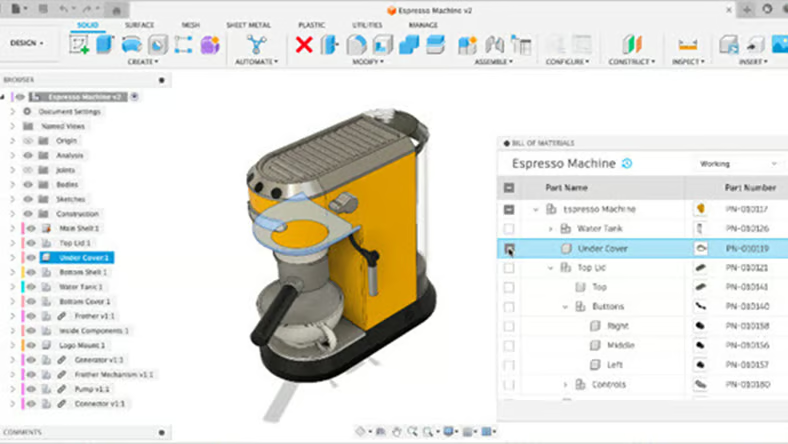
Autodesk Fusion combines 3D modeling, sculpting, simulation, and even printed circuit board (PCB) design in one cloud-based platform. Imagine sketching an idea, sculpting it into a detailed model, then testing its performance. Fusion has a robust collection of collaboration tools, allowing your design teams to work together seamlessly on projects instantaneously. According to G2 data, 69% of its users are small businesses, which demonstrates its accessibility, ease of use, and ability to empower smaller teams to execute complex designs efficiently without heavy IT infrastructure.
| Pros of Autodesk Fusion |
Cons of Autodesk Fusion
|
| Integrated design environment |
Insufficient 2D drafting features
|
| Real-time cloud-based collaboration |
Requires a reliable internet connection for full functionality
|
| Simulation and sculpting tools |
Potential for performance issues with complex models
|
“The best part of Fusion is the measurement toggle. It enables me to achieve precise lengths and shapes for my projects. I'm also very impressed with the quality of DXF file imports during my workflow.”
- Autodesk Fusion Review, Md T.
“Fusion crashes during a modeling operation or while generating a drawing from the design. Additionally, deleting design data/files can sometimes be difficult because they might be linked to a specific design version, making it tedious to track down and delete. Unfortunately, Fusion 360 cannot integrate with Vault Pro. As a result, I have to adopt a different PLM system.
Fusion is unsuitable for heavy mechanical designs or projects involving multi-body sheet metal design.”
- Autodesk Fusion Review, Ofonime W.
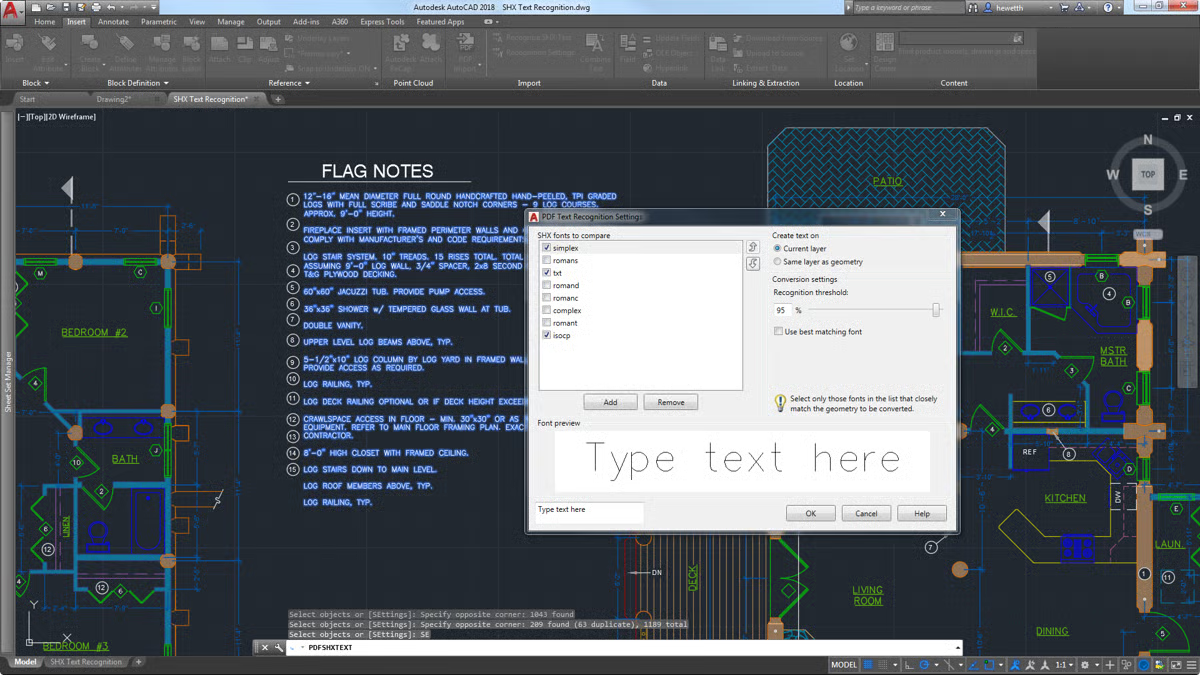
AutoCAD isn't just about drafting; it's a comprehensive design environment. It enables customization through custom menus, palettes, and automation, providing a user-friendly and efficient workflow. Collaboration is effortless with cloud-based features, enabling seamless sharing and design iteration with colleagues. AutoCAD also contains an extensive library of industry-specific tools and features, catering to the specific needs of architects and mechanical engineering professionals.
| Pros of AutoCAD |
Cons of AutoCAD
|
| A vast arsenal of tools with advanced functionalities |
Very steep learning curve
|
| Extensive customization capabilities |
Limited 3D capabilities compared to dedicated software
|
| A dominant player in CAD software |
Requires powerful hardware (high-end graphics card, ample RAM) to run smoothly
|
“AutoCAD is super productive for 2D drawings (drafting and annotation). It allows you to create very large and complex technical drawings, including building plans, blueprints, and multiple drawings, with reduced risk of errors due to broken relationships, a common issue with parametric design software. AutoCAD's unique abilities, like using layers, blocks, Xrefs, and Osnaps, significantly improve your overall drafting experience.”
- AutoCAD Review, Ofonime W.
“Some of the exporting and printing settings can be a bit confusing, especially when scaling models/plans to different paper sizes.”
- AutoCAD Review, Darryl Rey C.
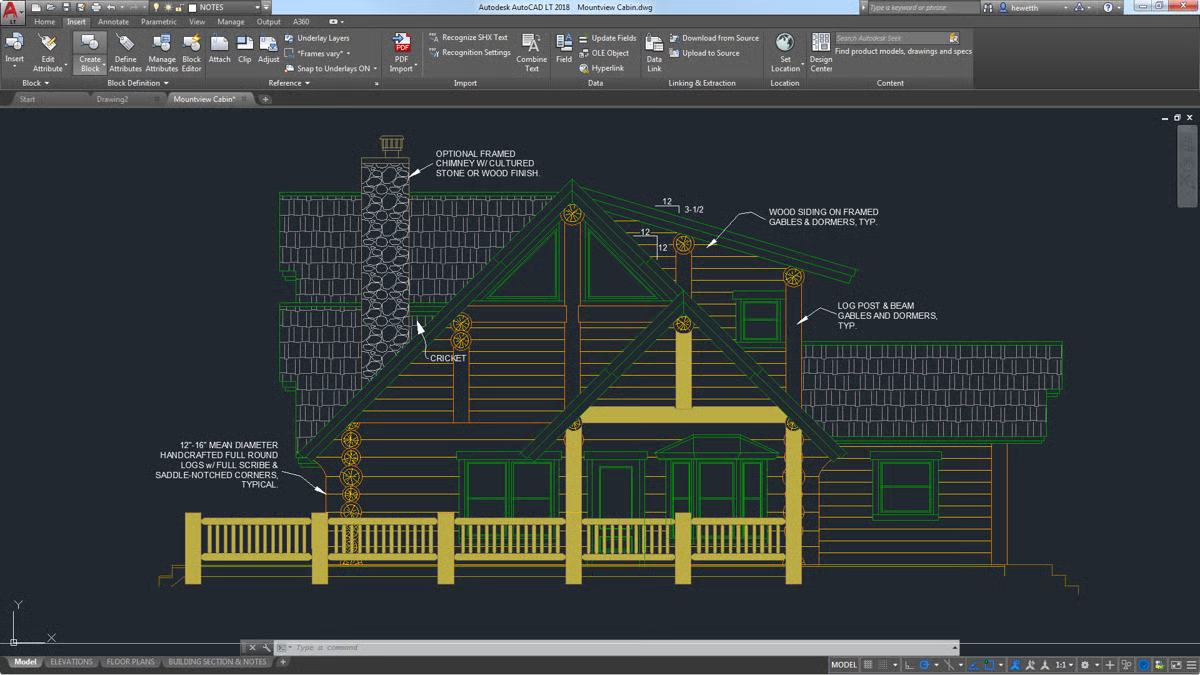
AutoCAD LT is the leaner sibling of AutoCAD, focusing on precise 2D drafting. It is designed for architects, engineers, and designers who prioritize detailed technical drawings. While lacking 3D modeling capabilities, AutoCAD LT consists of robust 2D drafting tools, annotation features, and compatibility with AutoCAD files. It offers a more affordable alternative to the full AutoCAD suite, making it a valuable option for those needing powerful 2D drafting without the full 3D feature set.
| Pros of AutoCAD LT |
Cons of AutoCAD LT
|
| Comprehensive set of tools for 2D drafting |
Lack of 3D modeling capabilities
|
| Seamless collaboration and data exchange with AutoCAD |
Steeper learning curve for new CAD software users
|
| Extensive learning resources |
Limited customization
|
“AutoCAD LT has a very user-friendly interface. The overall speed of the product is also impressively smooth and fast. Ultimately, this translates to enhanced productivity.”
- AutoCAD LT Review, Nilesh C.
“While AutoCAD LT offers a wide range of 2D drafting and design tools, its capabilities for 3D modeling are limited. Improving the platform's 3D modeling capabilities could make it more appealing to more users.”
- AutoCAD LT Review, Jeremy N.
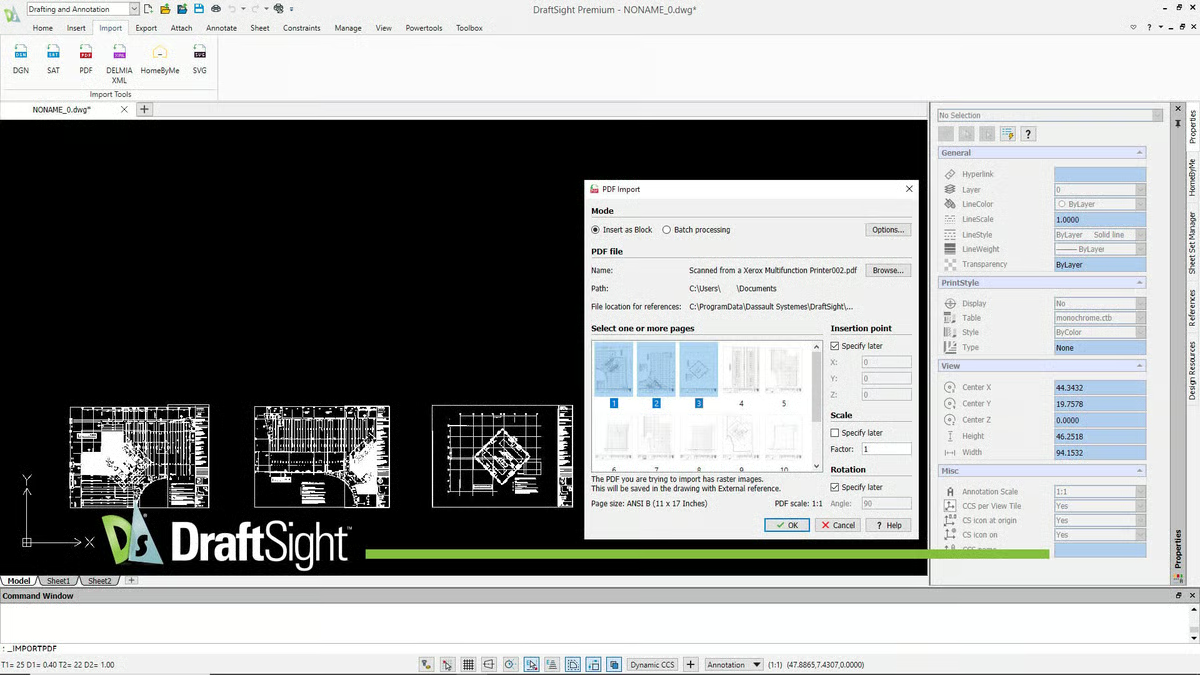
DraftSight is a cost-effective alternative to professional CAD software, with impressive 2D drafting and DWG editing capabilities. Its familiar interface makes the transition seamless for users already comfortable with AutoCAD.
DraftSight allows you to create, edit, and share 2D technical drawings, blueprints, and schematics with ease. It also offers basic 3D capabilities for adding depth to your designs, making it a versatile tool for various drafting needs. In fact, according to G2 Data, 64% reviewers praise its ability to add notes and tags to their designs
| Pros of DraftSight |
Cons of DraftSight
|
| Reads and edits industry-standard DWG files |
Not ideal for complex 3D modeling
|
| User-friendly and easy transition for AutoCAD users |
Lacks advanced functionalities of professional CAD software
|
| Robust 2D drafting tools |
Limited collaboration tools
|
“DraftSight has all the functionality of very expensive competitive software at a fraction of the cost. I use it both at home and work. It accomplishes everything I need without the hassle of the more expensive versions. Since it uses the same commands and processes as AutoCAD, I didn't have to learn a new way of doing things.”
- DraftSight Review, Denny W.
“Layer management could use a redesign. It is too cumbersome to move, freeze, or delete layers currently.”
- DraftSight Review, Joseph J.
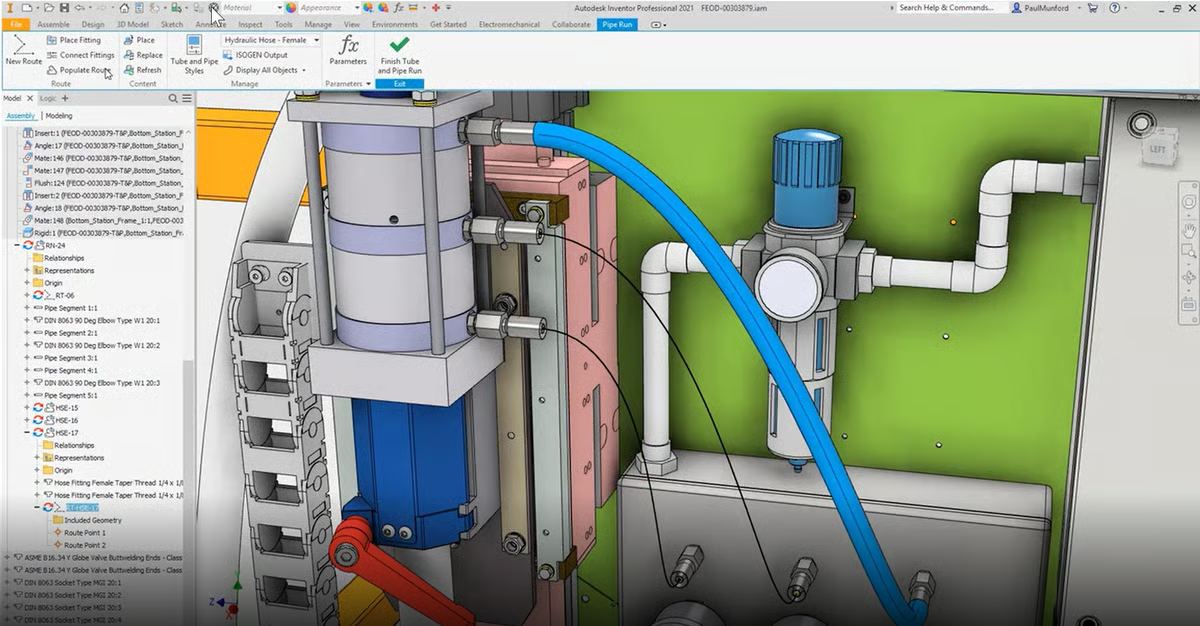
Engineers can rely on Inventor for a complete 3D design experience. This CAD software enables the creation of detailed mechanical parts, assemblies, and simulations within a single platform. Inventor features include profitable options such as parametric modeling for flexible design changes, powerful simulation tools to test performance, and native DWG compatibility for seamless collaboration. It is ideal for product design, machine building, and any project requiring precise mechanical modeling.
| Pros of Inventor |
Cons of Inventor
|
| Comprehensive mechanical design environment |
Less ideal for organic design
|
| Parametric modeling and simulation tools |
Not cloud-native - limiting accessibility
|
| Native DWG compatibility |
Limited 2D CAD drafting focus
|
“Inventor is my go-to tool for machine design. It offers many features that streamline my workflow, including design accelerators, frame generators and analysis, iLogic features, and design automation. Additionally, Inventor integrates perfectly with Vault for data management.”
- Inventor Review, Ofonime W.
“ Inventor requires high system requirements for optimal performance. Additionally, it has limited compatibility with non-Autodesk file formats.”
- Inventor Review, Pavan T.
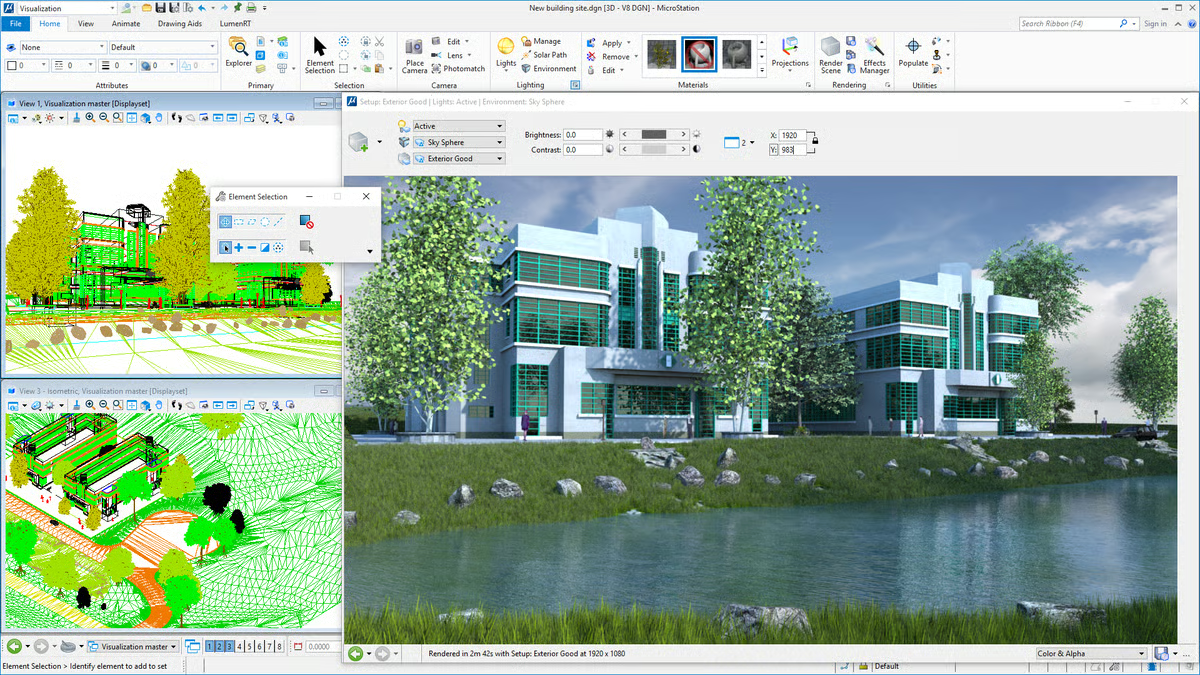
MicroStation goes beyond just 2D and 3D drafting. It's a comprehensive CAD solution for infrastructure design and planning. You can create precise geospatial-enabled drawings for roads, bridges, and other projects, as well as collaborate seamlessly with project teams using a common platform. MicroStation boasts advanced features for analyzing designs, generating realistic visualizations, and managing project information.
| Pros of MicroStation |
Cons of MicroStation
|
| Excels in infrastructure design |
Limited 2D focus
|
| Comprehensive solution for analysis, visualization, project information management (PIM), and collaboration |
Not cloud-native - limited accessibility
|
| Advanced scalable features |
Limited customization options
|
“I love that MicroStation is easy to use; as a beginner and a frequent user, I find it useful and easy to implement. It is compatible with most file formats, which helps to integrate with other design tools. It is a highly productive tool, so I believe it offers good value for money. It is a reliable and versatile design software that can handle various tasks.”
- MicroStation Review, Ankit K.
“Customizing some tools can be quite challenging, and the commands can be complex or difficult to understand. Additionally, I believe MicroStation can be expensive for an individual user.”
- MicroStation Review (Translated), Alexis T.
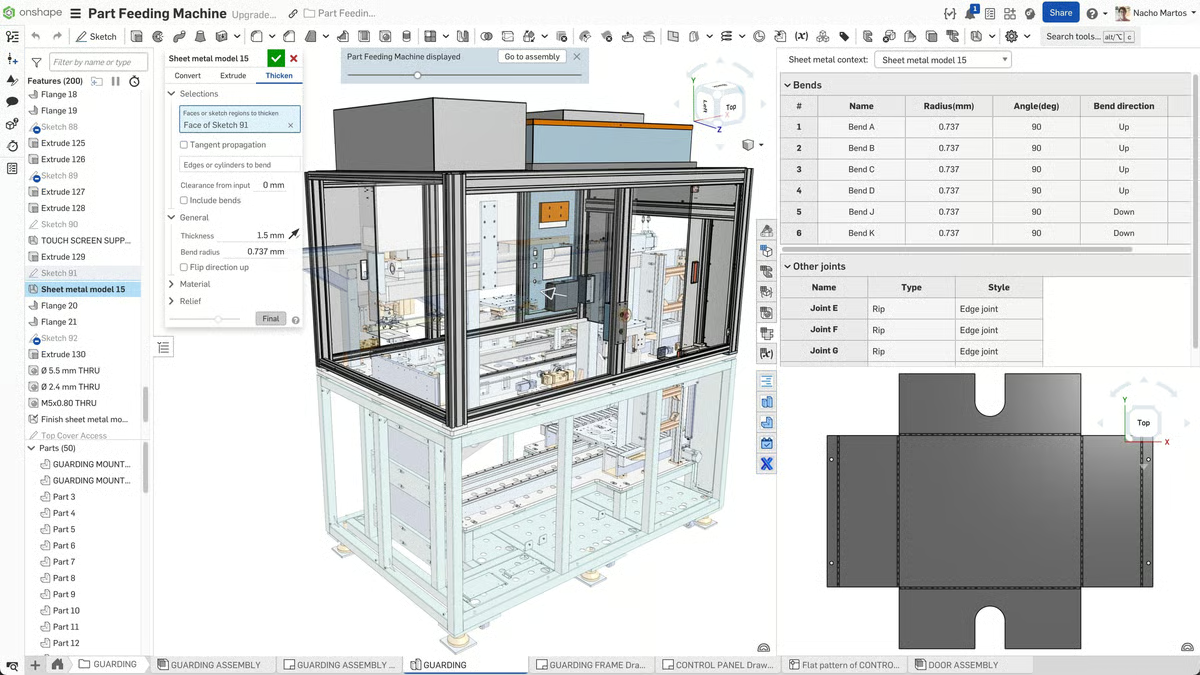
Onshape is a cloud-based platform that lets you design anything from anywhere, accessible on any device. Collaborate in real-time with your team, eliminating version control headaches. Onshape contains features like real-time editing, built-in version control, and robust data management within a secure cloud environment. It is ideal for design teams seeking a collaborative and accessible 3D modeling experience.
| Pros of Onshape |
Cons of Onshape
|
| Cloud-based design with data management capabilities |
Limited offline functionality
|
| Multiple-user real-time collaboration |
Smaller community and fewer third-party add-ons
|
| Clean and intuitive interface |
Learning curve for new CAD software users
|
“The intuitive functionality is supported by a comprehensive library of courses, allowing me to teach myself CAD from scratch and design complex prototype parts ready for 3D printing and injection molding. Onshape is suitable for experts without the barriers for non-experts to develop their skills and produce fantastic results.”
- Onshape Review, Alan H.
“The main downside is Onshape's speed. Since it is in the cloud, its performance is not as snappy as that of a local CAD system, such as SolidWorks. This is mainly seen in assemblies. The second downside is part of its feature: documents. Documents can get bogged down quickly with part studios, assemblies, and derived parts.”
- Onshape Review, Sebastian S.
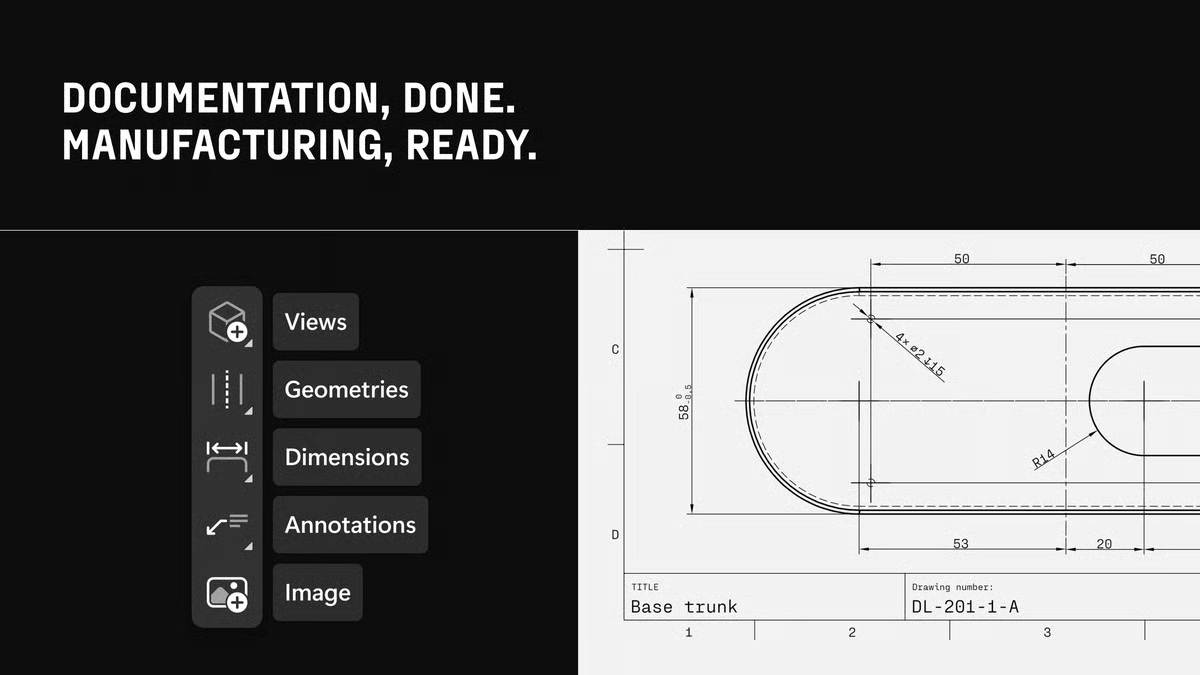
Shapr3D goes beyond its reputation for mobile 3D sketching. Its intuitive CAD tools empower design and manufacturing teams to tackle complex projects quickly and efficiently. Unlike traditional CAD, Shapr3D boasts a non-hierarchical structure, making it easy for everyone to contribute, regardless of experience. Plus, its multi-device functionality allows seamless collaboration and design iteration.
| Pros of Shapr3D |
Cons of Shapr3D
|
| Mobile-first design on devices like iPads and tablets |
Limited features compared to traditional CAD software
|
| Intuitive and user-friendly interface |
Limited file compatibility
|
| Non-hierarchical structure for a more inclusive design process |
Performance limitations on complex models
|
“I really like the program's connection with my iPad. I use Shapr3D daily, and it's very easy to implement and integrate it into my work process. It's very easy to create my ideas from simple sketches. Creating the designs with my hand and my Apple Pencil is easy. There's no better interaction than this when it comes to capturing ideas. The customer support is amazing. There is a huge community.”
- Shapr3D Review, Juan Felipe C.
“I find the layout features very impressive but a bit rigid. More freedom, especially for view development, would be beneficial. Drawing and hatching are basic functionalities that shouldn't be missing for architectural and interior design. Finally, improved handling of bitmaps in visualization is crucial. Even basic tasks like texture rotation should be possible.”
- Shapr3D Review, Juan Camilo G.
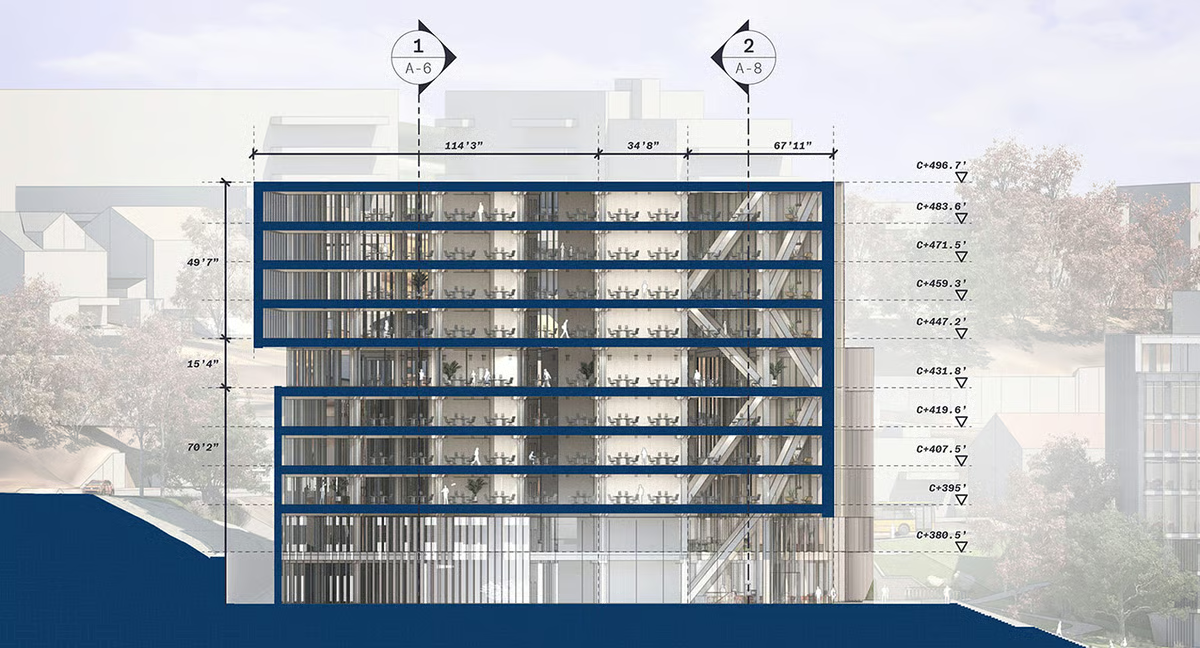
SketchUp is a user-friendly 3D modeling software that empowers you to create anything imaginable.
Unlike some complex 3D CAD programs, SketchUp employs a "push and pull" method, enabling direct alterations to orientations within a solid model, making it easy to create 3D shapes from scratch. In fact, according to G2 Data, 75% of its users are small businesses, highlighting its accessibility, approachable learning curve, and suitability for growing teams.
With its vast library of pre-made 3D models, you can drag and drop furniture, buildings, and more into your designs. SketchUp is perfect for both beginners and professionals, offering a balance of power and ease of use.
| Pros of SketchUp |
Cons of SketchUp
|
| Simple and intuitive interface |
Limited 2D drafting
|
| Extensive 3D warehouse |
Less precise for complex models
|
| Strong community and learning resources |
Limited animation capabilities
|
“I had been using CAD software for a couple of years before I tried SketchUp. I've since completely stopped using those other programs. SketchUp is the best, most intuitive piece of software I've ever used. SketchUp seems to have been built from the ground up on a completely new foundation. At first use, I was a little confused, but five minutes later, I was amazed. Two weeks after I started using SketchUp, I had completed a full house rendering and kitchen remodel. I could not recommend this product more. It's exciting to work with a piece of software that has so much to offer.”
- SketchUp Review, Jonathan A.
“SketchUp has performance issues. Large and complex models can cause SketchUp to slow down or crash, especially on less powerful computers. Mastering advanced extensions, tools, and plugins can take time.”
- SketchUp Review, Anshika S.
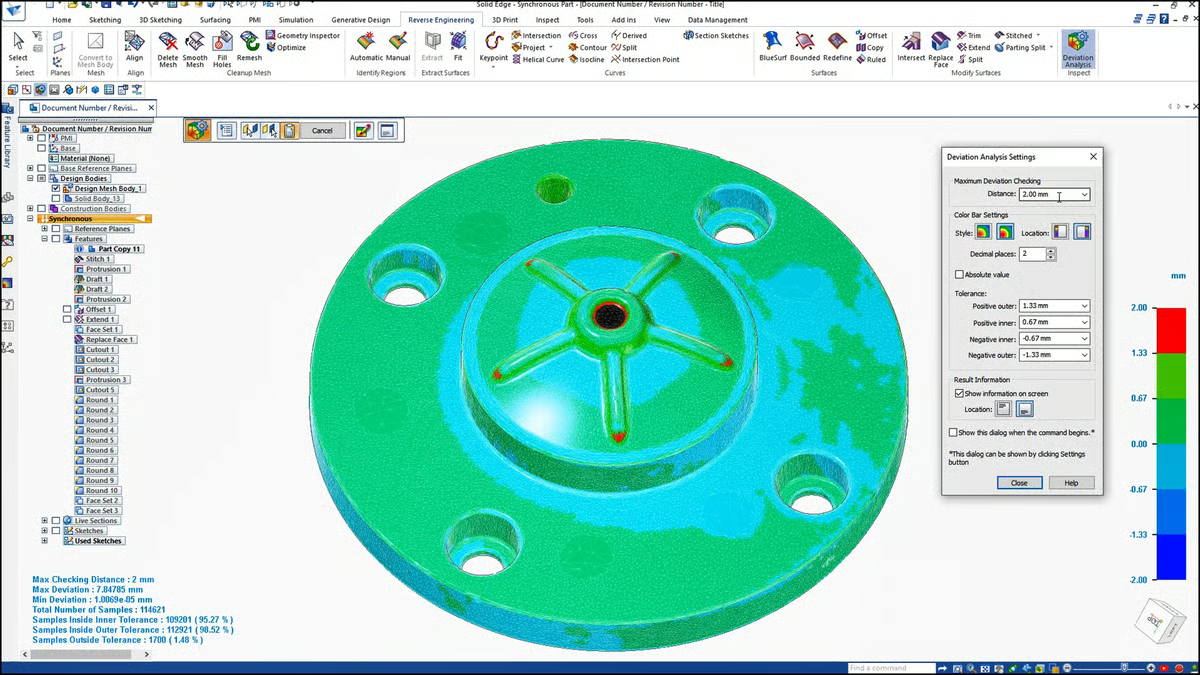
Solid Edge is a powerful CAD platform that combines the speed and ease of direct modeling with the control and flexibility of parametric design. This synchronous technology allows you to modify your model and see the updates ripple throughout the design.
It comprises features like simulation tools, generative design, and reverse engineering, making it a versatile option for product development across various industries. And the best part? According to G2 Data, Solid Edge ranks as the second easiest to use computer-aided manufacturing (CAM) software.
| Pros of Solid Edge |
Cons of Solid Edge
|
| Synchronous technology for direct model manipulation |
Limited 2D drafting
|
| Advanced capabilities like simulation tools and generative design |
Smaller community and fewer third-party add-ons
|
| Sheet metal design and assembly modeling |
Learning curve for users unfamiliar with parametric modeling
|
“The best feature of Solid Edge is the uniformity of the menu system and the way that the commands work with the selection of the graphic objects. This theme is carried throughout the various modules of the product.”
- Solid Edge Review, Kurt V.
“The pattern command is slightly confusing to use, and you have to see the tutorial for the curved pattern before you use it. Additionally, sharing files with users of previous software versions is not possible. Additionally, workflows can be difficult for new users.”
- Solid Edge Review, Ollie M.
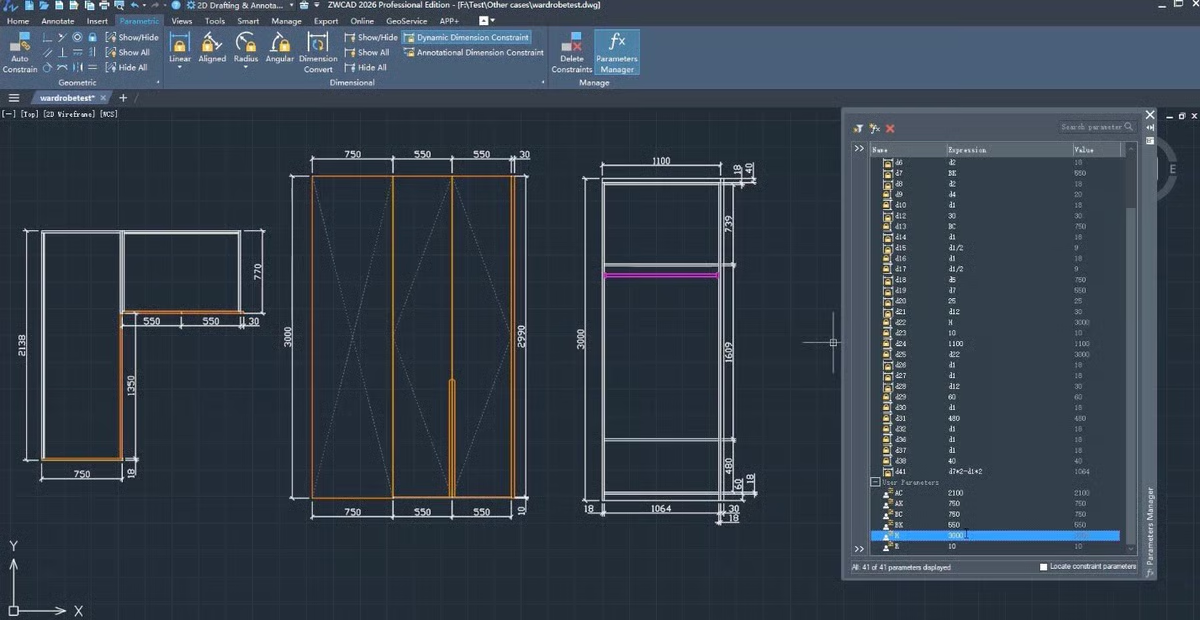
ZWCAD is a versatile, agile, and powerful 2D CAD solution for architects, engineers, and designers in the AEC and manufacturing industries. Its lightning-fast performance, innovative capabilities, and comprehensive collection of tools help practitioners effortlessly bring their creative visions to life.
| Pros of ZWCAD |
Cons of ZWCAD
|
| Seamless data transfer and collaboration |
Limited third-party applications and plugins
|
| High speed and efficiency when handling large files or complex designs |
The learning curve is slightly steeper, especially for advanced features
|
| Strong online community of ZWCAD users |
Potential unexpected occasional bugs or glitches
|
"This software is incredibly user-friendly. I can complete my projects faster than with CAD software, such as AutoCAD. The tool is highly efficient, and I can work with it without experiencing any loading issues. Even when opening large files, it operates smoothly. The layout tab performs flawlessly, even on low-configuration computers. Integration with other tools is seamless. I have successfully implemented this software in my structural drafting work and use it for every project. Additionally, I have received excellent customer support whenever needed .”
- ZWCAD Review, Shakil A.
“Although it is faster, ZWCAD often crashes in some unexpected situations. Even though ZWCAD has a backup function in the previous session, a clearer direction and guide should be given to retrieve the backup file.”
- ZWCAD Review, Lee Z.

SketchUp and Shapr3D are excellent for beginners due to their intuitive interfaces and gentle learning curves, while AutoCAD LT is a solid option for users focused purely on precise 2D drafting.
Autodesk Fusion 360 and Inventor are ideal for professional product and mechanical design, offering parametric modeling, simulation tools, and strong support for real-world engineering workflows.
Yes, tools like AutoCAD and ZWCAD support both 2D drafting and basic 3D design, while Autodesk Fusion 360 adds advanced 3D modeling and simulation capabilities.
Onshape stands out for real-time cloud-based collaboration, while Autodesk Fusion 360 and AutoCAD also support team workflows through cloud sharing and version control features.
Inventor, Solid Edge, and Autodesk Fusion 360 are strong choices for mechanical engineering, offering parametric modeling, assemblies, and simulation tools for validating designs.
Yes, Shapr3D is designed specifically for tablets like the iPad, while Onshape allows cloud-based access across devices, making both ideal for flexible, on-the-go design work.
SketchUp is widely used for architectural visualization, while AutoCAD and DraftSight are preferred for creating precise floor plans, blueprints, and technical drawings.
AutoCAD, DraftSight, and ZWCAD provide strong DWG compatibility, making them ideal for users who need to open, edit, and share industry-standard CAD files.
MicroStation is best suited for large-scale infrastructure and civil engineering projects, while AutoCAD and Solid Edge can support detailed drafting and modeling needs in similar environments.
Absolutely. SketchUp and Onshape are popular among students for learning CAD fundamentals, while Shapr3D enables hobbyists and makers to quickly turn ideas into 3D models without upfront costs.
Remember, even the most user-friendly CAD software comes with a learning curve.
I always recommend taking full advantage of the tutorials, user communities, and documentation available for whichever tool you choose — they make a huge difference as you get started.
I hope this list of the best free CAD software helps you find the right solution and feel confident bringing your ideas to life. Looking to explore more design tools?
Find the right building design and building information modeling (BIM) software to assist with your CAD software.
Edited by Monishka Agrawal


3D printing is awesome, until your software turns it into a nightmare.
 by Washija Kazim

You might not believe this, but I was a civil engineer before I became an SEO content...
.png) by Devyani Mehta
by Devyani Mehta
.jpg)