


The best browser in 2025 depends on what you value most speed, privacy, AI features, battery efficiency, or extreme customization. After analyzing more than 1,000 verified G2 reviews and testing seven of the most popular web browsers myself, I found that each one excels in a different area.
Some are lightning fast but heavy on memory. Others prioritize privacy over ecosystem integration. A few are packed with AI tools that can genuinely boost productivity. And surprisingly, the browser that feels “familiar” isn’t always the one that performs best under pressure.
If you’ve been clicking the same browser icon for years without thinking twice, I get it; I did the same. But once I started testing alternatives side by side, comparing performance, privacy controls, RAM usage, and real-world usability, I realized the browser landscape is far more competitive than it looks.
Here are the seven best browsers for 2025, ranked by what they do best.
Before we dive deeper, here’s how they compare based on speed, privacy, usability, and real-world performance.
| Best browser | Best For | Speed | Privacy | Resource usage | Standout feature |
| Brave | Ad blocking & privacy | Excellent | Excellent | Moderate | Built-in tracker blocking + Tor |
| Google Chrome | Speed & extensions | Excellent | Moderate | High | Largest extension ecosystem |
| Microsoft Edge | AI productivity | Very good | Moderate | Moderate | Copilot integration |
| Mozilla Firefox | Private browsing | Very good | Strong | Moderate-high | Non-Chromium engine |
| Opera | Built-in VPN | Good | Strong | Moderate | Free VPN + sidebar tools |
| Apple Safari | Mac performance | Very good | Strong | Low | Battery efficiency |
| Vivaldi | Customization | Good | Good | Moderate | Extreme UI control |
All browsers listed are free to download. Data is based on hands-on testing and verified G2 user feedback.
As I researched and evaluated web browsers, I also noticed that the industry consumption of three popular browsers (Chrome, Safari, and Edge) makes up 88.70% of the browser market today. With this market share, other browser consumption rates lie somewhere in the remaining 11.30%, as per Soax's report.
To avoid simply repeating what’s already ranking online, I went beyond surface-level comparisons. I started with G2 ratings and verified user reviews to identify recurring themes around speed, RAM usage, privacy settings, crashes, extension support, and long-term reliability.
To refine the shortlist, I analyzed over 1,000 verified G2 reviews using AI-powered tools to surface patterns around performance, resource consumption, customization, and user satisfaction over time. This helped me understand not just what works well, but where users consistently report friction.
For browsers I actively use, I evaluated them during everyday tasks, multitasking with multiple tabs, streaming video, switching devices, browsing resource-heavy websites, and exploring privacy controls and built-in tools.
In cases where I couldn’t fully test certain advanced features due to access limitations, I validated findings through aggregated G2 feedback and consulted a professional with hands-on market experience to ensure balanced coverage.
The screenshots included throughout this article are sourced from verified G2 profiles and publicly available product materials to provide a well-rounded view.
Picking the best web browser is not just about what looks good or what’s most popular. And everyone’s “perfect browser” might look a little different. For some, it’s all about aesthetics or compatibility with their favorite apps. For others, it’s about integrating productivity tools or gaming features.
For me, though, the best browser gets out of the way and lets me do what I need to do quickly and securely. It boils down to three key factors: speed, privacy, and usability.
And after weeks of testing, I found a handful of browsers that truly stood out–each for its own reasons. The list below contains real user reviews from G2’s browser software category. To be included in this category, the solution must
Here are the ones that made the cut.
*This data was pulled from G2 in 2025. Some reviews may have been edited for clarity.
When I first opened Brave, it felt like stepping into a browser built with the user in mind.
The first thing I noticed was the real-time stats on how the real-time stats on how many trackers Brave blocked, how much bandwidth it saved, and even how much time I’ve gained because of their trackers and ad blockers. The following screenshot is from within ten minutes of me using Brave. It’s oddly satisfying to see those numbers go up.
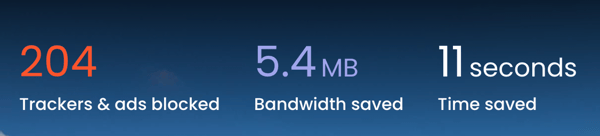
Brave stats on Ads and trackers blocked
And it wasn't just numbers going up. The difference that the trackers and ad blockers brought in was truly noticeable when I was using Brave.
I watched YouTube videos without getting bombarded by ads every two minutes, and I browsed websites without ads popping up on the sites I browsed. It really made my browsing seamless and free of clutter.
That ease of use isn’t just my experience. According to G2 Data, 96% of users rate Brave highly for ease of use, and 95% say it meets their requirements. For a browser that leans heavily into privacy features, that balance between power and simplicity matters.


News sites with ads on Chrome and without ads on Brave
Being a top leader in the web browser software grid, Brave offers users deeper and more detailed customizations. I could choose my default search engine and tweak everything from the background image to Brave’s unique stats.
The options to try their paid VPN and video calling service on the home screen were a little off-putting. But I could change the dashboard settings to remove them.
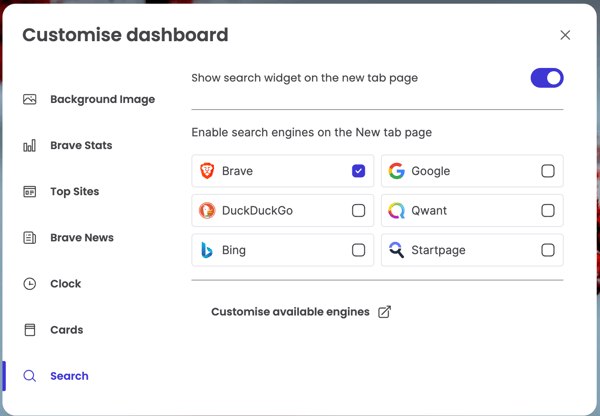
Customizing dashboards on Brave
Plus, with features like private browsing with Tor built right in, it’s clear Brave takes online privacy seriously.
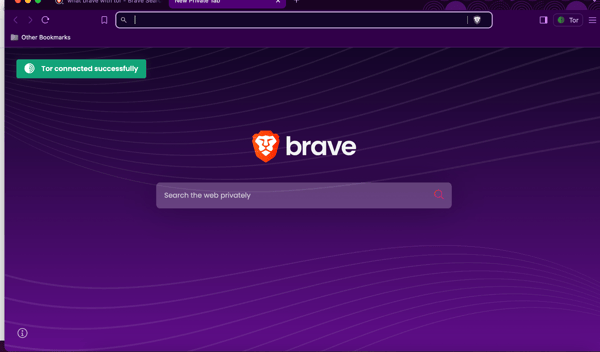
Browsing privately with TOR on Brave
I also loved other small perks like this media control feature on the toolbar that let me pause and play YouTube videos or any other audio while browsing other tabs.

The media control feature on Brave
Another feature I liked was the Leo AI chatbot on the browser. I could ask the chatbot to get a TLDR of a webpage, and I could also have conversations with it that I usually do with AI chatbots like ChatGPT and Gemini.
Interested in AI chatbots? Read my review of free AI chatbots I use daily.
The integration of Brave Rewards, where I can earn tokens by opting into non-intrusive ads, is a unique spin that adds fun to my browsing experience. I did not opt for it, but you can try it out.
That said, I’ve run into occasional compatibility quirks. A few websites, like my online banking platforms, didn’t load right with Brave’s shields active. I had to toggle them off for things to work smoothly manually.
According to several G2 reviews, this is a known trade-off that a handful of users have experienced, particularly on highly secure or interactive sites. It’s not a dealbreaker, just something worth keeping in mind if you frequent those services.
Speed-wise, Brave typically performs well, and many users on G2 praise how fast it loads most pages, thanks to built-in ad blocking. However, I’ve noticed that particularly resource-intensive websites can take a bit longer to load.
Again, I’m not alone here; others have shared similar feedback on G2’s platform, suggesting that performance can vary slightly depending on the type of content being accessed. Still, for everyday use, the experience remains solid and reliable.
That said, I recommend Brave if you want a browser that prioritizes your privacy and gives you control over your online experience.
"Brave is an excellent platform if you want control over your browsing security and privacy. It has everything that a browser should have. You can even block ads on websites and play music or videos on YouTube without advertisements if you wish to. The UX/UI and ease of use are also noteworthy. It also has a blockchain-based reward system, where you can get BAT tokens as rewards.”
- Brave Review Meghna D.
“Because of Brave’s ad-blocking feature and privacy setting, some websites may not function optimally on this browser.”
- Brave Review, Rohan S.
Google Chrome needs no introduction. It’s been my default browser for years.
I’ll honestly admit that while my search for browsers started with Chrome alternatives, after all the testing, Chrome still won in a number of areas despite its cons.
I found Chrome to be the fastest and most reliable browser among all the ones I tested. A big plus for me is that it seamlessly integrates with everything in Google’s ecosystem. Syncing across devices? Check. Autofill passwords and forms? Check. Using Google Drive or Docs without a hitch? Double check. It’s like the browser that just works–no fuss, no confusion.
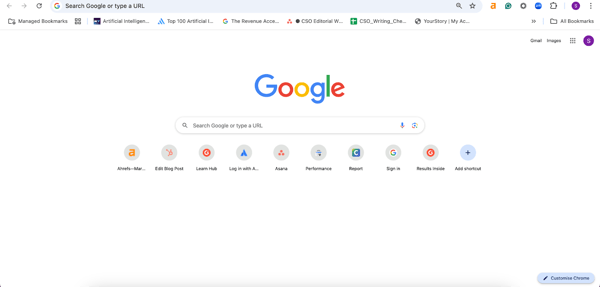
Google Chrome’s user interface
Google Chrome is one of the easiest browsers to use, with no steep learning curve. Whether you're a casual user or a multitasking pro, it just works. According to G2 Data, 96% of users rate Chrome highly for ease of use. These numbers explain why Chrome remains the default choice for so many people. It removes complexity from everyday browsing.
Did you know that 3.45 billion people use Chrome? Explore more such statistics related to browser usage.
One of its standout features for me is its extension library. It is simply unbeatable. From productivity tools like Grammarly to ad blockers and even quirky extensions for pranking, I could find any type of Chrome extension I wanted. The setup process is equally straightforward. G2 Data shows that 95% of users find Chrome easy to set up, which reinforces its plug-and-play appeal.
Another feature that truly shines is Chrome’s Translate option. With a simple right-click on any page, I could instantly browse websites in any language without hesitation. It’s a game-changer for exploring international content seamlessly.
I’ve also always appreciated tab grouping, which helps me keep my workspace under control when I inevitably go overboard with tabs. Chrome lets me organize them into collapsible groups, making it much easier to navigate and reducing the visual clutter.
Finally, the multiple profiles option is another lifesaver. It’s perfect for keeping my personal and work browsing completely separate, and switching between profiles is as simple as a click.
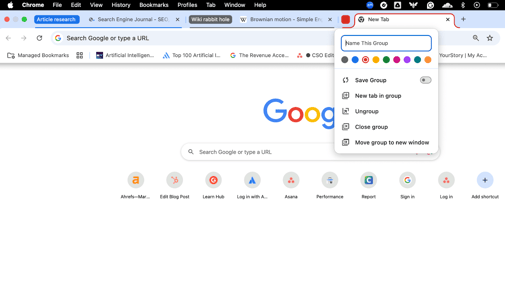
Tab groups on Chrome
I also recently found that Chrome also has a bunch of cool AI features, from using Google Lens to take pictures of web pages by simply using the right-click menu and search to chatting with Gemini on the Chrome address bar itself. It made my online search experience better.
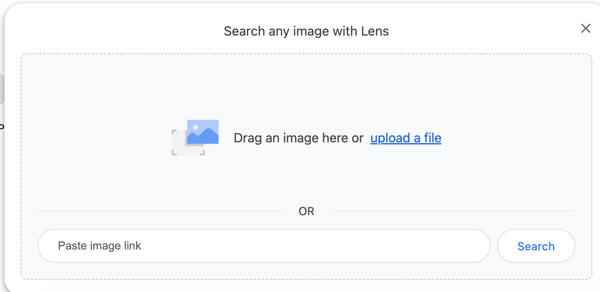
Searching with Google Lens on Chrome
And let’s not forget the little things that make Chrome fun, like the Dino game that pops up when the internet is down. It’s simple and addictive and has probably saved us all from frustration during unexpected outages.
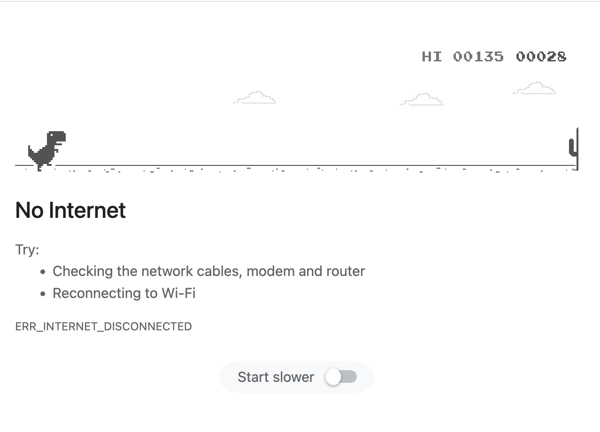
Cute dinosaur game on Chrome
However, there are a couple of aspects that have started to wear on me over time.
One is how memory-intensive Chrome can be. When I have a bunch of tabs open, most of the time, I’ve noticed my system tends to slow down. It’s not just me; quite a few reviewers on G2 mention similar concerns around Chrome’s RAM usage, especially on devices with limited memory.
The other issue that’s become harder to ignore is privacy. While Chrome offers features like Incognito Mode, I’ve come to realize those don’t go as far as I initially thought.
Google’s privacy disclosures confirm that it may collect a wide range of personal data, from search terms and video views to ad interactions and even synced browsing history. At first, the trade-off didn’t bother me; part of Chrome’s appeal is how tailored and responsive it feels.
But over time, I’ve started questioning how much of my digital footprint is being tracked. Based on G2 feedback, there is a growing user awareness and concern around data collection and targeted advertising practices linked to Chrome.
So, where do I stand with Chrome? It’s still a fantastic browser for speed, ease of use, and flexibility. But it's no longer the perfect fit for someone like me who’s starting to care more about privacy. If you’re happy with the Google ecosystem and don’t mind a bit of resource drain, Chrome is still a great choice. But if you’re itching for something lighter or more private, it might be time to explore other options in this list.
"I like its user interface because it is simple to use. I also like its incognito mode, which helps me browse privately. Its extensions are also very helpful to me. It also saves passwords, which is very useful when logging into websites."
- Google Chrome Review, Krishna Varma B.
"I think the least helpful thing about Chrome is how much space it requires on my devices and slows things down."
- Chrome Review, Kahalia N.
I’ll admit my first impression of Microsoft Edge wasn’t the best. The homepage felt a bit cluttered, with news headlines and shortcuts competing for attention.
However, once I spent some time tweaking the layout and personalizing it, the browser started to grow fast on me.
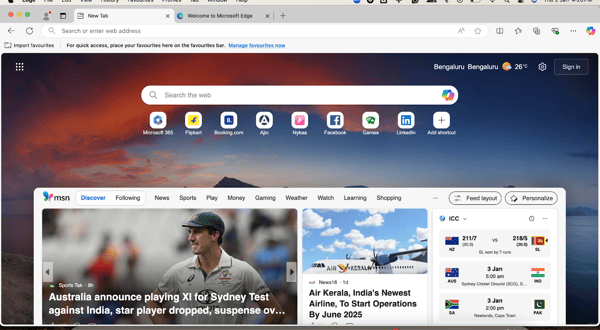
The initial user interface of Microsoft Edge before I personalized it
I absolutely loved the Copilot AI assistant. Whether it’s summarizing articles on sites, answering my questions, or even finding the best deals while I was shopping online, Copilot turned out to be incredibly handy.
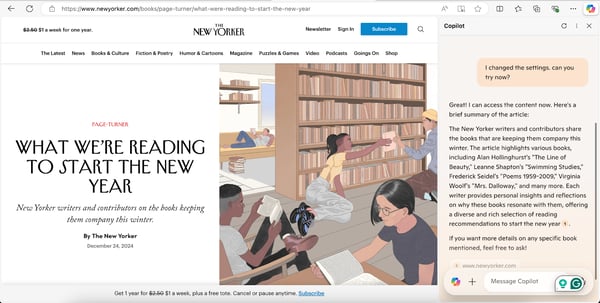
Using Copilot on Microsoft Edge
At first, I thought it was similar to Brave’s Leo AI assistant or Google’s Gemini. But Copilot did much more than both. I could create images or upload images to analyze, all on the browser while looking at other things, without navigating to a separate window.
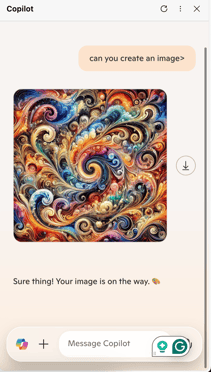
Creating images with Copilot on Microsoft Edge
Edge also had other features I didn’t see in Chrome and other browsers. I loved the immersive reader feature on Edge. This hides ads and pop-ups, highlighting only texts and images from a web page. While it is similar to the reading mode on Chrome, I felt Edge’s way of presenting is better than Chrome’s.
Edge also performs particularly well in structured environments. 92% of users rate it highly for ease of administration, according to G2, which explains why it has strong adoption in enterprise and Windows-heavy ecosystems. If you operate within Microsoft 365, the integration feels seamless.
The screenshot feature allowed me to capture either specific sections or the entire browser window with ease.
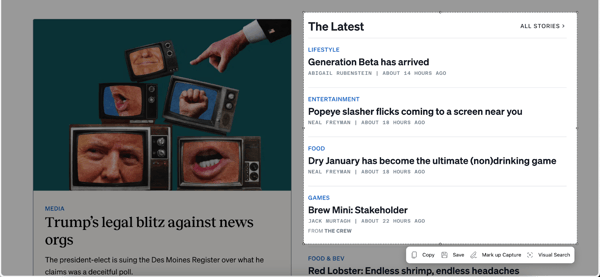
Screenshot feature on Microsoft Edge
I also liked the read-aloud feature, which brought an audiobook-like experience to articles and web pages. It lagged a bit and wasn’t perfect, but I was still impressed. Also, given that Edge recently switched to being based on Chromium, I could access all extensions from the Chrome web store.
And when the internet’s out? Edge has its own take on offline fun with a Surf game. It’s a pretty entertaining way to pass the time while waiting for the Wi-Fi to come back.

Playing Surf game on Microsoft Edge when the internet’s out
That said, a few things did stand out during my time with it. One was the default use of Bing as the search engine. While that works for some, I switched to a different engine after just a few queries.
I know it’s a minor adjustment, but I would have preferred a smoother out-of-the-box experience. According to G2 reviewers' feedback, you need to tweak the settings right away to better suit your preferences.
I also noticed occasional slowdowns when juggling multiple tabs and streaming media-heavy content. It wasn’t constant, but enough to be noticeable. Based on sentiment in several G2 reviews, this kind of performance dip under load has been a shared experience among power users. It’s not a significant drawback, but it’s worth mentioning if your workflow relies heavily on multitasking or media streaming.
Lastly, while Edge has certainly stepped up its game in terms of features and compatibility, I couldn’t help but notice that its data privacy policies feel quite similar to Chrome’s. Microsoft, like Google, still collects a fair amount of user data, and for those who value tighter control over their digital footprint, that’s something to be aware of. Several reviewers on G2 have voiced similar sentiments, acknowledging the issue with its telemetry and tracking practices.
So, would I recommend Microsoft Edge? Honestly, it depends on what you’re looking for. If you’re someone who values productivity features, seamless integration with Microsoft services, and a built-in AI assistant like Copilot, then Edge has a distinct edge (pun intended!). It’s feature-packed and brings some genuinely useful tools to the table, like the immersive reader and screenshot options.
That said, if you prioritize privacy or prefer a more minimalist browser experience, Edge might not be the best fit.
"Edge has all the features and is fully customizable. It has all AI features, including Copilot, which is indispensable now. You can turn off extra features if you want the Chrome-like experience, but because everything is built in, you don't have to rely on third-party providers like Chrome."
- Microsoft Edge Review, Angelo P.
"The biggest disadvantage of Edge, I feel, is that it uses the Bing search engine as its default search engine."
- Microsoft Edge Review, Tushar J.
Want to know how to protect your data when browsing online? Read our expert guide on five steps to improve your personal data security.
Now, here’s something I didn’t realize until recently: Mozilla Firefox isn’t Chromium-based. In a world where almost every browser–Chrome, Edge, Opera–runs on the same Chromium engine built by Google, Firefox stands out for using its own open-source engine. That kind of independence is rare, and honestly, it’s something I can respect.
Knowing that Firefox stands out from the crowd made me even more curious to see how it compares to the competition today. And it didn’t disappoint me.
From the moment I started setting up Firefox, it was clear this browser takes privacy seriously. The first tab it opened was its Privacy Statement. Firefox also nudged me to install privacy-focused extensions like Privacy Badger at the outset. As I explored its features, I noticed that Firefox has some built-in cookie blockers that can automatically block 2000+ trackers.
That balance between control and usability shows up in user feedback as well. According to G2 Data, 92% of users rate Firefox highly for ease of use, and 93% say it’s easy to set up. For a browser that leans heavily into privacy settings, accessibility is important; it doesn’t require technical expertise to use effectively.
This left a strong impression that this is a browser that genuinely cares about your data and wants you to know it. I felt it was one of the best browsers for private browsing without getting tracked.
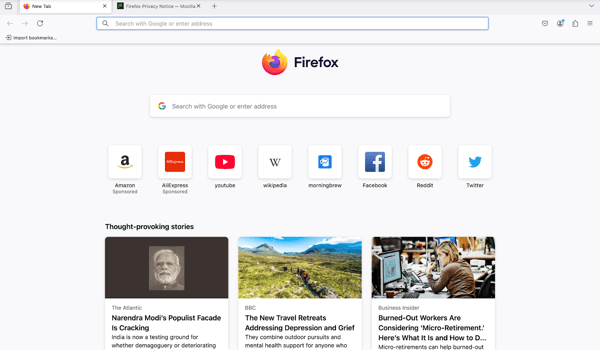
Mozilla Firefox user interface
One feature that I absolutely loved was the pop-out window for YouTube videos. As someone who’s always multitasking, this was a game-changer. I could keep a video playing in a small window while still browsing other tabs.
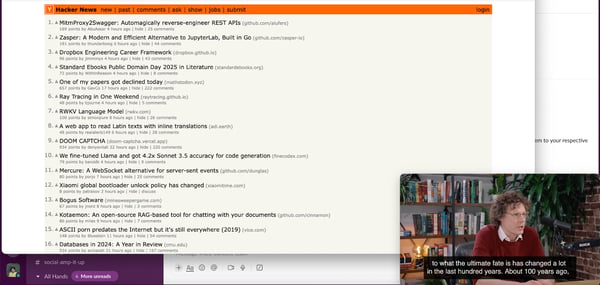
Playing YouTube videos as a pop-up
That said, Firefox hasn’t been without its drawbacks in my day-to-day use. One thing I noticed fairly quickly was how much memory it consumed, especially on my MacBook. When I had several tabs open (my everyday browsing style), Firefox started to feel sluggish.
It wasn’t quite as heavy as Chrome, but it came close. According to G2 reviewers, this higher RAM usage is a known concern among multitaskers and those running resource-intensive tasks like video streaming or gaming. It doesn’t ruin the experience, but can get in the way of a seamless workflow.
Another area where Firefox still needs to catch up is its extension library. While it supports most major add-ons and continues to grow, I found the selection to be more limited than what’s available in Chrome’s Web Store.
A few niche tools I regularly rely on just weren’t there. Several users on G2’s browser comparison pages have pointed out this same gap, noting that while Firefox covers the essentials, it can fall short for more specialized or productivity-focused extensions.
On a lighter note, one thing I missed, was the presence of a fun offline game. Chrome’s Dino game has saved me from boredom during unexpected outages more times than I can count, and I was genuinely surprised Firefox didn’t have a similar quirky fallback. Obviously, it’s not a critical feature, but it’s those little touches that add personality to a browser, and it left me wishing for something similar.
All that said, I think Mozilla Firefox is a solid choice. If you value privacy and simplicity, it’s worth a shot. It’s not perfect, but it does what it does well. And knowing it’s not part of the Chromium crowd makes it stand out. For me, it’s become a solid contender for everyday browsing.
"I believe Mozilla respects its users' privacy much better than Google or Microsoft. Privacy means everything to me. Also, Firefox has a lot of community support."
- Mozilla Firefox Review, Keith T.
"The biggest problem is the consumption of hardware resources. A lot of memory is used even with inactive tabs, which slows down weaker computers."
- Mozilla Firefox Review, Milosz Z.
Now, Opera was launched even before I was born, in 1995. So, I was a little skeptical about whether it would have kept with times when I wanted to test it out. But it was surprisingly good.
The home page felt a bit dated at first, with its bold icons and shortcuts, but once I started digging into its features, I quickly saw why Opera has managed to stick around for so long. It is packed with features and gives tough competition to other modern browsers listed here.
Something I absolutely loved about Opera was the built-in ad and cookie tracker blocker. Similar to what I’ve seen in Brave, Opera didn't make me search for extensions. These privacy tools are baked right in. I could turn on the ad blocker as I was setting up the browser itself. Despite the number of built-in tools, usability remains strong. According to G2 Data, 91% of users rate Opera highly for ease of use. That’s impressive for a browser with this many integrated features. It doesn’t require heavy configuration to get started.

Turning on the ad blocker on Opera when setting it up
What’s even better is the visual feedback: when I clicked on the shield icon in the top toolbar, Opera showed me exactly how many ads and trackers were blocked on each page with their details.
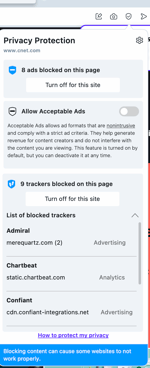
Details on Ads and trackers blocked on a page when using the Opera browser
But what makes Opera better for me on top of the ad blocker is the built-in free VPN. Yes, Opera provides a free VPN. It’s simple to set up and perfect for an extra layer of privacy, especially when using public Wi-Fi. Though it doesn’t match the speed or configuration of premium VPNs, it definitely gets bonus points from me. I could access other regions' sites that I could not access via Chrome when I was using this VPN on Opera. So, it was truly a blessing.
I also noticed that Opera includes features I’ve enjoyed on Edge and Firefox, such as reading mode, screenshot tools, and pop-out YouTube videos.
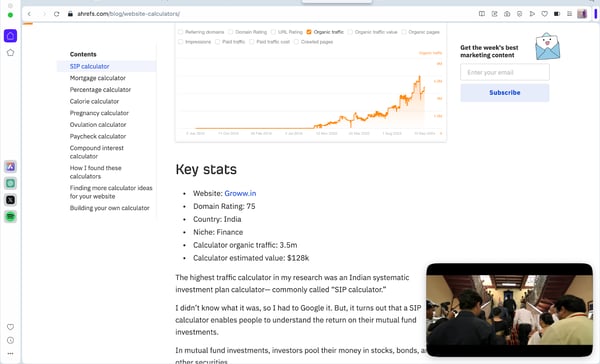
YouTube video playing in pop-out on Opera browser
Also, did I mention the three different AI chatbots I could access on the side? Yes, Opera lets me access ChatGPT, Chatsonic, and its own AI assistant, Aria, to have a conversation while browsing. All these features made Opera feel like a well-rounded and versatile choice for my use.
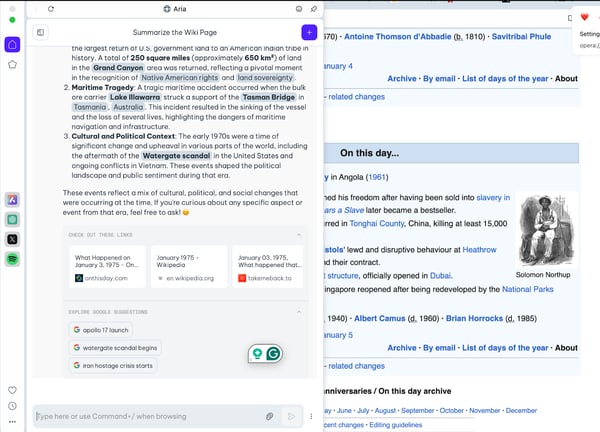
Chatting with AI chatbot Aria while browsing on Opera
That said, performance wasn’t always consistent in my experience. When I had too many tabs open, especially during heavy browsing sessions, Opera occasionally froze or became completely unresponsive. There was even a time when my MacBook wouldn’t shut down properly because the browser wouldn’t close, no matter how many tabs I tried to force-quit.
It was one of those moments where you need the browser to be responsive and efficient, and it simply wasn’t. According to several G2 reviewers, similar freezing issues have surfaced during high-memory usage, which suggests I wasn’t alone in facing this kind of hiccup.
I noticed that G2 feedback also mentioned issues with the user interface. While Opera takes pride in offering more tools at your fingertips, I found it a bit too busy.
Compared to Chrome's minimalist design or Edge's sleek look, Opera’s sidebars and multiple tool panels felt cluttered. I know some users appreciate having quick access to everything; G2 feedback reflects that, but personally, I prefer a cleaner layout that lets me focus on the content, not the interface. The extra shortcuts and panels just didn’t align with my workflow.
In terms of speed, Opera performs adequately for most browsing tasks, but it didn’t feel quite as snappy or responsive as Google Chrome. G2’s user insights suggest that while Opera holds its own, it often ranks just behind Chrome in terms of raw speed and page load efficiency.
"The Opera browser has a function to block ads and also allows VPN nowadays, which is what I liked the most. (It is) safe to browse and easy to download things as well."
- Opera Review, Himanshu C.
"What I dislike about Opera is that it has fewer extensions compared to other alternatives, and sometimes I don't see pre-loaded images on websites, and when I open too many tabs, Opera gets stuck sometimes.”
- Opera Review, Praveen R.
I’ll admit, Safari has always been that browser I used only when I had to. But since it’s on my Mac, I figured it was time to give it a proper test.
Safari’s interface is exactly what I’d expect from Apple—clean, minimal, and free of distractions. There’s no clutter, and no excessive bells and whistles, which can be a good or bad thing depending on how you like your browsing experience. On the one hand, I liked the simplicity—it works. Navigating through tabs and settings feels smooth.
But on the other hand, I found myself wanting a little more–maybe some features to make it feel less... barebones.
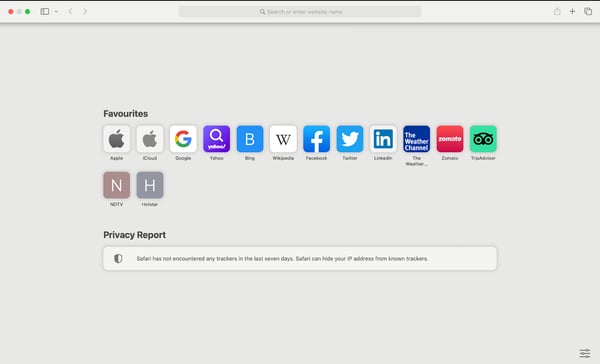
The user interface of Safari
One thing I appreciated was its resource efficiency. Safari is incredibly light on my Mac’s battery and system resources. If you’re someone who keeps multiple tabs open while working on a MacBook, this is a huge plus. It’s not the fastest browser out there, but it does the job without draining your battery or heating up your device. I also like the translations for web pages in foreign languages.
Safari also performs well in meeting everyday expectations. 87% of users say it meets their requirements, according to G2 Data, reinforcing its reliability for general browsing, streaming, research, and productivity tasks.
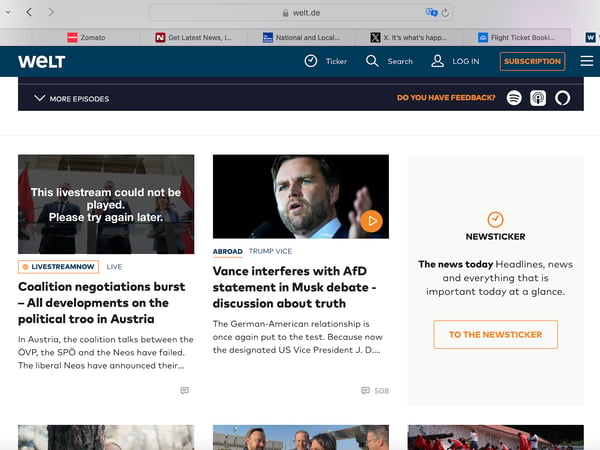
Translation of German language webpages on Safari
Another plus of Safari is the built-in cookie blocker and the privacy report that shows me the number of trackers it blocked, similar to Brave's.

Privacy Report on Safari home page
However, that same tight integration quickly became a limitation for me. Since I also use an Android phone, Safari’s lack of cross-platform flexibility became a real issue. I couldn’t sync tabs, bookmarks, or history across my devices, which disrupted my workflow.
Based on multiple reviews on G2, users who operate across mixed-device environments often list this challenge. For those who aren’t fully committed to Apple hardware, this lack of interoperability is a significant drawback.
Beyond compatibility, I noticed that Safari tends to lag behind other browsers regarding advanced features. While it covers the essentials well, it doesn't currently offer things like AI integrations, customizable workspaces, or built-in collaboration tools, which are the features Chrome and Edge now include.
According to product comparisons shared on G2’s site, Safari is often praised for speed and security, not innovation. I couldn’t help but feel like I was missing out on capabilities that could boost my productivity.
Customization is another area where Safari lacks a bit. The interface is clean and easy to use, but when it came to adjusting themes, toolbar layouts, or installing visual extensions, the options felt limited.
G2 reviewers have noted this too, with several reviews mentioning that while Safari delivers consistency and polish, it lacks the flexibility that power users often look for in a browser.
Overall, Safari does an excellent job within the Apple world. But for someone like me, who needs cross-platform support and more advanced tools to stay efficient, it fell short of becoming my default browser.
"Apple Safari is the fastest and simplest browser that we use. It provides great security to our online browsing in real-time. It is more lightweight than any other browser present today and uses very less hardware resources to run. It has many features like bookmarking and reading lists, which make our browsing easy. Apple also provides good customer support."
- Apple Safari Review, Dheeraj K.
"What I dislike about Safari is that, unlike Chrome, it has limited cross-platform availability and limitations. Hence non-Apple syncing is either not available or not reliable. This makes working difficult on mixed-platform/device setups. Another problem for me is the update for the whole ecosystem, which is not a great option always."
- Apple Safari Review, Richa S.
A lot of people recommended Vivaldi to me, raving about its customization options. I was skeptical at first, wondering how much more I could really customize a browser. But once I started using it, I quickly realized they weren’t exaggerating.
From tab placement (top, bottom, left, or right) to deciding themes and blocking ads and trackers, Vivaldi gave me control over almost every aspect of my browsing experience right from the setup.
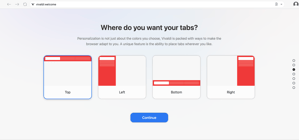
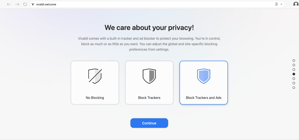
Customizing the Vivaldi browser while setting it up
I could customize my browser features minutely through settings, from appearance and themes to keyboard and mouse movement shortcuts.
Of all the browsers I’ve tried, I think I like Vivaldi’s workspace and tab organization options the most. The ability to create workspaces for different tasks felt incredibly easy to use and practical, making it a standout feature in my browsing experience. What impressed me most is that despite this level of depth, usability remains high. According to G2 Data, 94% of users rate Vivaldi highly for ease of use.
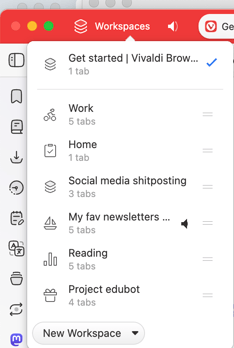
Organizing workspaces on Vivaldi
I absolutely loved the note-taking feature integrated right into Vivaldi’s sidebar. It’s such a simple yet genius addition. I could jot down thoughts, save snippets of text, or even attach screenshots—all without leaving the browser. As someone who often takes notes while researching, this was a total game-changer.
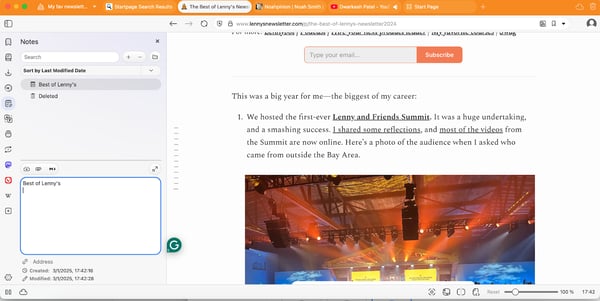
Notes-taking feature on Vivaldi
That said, the experience wasn’t without a few bumps. I noticed that Vivaldi tended to run slower than other browsers I’ve used, i.e., page load times were longer, and overall responsiveness felt just a bit behind.
For everyday tasks like opening multiple tabs or switching between media-heavy sites, it wasn’t as fluid as I’d hoped. G2’s reviewers noted this as a recurring observation, while many love the feature set, some report performance trade-offs, particularly on older machines or when multitasking heavily.
While powerful, the customization also came with a learning curve. There were so many options, from color themes and UI positions to command chains and tab stacking, that I spent more time tweaking than browsing.
For someone who wants to get up and running, it can feel a bit overwhelming. Several G2 users have noted similar sentiments, describing Vivaldi as “feature-rich but not always beginner-friendly.” I could see how newcomers or more casual users might find it challenging to handle.
Most reviewers also mentioned the UI drawbacks. With side panels, buttons, and menus everywhere, the UI started to feel a little crowded. I liked having access to tools at my fingertips, but I also found myself craving the simplicity of browsers like Chrome or Safari, where the design takes a more minimalist approach. While the users praised the interface utility, it’s occasionally criticized for visual clutter and cognitive load.
That said, if you love the idea of customizing your browser down to the tiniest detail, like forcing all the websites to open in dark themes (yes, you can do it), Vivaldi is the perfect choice.
"It is fantastic; few browsers currently have such a high level of customization. You can have your social networks on the home screen; it is pretty helpful to manage notifications without entering each page individually, almost like a Smartphone. It allows you to customize tabs, windows, and how they are displayed.
It is lightweight and compatible with all major operating systems, even in its previous versions; its interface is friendly and clean, it has integrated screenshots, and you can also use it on your pc, Tablet, and Smartphone. Due to its level of customization, it can go from being a basic browser to a professional one that meets the needs of any person or IT professional."
- Vivaldi Review, Madhur P.
"When you first start using, it can be a bit confusing as it offers so many options that it can be a bit overwhelming, but over time you learn everything you need to know."
- Vivaldi Review, Arya Y.
There isn’t a single universal winner. Google Chrome ranks highest for speed and extension support. Brave leads in built-in privacy protection. Microsoft Edge stands out for its AI-powered productivity tools. The best browser depends on whether you prioritize performance, privacy, ecosystem integration, or customization.
For built-in security and tracker blocking, Brave and Firefox are the strongest options. Brave blocks ads and trackers by default, while Firefox includes Enhanced Tracking Protection and runs on a non-Chromium engine, reducing reliance on Google’s ecosystem.
No browser is 100% safe. All browsers can be vulnerable if misconfigured or outdated. However, Brave and Firefox offer stronger default privacy protections, including built-in tracker blocking and enhanced security settings that reduce exposure to tracking and malicious scripts.
Brave can be better than Chrome for privacy because it blocks ads and trackers by default. Microsoft Edge may be better for AI-powered productivity features. Firefox is a strong alternative if you prefer a non-Chromium browser with independent development.
Brave is better than Chrome for privacy because it blocks trackers and ads by default. Chrome, however, offers a larger extension ecosystem and tighter integration with Google services. The better option depends on whether you prioritize privacy or ecosystem flexibility.
Google Chrome is the best browser for Android due to its deep integration with Google services and seamless syncing. Brave is a strong alternative for Android users who prioritize built-in ad blocking and privacy controls.
Google Chrome typically delivers the most consistent speed across modern web apps. However, Brave may load many sites faster because it blocks ads and trackers automatically. Real-world speed often depends on your device and how many extensions you use.
Yes, the browsers reviewed in this article—Google Chrome, Brave, Microsoft Edge, Mozilla Firefox, Safari, Opera, and Vivaldi—are all free to download and use.
Safari is the most lightweight browser on macOS, making it ideal for Mac users. For Windows users, Edge and Firefox are less resource-intensive compared to Chrome.
Safari is the best choice for Mac users due to its seamless integration with macOS and minimal resource usage. However, Chrome and Firefox are also excellent options for those who need cross-platform compatibility.
No, Safari is exclusive to Apple devices like Macs, iPhones, and iPads. If you need cross-platform compatibility, consider Chrome, Edge, or Firefox.
Microsoft Edge is ideal for productivity with features like Collections, the Copilot AI assistant, and seamless integration with Microsoft 365. Vivaldi also excels with its workspaces, split-screen tab view, and built-in tools like Notes.
The best private browsers in 2025 are Brave and Firefox. Brave has built-in ad and tracker blocking and a strong focus on privacy without needing extensions. Firefox is another excellent option with its Enhanced Tracking Protection and non-Chromium foundation, which minimizes data collection.
If there’s one thing I’ve learned from testing and reviewing all these browsers, it’s that the “best browser” is entirely personal. What works for me might not work for you and that’s perfectly fine. Your choice depends on what you prioritize most.
If speed and extensions are your thing, Chrome is tough to beat. And if you want some Chrome alternatives, there’s plenty to choose from. For those who value privacy above all, Brave and Firefox are excellent options. Edge impressed me with its AI integration and productivity tools, while Vivaldi redefined my idea of customization. Opera stands out for its built-in features like a VPN and media player, and Safari’s simplicity makes it a natural fit if you’re fully immersed in the Apple ecosystem.
In the end, it’s about finding a browser that feels like home for your needs. Why not explore a few and see what clicks? Who knows - you might find your new favorite way to browse just like I did.
Want to secure your online browsing activity? Check out my review of the best free VPNs to browse safer and smarter!


Most of us knew Internet Explorer (IE) before we even understood what a web browser was. It...
 by Sagar Joshi
OpenAI and Perplexity announced their AI-powered browsers in July 2025. This announcement...
 by Sudipto Paul
Let AI shortlist the best tool for your use case Ask AI 1 Click on the button below2...
 by Washija Kazim