

Published: February 2026 · Last updated: April 2026
After more than 25 years, Adobe Animate briefly found itself at the center of a shutdown scare that caught much of the animation community off guard.
What began as confusing end-of-life communication quickly sparked concern across Reddit, Adobe’s community forums, and professional animation circles. Longtime users worried about losing access to familiar processes, legacy projects, and files they’d built over decades. The next day, Adobe clarified its position, confirming that Animate is not being discontinued and will remain available in maintenance mode, with continued access and support.
Even with that clarification, the moment was enough for educators, studios, and independent animators to pause and ask a practical question: if they ever needed to move away from Animate, which Adobe Animate alternative would actually fit their workflow?
To answer that, I evaluated over 15 tools from G2’s Animation Software category, focusing on options that can realistically step in for Animate across different use cases, including traditional 2D animation and newer AI-driven approaches. This listicle breaks down five Adobe Animate alternatives worth knowing, whether you’re planning ahead or simply want a backup you can trust.
To make it easier to compare your options, here’s a quick at-a-glance breakdown of the top Adobe Animate alternatives.
These animation software are top-rated in their category, according to G2’s Winter 2026 Grid Report. I’ve added their standout features and monthly pricing to make comparisons easier for you.
| Tool | Best for | Standout feature | G2 rating | Free plan | Pricing |
| After Effects | Professional motion graphics and animation | Advanced timeline-based motion and compositing | 4.6/5 ⭐️ | 7-day free trial | $22.99/mo or as a part of the Adobe Creative Cloud for $34.99/mo |
| Vyond | Business and training animations | Prebuilt characters and explainer-style scenes | 4.8/5 ⭐️ | 2,000 free credits | $58/mo (billed annually) |
| Animaker | Beginners and non-designers | Drag-and-drop animation with ready-made templates | 4.7/5 ⭐️ | Free plan with limited features | $25/mo (billed annually) |
| Steve AI | Fast, AI-generated videos | Script-to-animation powered by AI | 4.6/5 ⭐️ | Free plan with limited features | $19/mo (billed annually) |
| Blender | Advanced users and small creative teams | Powerful 2D and 3D animation in one tool | 4.6/5 ⭐️ | Open source (free to download) | - |
Here's my take on the best alternative to Adobe Animate. Read on to make an informed decision without having to go through the same trial and error.
Blender is the best free alternative to Adobe Animate. It supports 2D animation via Grease Pencil and full 3D workflows, making it the strongest free option for advanced users and small creative teams. The main tradeoff is the learning curve, it is more powerful than Animate, but not a quick swap if you mainly need lightweight 2D web animation.
Adobe Animate isn’t a niche tool. According to 6Sense, it holds an estimated 9.67% market share, and on G2, it has around 140+ reviews with an average rating of 4 out of 5. It helps teams design interactive animations for games, TV shows, and the web, with features such as simple frame-by-frame animation, timeline-based control, multi-platform exports, and the ability to embed code directly into projects. Most importantly, Animate offers creative control without the overhead of full-scale production tools.
The best Adobe Animate alternatives are defined by workflow fit, not feature parity. They support core animation fundamentals, interactive output, and modern publishing needs without unnecessary complexity.
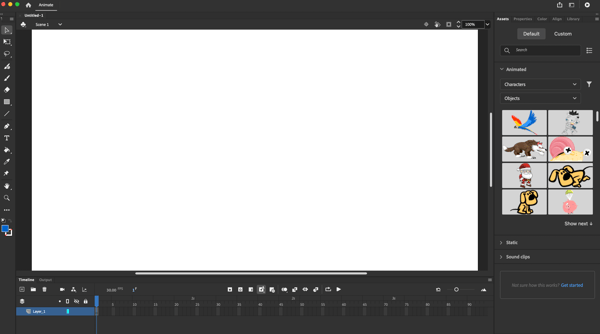
When Adobe initially announced plans to discontinue Adobe Animate in March 2026, the reaction from the animation community was immediate and intense. Long-time users who rely on Animate as part of their daily workflows took to Reddit and Adobe’s community forums to express confusion, frustration, and anxiety about what the decision would mean for their work.
One of the most common concerns centered on long-term access to existing projects. Many users described having years, and in some cases decades, of animations, apps, games, and educational content built in Animate, with no clear reassurance that those files would remain editable or accessible in the future.
There was also widespread frustration around the lack of a clear transition plan. Commenters repeatedly questioned what Adobe meant by “continued access,” why more advance notice wasn’t given, and why options like a standalone or legacy version weren’t offered to ease the transition.
More than anything, the response reflected a breakdown in trust. For long-time subscribers, the announcement felt abrupt and disruptive.
Following the backlash, Adobe issued a public clarification stating that Adobe Animate is not being discontinued and will instead move into maintenance mode. The company confirmed that Animate will remain available to both new and existing users, continue to receive security and bug fixes, and allow ongoing access to existing files. Adobe also acknowledged that its original communication caused unnecessary confusion and stress within the community and apologized for how the message was delivered.
Sources:
Adobe Community
Here’s what I looked at when evaluating replacements:
Adobe Animate occupies a very specific space in the animation software category, which made evaluating alternatives less about popularity and more about fit. Instead of surveying every animation tool on the market, I focused on products that could realistically replace Animate for common use cases, including 2D animation, interactive projects, and lightweight motion work.
I started by reviewing tools listed in G2’s Animation Software category, paying close attention to products that overlapped with Animate’s core capabilities, such as timeline-based animation, frame-by-frame control, and flexible export options. From there, I looked at how each tool approached animation, whether through hands-on creative control or more automated creation.
To keep comparisons consistent, I reviewed each tool using the same considerations:
G2 user reviews played a crucial role throughout this process, revealing common strengths, limitations, and practical use cases that aren’t always evident from short-term testing. By combining my personal experience with insights from G2 reviews, I was able to create a balanced perspective on the product, integrating real-world insights with formal assessments.
When I couldn't personally test a tool due to limited access, I consulted professionals with hands-on experience and validated their insights using verified G2 reviews. The screenshots featured in this article are a mix of those captured during my testing and ones obtained from the vendor’s G2 page.
Note: This review is an individual opinion and doesn’t reflect G2’s position about the mentioned software’s likes and dislikes. However, G2’s review data and scores have been used to inform the findings.
If you are specifically comparing free tools to replace Adobe Animate, the biggest difference isn't just price, but the workflow. Pencil2D and Krita are easier starting points for frame-by-frame animation, while Synfig and OpenToonz are better when you need more production depth or automation.
|
Tool |
Animation type supported |
Learning curve |
File export formats |
Platform |
|
Pencil2D |
Hand-drawn 2D animation with bitmap and vector layers |
Low |
MP4, GIF, images, image sequences |
Windows, macOS, Linux, FreeBSD |
|
Krita |
Frame-by-frame raster 2D animation |
Medium |
GIF, MP4, MKV, OGG, image sequences |
Windows, macOS, Linux, Android, ChromeOS |
|
Synfig |
Vector-based 2D animation, bitmap-assisted cutout animation, tweening, web export |
Medium |
Animation export, images, Export for Web (Lottie) |
Windows, Linux, macOS |
|
OpenToonz |
Traditional 2D animation with raster/vector support, cutout tools, and effects |
High |
MP4, WebM, GIF with FFmpeg |
Windows, macOS, Linux, FreeBSD, DragonFly BSD |
Below are the five Adobe Animate alternatives that stood out during my evaluation. Each tool approaches animation differently, and none of them is a one-to-one replacement for Animate. Instead, they excel in specific areas, whether that’s professional motion design, explainer-style animation, beginner-friendly workflows, or AI-assisted creation.
The list below contains genuine user reviews from G2’s Animation Software category page. To be included in this category, a solution must:
*This data was pulled from G2 in 2026. Some reviews may have been edited for clarity.
When I started looking at Adobe Animate alternatives, After Effects immediately stood out simply because it’s part of the Adobe ecosystem. It doesn’t try to mimic Animate’s simplicity; instead, it takes a different approach and expands what’s possible once motion becomes the core of the creative output.
One of the biggest differences compared to Animate is the level of control available when animating assets. After Effects lets me work with still images, illustrations, and text in a much more granular way. Timing, motion paths, and transitions are all adjustable at a granular level, making it easier to build intentional motion rather than rely on preset behaviors.
Working in both 2D and 3D within the same composition also changes how projects come together. I can layer flat assets with 3D elements, adjust lighting, and add depth without switching tools. This flexibility is useful when animations need to feel more dynamic or layered.
Another area where After Effects stands out is compositing. I can stack footage, graphics, text, and effects within a single composition and control how each layer interacts. This makes it easier to build complex visuals without breaking projects into separate files or tools. For animation workflows that mix multiple assets, this layered approach keeps everything organized and editable in one place.
I’m also not restricted to preset effects when creating motion. While presets are available, most of the work happens through manual adjustments and combinations. This makes it easier to build a specific look instead of forcing ideas to fit templates. Over time, that control becomes a big advantage.
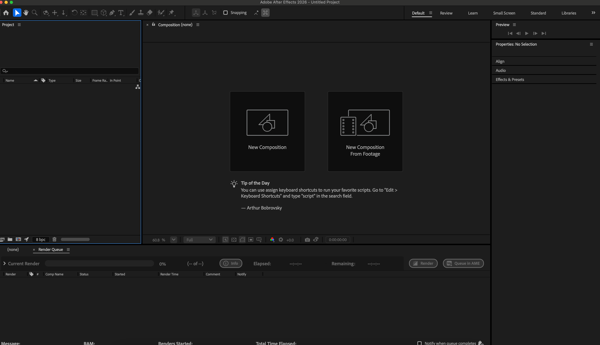
Automation tools help once projects start growing in size. Features like parent layers and expressions reduce repetitive work across multiple elements. Instead of reanimating similar pieces, I can link behavior and make changes globally.
I also appreciate the large ecosystem of plugins and integrations. When native features fall short, third-party tools usually fill the gap. It keeps workflows flexible and prevents the tool from feeling limiting over time. Many creators rely on this ecosystem to extend functionality.
That depth also creates room to grow. Many G2 reviewers note that After Effects takes time to get comfortable with, particularly for users coming from simpler animation tools, but the learning process unlocks far more control than entry-level platforms offer. With tutorials and hands-on practice, users tend to move past the initial ramp-up.
The same applies to performance at scale. After Effects is built to handle complex compositions and layered effects, which is a big part of why it’s used for serious motion work. At the same time, G2 reviewers often note that performance can slow down as projects grow more complex, especially when working with multiple effects, 3D layers, or high-resolution assets. This means animation tasks benefit from upfront planning and a system that can handle the load. Once those pieces are in place, After Effects remains stable even on demanding projects.
Despite those considerations, After Effects maintains a 94% satisfaction rating on G2 for meeting requirements, with most reviews coming from small-business users. It’s a strong Adobe Animate alternative for creators ready to move into more advanced motion graphics and comfortable trading simplicity for creative range.
“After Effects is the industry standard for motion graphics. They have a diverse range of robust features for animation and visual effects. My favorite thing about After Effects is how it integrates beautifully with other Creative Cloud applications. It also updates often with new tools.”
- After Effects review, Adelaide R.
“Even for someone with a lot of Adobe experience, the app isn't as intuitive as some motion graphics packages I use. It is, however, much more powerful, so it's not really a negative. It just has more to offer and, therefore, takes longer to learn.”
- After Effects review, Shawn M.
Related: Learn how synthetic media, including AI-generated images, audio, and video, reshape creative production and its impact on animation and content processes.
Vyond is built for creating animated videos quickly, particularly in business and organizational settings. According to G2 Data, 50% of its users are enterprise teams, and it scores 96% for ease of setup, indicating it’s optimized for fast adoption rather than technical depth.
I looked at Vyond as an option for teams that use Adobe Animate for explainer videos, onboarding content, or internal communications. The platform is clearly structured around message delivery, with animation designed to support clarity and speed rather than creative experimentation.
One of the biggest advantages is how character animation is handled. Vyond comes with a large library of characters that already include gestures, expressions, and actions. Instead of animating movement frame by frame, I’m choosing how characters behave within a scene, which removes a lot of technical overhead.
The scene-based animation workflow reinforces that simplicity. I build videos one scene at a time, arranging content visually rather than managing timelines or keyframes. For narrative-driven animations like training modules or explainers, this structure makes it easier to focus on flow and pacing.
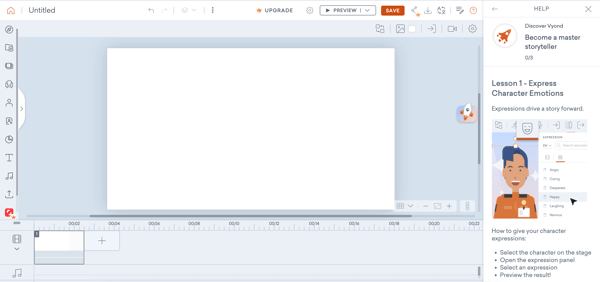
Another benefit is how quickly animations come together without setup. There’s no need to configure animation curves or motion paths before getting started. I can move straight from script to visuals, which significantly shortens production time when animation is part of a larger communication process.
Consistency is another area where Vyond performs well. Characters behave predictably across scenes, which helps maintain continuity in longer videos or series-based content. For organizations producing recurring animation, that reliability makes updates and expansions easier to manage.
Templates also help guide how animations feel over time. Pre-structured layouts shape transitions, pacing, and visual rhythm without requiring manual planning. This keeps videos looking polished even when multiple people are contributing content.
Audio integration is tightly connected to animation. I can add voiceovers directly in the editor and adjust scenes so motion stays aligned with narration. Because timing and lip-sync are handled automatically, there’s less back-and-forth between animation and audio tools.
That structure also creates a clear path for teams that want to get comfortable with animation. G2 reviewers often note that while Vyond doesn’t offer frame-by-frame control or custom motion paths, this limitation helps teams stay focused on storytelling instead of animation mechanics. For organizations prioritizing speed and clarity, that trade-off works in their favor.
Reviews also mention that relying on preset assets can lead to similar-looking animations if teams aren’t intentional about customization. With thoughtful use of scenes, characters, and layouts, many teams still maintain variety while benefiting from a predictable production process.
Overall, Vyond works well as an Adobe Animate alternative for teams that use animation as a communication tool rather than a creative craft.
“What I like most about Vyond is how easy it is to use, its AI integrations, its stock shutter library, its mobile app for quick video editing, and how easy it is to diversify content into different languages and add subtitles.”
- Vyond review, Juan H.
“Vyond characters offer only a limited range of movements. When I created a video about a child with behavioral issues who was banging his head, I couldn't find a suitable movement to represent the action. As a result, I had to insert an additional screen to clarify what was happening in the scene.”
- Vyond review, Vickey H.
Related: Discover the latest in AI avatar creation, including tools that let you generate lifelike digital characters for use in animation, marketing, and virtual experiences.
Animaker is positioned as an accessible animation tool for creators who want to produce animated content without deep technical knowledge. According to G2 Data, it’s used largely by small businesses (79%) and scores 92% for ease of use.
The first thing that stands out is how easy it is to build animations scene by scene. I can create each scene independently and control how content flows from one section to the next. It works very well for explainer-style videos and short narratives.
The editor is straightforward and visual. I can create animations using drag-and-drop elements, prebuilt characters, icons, and backgrounds. I can add them directly onto the canvas and adjust them visually. There’s no need to work through complex animation panels, so I can keep my focus on composition rather than setup.
Character animation is a core part of the platform. Animaker offers a wide range of characters, expressions, and actions that can be mixed and matched depending on the scene. While this isn’t the same as manually animating characters, it does allow for more variation than fully template-driven tools, especially for short-form or marketing-focused animations.
This leads to my next point: Animaker balances templates with control. While presets allow for quick animation setup, I can still customize timing, transitions, and basic motion. It helps me shape animations more freely, without being confined to a single layout or flow.
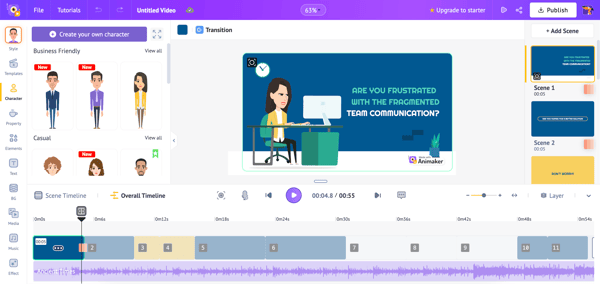
Animaker also supports multiple animation styles in one place, including 2D, whiteboard-style animations, infographics, and text-based motion. This flexibility is useful for small teams that create different types of content and don’t want to switch tools for each format.
The platform works exceptionally well for quick turnaround content. I can produce short animated videos for presentations, social media, or landing pages without needing additional software. That speed is a big part of its appeal, particularly for teams with limited design resources.
That simplicity also creates a comfortable entry point for animation. G2 reviewers often mention that while Animaker doesn’t offer detailed motion control or custom animation paths, this keeps the tool approachable for beginners and non-designers. For users focused on getting ideas out visually, the trade-off supports faster creation.
The same pattern appears as projects grow in complexity. Reviews note that more detailed or layered animation work can eventually push beyond Animaker’s capabilities. For many users, Animaker works best as a reliable starting point before moving into more advanced tools when precision becomes a priority.
Overall, Animaker works best for small businesses and creators who need to produce animated content quickly and consistently. It’s a practical Adobe Animate alternative for simpler use cases.
“I've been using Animaker for 4 years now, and I have had lots of experience with the software; I loved how it's so easy to make cartoon characters and videos, the customer service was fast, and issues were resolved quickly. I use Animaker at least twice a week and work on DIY videos for hours with ease.”
- Animaker review, Thomas C.
“Some aspects work well, but there are limitations in the flexibility of animating certain objects. For example, I couldn't show a car moving from left to right, so I had to find another option in Animaker. At the beginning, the installation was a bit difficult, but now it is easier."
- Animaker review, Hafizollah S.
Related: Explore the best AI video generators that help teams and creators produce professional-quality videos without traditional editing workflows.
Steve AI takes a very different approach to animation compared to traditional timeline-based tools. Built by the same company behind Animaker, it’s designed to turn scripts and ideas into animated videos quickly, without requiring manual animation work. According to G2 Data, 89% of its users are small businesses, and it scores 93% for support quality.
The core workflow is script-first. I can start with text, and the platform automatically breaks it into scenes, chooses visuals, and applies transitions. It removes much of the setup work that comes with traditional animation tools, making it easier for me to get a complete animated draft in minutes.
Automation handles most animation decisions. Steve AI uses context-aware logic to match scenes and visuals to the script, which keeps the process moving without requiring manual sequencing. For animations centered on storytelling, this approach helps uphold structure and lowers production effort.
Character-based animation is another strong point. The platform offers a large library of 300+ animated characters that can be reused across videos. Although this isn’t detailed frame-by-frame character animation, it worked well for me in situations where characters serve to support a narrative rather than handle complex movement.
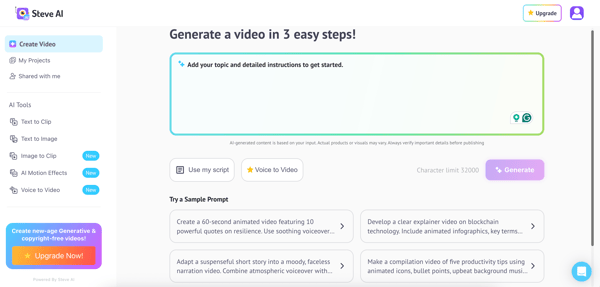
Steve AI also supports different animated and video-style formats within the same tool. I can create explainer-style animations, talking-head visuals, or scene-based animated videos. I found it helpful in producing varied content without having to manage multiple tools.
Speed is a big advantage with this tool, too. Because animation, pacing, and transitions are handled automatically, I can focus more on structure and messaging instead of execution details. For small teams or solo creators, this significantly shortens production time.
Support stands out as well. G2 reviewers frequently mention responsive and helpful customer support, which matters more in tools that rely on automation. When something doesn’t behave as expected, having access to clear guidance makes adoption easier.
There are a couple of considerations worth noting. Pricing comes up in a small number of recent G2 reviews, with some users mentioning that it can feel high relative to the level of creative control offered. That said, there aren’t enough recent reviews to form a broad consensus, so this appears more situational than universal.
A few recent reviewers also mention occasional lag when editing or previewing longer or more complex animations. Again, this feedback is limited to a smaller set of reviews, but it’s something to be aware of if you plan to produce high volumes of content.
Steve AI isn’t a traditional Adobe Animate alternative; it doesn’t replace manual animation but emphasizes storytelling and speed, automating scripts into videos. For those prioritizing narrative and quick turnaround over craftsmanship, it offers a practical, alternative approach.
“Great voiceover options, best tool for script to video generation with relevant stock footage and animations, which works best for explainer videos.”
- Steve AI review, Vaibhav D.
“At times, the AI-generated videos that consist of stock images can be a bit generic and lack the touch you might want.”
- Steve AI review, Ashutosh J.
Blender came up early when I started mapping Adobe Animate alternatives that weren’t tied to a single animation style or output. According to G2 Data, 82% of Blender reviewers are small businesses, 93% of users say it is going in the right direction. I looked at Blender as a free Adobe Animate alternative for creators who want long-term flexibility and control, especially those willing to move beyond traditional 2D timelines.
I get detailed control over character animation through Blender’s rigging tools. Skeletons, automatic skinning, and bone-based animation let me define movement at a granular level instead of relying on preset motion. Character behavior stays flexible, making it easier to adjust poses, gestures, and transitions as scenes evolve.
I have strong control over timing and motion. Tools such as the curve editor, dope sheet, and keyframes give me direct control over pacing, easing, and transitions, making the movement feel more expressive rather than mechanical. Subtle timing changes are also easy to test and refine without disrupting the rest of the animation.
Being able to work in both 2D and 3D within the same workspace changes how I approach animation. With Grease Pencil, I can draw directly inside a 3D scene and animate without switching tools. Mixing hand-drawn elements with 3D environments opens up workflows that aren’t possible in most 2D-first tools.
Blender feels built for real production work, not just experimentation. I can use the same animation tools for short clips or longer-form projects like ads and short films. That makes it easier to grow into more complex work without outgrowing the tool.
I like how customizable the platform is over time. The interface can be adjusted to match how I work, and the Python-based add-on system lets me install community tools or build my own. This flexibility helps Blender adapt to different animation styles and project needs.
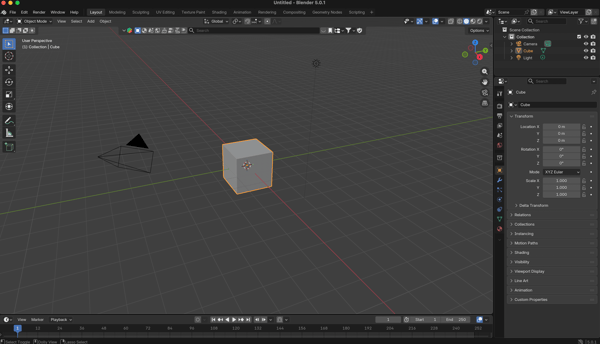
There’s also long-term confidence in using Blender. The active community, frequent updates, and open-source development make it feel like a tool that keeps evolving. For animation workflows that change and expand, that ongoing support is a big plus.
That flexibility also explains why Blender can feel overwhelming at first. Many G2 reviewers mention that the interface takes time to get comfortable with. However, once the basics click, the depth becomes an advantage rather than a barrier, particularly for creators planning to scale their animation work.
Learning Blender is often described as an investment rather than a quick switch. The payoff is access to a tool that supports 2D animation, 3D production, compositing, and customization in one place. If you want to future-proof your animation workflows and aren’t afraid of a learning curve, Blender offers far more room to grow than most Animate-style tools.
Overall, Blender stands out as a powerful alternative for animators who want creative freedom across both 2D and 3D, backed by an active community and a product direction that continues to expand.
“Everything about this program impresses me! I'm grateful to have witnessed its development from 2020 to the present. I was first introduced to Blender during a college course, but now I use it for 3D animation and some light modeling. However, that's not all — there are now countless features available, making it useful across various industries.”
- Blender review, Haris S.
"There are a few bugs that need to be fixed, especially in simulations.”
- Blender review, Amish S.
If none of these alternatives feel like the right fit, there are a few additional apps like Adobe Animate, worth checking out.
Got more questions? We have the answers.
Adobe is not discontinuing Animate. The company has clarified that Adobe Animate is moving to maintenance mode, meaning it will no longer receive new feature updates but will continue to be available and receive security and bug fixes.
Yes. Adobe has confirmed that Adobe Animate will remain available for both new and existing users. You can continue to download and use the application while it remains in maintenance mode.
Yes. Adobe has confirmed that users will continue to be able to open, edit, and access their existing Adobe Animate files even as the product moves into maintenance mode.
There is no one-to-one replacement. Animate combines timeline-based animation, interactivity, and vector workflows in a way few tools fully replicate. Most alternatives specialize in different areas such as motion graphics, character animation, or automated animation.
The best animation software depends on your use case. Based on G2’s Winter 2026 Grid Report, leading animation tools right now include Adobe After Effects, Vyond, Animaker, Blender, and Steve AI, each suited to different animation workflows. You can also explore G2’s free animation software guide if you’re specifically looking for a free Adobe Animate alternative.
According to G2 Data, Vyond, Animaker, and Steve AI are the most user-friendly options in this list. They excel in ease of use ratings, with Steve AI at 94%, Vyond at 93%, and Animaker at 92%, making them ideal choices for those looking to animate without a steep learning curve.
For most creators, Blender is the best free alternative to Adobe Animate for web animation. For lighter 2D web animation specifically, Synfig is the closer match because it is 2D-first and supports web-oriented export workflows.
Most professionals move to After Effects for motion graphics or Blender for a free, more flexible 2D/3D pipeline. In G2’s animation category, those are two of the strongest creator-focused alternatives in this list.
Pencil2D is much simpler. It is easier for basic hand-drawn 2D animation, but Adobe Animate is broader for timeline-based projects, interactivity, and more advanced production workflows. On G2’s comparison page, reviewers say Adobe Animate meets requirements better, while Pencil2D is preferred for ease of use.
Adobe Animate remains available and supported, and for many creators, it will continue to meet their needs just fine. The recent confusion around its status doesn’t automatically require a change, especially for teams and individuals with established workflows built around Animate.
This list isn’t about moving away from Animate. It’s about understanding what alternatives exist, how they differ, and where they may or may not make sense depending on how Animate is used.
Some tools lean toward professional motion design and compositing. Others prioritize speed, templates, or accessibility. A few are simply easier to pick up if you don’t want to relearn animation from scratch.
Whether you continue with Animate or simply want a backup plan in place, understanding these alternatives puts you in control of what comes next.
If your work is moving beyond 2D, check out G2’s guide to the best 3D modeling software to see which tools creators are using and how they compare.

I know how exciting it can be to imagine creating stunning animations, only to feel limited by...
 by Alexandra Vazquez

The best animation software in 2025 depends on what you’re creating: 2D explainers, cinematic...
 by Brittany Guntang

If you think about it, visual content is the secret ingredient in transforming text-based...
 by Kai Tomboc