


I have used Google Forms for a range of use cases: internal surveys, quick lead capture, and simple event registrations. It does the job. You set up a form, share the link, collect responses, and move on. That works until the form needs to do more.
Maybe you are a marketer trying to route leads into a CRM. Or an ops team managing approvals across tools. Or you are running an event and need to collect payments without any hassle. That’s where Google Forms starts to feel limited.
That’s also when Jotform enters the picture.
At a surface level, both tools solve the same problem. Moreover, both are ranked #1 in their respective categories of Survey software and Online form builder. However, in practice, they serve different stages of the same problem.
Google Forms fits when speed and simplicity matter more than control. Jotform makes sense when your forms are tied to workflows, payments, or other systems. I have used both across different use cases, from basic surveys to more structured forms. The differences show up fast once your requirements grow.
The G2 Data clearly reflects that split. Google Forms holds a 4.6/5 rating, with 94% for ease of use and 94% for ease of setup, which matches its strength as a fast, familiar tool for simple forms. Jotform has a slightly higher 4.7/5 rating, with 93% for ease of use and 93% for ease of doing business, showing why it appeals to teams that need more flexibility without making form building feel too complex.
In this blog, I’ll share how these two platforms measure up and where each of them stands apart.
Here’s what I found after using both: Google Forms is great when you want to move fast and keep things simple. Jotform works better when your form is part of a workflow.
Here's a comparative table to bring clarity to the differences between Jotform and Google Forms:
|
Feature |
Google Forms (Google Workspace) |
Jotform |
|
G2 rating |
4.6/5 |
4.7/5 |
|
Best for |
Quick and free survey software |
Business forms, workflows, and payments |
|
Ease of use |
Very easy |
Easy, with a slight learning curve |
|
Setup speed |
Fast for basic forms |
Slightly slower due to more options |
|
Customization |
Basic layout and theme-level customizations |
Extensive customizations, including advanced customization using CSS, JavaScript, and HTML |
|
Templates |
17 basic templates |
20,000+ free templates categorized according to type, profession, and industry |
|
Logic |
Basic branching |
Advanced conditional logic |
|
AI form builder |
Creates structured and complete forms |
Creates functional but basic forms |
|
AI voice support |
Not available |
Available; forms can be created using voice commands |
|
Integrations |
Best within Google Workspace, add-ons like Payable Forms, and automation tools like Zapier |
Strong, third-party 200+ integrations across 20+ categories |
|
Form import |
Not supported |
Migrates forms from Google Forms |
|
Analytics |
Simple AI summaries and charts/graphs
|
More detailed reporting and insights using the report builder |
|
Payments |
Requires add-ons like Payable Forms |
Built-in payment options like Google Pay, Apple Pay, PayPal, Stripe, etc |
|
Notifications |
Basic notification alerts |
Notification alerts (on by default) and custom autoresponders |
|
Mobile features |
Browser-based access |
Mobile app and kiosk mode |
|
Security |
Strong core protections like GDPR compliance, SSL compliance, encryption, HIPAA compliance (with paid Workspace plan), and two-factor authentication |
Strong protections with more advanced options, such as encrypted forms with unique access codes for end-to-end protection, password protection, and HIPAA compliance with Gold+Enterprise plans |
|
Support |
Help center, Workspace resources, online community, and 24/7 online support (only for paid users) |
Help center, academy, 24x7 support, and training resources |
|
Pricing |
Free; can be used with both Google Workspace and a personal Google account
|
Free; can be used with a personal email address as well
Discounts for students, NGOs, educators, and G2 users. |
|
Learning curve |
Minimal |
Moderate |
|
Overall fit |
Better for simple internal forms |
Better for advanced form workflows |
Note: These details are based on the capabilities as of May 2026 and are subject to change with new rollouts.
Both tools let you build forms and collect responses without much effort. They are accessible through a browser, easy to share, and don’t require technical knowledge to get started. That’s where the overlap sits.
In my experience, Google Forms are extensively used by organizations to collect feedback/opinions. Educational institutions, such as schools, colleges, and coaching centers, heavily rely on Google Forms to create short questionnaires or tests. The reason is simple: ease of use.
However, Jotform is built for the next step: when you require payments, product listings, or time slot selection from the calendar.
Here are some differences I came across while exploring the two software:
Related: Are you looking for online form builders? Find tried-and-tested free online form builders on G2.
No matter the differences, the two platforms also share a good number of similarities, such as:
To compare Google Forms and Jotform fairly, I tested both platforms using real-world scenarios that reflect how people actually use online form builders at work and in everyday life. I used the free versions of these tools first and relied on G2 Data to obtain reliable and trusted information on how these platforms perform for businesses of different sizes.
Tasks I performed:
I evaluated each task based on:
To validate these observations, I cross-checked patterns in user reviews. The Jotform dataset showed strong satisfaction around flexibility and features, while Google Forms feedback leaned heavily on simplicity and speed.
Disclaimer: Feature availability and pricing for both Google Forms and Jotform may vary based on platform, plan tier, device, and recent product updates. The results and observations in this article reflect hands-on testing conducted as of May 2026 and represent an individual opinion. They do not reflect G2's position on the mentioned software's likes and dislikes.
This is where the differences become clearer. Each task exposed a different strength or limitation. Being free tools, both are free to use and can be easily evaluated. And that’s exactly what I did. Here is how each of them performed in my tests.
I started with a basic feedback form with five questions to to test how quickly each tool handles simple, everyday use cases, such as internal surveys or quick feedback collection.
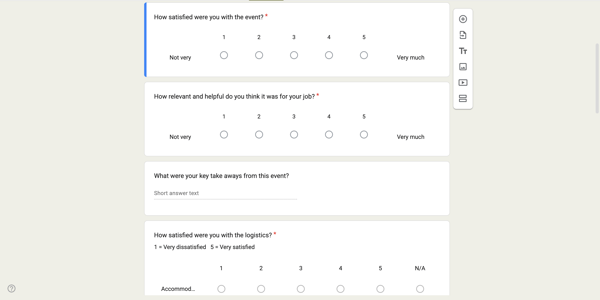
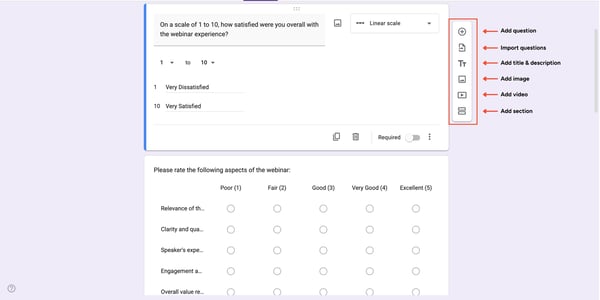
Google Forms handled this almost instantly. I opened it, added questions, and shared the link in under five minutes. The questions were stacked vertically, with simple response options such as linear scales and short-answer options. Adding or editing a question was just a click away, and the toolbar on the right kept everything accessible without clutter. I was able to move quickly from one question to the next without any distractions.
The minimal interface of Google Forms worked in its favor.
Jotform took slightly longer because of more options in the builder. Templates, layouts, and settings slowed me down slightly. The interface was more feature-rich, with a left-hand panel full of elements, including headings, email fields, date pickers, and more. The central canvas was more customizable, and even a simple feedback form included styled rating scales and dropdowns. It wasn’t difficult, but it did require a moment to adjust.
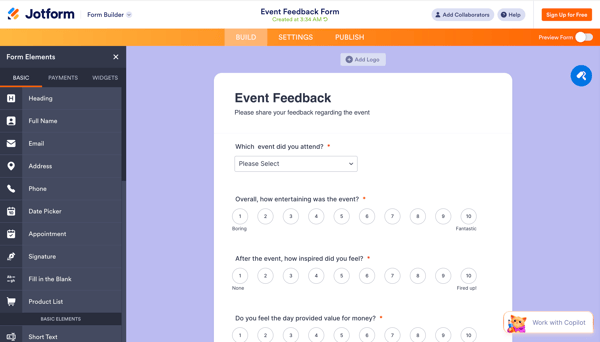
While both worked well, I found Google Forms straightforward and easier to navigate. It was quick, clean, and the sample questions were close to what I had in mind for the feedback form. As for Jotform, I found the interface quite intuitive, but it felt feature-heavy for a first-time user like me.
Winner: Google Forms
For my next test, I decided to test the two platforms’ AI capabilities for form creation. Google Forms, like other Google Workspace products, works with Gemini. On the other hand, Jotform relies on Jotform AI (Copilot AI) for its form-building endeavors.
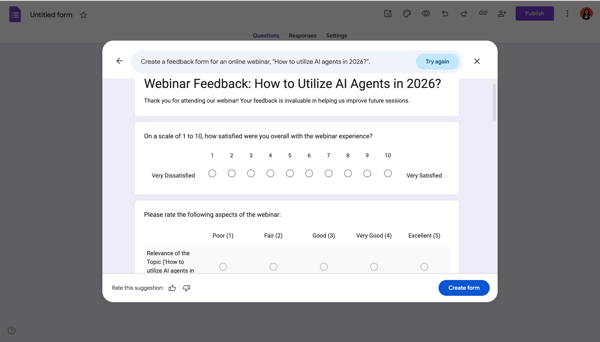
I gave the same command to the AI: Create a feedback form for an online webinar, "How to utilize AI agents in 2026?"
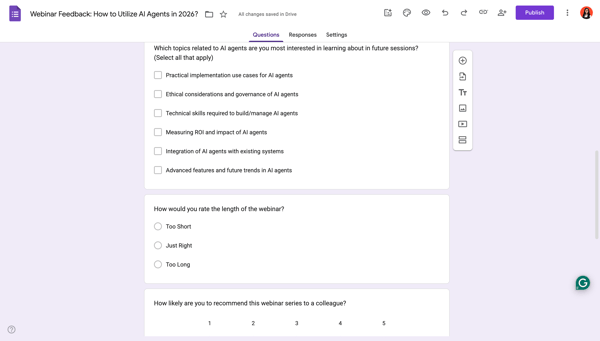
Google Forms created a comprehensive form that covered almost all the aspects an event organizer would want to know. This impressed me.
It included a mix of question types, linear scales, multiple-choice options, and checkbox-based questions, covering areas like satisfaction, content relevance, future interests, and recommendations. What stood out to me was how specific and guided the questions were, making it easier for respondents to answer quickly without needing to type long responses.
But I couldn’t say the same for Jotform. It created a simple form with only 5 questions with essential fields like name, email, ratings, and a few open-ended questions. While the structure was clean and usable, the questions felt broader and more text-heavy. It leaned more toward descriptive answers rather than quick selections, which could increase effort for respondents.
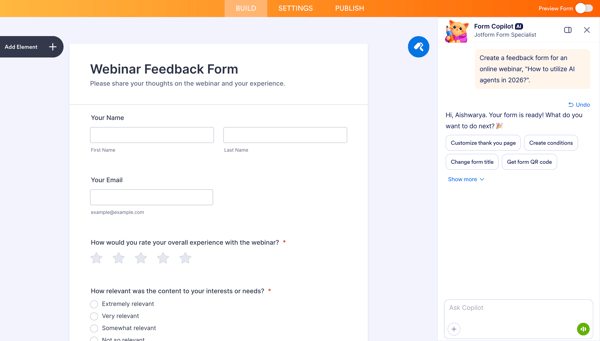
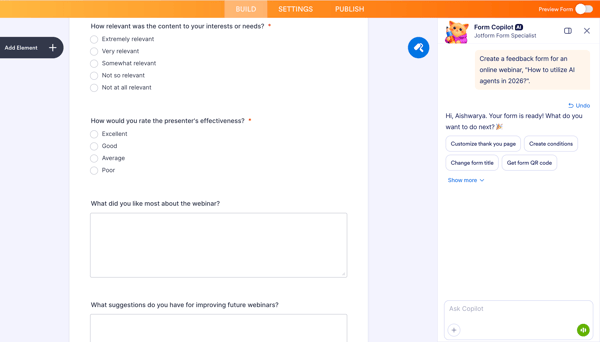
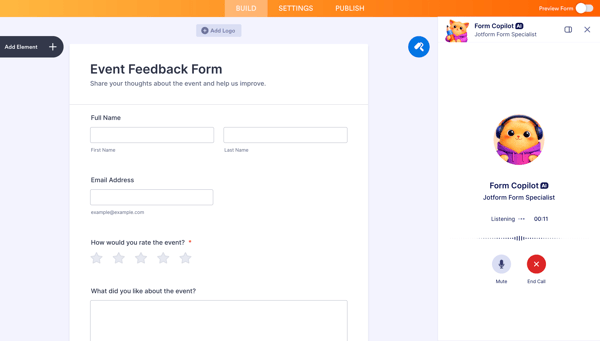
Where Jotform stood out more was in how the AI experience worked. Its Copilot AI felt more interactive, and I was also able to use voice commands to describe the form and make changes conversationally. That made the workflow feel faster and more natural, especially if the goal is to build or revise a form without relying as much on manual drag-and-drop. I could not find a comparable voice-based experience in Google Forms, where the process still felt more text- and click-driven.
In my view, Google Forms, with its thoughtful question framing, was able to generate a well-rounded, ready-to-use feedback form on the first attempt. I also felt that it went a step ahead in understanding how users prefer to answer by keeping questions option-based and specific.
In comparison, the form created by Jotform AI was functional but basic. It required additional tweaks or back-and-forth with the AI to reach the same level of completeness. However, Jotform made the process feel more flexible and conversational, especially with voice input layered into the experience.
Winner: Split; Google Forms created a more complete form on the first pass, while Jotform offered a more interactive AI-assisted building experience.
Form elements are one of the clearest points of difference between Google Forms and Jotform.
Google Forms’ element set is intentionally narrow. The editor mainly gives you a short vertical toolbar for adding a question, importing questions, inserting a title and description, adding an image or video, and creating a new section. That keeps the interface clean and easy to learn, but it also signals the platform’s limits.
The simplicity works well when the goal is speed. For basic registrations, surveys, quizzes, and feedback forms, Google Forms covers the essentials without overwhelming the user. The limited set of building blocks can actually be an advantage for teams that do not want to spend time exploring advanced features and just need something functional that connects smoothly with Google Sheets.
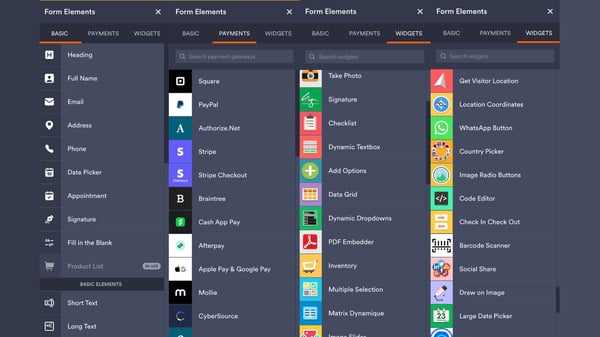
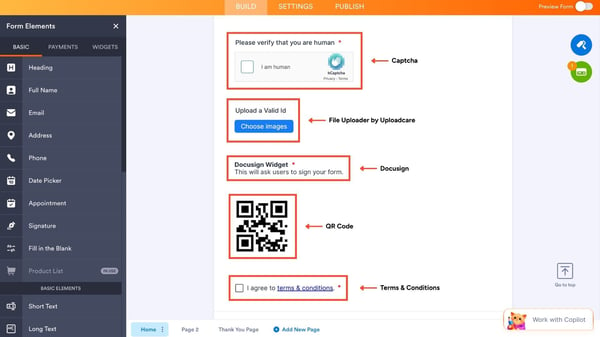
Jotform, on the other hand, felt far more expansive when I explored its form elements. Instead of a small editing toolbar, Jotform opened up entire categories of elements across Basic, Payments, and Widgets. Even the standard field library was broader, and once I moved into Payments and Widgets, the range became much more substantial.
I could see dedicated payment options like Square, PayPal, Authorize.Net, Stripe, Apple Pay, and more, along with widgets such as signature capture, HIPAA test, dynamic text boxes, dropdown tools, PDF embedding, barcode scanning, image radio buttons, social sharing, and location-based tools.
Based on my analysis, keep Google Forms for basic data collection, such as feedback, internal surveys, event RSVPs, and quick quizzes, where the priority is low setup cost, zero licensing fees, and seamless integration with Google Sheets.
Use Jotform to create more complex, mission‑critical workflows, such as lead‑capture forms with conditional logic, payment‑enabled registration and booking forms, and HIPAA‑aligned intake forms, where richer fields, branding, advanced logic, and compliance features justify its paid tiers.
Winner: Jotform
Publishing the form is half the battle won. The most important step is data consolidation, visualization, and reporting. This test was particularly important as it revealed how small differences in form design and tool choice directly impact data quality, completeness, and downstream analysis. Raw responses can only be turned into actionable insights when data is structured, cleaned, and effectively visualized.
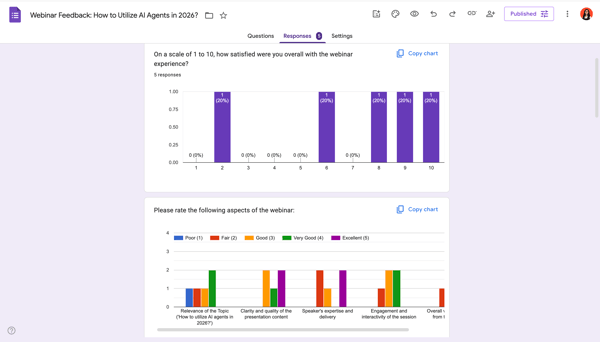
After receiving responses from my peers, I went straightaway for data export and reporting. I found Google Forms’ interface to be quite clean and straightforward for response insights. It presented results directly within the form interface, using bar and pie charts and question-wise visual summaries. The layout felt immediate and beginner-friendly because I didn’t have to leave the form or dig through menus to understand what respondents were saying. I also liked the simple tab-based flow, where questions, responses, and settings were separated clearly, making navigation feel natural.
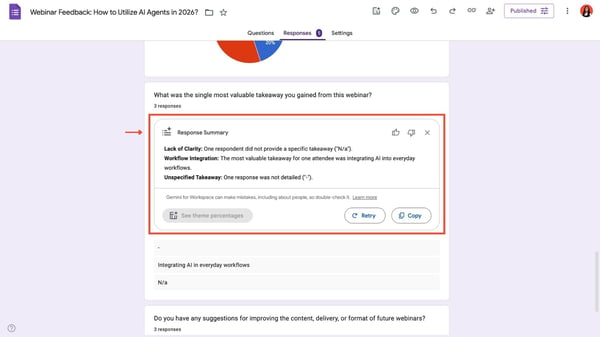
A striking feature that stood out to me in Google Forms was the AI-generated response summary for textual questions. Gemini highlighted recurring themes from text answers and presented them in a compact summary box. That is genuinely useful when reviewing qualitative feedback, because it saves time and helps identify patterns without manually reading every individual response in detail. For short feedback cycles or internal reviews, this is a practical advantage.
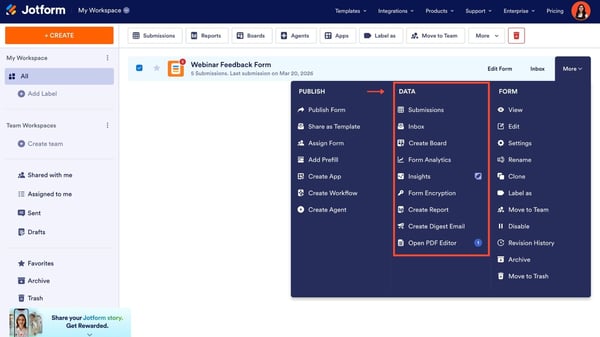
Jotform, on the other hand, required a bit of navigation before reaching the insights. It’s a difference in interface, but nothing that would slow me down. It organized data-related tools into a broader menu: submissions, inbox, form analytics, insights, and reports. That structure makes it feel less immediate than Google Forms, but also more flexible for users who want multiple ways to work with response data. I noticed that some options, such as insights, appeared to require premium access, which may matter for smaller teams or individual users.
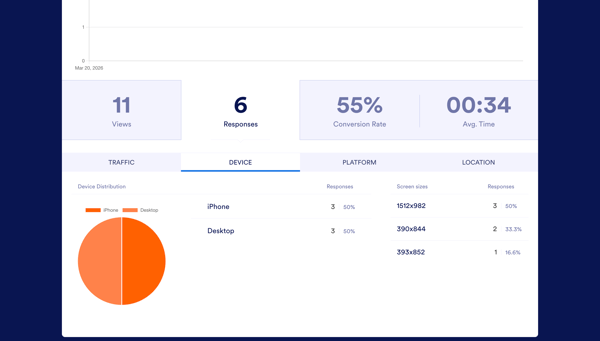
What impressed me in Jotform’s analytics view was the depth of operational metrics shown alongside response data. It tracked views, total responses, conversion rate, average completion time, device split, screen sizes, and other behavioral details. This goes beyond simple response visualization and starts to tell you how people are interacting with the form itself. The average time metric, in particular, is useful because it helps assess whether the form is too long, confusing, or frictionless. If completion time is unusually high, the builder may need to simplify or reorder questions. If it is extremely low, it may suggest respondents are rushing through without engaging deeply.
Both of them win for their respective ecosystems. While Google Forms data can be exported to Google Sheets, Jotform has its own cloud-based counterpart, Jotform Tables. The two platforms score well on data visualization, analytics, and export. In the end, both handle reporting well, but they serve slightly different priorities.
Winner: Split; Google Forms emphasizes clarity and speed, while Jotform emphasizes depth and operational insight.
Related: Are you starting to dive into workflows? Let’s understand what workflow management is with G2.
For my final test, I created a donation form that accepts payments. In payments, the difference between Jotform and Google Forms was much more noticeable.
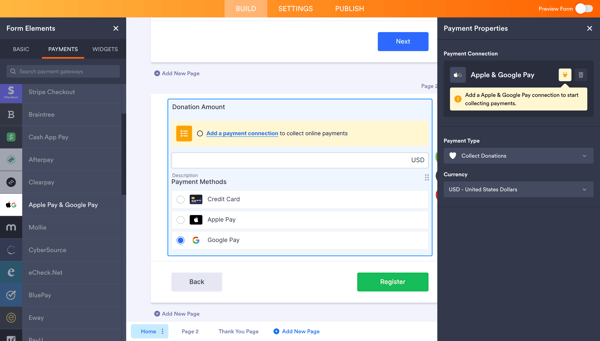
Right from the time I explored Jotform, I found that payments are built directly into the platform. Under form elements, there is a dedicated payments section with native options such as Stripe, PayPal, Apple Pay, Google Pay, and more. I also noticed that Jotform lets you easily customize payment properties, including options to sell a product, sell a subscription, collect a user-defined amount, or collect donations. On top of that, it supports multiple currency settings, making the setup feel much more flexible across different use cases.
Google Forms, on the other hand, doesn’t offer a native payment setup within its own system. To collect payments, you have to connect it through a Google Workspace add-on like Payable Forms. Based on its official description, Payable Forms automatically calculates the amount due based on the answers selected in a Google Form, hosts a secure checkout that matches the form theme, and updates the connected Google Sheet with payment status so users can track who has paid.
From what I have observed, Google Forms becomes significantly more functional when you add add-ons. Payable Forms, in particular, work well for use cases such as event registrations, fundraising, merchandise sales, invoicing, and other payment-based submissions. It also supports multiple processors such as PayPal, Square, and Stripe, which adds a good level of flexibility.
That said, Jotform still holds the advantage because its payment features are built directly into the platform, making the entire setup smoother and more intuitive. With Google Forms, payments are possible, but the reliance on third-party integrations adds an extra step and a bit more complexity to the overall workflow.
Winner: Jotform
Related: Explore user reviews, tested evaluations, and ratings of the best payment processing software with G2.
I looked at the pricing of Google Forms and Jotform, and while both offer free entry points, their pricing structures reflect very different use cases and audiences.
Google Forms is included with Google Workspace, so you don’t pay for it as a standalone tool. It’s free to use with a personal Google account. There is no "Pro" version of Google Forms. Whether you are a college student with a free Gmail account or a CEO of a Fortune 500 company on a paid Workspace plan, the form builder itself is exactly the same.
While you get unlimited forms and unlimited responses for $0, certain capabilities depend on the Workspace plan or external add-ons. Features like HIPAA compliance are tied to specific Workspace tiers, while more advanced workflows, such as conditional emails, often require third-party integrations.
If you are an individual, a student, or a small team with simple survey needs, Google Forms is the best free option. It becomes even more cost-effective if you are already using Google Workspace for internal workflows, feedback collection, or lightweight intake, since it sits on top of tools your team may already rely on, like Sheets, Drive, and Gmail.
Another point to note here is that Google says HIPAA support depends on signing a Business Associate Amendment and using only the Google Workspace services and functionality covered under that agreement. It also notes that third-party applications and add-ons are not covered under the Google Workspace BAA.
Jotform, on the other hand, is a dedicated form-building platform, and its pricing is directly tied to form usage, submissions, and advanced capabilities. It offers discounts to educators, students, non-profit organizations, and G2 users (up to 50% off). As you move up the tiers, Jotform offers higher submission limits, more forms, increased storage, payment processing capabilities, and advanced features such as HIPAA compliance and no branding.
Just a note on what I observed: Jotform’s free plan is generous for small use cases, but the limits (especially on submissions and forms) can be reached quickly if you’re running active campaigns or collecting data at scale. In such cases, upgrading becomes necessary to maintain performance and flexibility. However, users can claim extra forms with referral signups.
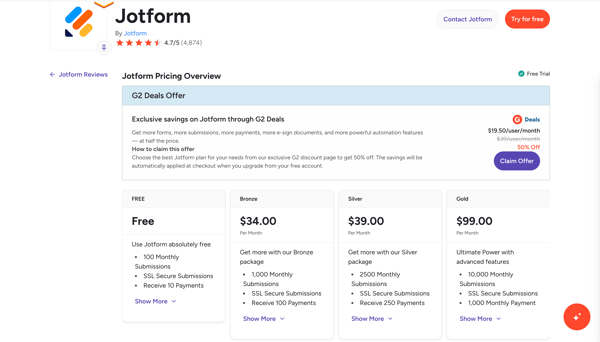
For individuals or teams already using Google Workspace, Google Forms is a far more cost-effective option since it comes bundled at no additional cost. Jotform becomes more compelling when your needs go beyond basic data collection, especially for payment-enabled forms, advanced workflows, or compliance-heavy use cases where its dedicated feature set justifies the price.
Winner: Split; Google Forms wins on cost and simplicity for basic use, while Jotform justifies its price with advanced features and scalability for more complex needs.
Do you need more than 100 responses but have a $0 budget?
Choose Google Forms. It is the better fit if you need a free tool for higher response volume, simple surveys, and internal data collection without running into submission caps.
Do you need to collect payments (Stripe/PayPal) natively?
Choose Jotform. Payment collection is built directly into the platform, while Google Forms depends on third-party add-ons like Payable Forms.
Is your data “compliance heavy” (HIPAA)?
Choose based on your setup. Jotform is the better pick if you need form-specific compliance workflows and encrypted form options. Google Forms can work if your organization already uses the right Google Workspace plan and broader Google ecosystem.
Do you need smart forms (calculations, PDF generation, e-signatures)?
Choose Jotform. These advanced workflows fit more naturally in Jotform, while Google Forms usually needs external tools or add-ons to achieve the same result.
Do you want the fastest setup for surveys, quizzes, or internal forms?
Choose Google Forms. It was quicker to build with, easier to navigate, and better suited for lightweight form creation.
Do you need more customization, templates, and workflow control?
Choose Jotform. It offers far more templates, richer form elements, stronger logic, and more flexibility once the form becomes part of a larger workflow.
Here’s a table summarizing all my tests with the winner and the reason.
|
Task |
Winner |
Why it won |
|
Building a quick feedback form |
Google Forms 🏆 |
Faster to set up with a minimal, distraction-free interface. Questions are easy to add, edit, and rearrange, making it ideal for quick form creation. |
|
AI-assisted form creation |
Split |
Google Forms generated a more complete, ready-to-use form on the first attempt, while Jotform stood out for its more interactive AI workflow, including voice-based form creation. |
|
Form elements |
Jotform 🏆 |
Offers a much wider range of elements, including payments, widgets, and advanced tools such as signature capture and HIPAA features, enabling more complex workflows. |
|
Data reporting and analytics |
Split |
Google Forms excels in simplicity and instant insights with built-in charts and AI summaries. Jotform provides deeper analytics like conversion rates and user behavior metrics. |
|
Payments |
Jotform 🏆 |
Native payment integrations (Stripe, PayPal, etc.) make setup seamless. Google Forms requires third-party add-ons, adding extra steps and complexity. |
|
Pricing and value |
Split |
Google Forms is included with Workspace at no extra cost, while Jotform charges based on usage and offers more advanced capabilities. |
As I mentioned, my hands-on testing was limited to introductory features and the free experience. To get a broader picture of how these tools perform in real business settings, I also reviewed G2 product data user reviews. That helped me understand not just feature differences, but also how different teams experience each tool in practice.
Here’s what stood out to me:
Looking at SurveyMonkey instead? Read my peer’s in-depth SurveyMonkey vs. Google Forms review that breaks down how these platforms differ in real-world use.
Got more questions? G2 has the answers.
Yes. Jotform has a free plan for basic use. It includes limits such as 100 monthly submissions, 5 forms, and 100 MB storage. It works well for small-scale use, but active usage can push you toward a paid plan.
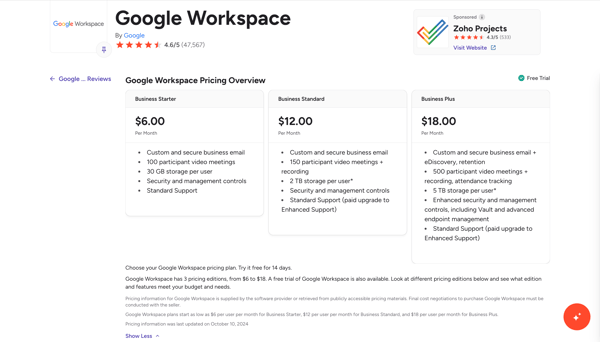
Google Forms is free (included with personal accounts or Google Workspace starting at $6/user/month), while Jotform is freemium: free for basics, then $34+/month for Bronze and up.
Yes, Jotform is HIPAA compliant on Gold or Enterprise plans with a signed Business Associate Agreement (BAA), including PHI encryption, audits, and breach notifications; lower plans require upgrading for compliance.
Yes, Jotform integrates with Google Docs via Zapier or Make to automate document creation from form submissions (e.g., generate docs from templates), and with Google Drive to save PDFs/uploads directly.
Jotform is used to create customized online forms for collecting data via surveys, registrations, feedback, payments/donations, event management, e-signatures, and workflows, serving businesses, nonprofits, education, and more with an AI-powered builder.
The free plan works well for a freelancer with low volume (up to 100 submissions/month and 5 forms), but upgrade to Bronze ($34/month) if you hit the limits or need payments/customization; it's generous enough to start free. If submissions grow or branding limits become an issue, Bronze would be the next step.
Google Forms is better for schools due to its simplicity, zero cost, seamless integration with Google Workspace (Sheets, Drive), and strong ratings for quick surveys/quizzes/tests — ideal for educators and students. Jotform makes more sense only if the school needs payment forms, advanced workflows, or more specialized intake forms.
Jotform is worth it for WordPress embedding thanks to its extensive customization, templates, and widgets (e.g., payment processing and logic), as well as easy embeds and mobile optimization. Google Forms is easier and cheaper, but Jotform is more suitable when the form needs to look polished or support payments and advanced interactions.
Google Forms is better for surveys. It is quicker to set up, easier to navigate, and strong for straightforward feedback collection. It also suits organizations that want fast, clean survey creation without extra complexity.
Jotform is better for payments. It has native payment options built into the platform, while Google Forms depends on add-ons like Payable Forms.
It can replace Jotform for simple needs, but not for everything. If the job is basic feedback, internal surveys, quizzes, or lightweight registrations, Google Forms is enough. If you need payments, advanced logic, richer form elements, compliance-focused workflows, or deeper customization, it cannot fully replace Jotform.
Yes, but with a caveat. Jotform is easy to use with drag-and-drop, AI agents, and templates (93% ease-of-use rating), though its feature-rich interface has a slight learning curve compared to Google Forms.
Jotform, with templates, logic, integrations (CRM/Zapier), and payments, is better for effective lead forms.
It depends on the team’s needs, but Google Forms is usually the better fit for small teams that want low cost and quick collaboration. Jotform becomes the better fit if the team needs more advanced forms, payments, or operational workflows. So for general small-team use, Google Forms has the edge. For small teams with more complex form needs, Jotform does.
For early-stage startups that need speed and low cost, Google Forms is the better starting point. It is free, easy to launch, and quick. For startups running lead capture, paid registrations, onboarding flows, or more polished external forms, Jotform is the better option. So the better choice depends on whether the startup is optimizing for simplicity or form capability.
The G2 Data and review sentiment support the same conclusion I reached in testing: Google Forms wins on simplicity, familiarity, and cost efficiency, while Jotform wins on flexibility, customization, and more involved form workflows. Google Forms feels more natural for internal surveys, quick feedback loops, and teams already working inside Google Workspace. Jotform feels better suited for businesses that need richer form logic, more field variety, payment collection, or more operational control over how forms behave.
However, in the end, it completely depends on your requirements. These observations are based on my personal experience with the two software. Before making any decision, you should thoroughly review their G2 reviews to understand the platform better and make an aligned choice.
Form builders are just one part of managing data collection and workflows. To see how automation, integrations, and user experience come together, check out G2’s guide on the best free online form builders.


Recently updatedSummer 2026 Grid® Report · Published May 26, 2026 This guide was last...
 by Soundarya Jayaraman

Managing a growing pile of images, videos, documents, and other digital content can quickly...
by Soundarya Jayaraman

There are two types of people in this world: those who see a blank spreadsheet and panic, and...
 by Washija Kazim