When I was a kid, passwords were a fun little game. I’d come up with something silly, like my favorite cartoon character or “12345,” and never think twice about it. Back then, I didn’t care if someone cracked my password; what were they going to do, mess with my high score on a game?Fast forward to today, and the stakes couldn’t be higher. Did you know a seven-character password can be cracked in just two seconds? Two seconds! It’s no longer optional to take password security seriously; using the best password manager has become an absolute necessity.
While exploring password managers for myself, I was surprised by how many options there are. But here’s the tricky part — finding the right one isn’t as simple as picking the most popular name. The line between a legitimate, robust tool and something that’s all marketing hype is often blurry.
TL;DR
- Top-rated enterprise password manager apps include Keeper Password Manager, Bitwarden, 1Password, IT Glue, and LastPass, based on G2 reviews and enterprise user feedback.
- Key features across these tools include zero-knowledge encryption, secure password sharing, breach monitoring, and role-based access controls, helping businesses find the most secure password app for companies.
- Ideal use cases range from small business password management to leading password management solutions for office use, making these options the best software for managing team passwords and securing corporate credentials.
Determined to get it right, I rolled up my sleeves and dug deeply into G2 reviews. I evaluated 20+ password managers and shortlisted the top eight in this article. These include LastPass, 1Password, NordPass Business, Bitwarden, Dashlane Password Manager, Keeper Password Manager, Rippling IT, and IT Glue.
8 best password managers: My picks for 2026
- LastPass: Best for enterprise-grade admin controls and ease of deployment
Customizable admin policies and seamless Active Directory integration ($3/month)
- 1Password: Best for breach detection and seamless team onboarding
User-friendly, secure, and offers family-sharing. ($2.99/month)
- NordPass Business: Best for user-friendly design with zero-knowledge security
Provides advanced audit reporting and encrypted file storage. ($1.79/user/month)
- Bitwarden: Best for open-source transparency and strong encryption
Open-source end-to-end encryption and secure vault-to-vault password sharing. ($1.65/month)
- Dashlane Password Manager: Best for dark web monitoring and intuitive interface
Tracks real-time security scores and scans the dark web for compromised data. ($2.71/month)
- Keeper Password Manager: Best for zero-trust architecture and detailed auditing
Combines automated IT documentation with granular access control and audit trails. ($2/user/month)
- Rippling IT: Best for unifying HR, IT, and access management in one platform
Built-in RPass enables secure password storage, sharing, and SSO access within a unified HR and IT platform. (pricing available on request)
- IT Glue: Best for centralized IT documentation with credential management
IT infrastructure documentation and password storage features. ($29/user/month)
* These password managers are top-rated in their category, according to G2 Spring 2026 Grid Reports. I’ve also added their monthly pricing to make comparisons easier for you.
My top 8 recommendations for the best password managers in 2026
The best password managers are designed to securely store, generate, and autofill passwords while protecting online accounts.
With features like strong password generation, secure vaults, and cross-device syncing, these tools make it effortless to safeguard accounts without juggling dozens of passwords. Users no longer had to rely on sticky notes or use repetitive “easy-to-guess” passwords to keep track of everything.
Gone are the days of resetting passwords whenever you forget them or stressing over weak security. With everything securely stored and accessible with just one master password, you can finally focus on what truly matters. And the peace of mind of knowing that your accounts are protected from breaches? Absolutely priceless.
How did I find and evaluate the best password managers?
My main goal was to see how efficiently they could manage and protect accounts and passwords. I went through the Grid Report to shortlist the top password managers. I then used artificial intelligence to analyze numerous user reviews on G2, which provided valuable insights from other professionals.
These reviews helped me understand each tool’s strengths and weaknesses, guiding me to find the most effective options for keeping my passwords safe and secure. They essentially answered the question: Which password tool is best for business security?
I also consulted a professional with hands-on experience and validated their insights using verified G2 reviews. The screenshots featured in this article may include those captured during testing and those obtained from the vendor’s G2 page.
75%
of non-users say they are open to adopting a password manager if it offers usability, security, and affordability.
Source: Security.org
What I look for in a password manager
When testing password managers, there were several key factors that I paid close attention to to ensure I was choosing the right one:
- Strong encryption: I wanted to ensure that all passwords are securely stored, so AES-256-bit encryption is a must. This level of encryption is currently one of the most robust, ensuring that even if someone intercepts data, it remains unreadable without the correct decryption key. Additionally, I looked for password managers that use end-to-end encryption. With end-to-end encryption, the password manager encrypts data locally on the device before transmitting it to their servers. This means that no one, not even the service provider, has the ability to decrypt and access the passwords.
- Security protocols: Another critical factor I considered is the implementation of two-factor authentication (2FA). Without it, a password alone is vulnerable, especially if it’s weak or reused across multiple accounts. Enabling 2FA provides an added layer of defense by requiring a second form of verification, typically through something users possess (like a smartphone) or something inherent (like biometrics). On top of that, I prefered password managers that support biometric authentication tools and provide features like fingerprint scanning or facial recognition.
- Cross-platform syncing: Since people use multiple devices, laptops, smartphones, and tablets, they need a password manager that syncs across all of them seamlessly. This ensures one can always have access to their passwords, no matter where or what device they use. I wanted a password manager that supports various operating systems, such as Windows, macOS, iOS, and Android. The syncing must be instantaneous and real-time, meaning if one add a new password on my phone, it should instantly be available on their laptop.
- Password generation & strength analysis: A feature I specifically sought after is automatic password generation. The password manager should create strong, random passwords for every account. Weak or reused passwords are a major security risk, so I required a password manager that ensures every password is complex, at least 16 characters long , and a mix of uppercase and lowercase letters, numbers, and special characters.
- Secure sharing capabilities: People need to share passwords with trusted colleague or family member, but not at the risk of security. I specifically looked for a password manager that supports secure password sharing. This means that the password is encrypted during the transfer and can only be accessed by the recipient once they authenticate their identity, either through a secure link or a specific 2FA process.
- Password vault with custom folders: Organization is key when managing hundreds of passwords. I needed a password manager that allows organization of passwords into custom folders or categories. For example, it should have separate folders for work accounts, personal accounts, financial institutions, social media, etc. This not only makes it easier to find passwords but also allows users to set priority levels for more sensitive accounts.
- Security breach alerts & monitoring: Given how frequently data breaches occur, I needed a password manager to immediately notify if any of the saved accounts were compromised. Breach monitoring features are essential to stay proactive in securing online accounts. Some password managers integrate dark web monitoring, scanning for any personal information or login credentials being sold or exposed in data dumps.
The list below contains genuine user reviews from our best Password Managers category page. To qualify for inclusion in this category, a product must:
- Store and save passwords for websites and applications
- Automate the filling of password forms or logins
- Provide tools for securely sharing credentials
- Integrate with browsers or function atop applications
- Allow users to create, change, or randomize passwords
This data was pulled from G2 in 2026. Some reviews have been edited for clarity.
1. LastPass: Best for enterprise-grade admin controls and ease of deployment
LastPass offers a seamless and secure way to store everything from simple logins to sensitive documents. According to G2 Data, it is used by 64% small businesses and 25% mid-market teams.
LastPass offers an intuitive interface with ease of onboarding, even for non-technical users. Many reviewers mention that setup is quick and straightforward, often taking just minutes to get started. Features like bulk upload via spreadsheets and simple user management make it easy for organizations to roll it out at scale, while the clean, user-friendly design ensures that employees can adopt it quickly without extensive training.
One of the standout features for me is its ability to automatically generate strong, unique passwords for every account. This is such a relief because it completely removes the temptation to reuse passwords across different platforms. The tool ensures that security is top-notch by creating complex passwords that users never have to worry about remembering.
Building on this, another feature that users praise is how LastPass syncs across all devices. Whenever they add a new password or update an existing one, it automatically syncs to the vault and is instantly accessible on phones, laptops, or tablets. This constant synchronization means users can rely on LastPass to give them instant access to credentials no matter where they are, making it perfect for someone always on the go
Furthermore, the autofill feature is a huge time-saver. Whether logging into a website or making an online purchase, LastPass will automatically fill in the login credentials and payment details with just a click of a button. This streamlines the entire browsing experience, saving users from the tedious task of manually entering login info, credit card numbers, Wi-Fi credentials, delivery addresses, and even important documents.
It provides secure password sharing and access control capabilities, which are especially valuable for teams. Users consistently highlight how easy it is to share credentials through shared folders while still restricting visibility of sensitive information. Admins can decide who can view or use a password without exposing it, making it simple to collaborate securely while maintaining strict control over access.
The security insights and password health monitoring tools are widely appreciated. Users love features like the security dashboard, which flags weak, reused, or compromised passwords and encourages better password hygiene. This proactive approach helps individuals and organizations strengthen their overall security posture without requiring deep technical expertise.
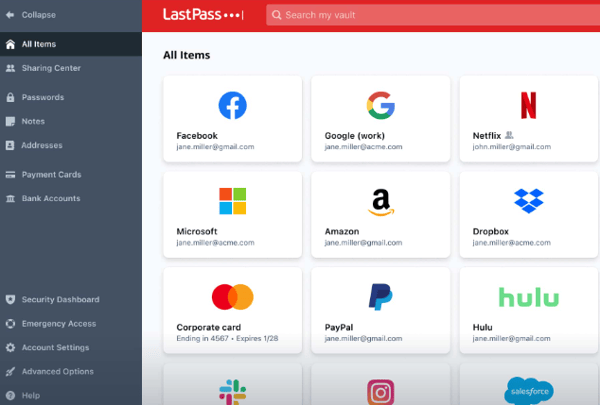
LastPass’s autofill and browser extension may occasionally require a bit of manual intervention, such as re-clicking to fill credentials or refreshing the extension. While this can slightly slow down workflows in certain moments, users generally find that the feature still delivers strong day-to-day convenience and significantly reduces manual login effort overall.
Some G2 reviews note that security-related steps like reauthentication or session timeouts can feel a bit frequent, particularly when moving between devices. That said, these safeguards are designed to protect sensitive data, and many users view them as a reasonable trade-off for maintaining a high level of account security.
Note: While LastPass uses encryption and a zero-knowledge architecture, in the 2022 security incident, encrypted vault data was accessed during a breach, but the passwords weren’t directly compromised.
Overall, LastPass continues to deliver a strong balance of security, convenience, and accessibility, making it a reliable choice for managing passwords at scale.
What I like about LastPass:
- LastPass generates strong, unique passwords automatically, which eliminates the temptation to reuse passwords across different sites.
- The sync feature across all devices is incredibly convenient, allowing users to access their credentials from anywhere.
What G2 users like about LastPass:
"The most useful feature for remote teams is the password-sharing functionality. Within each shared folder, access to individual URLs can be restricted for specific users, which is also very convenient. The platform is easy to set up and manage, and updates can be distributed effortlessly through the ‘Update My Vault’ function, allowing each user to sync independently if needed."
- LastPass Review, Carlotta B.
What I dislike about LastPass:
- Autofill and browser extensions may occasionally need manual intervention, such as re-clicking or refreshing; while this can momentarily slow workflows, it still provides strong day-to-day convenience and reduces manual login effort overall.
- Frequent reauthentication or session timeouts can occur, especially across devices; however, these safeguards support stronger security and are often seen as a reasonable trade-off for protecting sensitive data.
What G2 users dislike about LastPass:
"You have to remember the Master Password to do some things, and every now and then, I need to relink my personal account. It would be better if I could do that less often."
- LastPass Review, Sean M.
2. 1Password: Best for breach detection and seamless team onboarding
1Password is a password manager designed to help individuals and teams securely store, organize, and access passwords, passkeys, and other sensitive information from one place. According to G2 Data, it is used by 57% small buisnesses and 32% mid-market teams.
The passkeys feature supports modern authentication standards like FIDO2 and WebAuthn. This feature lets users sign in to compatible websites and apps using cryptographic keys instead of traditional passwords. It’s a faster and more secure alternative that eliminates the risks of identity theft and phishing attacks.
Another feature reviewers mention is the watchtower, which continuously monitors saved passwords for potential security risks. It integrates with data breach databases and sends alerts when any of the passwords are compromised in a known breach. Additionally, Watchtower identifies weak, reused, or duplicate passwords, encouraging users to update them with stronger, unique alternatives.
I also appreciate the secret security keys, which provide an additional layer of encryption. When combined with the master password, the secret key ensures that data is encrypted locally before being sent to 1Password’s servers. Even if an attacker were to somehow gain access to the servers, they would not be able to decrypt the vault without both the master password and secret key.
1Password’s secure sharing and vault-based organization is a major advantage for teams. Shared vaults, role-based access, and granular permissions make it easier to distribute credentials safely without relying on insecure channels like email or chat. This structure also helps teams stay organized, ensuring the right people have access to the right credentials while maintaining tighter control over sensitive information.
Users call out how well 1Password works across desktops, mobile devices, browsers, and operating systems. The browser extensions and autofill tools are often described as smooth and reliable, helping users log in quickly without interrupting their workflow. This broad compatibility makes 1Password especially useful for people who switch between devices throughout the day.
1Password's bug bounty program encourages security researchers worldwide to identify and report vulnerabilities. This allows the team to address potential cyber threats quickly, often before they can be exploited. The rigorous testing from external experts ensures that any weaknesses are swiftly addressed.

1Password’s pricing may feel higher compared to other password managers, particularly for individuals or smaller teams, and the lack of a free tier can be a consideration for those exploring long-term use. It does provide a free-trial, and users also acknowledge that the pricing aligns with its strong security model, reliability, and feature depth, making it a worthwhile investment for teams prioritizing security and ease of use.
This password manager's interface and feature set can take some time to get familiar with, especially for new users navigating vaults, sharing settings, or advanced options. That said, once users become accustomed to the layout, many find it highly organized and efficient, supporting both simple and more advanced password management needs effectively.
Overall, 1Password delivers a dependable and well-supported experience. With its thoughtful feature set and consistent performance, it continues to stand out as a reliable long-term solution for secure access management.
What I like about 1Password:
- 1Password's passkeys feature for modern authentication enables sign in using cryptographic keys instead of traditional passwords, which is much faster and more secure. This minimizes the risk of password theft and phishing attacks.
- The Watchtower feature constantly monitors passwords for potential risks, notifying if any passwords are compromised or need to be updated, helping maintain strong, unique credentials.
What G2 users like about 1Password:
"The folder structure is really well thought out, organizing credentials into vaults is super easy, and everything stays neat. What I like most is how secure everything feels; the encryption is solid, and I never have to worry about my data being exposed. The permissions system is also great; you can control exactly who has access to what, which is really helpful when sharing credentials with team members. Overall, it just makes managing passwords feel simple and safe nd also its Chrome extension is very good."
- 1Password Review, Eashan M.
What I dislike about 1Password:
- Pricing may feel higher, especially for individuals or small teams. However, many find the cost justified by its strong security, reliability, and feature depth.
- The interface and feature set can take time to learn, particularly for new users navigating vaults and settings. Once familiar, it becomes highly organized and efficient for both basic and advanced use cases.
What G2 users dislike about 1Password:
"Sometimes the interface can feel a bit overwhelming, especially for new users. There are also occasional small delays with autofill or syncing across devices. Additionally, pricing may be a bit high for smaller teams compared to some alternatives."
- 1Password Review, Oleh M.
3. NordPass Business: Best for user-friendly design with zero-knowledge security
NordPass Business helps teams securely store, manage, and share credentials from a centralized platform. According to G2 Data, it is used by 73% small businesses and 26% mid-market teams.
Setting up NordPass Business is quick and efficient. The setup process and onboarding process is simple. The configuration options are easy to navigate, ensuring a smooth implementation across organizations. This makes it one of the best password managers for small businesses that want both security and fast deployment.
One feature that I found invaluable was the ability to centrally deploy the browser extension through Group Policy Object (GPO) policies. This feature supports all major browsers, so I knew every user would have immediate access to NordPass once they received their invitation email.
I also really appreciate the secure password-sharing feature. Instead of sharing credentials through insecure channels like email or messaging apps, users can securely share passwords with colleagues. This feature ensures that sensitive information stays protected, and it’s been a game-changer in terms of both convenience and security.
Another standout feature is NordPass Business’s password health and breach monitoring tools. Reviewers frequently highlight features like the password health dashboard and data breach scanner, which proactively identify weak, reused, or compromised credentials. These insights help teams maintain strong password hygiene and stay ahead of potential security risks without requiring constant manual oversight.
NordPass Business provides a seamless cross-platform compatibility and reliable autofill experience. It works consistently across browsers, desktops, and mobile devices, allowing users to access and autofill credentials instantly no matter where they are working. This flexibility helps teams stay productive while maintaining secure access across multiple tools and environments.
Lastly, NordPass's access controls have been a huge asset for teams. reviewers mention that they can easily manage who has access to what within the platform, making it much easier to implement strict security protocols across different teams. With role-based access controls (RBAC), admins can define who can view or share passwords, ensuring that only authorized individuals can access critical data.
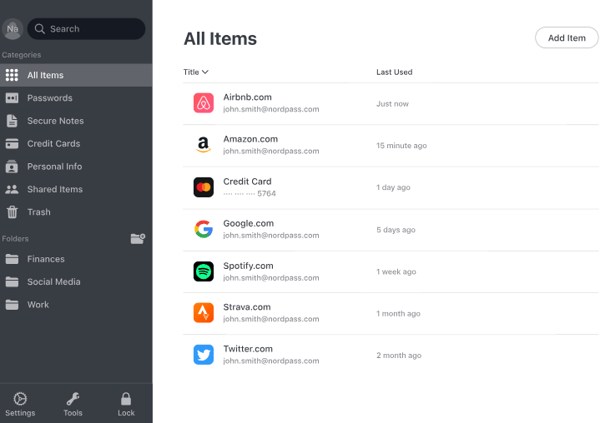
NordPass Business’s autofill and browser extension can occasionally behave inconsistently, with users noting instances where autofill doesn’t trigger as expected, appears in non-login fields, or requires a refresh or reinstall to function smoothly. While these moments can interrupt workflows, they tend to be occasional, and many users still find the feature highly valuable for saving time and simplifying daily logins once it’s working as intended.
Sharing options and vault organization has room for improvement for more complex team structures, particularly when it comes to granular permissions, subfolder support, or bulk-sharing capabilities. The existing sharing and access control features still meet the needs of most teams, and many users appreciate the simplicity and security they provide for everyday collaboration.
Overall, NordPass Business delivers simplicity, security, and team-friendly features, making it a practical choice for organizations of all sizes. With its ease of use and continuous improvements, it remains a reliable solution for managing and protecting shared credentials.
What I like about NordPass Business:
- The simple setup process and easy-to-navigate configuration options makes onboarding all users a breeze.
- The secure password-sharing feature means that users can safely share credentials with colleagues, ensuring sensitive information remains protected.
What G2 users like about NordPass Business:
"NordPass Business gives remarkable security support, from MFA to encryption, and this adds protection layers beyond passwords. The program has a secure admin panel that allows users to share credentials and demonstrate activity logs. NordPass has a satisfactory password generator, something that brings a unique and hard-to-guess password. The operational capabilities of this app are experienced across all platforms, including Linux, MacOS, Android, among others."
- NordPass Business Review, Samantha L.
What I dislike about NordPass Business:
- Autofill and browser extension can occasionally be inconsistent, with instances of missed autofill, intrusive prompts, or needing a refresh; however, these are typically occasional, and the feature still saves significant time in daily use.
- Sharing options and vault organization may feel limited for complex teams, especially around granular permissions, subfolders, and bulk sharing; however, they remain simple, secure, and effective for most everyday collaboration needs.
What G2 users dislike about NordPass Business:
"Well, sometimes the browser extension disconnects and asks for the master password too frequently, which delays certain processes. If someone loses the master password, the recovery process can be tedious. There are no custom folders, and I would like to have a few more options in this regard."
- NordPass Business Review, Angel B.
4. Bitwarden: Best for open-source transparency and strong encryption
Bitwarden helps individuals and teams simplify how they handle credentials across their digital workflows. With a focus on practicality and flexibility, it fits seamlessly into everyday use without adding unnecessary complexity. According to G2 Data, it is used by 58% small businesses and 29% mid-market teams.
As an open-source tool, Bitwarden provides the highest confidence level by allowing complete transparency in its code. The fact that Bitwarden publishes all of its code online means that it undergoes constant scrutiny by thousands of security enthusiasts and independent third-party auditors. This is a huge plus for me, as it means I can rest assured that the tool has been rigorously vetted for security vulnerabilities.
Bitwarden has a flexible deployment model, including both cloud-hosted and self-hosted options. Reviewers frequently mention that this gives teams and individual users more control over how and where their sensitive data is stored. For organizations with stricter security or compliance requirements, the ability to self-host Bitwarden adds an extra layer of confidence while still preserving the usability of a modern password manager.
With zero-knowledge and end-to-end encryption, not even Bitwarden itself can view or access sensitive information, which makes users feel incredibly secure. The peace of mind knowing that passwords and personal data are safe from unauthorized access is invaluable.
Another standout feature of Bitwarden is its compliance with major security standards, such as GDPR, SOC 2, HIPAA, Data Privacy Framework (DPF), and CCPA. One reason it's often considered a best-rated app to manage business passwords is its ability to publish code for open-source review and maintain full transparency.
Bitwarden also conducts regular third-party security audits, which ensure that any potential vulnerabilities are quickly identified and fixed. All the more reason for users to trust Bitwarden as the ultimate tool to protect online data.
One of the most useful features has been the ability to run private vault reports to identify weak or exposed passwords, enabling swift action to strengthen security measures. The solid password recovery options are also worth mentioning. The emergency contact feature is especially helpful when one need access to the vault in an urgent situation, giving the flexibility to recover data securely.
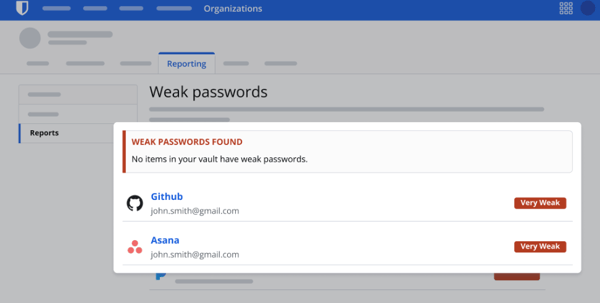
Based on G2 reviews, Bitwarden’s interface can feel a bit basic and less polished compared to some competitors, particularly when managing larger vaults or navigating across different devices. That said, many users appreciate its straightforward design and consistency, noting that it prioritizes functionality and reliability over visual complexity, which works well for teams focused on efficiency.
Getting started with Bitwarden and understanding features like collections, vaults, and sharing can take a little time, especially for non-technical users. However, once users become familiar with the structure, the platform offers strong flexibility and control, supporting both simple password management and more advanced organizational use cases effectively.
Overall, Bitwarden stands out for delivering reliable performance and flexibility without unnecessary complexity. Its balance of practicality and security makes it a solid choice for teams looking for a straightforward, scalable password management solution.
What I like about Bitwarden:
- I appreciate Bitwarden's open-source nature. The transparency in its code, with constant scrutiny by security experts, ensures I can trust the tool for top-notch security without worrying about hidden vulnerabilities.
- The zero-knowledge and end-to-end encryption are key strengths. Knowing that only I can access my vault and that Bitwarden cannot view my sensitive data gives me complete peace of mind.
What G2 users like about Bitwarden:
"The flexibility. Our company is very complex in terms of cross-functional team members who sometimes work across different teams and have different needs throughout the organization, and this obviously affects the credentials they need to use. BW allows us to include a person in multiple groups, manage group permissions per collection, and add a credential to different collections."
- Bitwarden Review, Samuel M.
What I dislike about Bitwarden:
- The interface may feel basic or less polished, especially with larger vaults or across devices; however, its straightforward design prioritizes functionality and reliability, which many teams find efficient.
- Initial setup and concepts like collections and vaults can take time to learn, particularly for non-technical users; once familiar, the platform offers strong flexibility and control for both simple and advanced use cases.
What G2 users dislike about Bitwarden:
"The browser extension lags occasionally, but it doesn't happen all the time, but enough times that you notice it. A small thing, but it would be nice if the password entry box were highlighted/autofocused once you had entered a password using autofill, rather than you having to click back onto the box. Another small frustration, but there is clutter in the interface when dealing with larger vaults, and scrolling through hundreds of entries isn't enjoyable."
- Bitwarden Review, Sean H.
A strong password manager keeps your logins safe, but what about your devices? Managing security across multiple endpoints is just as crucial. Check out the best MDM solutions reviewed by my team for secure device management.
5. Dashlane Password Manager: Best for dark web monitoring and intuitive interface
Dashlane Password Manager provides complete credential security, protecting businesses against the threat of human risk. According tp G2 Data, it is used by 64% small businesses and 32% mid-market teams.
One of the things I value most about Dashlane is its seamless integration with browsers, making it one of the best user-friendly password manager software for desktops. It installs directly without requiring administrative rights, which makes setup straightforward and hassle-free. This ensures that users don’t have to worry about complex installation processes or administrative permissions, and can get started right away. The integration works with all major browsers, automatically detecting login fields and prompting me to save or fill in credentials.
Another highlight is the one master password feature. It provides a simple yet powerful solution for managing all logins. By using a single password to access everything, users no longer have to remember a multitude of complex credentials. This is incredibly convenient, especially when dealing with dozens of accounts across different sites.
The built-in automatic password generator is a lifesaver. To create a new password or update an old one, Dashlane automatically generates a strong, unique password. The generator takes care of the complexity, combining random letters, numbers, and symbols, ensuring that the passwords are robust and secure.
What I appreciate even more is the fact that I can save login details for 14 days. This allows access to passwords for up to two weeks without having to re-enter the master password. It’s particularly useful for accessing multiple accounts over a short period, as it saves the time and hassle of entering the master password repeatedly.
The standout feature is Dashlane’s built-in dark web monitoring and password health insights. Reviewers frequently highlight how the platform actively scans for compromised credentials and provides actionable recommendations to improve password strength. This proactive approach helps users and teams stay ahead of potential security risks without needing to manually monitor for breaches.
Another commonly praised benefit is the inclusion of additional security tools like a built-in VPN and integrated 2FA support. These features extend Dashlane beyond a traditional password manager, offering users a more comprehensive security solution. Having VPN protection and authentication tools in one platform reduces the need for multiple apps while enhancing overall online safety.
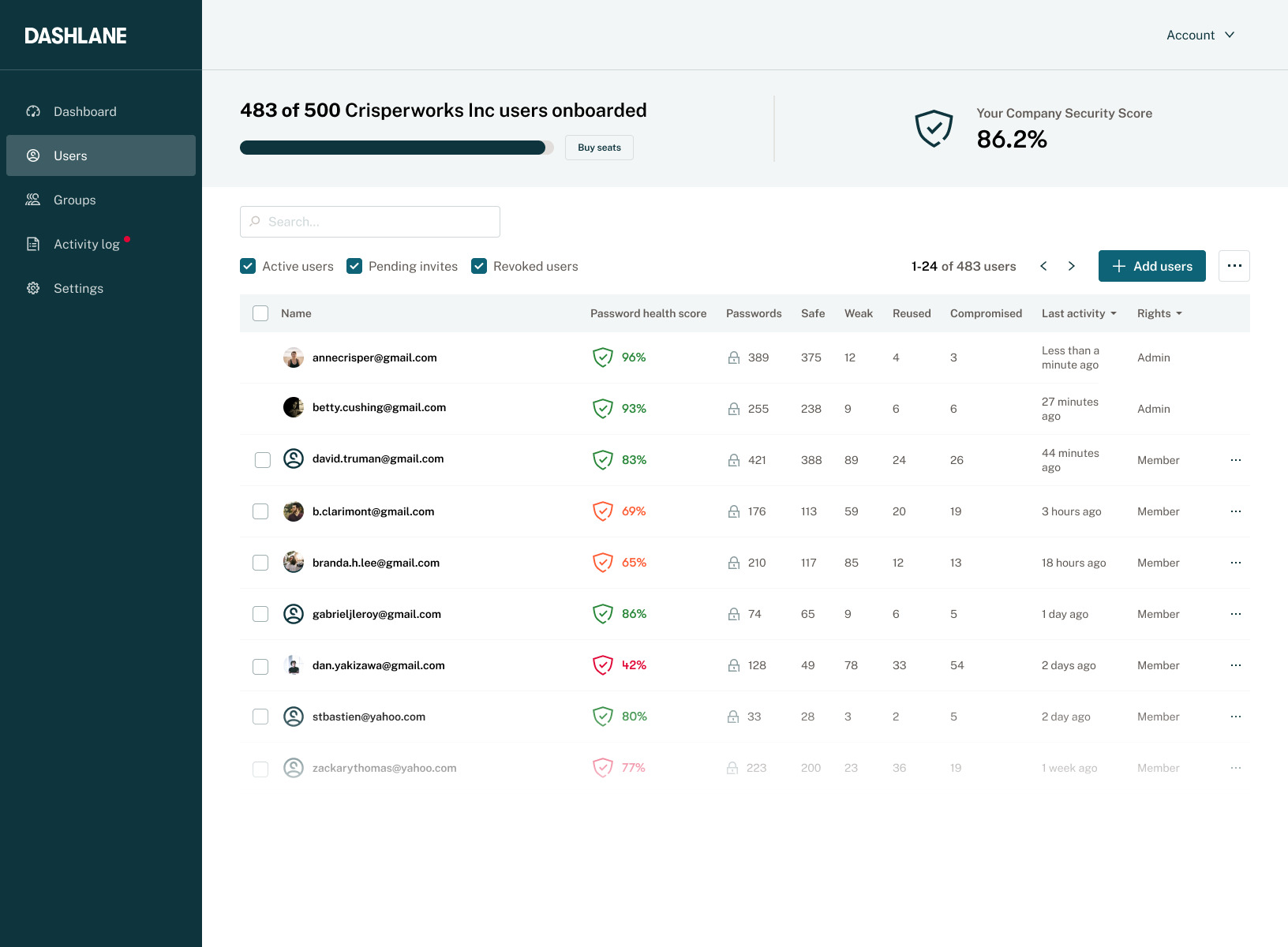
Based on G2 reviews, Dashlane’s autofill and browser prompts can occasionally be more proactive than expected, sometimes appearing in non-login fields or selecting from multiple saved credentials. While this may require a quick adjustment in certain cases, the feature remains a major time-saver and is widely valued for simplifying everyday logins.
The mobile experience, particularly autofill on Android and iOS, may not always feel as seamless as on desktop. That said, the app still handles core password management reliably, and users continue to benefit from consistent access across devices.
Overall, Dashlane offers a well-rounded password management experience, combining strong security with ease of use and a rich feature set. Its balance of convenience and protection makes it a dependable choice for teams looking to streamline access while maintaining high security standards.
What I like about Dashlane Password Manager:
- I love Dashlane’s seamless integration with browsers. It installs effortlessly without needing administrative rights and works across all major browsers. It automatically detects login fields and makes it easy for to save or fill in credentials.
- The one master password feature is a game-changer as users need to remember one password to access all accounts, which simplifies managing dozens of logins and makes online life more convenient.
What G2 users like about Dashlane Password Manager:
"As an admin, it is easy to manage my users, billing, etc. As a user, it's the only password manager I'll use. I use it on my PC, phone, and tablet. It does a great job and is easy to use, even for my most tech-phobic users."
- Dashlane Password Manager Review, Kevin R.
What I dislike about Dashlane Password Manager:
- Autofill and browser prompts can sometimes be more proactive than expected, occasionally appearing in non-login fields or selecting from multiple credentials; however, they remain a major time-saver for everyday logins.
- Mobile autofill on Android and iOS may not feel as seamless as desktop, but the app still supports reliable password management and consistent cross-device access.
What G2 users dislike about Dashlane Password Manager:
"At times, the autofill for fields can be a bit aggressive, and Chrome on Android doesn't work well with it."
- Dashlane Password Manager Review, Steve S.
6. Keeper Password Manager: Best for zero-trust architecture and detailed auditing
Keeper Password Manager is a cybersecurity platform with zero-trust and zero-knowledge privileged access management solution. According to G2 Data, it is used by 42% small businesses, 42% mid-market teams, and 16% enterpises.
The password manager offers great control over data residency, making it one of the most secure password apps for companies that need strict compliance and zero-trust security. This is especially valuable for businesses, as it helps ensure GDPR (General Data Protection Regulation) compliance.
The multi-tiered encryption that Keeper uses ensures that passwords, sensitive files, and recovery documents are securely stored. It’s not just about encryption, though—Keeper also includes BreachWatch, which actively scans for data breaches and notifies if any credentials are compromised. Additionally, the security audit tools that come with Keeper help identify weak passwords or potential vulnerabilities, adding an extra layer of protection to my accounts.
The password generation and sharing features in Keeper are incredibly useful. It can generate complex, random passwords on the fly and store them securely alongside sensitive recovery files. What I appreciate most is the ability to share passwords with an expiration date, which is perfect to give someone temporary access to an account.
One of the standout features for me is Keeper’s self-destruct feature. If someone tries to break into an account and fails five consecutive login attempts, all of the stored files are automatically destroyed. It’s a drastic but reassuring measure that ensures that sensitive data can’t be accessed by the wrong person.
I also really value the detailed activity logs that track every access and change to shared credentials, which helps me keep an eye on who’s using my information.
The encrypted cloud storage feature is a big plus. Being able to store documents and other sensitive files with the same encryption used for passwords is incredibly convenient and adds even more value to Keeper as a secure storage solution.
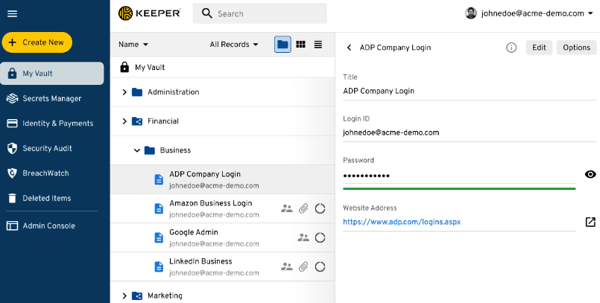
Keeper’s onboarding and setup can take some time to get familiar with, particularly when configuring advanced features like SSO, roles, and permissions. While this may require a bit of initial guidance, especially for non-technical users, many teams find that the platform’s flexibility and depth of control become valuable once everything is properly configured.
Some G2 users note that Keeper may occasionally experience minor inconsistencies, such as delays in syncing, extension behavior, or saving updates in certain scenarios. However, these instances tend to be infrequent, and the platform is regularly updated, with most users continuing to find it reliable for day-to-day password management.
Overall, Keeper remains a strong option for teams and individuals who want a security-focused tool with essential management features.
What I like about Keeper Password Manager:
- Having control over data residency is a huge advantage as one can choose between hosting my data in the US or Europe, ensuring compliance with regulations like GDPR.
- The multi-tiered encryption, BreachWatch monitoring, and security audit tools actively safeguard credentials, helping detect weak passwords and potential breaches before they become a problem.
What G2 users like about Keeper Password Manager:
"It is easy to pick up and deploy company-wide. The user interface is good enough, and it is easy to share the data with other employees and teams. There is a wide range of items you can save in the vault. Can also save payment card information. The security is quite high-level. The mobile and desktop apps work well. Chrome extension is very helpful for saving and using passwords in the browser. Admins can see how strong user passwords are and ask users to update them – that helps to monitor the security level for the whole company."
- Keeper Password Manager Review, Maris B.
What I dislike about Keeper Password Manager:
- Onboarding and setup can take time, especially for advanced features like SSO, roles, and permissions. However, once configured, teams benefit from strong flexibility and control.
- Occasional minor inconsistencies may occur, such as sync delays or extension behavior. But these are infrequent, and the platform remains reliable for everyday use.
What G2 users dislike about Keeper Password Manager:
"Some advanced administrative features and policy settings can feel complex, particularly for organizations with diverse user groups and access models. Reporting and auditing capabilities could be more intuitive, especially for teams that need quick visibility without exporting data. Pricing is also on the higher end compared to similar solutions, which can be a consideration as usage scales for larger organizations like us."
- Keeper Password Manager Review, Satya G.
7. Rippling IT: Best for unifying HR, IT, and access management in one platform
Rippling IT approaches password management as part of a broader access and identity ecosystem, rather than a standalone tool. According to G2 Data, it is used by 34% small businesses and 64% mid-market teams.
One of Rippling IT’s biggest strengths is its all-in-one approach, bringing together HR, payroll, IT, device management, and password access in a single platform. Reviewers consistently highlight how convenient it is to manage employee data, app access, benefits, time off, and payroll without switching between multiple systems.
Another standout benefit is single sign-on and password management through RPass. Users frequently mention how helpful it is to access all their work apps from one dashboard without remembering dozens of passwords or waiting on IT for access. The built-in password vault, autofill, password sharing, and password generation features make day-to-day work faster and more secure.
Rippling IT excels at onboarding and offboarding automation. Reviewers note that new hires can receive devices, accounts, and app access quickly, often before day one, while offboarding workflows help remove access just as efficiently when someone leaves.
Users value the its device management and IT administration ability. It can monitor laptops and mobile devices, track inventory, push scripts and updates, lock or locate devices, and enforce security policies from one place. For lean IT teams or growing companies, this level of visibility and control makes it easier to maintain compliance and support employees without adding operational overhead.
Reviewers also praise Rippling IT for its ease of use and intuitive interface. Across the feedback, users repeatedly describe the platform as clean, modern, straightforward, and easy to navigate. Whether they are checking pay stubs, approving time off, launching apps, or managing passwords, employees are able to find what they need quickly.
Rippling IT stands out for its strong integrations and automation capabilities. Users mention smooth connections with tools like Google Workspace, Slack, Zoom, Salesforce, Monday, Homebase, and other business systems, allowing Rippling to act as a central hub for daily operations.
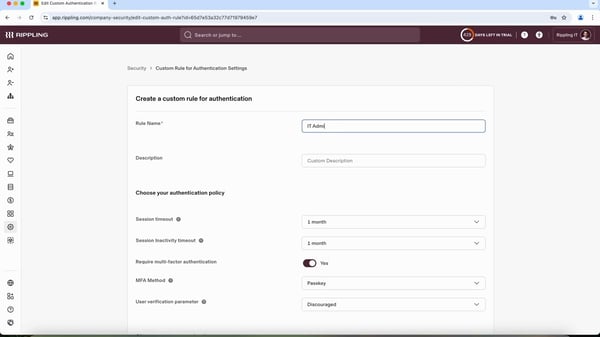
Certain Rippling IT modules can feel more developed than others, with some users noting that capabilities such as credential tracking, note or token sharing, mobile coverage, or region-specific functionality may not yet be as comprehensive as they would like. That said, many still find the platform highly valuable because it brings so many workflows into one system, and its breadth continues to make it a strong fit for teams that prioritize consolidation and operational efficiency.
Some G2 users mention that customer support and issue resolution can occasionally take longer than expected, particularly for more technical or time-sensitive questions. However, many also note that the platform is intuitive enough for day-to-day use, and that support remains a helpful resource as Rippling continues to expand and evolve its product.
Overall, Rippling IT stands out for bringing multiple critical workflows together into a single, unified platform. Its combination of automation, accessibility, and breadth makes it a compelling choice for teams looking to simplify operations without sacrificing control.
What I like about Rippling IT:
- Centralized access management with built-in password sharing (RPass) makes it easy for teams to securely store, access, and share credentials without relying on separate tools.
- Seamless integration with onboarding and SSO workflows ensures employees get instant access to the right apps and passwords, reducing manual IT effort and improving efficiency.
What G2 users like about Rippling IT:
"The best part is the Single Sign-On (SSO) and the automated app provisioning. When I started, all my accounts like Slack and Zoom were already set up. I love having one dashboard where I can launch all my work tools without needing to remember ten different passwords or wait for IT to grant me access manually."
-Rippling IT Review, Kamal A.
What I dislike about Rippling IT:
- Some modules may feel less comprehensive than others (e.g., credential tracking, sharing, mobile, or region-specific features); however, the platform’s breadth and consolidation still deliver strong overall value.
- Support response times can occasionally be slower for complex or time-sensitive issues. The platform remains intuitive for daily use, and support continues to be a helpful resource as the product evolves.
What G2 users dislike about Rippling IT:
"What I dislike about Rippling IT is that, at times, troubleshooting can lack transparency. When something fails or behaves unexpectedly, it’s not always clear what the root cause is without additional investigation. More detailed error messages and clearer logs would make issue resolution faster and more efficient."
- Rippling IT Review, Danilo J.
8. IT Glue: Best for centralized IT documentation with credential management
IT Glue is also a documentation platform built for It professionals. It enables teams to streamline operations, improve knowledge sharing, and maintain consistency across client environments. According to G2 Data, IT Glue is used by 70% small businesses and 27% mid-market teams.
One of the most consistently praised benefits of IT Glue is its centralized documentation system, which acts as a single source of truth for all client and organizational information. Users highlight how having passwords, standard operating procedures (SOPs), configurations, and contacts in one place significantly reduces time spent searching for information and improves overall operational efficiency.
IT Glue provides strong integration capabilities with other IT tools, particularly professional services automation software (PSA) and remote monitoring & management (RMM) platforms like Datto and ConnectWise. These integrations help streamline workflows, reduce duplication, and ensure that data stays synchronized across systems, making IT Glue especially valuable for managed service providers (MSPs).
IT Glue stands out for its ability to link related information across assets, documents, and credentials. This interconnected structure allows users to quickly navigate between relevant data points, making troubleshooting, onboarding, and knowledge transfer much more efficient and organized.
Users frequently highlight the ease of use and intuitive interface, noting that even non-technical team members can adopt the platform quickly. The straightforward design, combined with simple document creation and editing, helps teams maintain consistent documentation without requiring extensive training.
Another key strength is secure password management and sharing, which enables teams to store credentials safely and grant role-based access without exposing sensitive information. This is particularly useful for organizations that need to collaborate across teams while maintaining strict security controls.
IT Glue is valued for its flexibility and customization options, especially through features like templates and flexible asset structures. These capabilities allow organizations to tailor the platform to their specific documentation needs, ensuring scalability as teams grow and processes evolve.
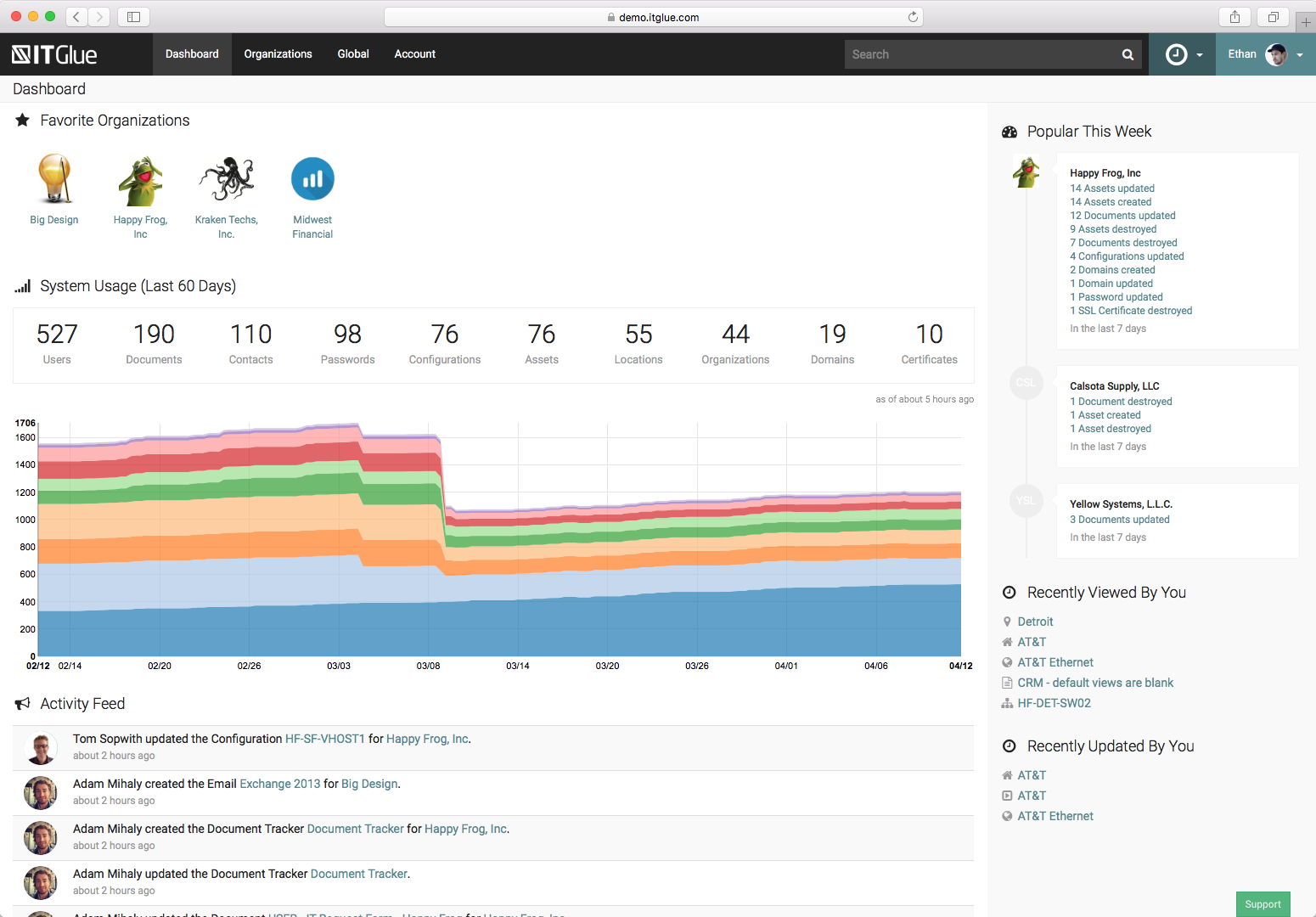
Based on G2 reviews, IT Glue’s mobile app may not always offer the same level of functionality and responsiveness as the desktop experience, with some users noting limitations around viewing or creating documents and occasional reauthentication. However, it still provides convenient on-the-go access to essential information, and many teams continue to rely on it for quick lookups outside the office.
Organizing documentation can require careful planning, especially for teams managing multiple clients or complex structures, as features like subfolders or hierarchical organization are somewhat limited. That said, once a clear structure is established, many teams find the platform effective for maintaining consistency and keeping information well-organized over time.
Overall, I think IT Glue offers a reliable experience for password and documentation management, particularly for teams that want structured control over access and data.
What I like about IT Glue:
- The setup was straightforward, and the platform’s well-structured design allow implementation without encountering any major issues.
- The audit trail functionality gives complete visibility into system activities. It’s highly detailed and easy to filter, making it effortless to track changes and maintain accountability.
What G2 users like about IT Glue:
"I like that IT Glue centralizes documentation and makes it easy to find and reference information. I also appreciate the amount and type of information we can store and track, along with the documentation for SOPs. It's easy to create and edit documentation and see the change history for the documents. The initial setup was fairly simple with the onboarding service."
- IT Glue Review, David L.
What I dislike about IT Glue:
- The mobile app may not fully match desktop functionality or responsiveness, with some limits in viewing/creating documents and occasional reauthentication; however, it still supports convenient on-the-go access for quick lookups.
- Documentation organization requires upfront planning, especially for complex or multi-client setups, as subfolder and hierarchy options are limited. Once structured well, it remains effective for maintaining consistency.
What G2 users dislike about IT Glue:
"The phone application 'IT Glue' could use some revamping. If I close the phone application for more than a day, I am forced to reauthenticate each time the app opens. It would be 10x better if the app utilized face recognition after the initial login."
- IT Glue Review, Dalton S.
Comparison of the best password managers
If you feel overwhelmed by the wealth of information about the best password managers and keep wondering which password manager has the best reviews, this comparison table will help you with the most important aspects.
|
Software
|
G2 Rating
|
Standout feature
|
Free trial/plan
|
Ideal for
|
| LastPass |
4.5/5 |
Granular admin policy controls |
Free trial |
Individuals or small teams that want a user-friendly, secure option. |
| 1Password |
4.6/5 |
Breach monitoring with domain-wide Watchtower alerts |
Free trial |
Families or small businesses that value ease of use and secure sharing. |
| NordPass Business |
4.5/5 |
Zero-knowledge architecture with biometric access |
Free trial |
Medium to large businesses focused on SSO and advanced security audits. |
| Bitwarden |
4.7/5 |
Open-source end-to-end encryption |
Free plan |
Privacy-conscious individuals or teams that need an open-source and self-hosting. |
| Dashlane Password Manager |
4.5/5 |
Dark web monitoring and actionable security scores |
Free plan |
Individuals or businesses that want identity theft protection and a VPN. |
| Keeper Password Manager |
4.6/5 |
Zero-trust framework with advanced auditing |
Free trial |
Enterprises requiring breach monitoring and zero-knowledge encryption. |
| Rippling IT |
4.7/5 |
Automated password provisioning with role-based access and SSO integration |
Free trial |
Growing IT teams managing passwords and access in one platform, |
| IT Glue |
4.7/5 |
IT documentation and credential management in one |
None |
IT professionals managing infrastructure documentation and passwords. |
Password managers: Frequently asked questions (FAQs)
Got more questions? G2 has the answers
1. Which password manager is best for business security?
For robust business security, Bitwarden and 1Password are standout options. Bitwarden offers open-source transparency and end-to-end encryption, while 1Password adds features like domain breach monitoring and customizable access controls for teams. Both are highly rated on G2 for security-conscious organizations.
2. What is the best password manager for small businesses?
NordPass Business and Keeper Password Manager work especially well for small teams. NordPass has a user-friendly interface and zero-knowledge architecture, while Keeper excels with advanced admin controls and secure file storage. Both scale well as businesses grow.
3. What is the best user-friendly password manager software for desktops?
Dashlane Password Manager stands out as one of the most user-friendly password manager software options for desktops. Its intuitive interface, automatic browser integration, and secure autofill features make it easy to manage passwords without steep learning curves.
4. What is the most secure password app for companies?
Keeper Password Manager is often ranked among the most secure password apps for companies due to its zero-trust security architecture, encrypted cloud storage, and advanced auditing capabilities. Its BreachWatch feature further enhances real-time monitoring of compromised credentials.
5. What is the best-rated app to manage business passwords?
The best choice depends on your needs. You can choose Bitwarden for value and transparency, Keeper for enterprise control, and NordPass for ease of use and security balance.
6. What's the best software for managing team passwords?
LastPass Business and 1Password are strong choices for managing team passwords securely. They offer features like shared vaults, role-based access, and admin controls for safe collaboration.
7. What are some leading password management solutions for office use?
Bitwarden, 1Password, and Keeper are among the leading choices, offering strong security, team access controls, and scalability for office environments.
8. Which is the best free password manager?
One popular free password manager is LastPass, which provides robust features for personal use, including secure password storage and autofill. Explore other free password managers.
9. Which password manager has the best reviews?
LastPass consistently receives high reviews for its user-friendly interface and secure password storage on the Password Managers category page on G2.
10. What is the top-rated enterprise password manager app?
Several enterprise-grade apps rank highly on G2, including Keeper Password Manager, 1Password, and IT Glue. These tools stand out for their advanced security features, administrative controls, and compliance support, making them strong choices for enterprise teams that require strict data protection.
If only my password were 'I forgot my password.'
As I reflect on my experience, it’s clear that choosing the right password manager is less about picking the "best" tool and more about finding the one that fits your needs. After all, it’s not just about securing passwords; it’s about reducing the stress and chaos of keeping track of them all. Because, let’s be real, I’d much rather spend my time binge-watching the latest series than trying to recall if I used my pet’s name or my favorite superhero’s sidekick for my Netflix password.
Enhance your security by pairing your password manager with an identity and access management (IAM) tool.
.png?width=400&height=150&name=Untitled%20design%20(56).png)

.png)
/DarshayitaThakur-OrangeBG.webp)
.png)